Chapter 2: Data and Expressions 22
Base Conversion
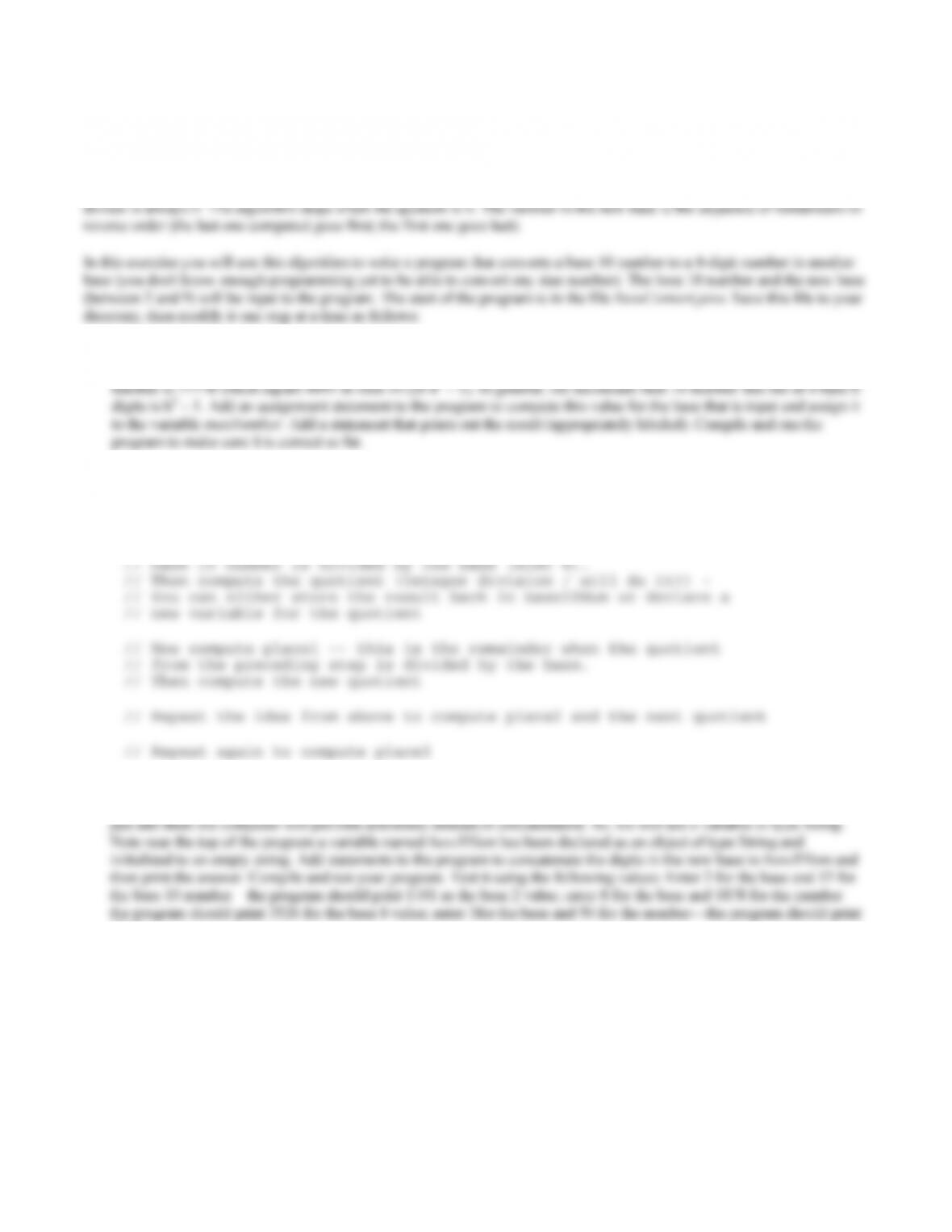
One algorithm for converting a base 10 number to another base b involves repeatedly dividing by b. Each time a division is
performed the remainder and quotient are saved. At each step, the dividend is the quotient from the preceding step; the
1. The program will only work correctly for base 10 numbers that fit in 4 digits in the new base. We know that in base 2 the
maximum unsigned integer that will fit in 4 bits is 11112 which equals 15 in base 10 (or 24 – 1). In base 8, the maximum
2. Now add the code to do the conversion. The comments below guide you through the calculations—replace them with the
appropriate Java statements.
// First compute place0 — the units place. Remember this comes
// from the first division so it is the remainder when the
3. So far the program does not print out the answer. Recall that the answer is the sequence of remainders written in reverse
order— note that this requires concatenating the four digits that have been computed. Since they are each integers, if we
1212.
Chapter 2: Data and Expressions 23
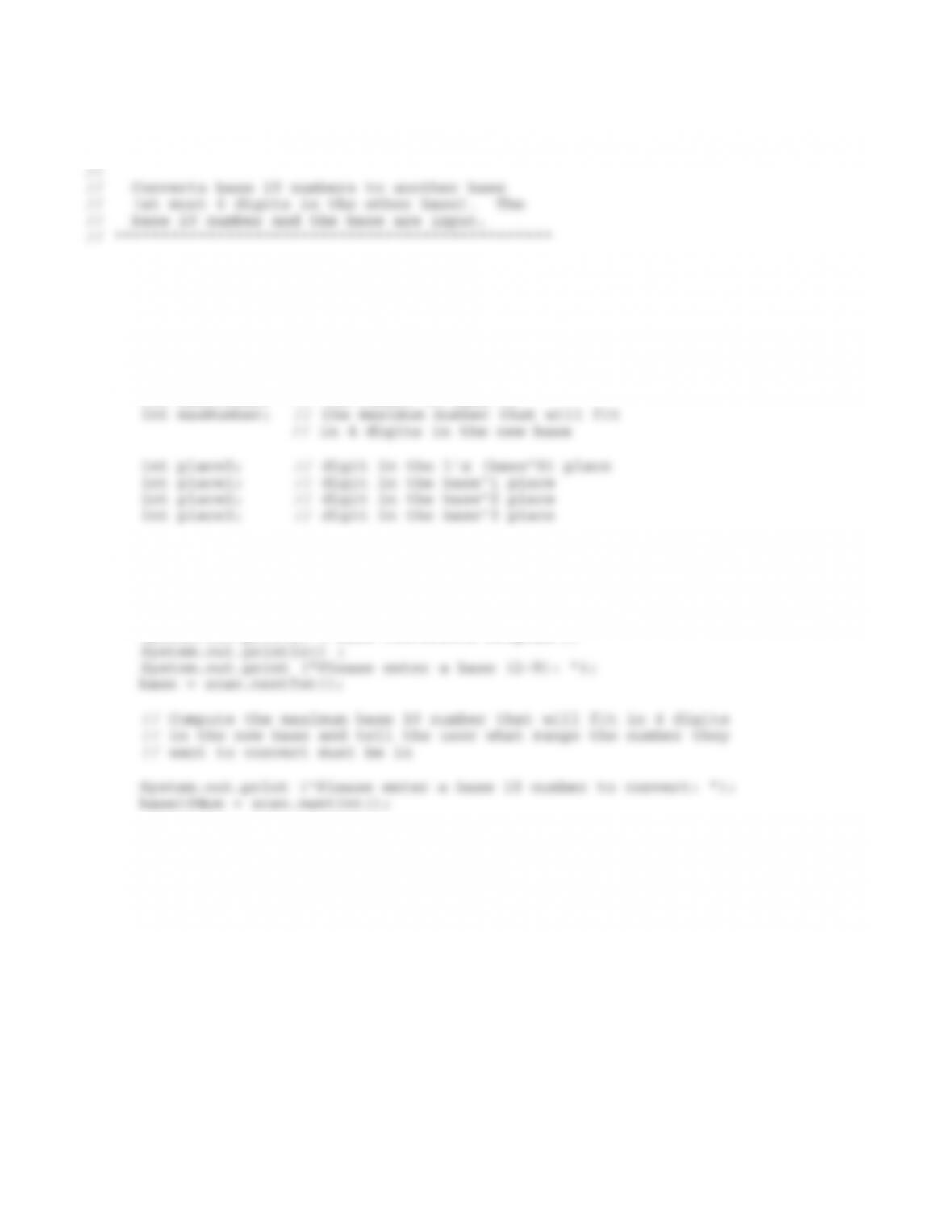
// ***********************************************
// BaseConvert.java
import java.util.Scanner;
public class BaseConvert
{
public static void main (String[] args)
{
int base; // the new base
int base10Num; // the number in base 10
String baseBNum = new String (“”); // the number in the new base
Scanner scan = new Scanner(System.in);
// read in the base 10 number and the base
System.out.println();
System.out.println (“Base Conversion Program”);
// Do the conversion (see notes in lab)
// Print the result (see notes in lab)
}
}
Chapter 2: Data and Expressions 24
Introduction to HTML
HTML is the HyperText Markup Language. It is used to describe how text, images, and multimedia are displayed by Web
browsers. In this lab you will learn a little about HTML so that you can create a web page containing headings, interesting
fonts, lists, and links as well as applets.
HTML uses tags to describe the layout of a document; the browser then uses these tags to figure out how to display the
document. Tags are enclosed in angle brackets. For example, <title> is a tag that indicates that this section contains the title
of the document. Many tags, including <title>, have corresponding end tags that indicate where the section ends. The end
tags look just like the start tags except that they start with the character /, e.g., </title>. So the following text indicates that the
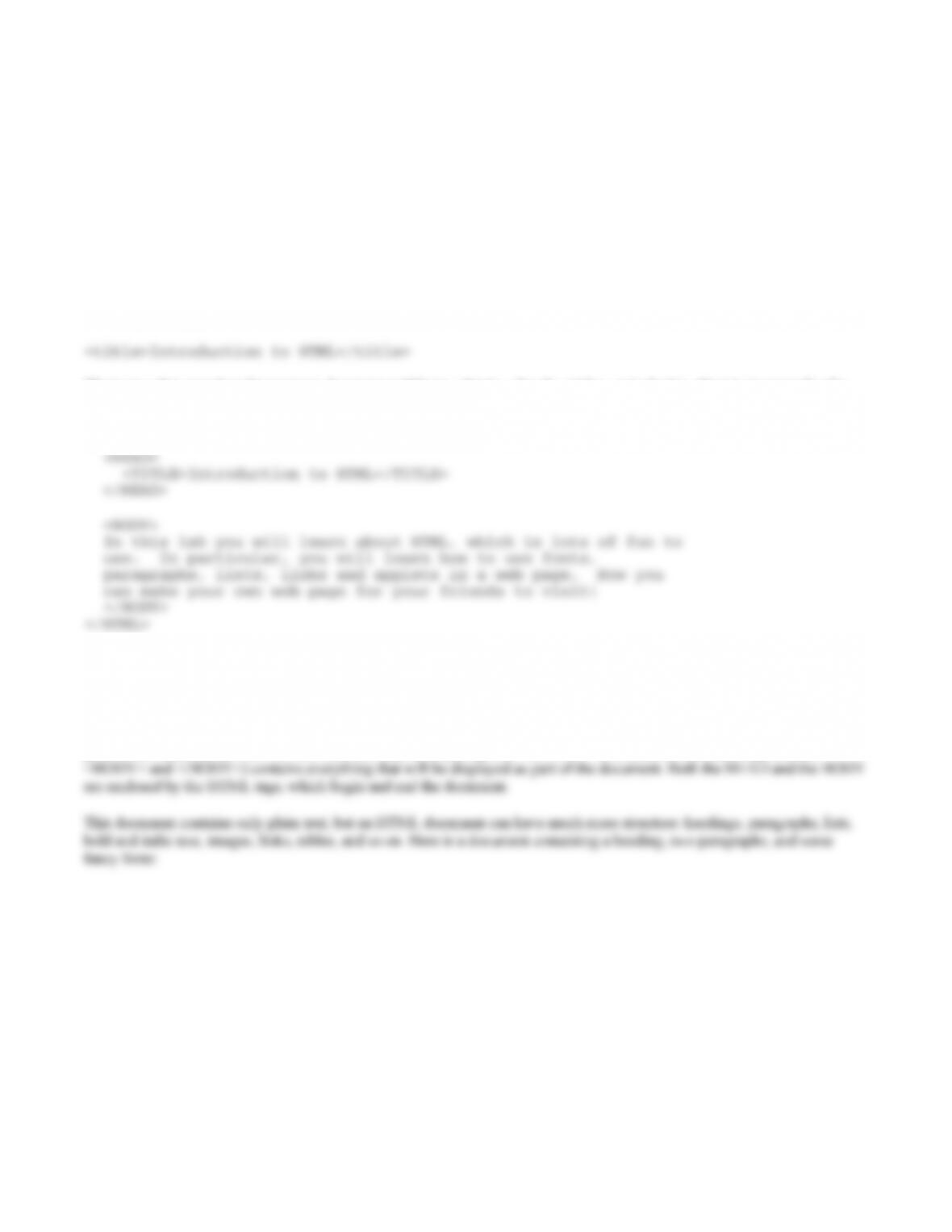
title of the document is Introduction to HTML:
There are a few tags that almost every document will have: <html>, <head>, <title>, and <body>. Here is an example of a
simple HTML document:
<HTML>
To see what this looks like, open the file in the web browser. Change the size of the browser window (click and drag any
corner) and see how the text is reformatted as the window changes. Note that the title appears on the window, not as part of
the document.
The HEAD of a document (everything between <HEAD> and </HEAD>) contains the introduction to the document. The title
goes in the head, but for now we won’t use the head for anything else. The BODY of a document (everything between
Chapter 2: Data and Expressions 25
<HTML>
<P>In this lab you will learn about <I>HTML</I>, which
is lots of fun
to use. In particular, you will learn how to use fonts,
paragraphs, lists, links, and colors in a web page. Now you
can make your <B>own</B> web page for your friends to visit!</P>
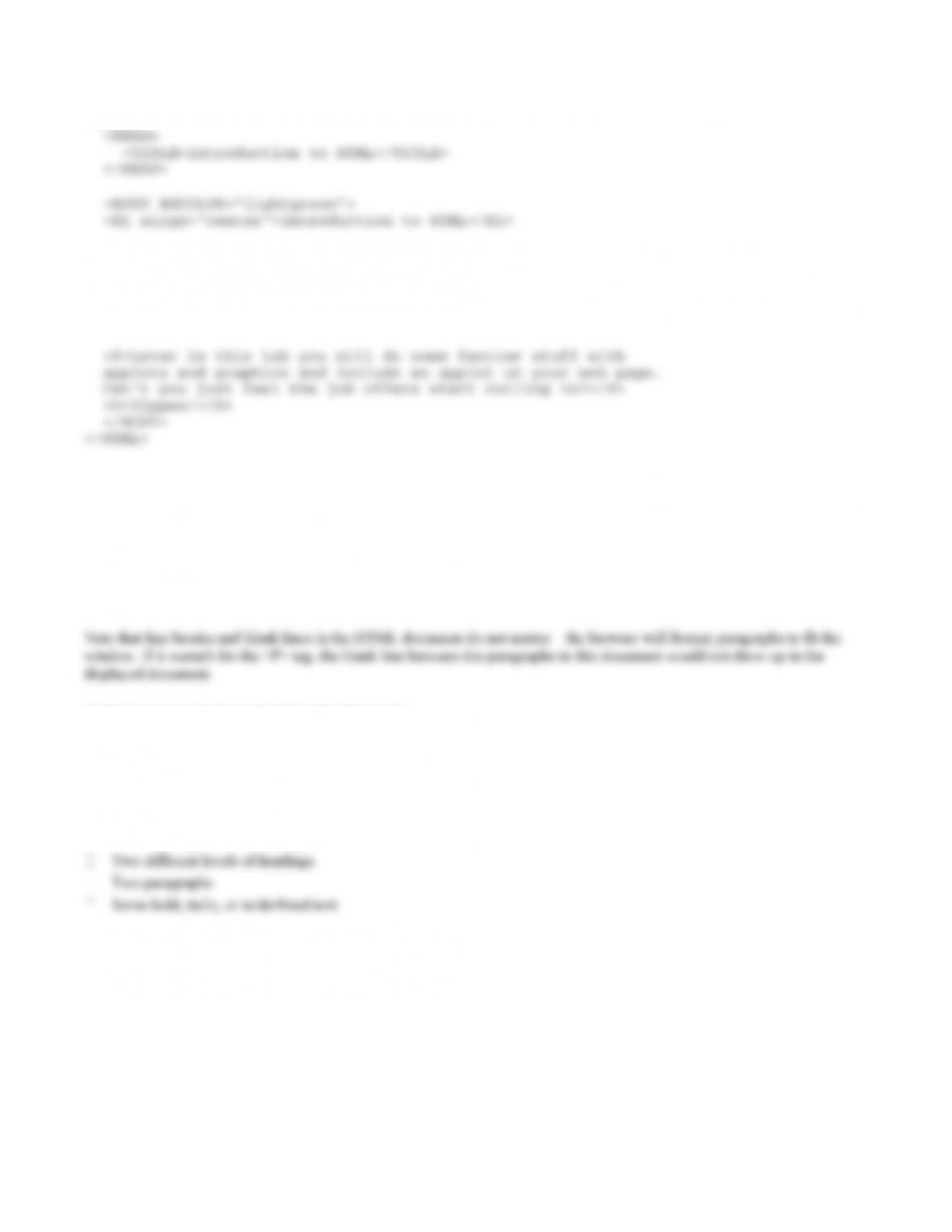
Run the HTML document to see what this looks like in the browser.
In this document the <H1> tag creates a level 1 heading. This is the biggest heading; it might be used at the beginning of the
document or the start of a new chapter. Level 2 through level 6 headings are also available with the <H2> through <H6> tags.
The <P> tag creates a new paragraph. Most browsers leave a blank line between paragraphs. The <B> tag creates bold text,
the <I> tag creates italic text, and the <U> tag creates underlined text. Note that each of these tags is closed with the
corresponding end tag. The BGCOLOR attribute on the BODY tag sets the background color.
———-———-———————-———————
Exercise #1: For a file to be visible on the Web, it must be where the web server knows how to find it. *** Instruct students
how to create and/or access the public html directory on the local system. ***
Open a new file called MyPage.html in a directory where it will be accessible from the web. Write a simple web page about
things that interest you. Your page should contain at least the following:
A title (using the <TITLE> tag)
Your name should appear somewhere in the document.
When you are done, view your document from the browser. Just type in the URL, don’t use File | Open Page.
———-———-———————-———————
Chapter 2: Data and Expressions 26
More HTML
Lists We often want to add a list to a document. HTML provides two kinds of lists, ordered (e.g., 1, 2, 3) and unordered
(e.g., bulleted). A list is introduced with the <OL> or <UL> tag, depending on whether it is ordered or unordered. Each list
Things I like:
<OL>
<LI>chocolate
<LI>rabbits
<LI>chocolate rabbits
</OL>
Things I like:
2. rabbits
———-———-———————-———————
Exercise #2: Add a list, either ordered or unordered, of at least three elements to your document.
———-———-———————-———————
Links Links connect one document to another. Links are created in HTML with the <A> (anchor) tag. When creating a link
you have to specify two things:
The URL of the document to go to when the link is clicked. This is given as the HREF attribute of the A element.
———-———-———————-———————
Exercise #3: Add at least one link that ties in to the material on your page.
———-———-———————-———————
Drawing Shapes
The following is a simple applet that draws a blue rectangle on a yellow background.
// ************************************************************
// Shapes.java
import javax.swing.JApplet;
import java.awt.*;
public class Shapes extends JApplet
{
public void paint (Graphics page)
{
// Declare variables
int x, y; // x and y coordinates of upper left-corner of each shape
int width, height; // width and height of each shape
// Set the background color
setBackground (Color.yellow);
}
}
Study the code, noting the following:
The program imports javax.swing.JApplet because this is an applet, and it imports java.awt.* because it uses graphics.
There is no main method—instead there is a paint method. The paint method is automatically invoked when an applet is
<html>
<applet code=”Shapes.class” width=600 height=400>
</applet>
</html>
1. Compile Shapes.java, but don’t run it—this is an applet, so it is run through a browser or a special program called the
Applet Viewer.
3. Now run the program through the Applet Viewer by typing the command
4. Now open the program in your text editor and change the x and y variables both to 0. Save and recompile the program,
then view it in the Applet Viewer (this is generally less trouble when making lots of changes than using the browser).
What happened to the rectangle?
5. Now change the width to 200 and the height to 300. Save, recompile and run to see how this affects the rectangle.
7. Modify the program so that it draws four rectangles in all, as follows:
8. One last touch to the program… Change the colors for at least three of the shapes so the background and each of the three
shapes are different colors (a list of colors is in Figure 2.10 of the text). Also change two of the fillRect methods to
fillOval so the final program draws two rectangles and two ovals. Be sure that the overlap rules are still met.
The Java Coordinate System
The Java coordinate system is discussed in Section 2.7 & 2.9 of the text. Under this system, the upper left-hand corner of the
window is the point (0,0). The X axis goes across the window, and the Y axis goes down the window. So the bigger the X
value, the farther a point is to the right. The bigger the Y value, the farther it is down. There are no negative X or Y values in
the Java coordinate system. Actually, you can use negative values, but since they’re off the screen they won’t show up!
1. Save files Coords.java and Coords.html to your directory. File Coords.java contains an applet that draws a rectangle
2. Modify the applet so that instead of 0,0 for the upper lefthand corner, you use the coordinates of the middle of the applet
window. This applet is set up to be 600 pixels wide and 400 pixels high, so you can figure out where the middle is. Save,
compile, and view your applet. Does the rectangle appear to be in the middle of the screen? Modify the coordinates so
3. Now add four more rectangles to the applet, one in each corner. Each rectangle should just touch one corner of the center
rectangle and should go exactly to the edges of the window.
// *************************************************************
// Coords.java
//
// Draw rectangles to illustrate the Java coordinate system
//
// *************************************************************
import javax.swing.JApplet;
import java.awt.*;
public class Coords extends JApplet
{
public void paint (Graphics page)
{
// Declare variables
int x, y; // x and y coordinates of upper left-corner of each shape
int width, height; // width and height of each shape
// Set the background color
setBackground (Color.yellow);

Chapter 2: Data and Expressions 30
}
Coords.html
<html>
<applet code=”Coords.class” width=600 height=400>
</applet>
</html>

Chapter 2: Data and Expressions 31
Drawing a Face
Write an applet that draws a smiling face. Give the face eyes with pupils, ears, a nose, and a mouth. Use at least three
different colors, and fill in some of the features. Name this file Face.java, and create a corresponding .html file. View your
applet using the applet viewer.
Chapter 2: Data and Expressions 32
Creating a Pie Chart
Write an applet that draws a pie chart showing the percentage of household income spent on various expenses. Use the
percentages below:
Rent and Utilities 35%
Transportation 15%
Each section of the pie should be in a different color, of course. Label each section of the pie with the category it
represents— the labels should appear outside the pie itself.
Colors in Java
The basic scheme for representing a picture in a computer is to break the picture down into small elements called pixels and
then represent the color of each pixel by a numeric code (this idea is discussed in section 1.6 of the text). In most computer
languages, including Java, the color is specified by three numbers—one representing the amount of red in the color, another
the amount of green, and the third the amount of blue. These numbers are referred to as the RGB value of the color. In Java,
each of the three primary colors is represented by an 8-bit code. Hence, the possible base 10 values for each have a range of
0-255. Zero means none of that color while 255 means the maximum amount of the color. Pure red is represented by 255 for
red, 0 for green, and 0 for blue, while magenta is a mix of red and blue (255 for red, 0 for green, and 255 for blue). In Java
you can create your own colors. So far in the graphics programs we have written we have used the pre-defined colors, such as
Color.red, from the Color class. However, we may also create our own Color object and use it in a graphics program. One
The statementpage.setColor(myColor) then will set the foreground color for the page to be the color defined by the myColor
object. The file Colors.java contains an applet that defines myColor to be a Color object with color code (200, 100, 255) – a
shade of purple. Save the program and its associated HTML file Colors.html to your directory, compile and run it using the
appletviewer. Now make the following modifications:
1. Change the constructor so the color code is (0,0,0) — absence of color. What color should this be? Run the program to
3. Notice in the Color class in Appendix M there is a constructor that takes a single integer as an argument. The first 8 bits
of this integer are ignored while the last 24 bits define the color—8 bits for red, 8 for green, and the last 8 bits for blue.
Hence, the bit pattern
00000000000000001111111100000000
should represent pure green. Its base 10 value is 65280. Change the declaration of the myColor object to
Compile and run the program. Do you see green?
4. The Color class has methods that return the individual color codes (for red, green, and blue) for a Color object. For
example,
returns the code for the red component of the myColor object (redCode should be a variable of type int). The methods
that return the green and blue components are getGreen and getBlue, respectively. Add statements to the program,
similar to the above, to get the three color codes for myColor (you need to declare some variables). Then add statements
such as
to label the rectangle with the three color codes (fill in the blanks with appropriate coordinates so each string is drawn
inside the rectangle—you also need to set the drawing color to something such as black so the strings will show up).
Compile and run the program; for the pure green color above, you should get 0 for red and blue and 255 for green. Now
change the integer you use to create the color from 65280 to 115 and see what you get (can you predict?), then try it
Chapter 2: Data and Expressions 34
// *************************************************************
// Colors.java
import javax.swing.JApplet;
import java.awt.*;
public class Colors extends JApplet
{
public void paint (Graphics page)
{
// Declare size constants
// Declare variables
int x, y; // x and y coordinates of upper left-corner of each shape
int width, height; // width and height of each shape
Color myColor = new Color (200, 100, 255);
// Set the color for the rectangle
page.setColor (myColor);
// Assign the corner point and width and height then draw
}
}
Colors.html
<html>