Guide to Networking Essentials, Eighth Edition 12-1
Chapter 12
Network Management and Administration
At a Glance
Instructor’s Manual Table of Contents
• Overview
• Objectives
• Teaching Tips
• Quick Quizzes
• Class Discussion Topics
• Additional Projects
• Additional Resources
• Key Terms
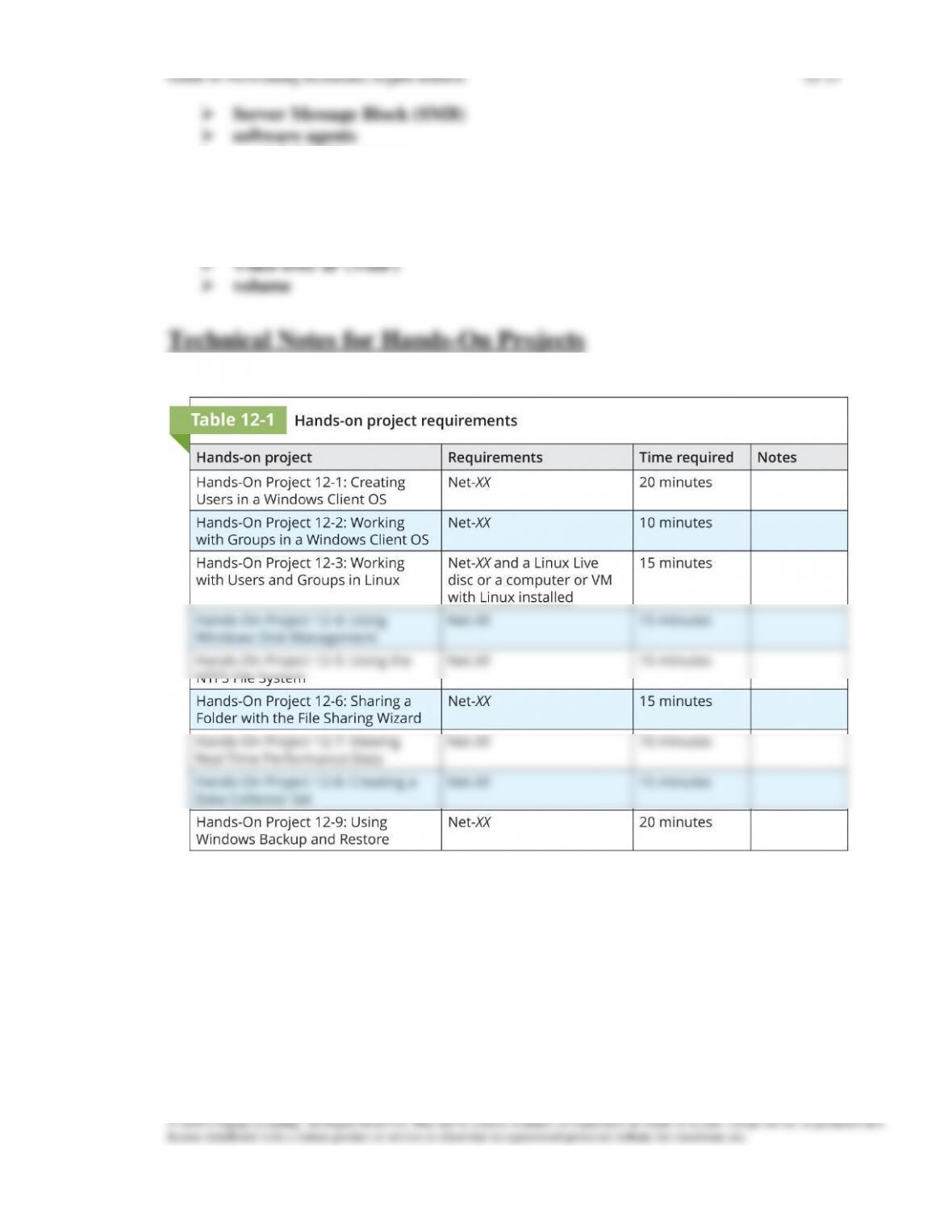
• Technical Notes for Hands-On Projects
• Using Virtualization for Hands-On Projects
Guide to Networking Essentials, Eighth Edition 12-2
Lecture Notes
Overview
Chapter 12 will introduce students to creating and working with user and group
accounts. They will also learn how to manage permissions for users and groups and
how to work with shared files and printers. Students will also discover how to monitor a
system’s performance and reliability. Finally, at the end of the chapter, students will
learn about the importance of fault tolerance and backup solutions.
Objectives
• Create and work with user and group accounts
• Create and manage permissions on storage volumes
• Work with shared files and printers
• Monitor a system’s performance and reliability
• Describe fault-tolerant and backup solutions
Teaching Tips
Managing User and Group Accounts
1. Discuss user accounts and groups as a means to facilitate authenticated access to
2. Review the two main functions user accounts have in a network:
Account and Password Conventions
2. Discuss how to secure passwords through diversity of conventions such as enforcing
minimum length, complexity requirements, or change frequency.
Guide to Networking Essentials, Eighth Edition 12-3
Teaching
Tip
It might be helpful to very briefly mention some of the methods malicious users
will try to break into accounts. Most commonly, brute forcing is used, but is time
consuming. The amount of time brute forcing takes for a password increases
dramatically with password length.
Working with Accounts in Windows
1. Mention the two default users that are created as part of a windows install immediately
2. Describe the basic task of creating a user account on a Windows Active Directory
3. Show students some of the options available for configuring user accounts in AD that
provide ease of management:
4. Demonstrate the process of creating a group in Windows Active Directory, and list
some of the options available when creating a group, such as group scope:
5. List some of the default groups internal to Windows and describe some of the abilities
6. Explain the usage of special identity groups, such as Creator Owner, and Everyone.
7. Describe what a user profile is, and where it is located in Windows.
a. They should also be aware of some of the more important folders and files that
Working with Accounts in Linux
1. Demonstrate using the useradd command on Linux, and discuss the requirements for
3. Locate the /etc/passwd and /etc/groups files on the Linux system and display
4. Point out that one reason many administrators prefer the command-line method for
creating users is because they can import user information from a text file and add many
Teaching
Tip
Most distributions have GUI tools for the creation of users and passwords. On
Gnome based distributions such as Ubuntu, the tools can be found under System
>> Administration.
Quick Quiz 1
1. Which type of account is used to organize users so that the assignment of resource
permissions and rights can be managed more easily than working with many user
accounts?
2. What two accounts are created when Windows is first installed?
3. Which of the following groups contains users from the domain in which they’re created
but can be assigned permissions to resources in other domains?
a. Domain local groups
b. Global groups
c. Local groups
d. Universal groups
4. What kind of profile follows the user no matter which computer he or she logs on to?
a. Local profile
b. Domain profile
c. Mobile profile
d. Roaming profile
Guide to Networking Essentials, Eighth Edition 12-5
5. Where are the user accounts stored in a basic Linux install?
a. /etc/groups
b. /etc/password
c. /etc/passwd
d. /etc/users
1. Define the two terms volume and partition, and explain their differences.
2. Explain to students that basic disks can be divided into one to four primary partitions, or
3. Students need to know that the active partition is the partition that stores the boot files,
5. Explain that Linux systems refer to disks by using their device driver name plus a letter
to describe disks, such as /dev/sda for the first SATA or SCSI disk, and a number to
mark the partitions on that device. Make sure students can figure out what hard drive
and partition number is described by /dev/sdb2
Teaching
Tip
On older Linux distributions the student might be exposed to the device name for
PATA/IDE based disks was hd* instead of sd*. On modern Linux distributions,
all PATA and SATA based disks appear as sd*, because they both now use the
same kernel driver.
The FAT File System
1. Describe the FAT file system, its variations, and its limitations.
Guide to Networking Essentials, Eighth Edition 12-6
2. Point out to students that FAT is simple and has little overhead, so it’s still the file
system of choice on removable media.
The NTFS File System
1. When discussing NTFS, be sure to compare its advanced features to FAT, which lacks:
a. Disk quotas
3. Explain that volume mount points enable users to access a volume as a folder in another
volume instead of using a drive letter.
5. Mention that file compression and encryption on an NTFS volume are implemented as
6. Remind students that Windows offers whole drive encryption with BitLocker, which is
7. Describe how NTFS permissions work. Point out that NTFS permissions can be
configured on files and folders.
8. Demonstrate how to view or edit permissions on an NTFS folder or file.
The Linux File System
1. List the variety of filesystems available to Linux, such as Ext3, Ext4, ReiserFS, and
XFS.
2. Explain how permissions work on Linux for the three user types: owner, group, and
other.
Working with Shared Files and Printers
1. Quickly preview the ability to share files amongst computers on a network, either using
Guide to Networking Essentials, Eighth Edition 12-7
Sharing Files and Printers in Windows
1. Students should first understand that NTFS permissions and share permissions affect
access over the network. Only three share permissions exist:
2. Describe the steps to take in order to share a directory in Windows, and then discuss
3. Define some of the components involved in sharing a printer. Most importantly,
students should know what the following are:
5. Demonstrate to students how to share a printer in order to make a machine a print
Sharing Files and Printers in Linux
1. Show students how to share files and printers in Samba in Linux.
Teaching
Tip
There are a number of different methods for sharing files on Linux, and not all
options were specifically designed for file access. If Secure Shell (SSH) is
running on the Linux system, you can often use a utility like WinSCP (or just scp
on Linux) to transfer files using the SSH protocol.
Quick Quiz 2
1. Which of the following terms best describes a part or all of the space on one or more
disks that contains or is ready to contain a file system?
a. Partition
b. Sector
c. Volume
d. Cluster
Guide to Networking Essentials, Eighth Edition 12-8
2. True or False: NTFS permissions can only be configured on files.
3. What are the three permissions used to control access to files and folders in Linux?
4. What is the dominant file-sharing protocol used by Windows and supported by Linux
and MAC OS?
a. File Sharing Protocol (FSP)
b. Server Message Block (SMB)
c. Network File System (NFS)
d. Secure File Transfer Protocol (SFTP)
5. Which of the following is NOT a filesystem available in Linux?
a. Ext5
b. Ext4
c. Ext3
d. ReiserFS
Monitoring System Reliability and Performance
1. Introduce students to some of the tools available for monitoring system performance in
Windows Server:
Event Viewer
1. Event viewer is used to examine log entries. Show students an example of the different
types of events
2. Discuss the different log files available in Event viewer, such as Application, Security,
Performance Monitor
1. Demonstrate the use of the Performance Monitor, and discuss how it can be used for
pinpointing which resources are being overloaded and how they’re being overloaded.
2. Students should learn about the different areas of performance monitor:
3. Discuss what performance monitor is capable of tracking, and explain the two modes of
4. This program can be used to create performance baselines; explain to students when
baselines are created and how often they should be re-evaluated on a network.
a. Demonstrate how to create a custom baseline using data collector sets.
Enhancing Network Performance
1. Discuss some of the factors that can cause poor network performance:
• Poor or inadequate network design
Network Performance Monitoring
1. Introduce students to two network protocols designed to monitor network performance:
2. Explain how SNMP uses software agents (loaded on network devices) to monitor
3. Discuss Remote Monitoring (RMON) and the features that extend SNMP’s capabilities.
Backup and Fault Tolerance
Teaching
Tip
Performance Monitor was named Performance and Reliability Monitor in Server
2008 R1 and Vista, the name change occurs on Windows 7 and Server 2008 R2.
1. Discuss backup as a means to provide data safety, and fault tolerance as a means to
Windows Backup
2. Talk about some of the different options available for backing up data on Server 2019.
Protecting Data with Fault Tolerance
1. Discuss the different options for providing fault tolerance, for example:
2. Define some of the terminology involved with redundant power supplies and UPS
3. Discuss the most common types of RAID used in today’s networks:
4. Use Table 12-4 to compare and contrast all RAID levels available.
5. Server clustering can provide fault tolerance in the form of a failover cluster, or
Quick Quiz 3
1. What are the three levels of the Event Viewer?
2. Which Windows Server tool consists of a collection of tools for pinpointing which
resources are being overloaded and how they’re being overloaded.
3. True or False: You can prioritize time-sensitive packets and limit bandwidth of low-
priority applications by using a load balancer.
4. Why are regular backups important?
5. Name the three forms of fault tolerance for networks and servers.
Class Discussion Topics
1. Have students discuss when performance baselines should be taken, and how they
should be used to make improvements. For example, in a large network, when would be
a good time to take an accurate baseline of typical performance, at 10-11 AM or 1-2
AM? Should you take multiple baselines in order to fully understand when your peak
usage periods are? When should a baseline be updated?
2. Backing up to magnetic tape was once the only method server administrators used to
back up their systems. With inexpensive hard drives, it has become popular to backup to
Additional Projects
1. Task students with researching several SNMP network monitoring tools. Have them
write a summary of at least 2 network monitoring packages, listing features and benefits
of each.
Guide to Networking Essentials, Eighth Edition 12-12
Additional Resources
1. Active Directory Groups
2. Deploy Roaming User Profiles
4. File Sharing Over a Network in Windows 10
5. How to Baseline Network Throughput and Performance
Key Terms
For explanations of key terms, see the Glossary for this text.
➢ active partition
➢ load balancer
➢ local profile
➢ management information base (MIB)
➢ Network File System (NFS)
➢ NTFS permissions