Extended Learning Module M – Programming in Excel with VBA
Mod M-1
EXTENDED LEARNING MODULE M
PROGRAMMING IN EXCEL WITH VBA
JUMP TO THE SUPPORT YOU WANT
STUDENT LEARNING OUTCOMES
2. Define a macro.
4. Describe an object.
6. List the various Visual Basic Application data types and operators.
7. Describe and build a macro that uses If-Then-Else, For-Next, Do-Until, Do-While, and
Select Case Structures.
MODULE SUMMARY
This Extended Learning Module teaches your students how to use VBA and write programming
structures in Excel.
The primary sections of this module include:
1. Why VBA?
3. VBA Building Blocks
5. Decisions, Decisions, Decisions

Extended Learning Module M – Programming in Excel with VBA
Mod M-2
LECTURE OUTLINE
INTRODUCTION (p. M.2)
WHY VBA? (p. M.2)
1. VBA in a Nutshell
THE VISUAL BASIC EDITOR (p. M.5)
1. The VBE Tools
3. VBA Module Code
VBA BUILDING BLOCKS (p. M.13)
2. Procedures
ELEMENTS OF VBA PROGRAMMING (p. M.15)
2. Variables and Constants
4. Assignment Statements
DECISIONS, DECISIONS, DECISIONS (p. M.20)
1. The If-Then Structure
3. Looping
WRAP IT UP (p. M.24)
END OF MODULE (p. M.27)
1. Summary: Student Learning Outcomes Revisited
3. Assignments and Exercises
Back to Jump List
Extended Learning Module M – Programming in Excel with VBA
Mod M-3
MODULES, PROJECTS, AND DATA FILES
There is no specific Group Projects associated with this chapter. However, many of the Group
Projects that use Excel can easily be modified to utilize VBA.
DATA FILES
There are several data files associated with this chapter.
• XLMM_SalesTax.xls
Back to Jump List
Extended Learning Module M – Programming in Excel with VBA
Mod M-4
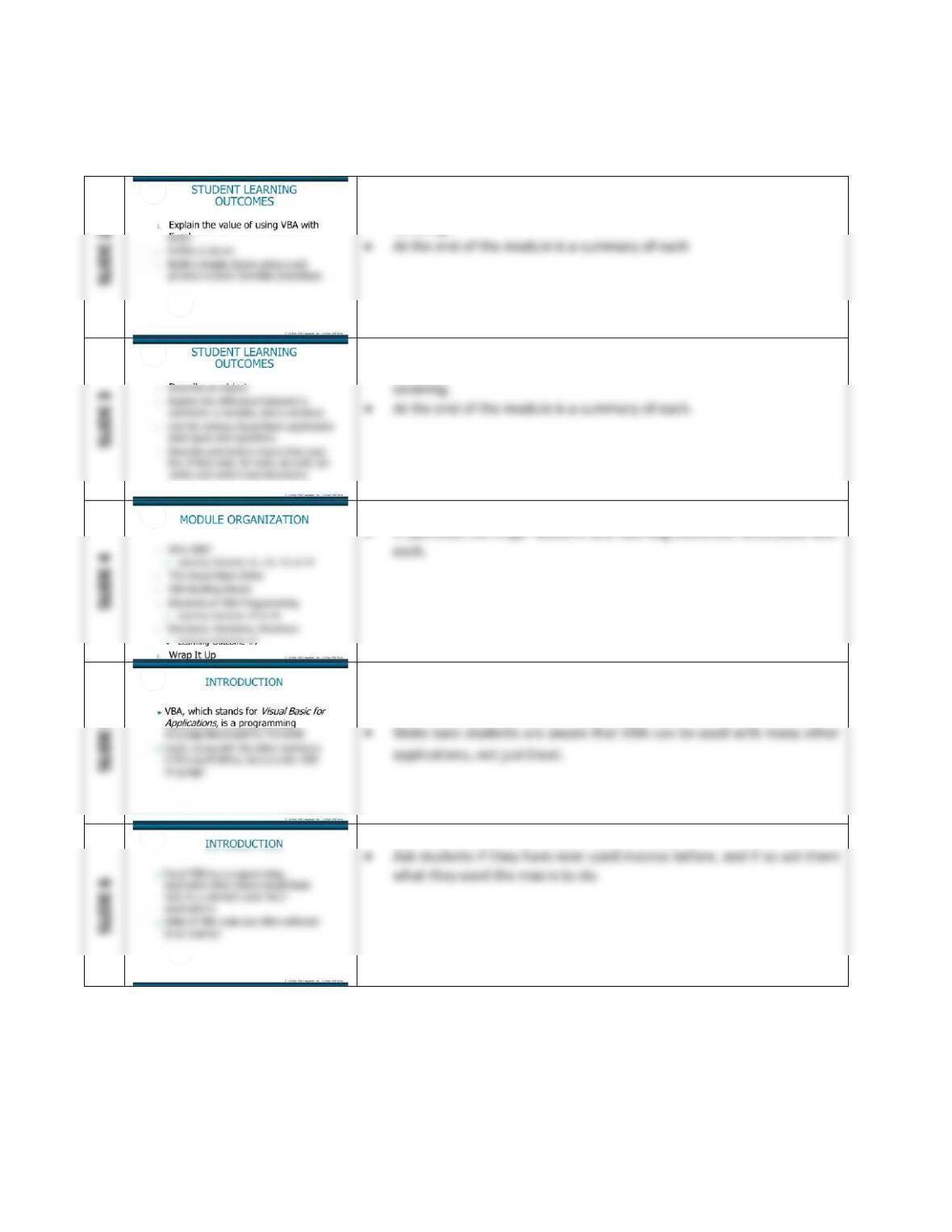
• These are the Student Learning Outcomes for the module.
• Use them as a road map to inform your students of what you will be
covering.
• These are the Student Learning Outcomes for the module.
• Use them as a road map to inform your students of what you will be
• This slide presents the organization for the module.
• This slide formally defines what VBA is.
• VBA, which stands for Visual Basic for Applications, is a programming
language developed by Microsoft.
• Ask students if they have ever used macros before, and if so ask them
• This slide continues to define the uses of VBA.
Extended Learning Module M – Programming in Excel with VBA
Mod M-5
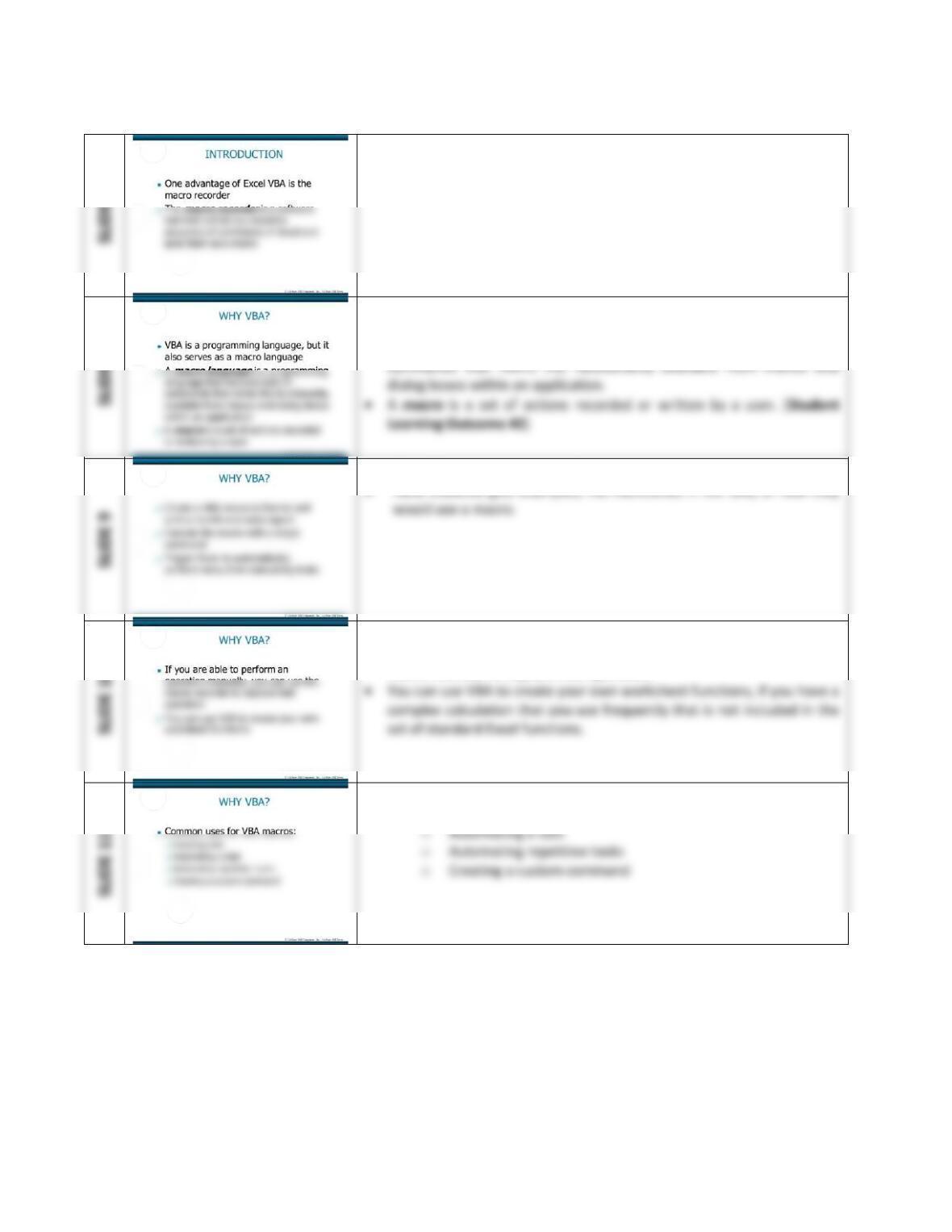
• This slide defines what the macro recorder is.
• The macro recorder is a software tool that will let you record a
sequence of commands in Excel and save them as a macro.
• This slide begins a series of slides discussing why we use VBA. (Student
Learning Outcome #1)
• A macro language is a programming language that includes built-in
would use a macro.
• This slide suggests one use of why we create macros.
• This slide continues our discussion on the reasons we use VBA.
• If you are able to perform an operation manually, you can use the
macro recorder to capture that operation.
• This slide lists the common uses for VBA macros.
o Inserting text
Mod M-6
SLIDE 12
• This slide continues the discussion on the common uses for VBA
macros.
o Creating a custom toolbar button
SLIDE 13
• This slide starts a series of slides on what the VBE is.
SLIDE 14
• This slide talks about Sub procedures.
• A Sub procedure is computer code that performs some action on or
SLIDE 15
• This slide illustrates an example of a Sub procedure. (Student Learning
Outcome #3)
• Here is an example called Demo:
• This slide talks about Function procedures.
• A Function procedure is a VBA macro that returns a single value.
Mod M-7
SLIDE 17
• This slide illustrates an example of a Function procedure.
• Function procedure example:
SLIDE 18
• This slide talks about objects. (Student Learning Outcome #4)
• An object in VBA is an item available for you to control in your code.
SLIDE 19
• This slide talks about variables.
• A variable is a place to store a piece of information.
SLIDE 20
• This slide illustrates Figure M.1 on page M.4, VBA added terminology
and examples.
• This slide introduces the Visual Basic Editor (VBE).
• The Visual Basic Editor (VBE) is a separate application where you
Extended Learning Module M – Programming in Excel with VBA
Mod M-8
• This slide discusses the ways to activate the VBE.
• Use Alt+F11 to toggle between Excel and the VBE
• This slide lists the various VBE tools.
• VBE has even more parts than are shown in Figure M.2, but for the
• This slide illustrates Figure M.2, the VBE toolbar.
• This slide discusses the Project Explorer.
• When you’re working in the VBE, each Excel workbook that’s open is a
project.
• This slide discusses how to add a new VBA module.
1. Create a new workbook in Excel
Extended Learning Module M – Programming in Excel with VBA
Mod M-9
• This slide discusses how to delete a VBA module.
• This slide discusses creating a module.
• VBA module can hold several types of code:
o Sub procedures – A set of programming instructions that
• This slide discusses VBA module code.
• Before you can do anything meaningful, you must have some VBA
code in the VBA module.
• This slide shows discusses how the enter VBA code directly in a
module.
• This slide illustrates Figure M.3 on page M.8, the code window.
Extended Learning Module M – Programming in Excel with VBA
Mod M-10
• This slide illustrates Figure M.4 on page M.9, the run code executed.
• This slide discusses using the macro recorder.
1. Activate a worksheet in the workbook.
• This slide continues the discussion using the macro recorder.
7. Excel displays a miniature floating toolbar that contains two
• This slide illustrates Figure M.5 on page M.10, recording message and
stop recording button.
• This slide illustrates Figure M.6 on page M.11, module1 macro code.
Extended Learning Module M – Programming in Excel with VBA
Mod M-11
• This slide continues the discussion on using the macro recorder.
1. Activate a worksheet that has gridlines displayed.
• This slide illustrates Figure M.7 on page M.11, the macro dialog box.
• This slide continues the discussion on using the macro recorder.
• Here is another way to execute a macro.
1. Choose Tools, then Macro, and then Macros.
• This slide illustrates Figure M.8 on page M.12, display gridlines macro.
• This slide starts the discussion on the various ways to write a macro