Extended Learning Module D (Book Version, Office 2010) – Decision Analysis with Spreadsheet Software
Mod D Book-1
EXTENDED LEARNING MODULE D (Book Version, Office 2010)
DECISION ANALYSIS WITH SPREADSHEET SOFTWARE
JUMP TO THE SUPPORT YOU WANT
STUDENT LEARNING OUTCOMES
2. Compare and contrast the Filter function and Custom Filter function in spreadsheet
software.
4. Define a pivot table and describe how you can use it to view summarized information by
dimension.
MODULE SUMMARY
This module explores with your students some of the many decision support features in
spreadsheet software, specifically Excel.
The primary sections of this module include:
1. Lists
3. Custom Filter
5. Pivot Tables
6. Goal Seek
Extended Learning Module D (Book Version, Office 2010) – Decision Analysis with Spreadsheet Software
Mod D Book-2
LECTURE OUTLINE
INTRODUCTION (p. 387)
PIVOT TABLES (p. 396)
GOAL SEEK (p. 402)
END OF MODULE (p. 404)
2. Key Terms and Concepts
4. Assignments and Exercises
Back to Jump List
Extended Learning Module D (Book Version, Office 2010) – Decision Analysis with Spreadsheet Software
Mod D Book-3
MODULES, PROJECTS, AND DATA FILES
Group Projects
• Assessing the Value of Customer Relationship Management: Trevor Toy Auto Mechanics
• Analyzing the Value of Information: Affordable Homes Real Estate
• Analyzing Strategic and Competitive Advantage: Determining Operating Leverage
DATA FILES
Your students can find all of these files on the Web site that supports this text at
Back to Jump List
Extended Learning Module D (Book Version, Office 2010) – Decision Analysis with Spreadsheet Software
Mod D Book-4
• These are the Student Learning Outcomes for the module.
• Use them as a road map to inform your students of what you will be
• These are the Student Learning Outcomes for the module.
• This slide provides a broad introduction to the module and the
features of Excel that are covered.
• This slide presents the organization for the module.
• It does so by listing the major sections and learning outcomes
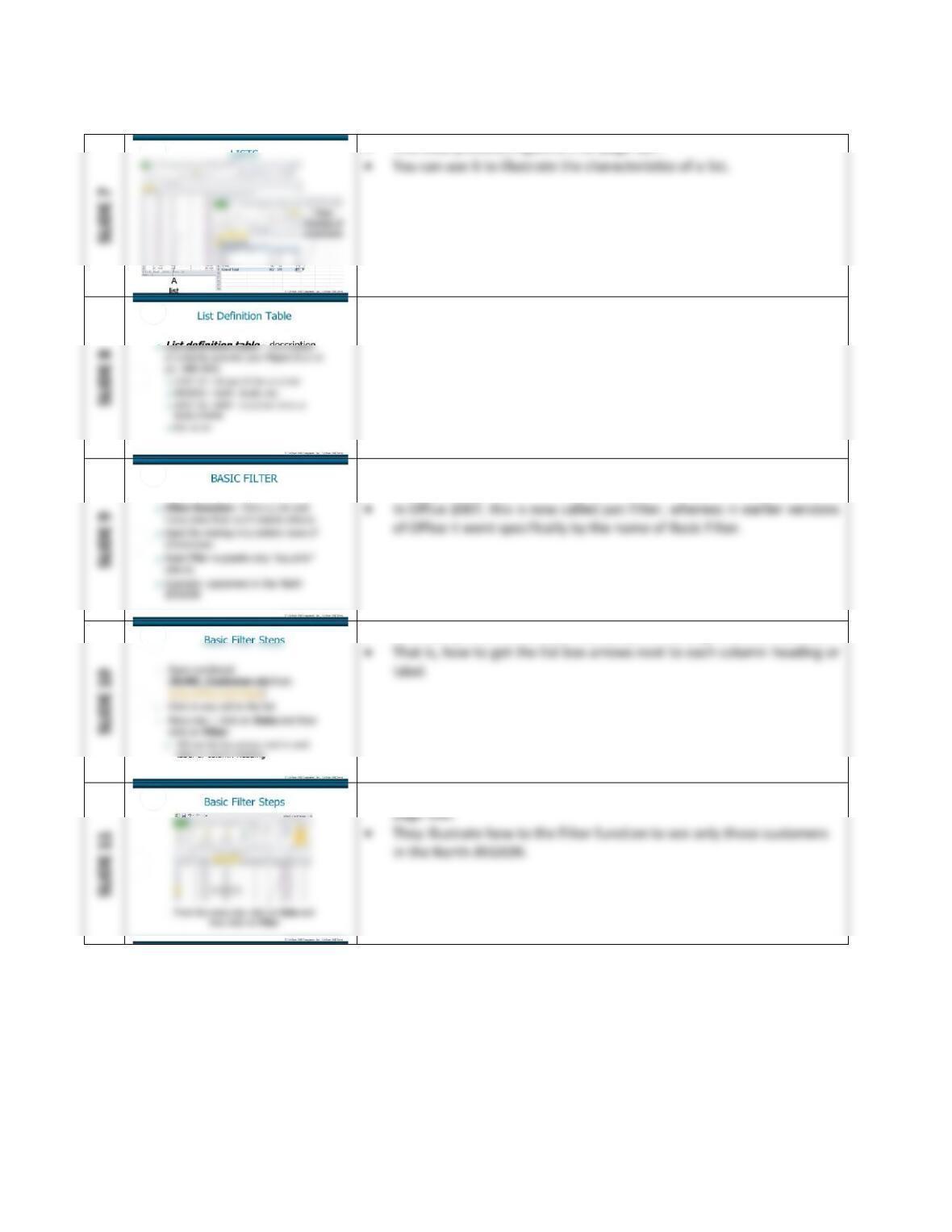
• These next three slides cover the basic concepts of a list (Student
Learning Outcome #1).
Extended Learning Module D (Book Version, Office 2010) – Decision Analysis with Spreadsheet Software
Mod D Book-5
• This slide presents Figure D.1 on page 387.
• This slide defines and describes a list definition table.
• It uses the customer list as an example.
• This slide begins the section on Basic Filter (Student Learning
Outcome #2).
• This slide presents the steps necessary for starting the Filter function.
• These four slides present the various screen captures in Figure D.3 on
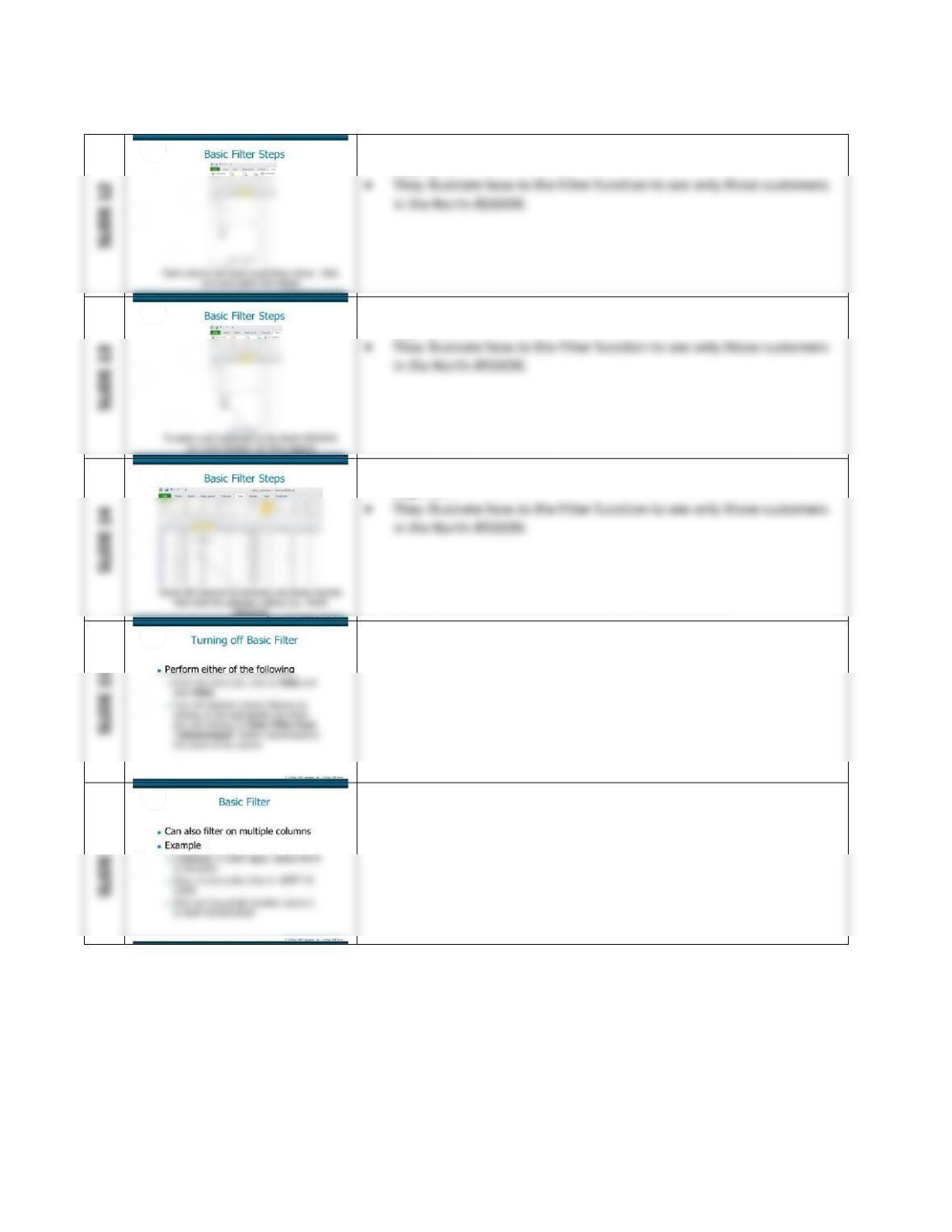
Extended Learning Module D (Book Version, Office 2010) – Decision Analysis with Spreadsheet Software
Mod D Book-6
• These four slides present the various screen captures in Figure D.3 on
page 390.
• These four slides present the various screen captures in Figure D.3 on
page 390.
• These four slides present the various screen captures in Figure D.3 on
page 390.
• This slide presents how to turn off the Filter function.
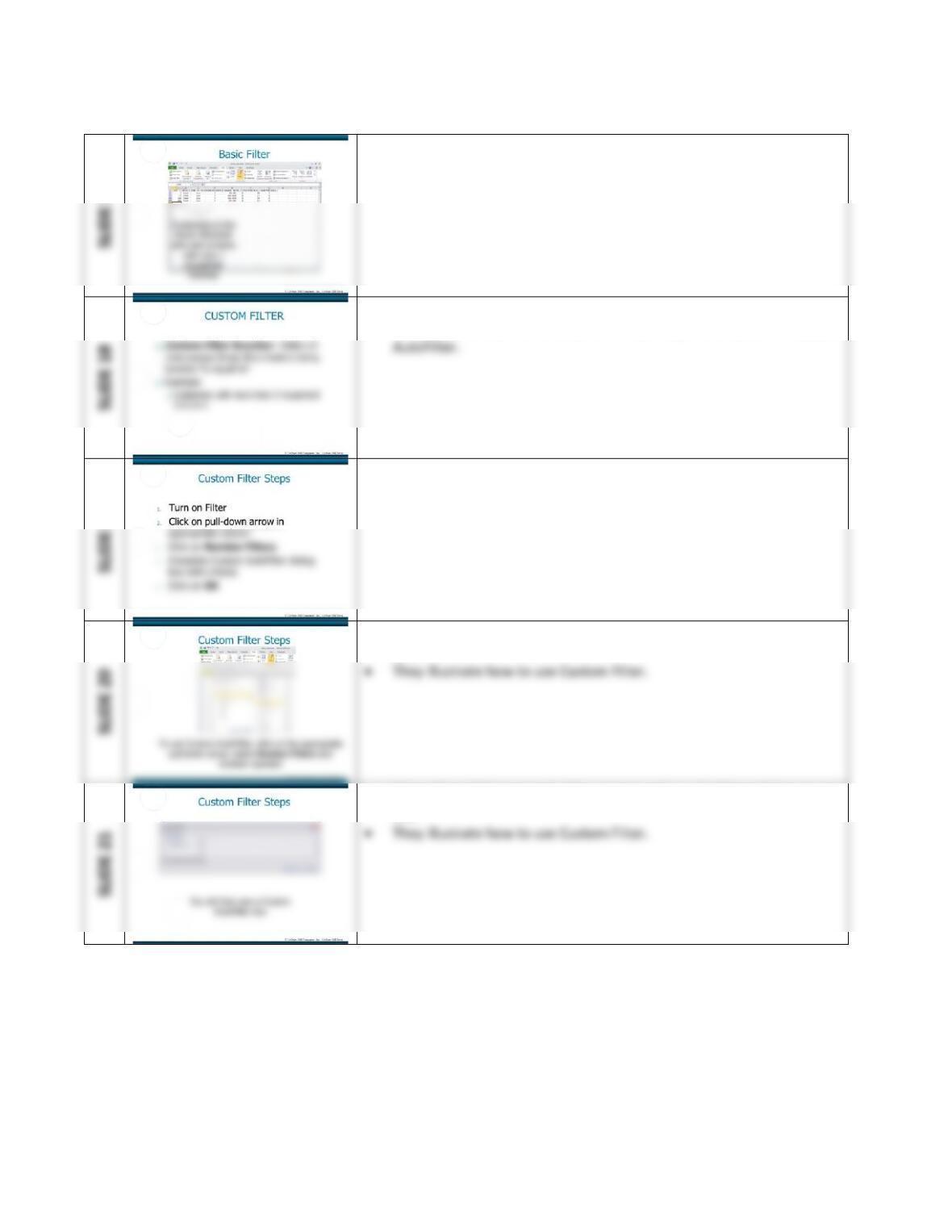
• These two slides present the example of filtering on multiple columns.
Extended Learning Module D (Book Version, Office 2010) – Decision Analysis with Spreadsheet Software
Mod D Book-7
• This slide presents Figure D.4 on page 391.
• It shows the result of filtering on multiple columns.
• This slide begins the section on using Custom Filter.
• In earlier versions of Office, this went by the name of Custom
• This slide presents the steps for using the Custom Filter function.
• Subsequent slides present screen captures for each step.
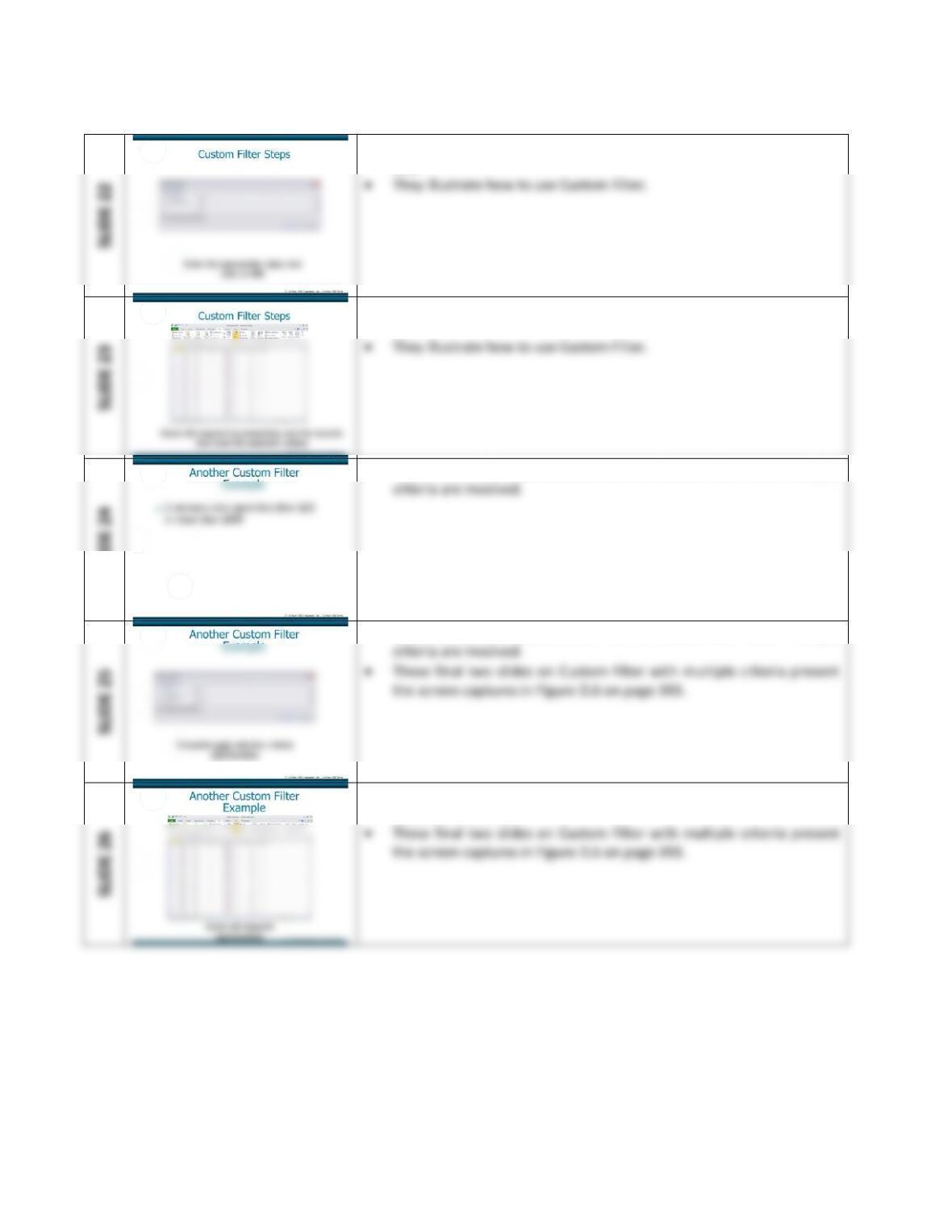
• These four slides presents the screen captures in Figure D.5 on page
392.
• These four slides presents the screen captures in Figure D.5 on page
392.
Extended Learning Module D (Book Version, Office 2010) – Decision Analysis with Spreadsheet Software
Mod D Book-8
• These four slides presents the screen captures in Figure D.5 on page
392.
SLIDE 23
• These four slides presents the screen captures in Figure D.5 on page
392.
SLIDE 24
• These three slides demonstrate how to Custom Filter when multiple
SLIDE 25
• These three slides demonstrate how to Custom Filter when multiple
• These three slides demonstrate how to Custom Filter when multiple
criteria are involved.
SLIDE 22
Extended Learning Module D (Book Version, Office 2010) – Decision Analysis with Spreadsheet Software
Mod D Book-9
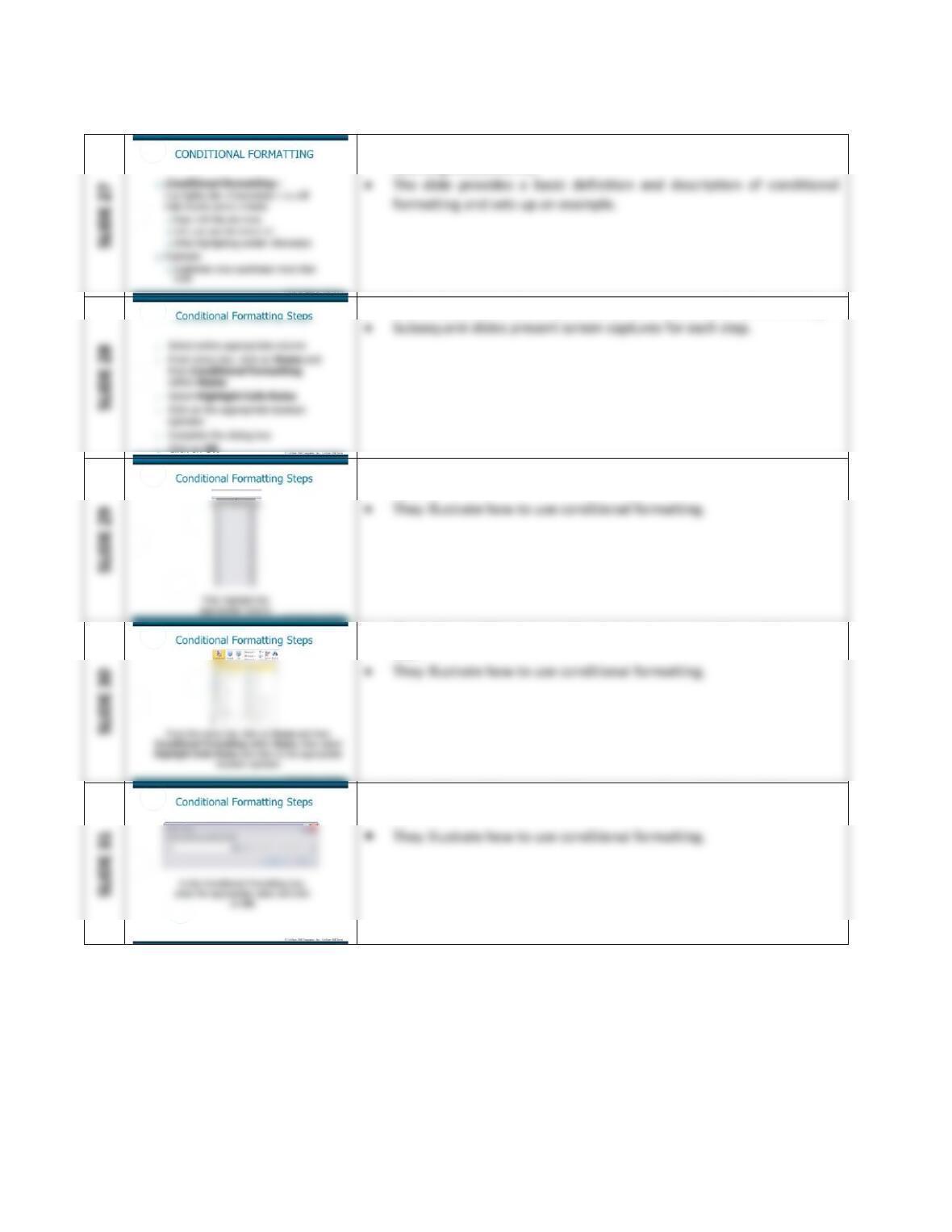
• This slide begins the section on conditional formatting (Student
Learning Outcome #3).
• This slide presents the steps necessary to use conditional formatting.
• These three slides present the screen captures in Figure D.7 on page
394.
• These three slides present the screen captures in Figure D.7 on page
394.
• These three slides present the screen captures in Figure D.7 on page
394.
Extended Learning Module D (Book Version, Office 2010) – Decision Analysis with Spreadsheet Software
Mod D Book–10
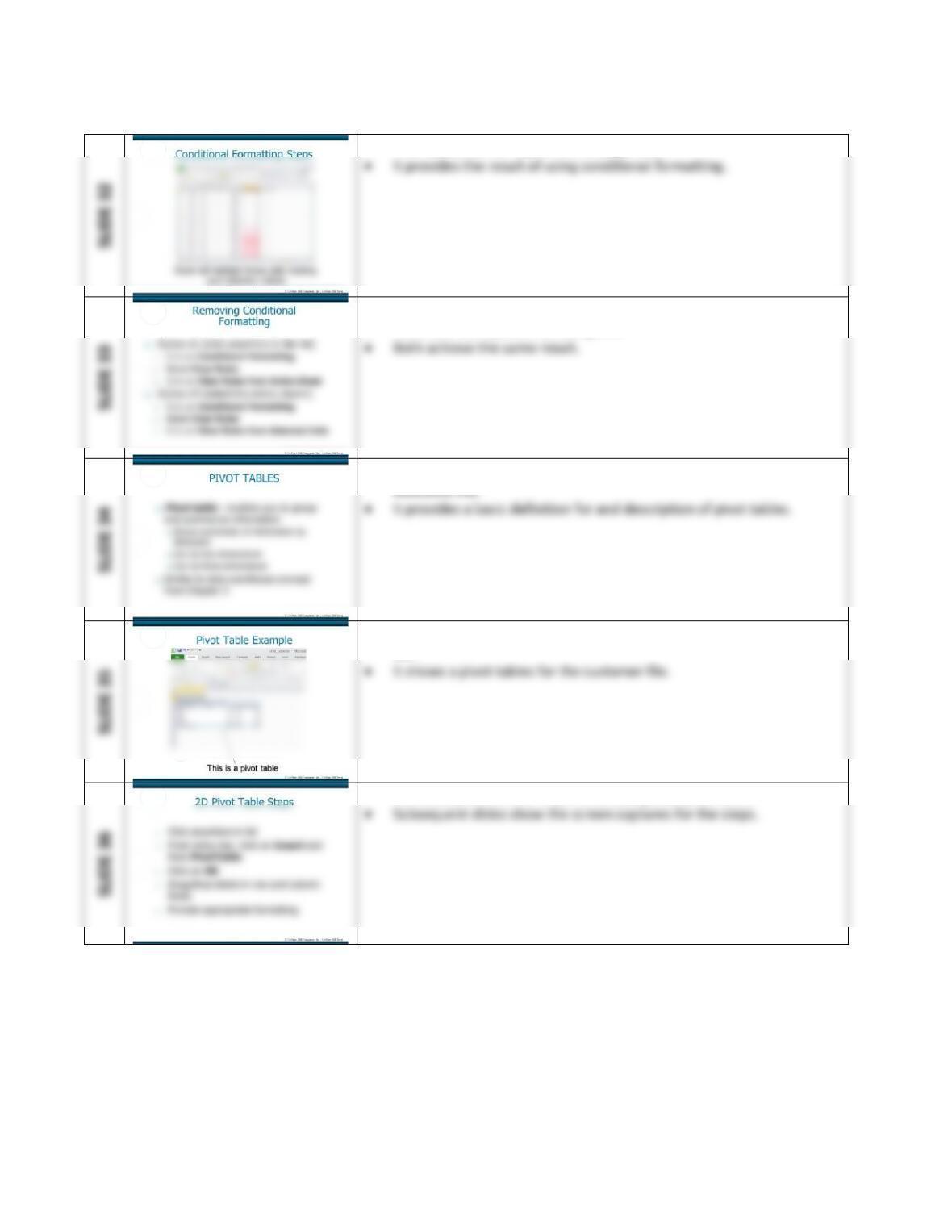
• This slide presents Figure D.8 on page 395.
• This slide presents how to remove conditional formatting.
• There are two options for doing this.
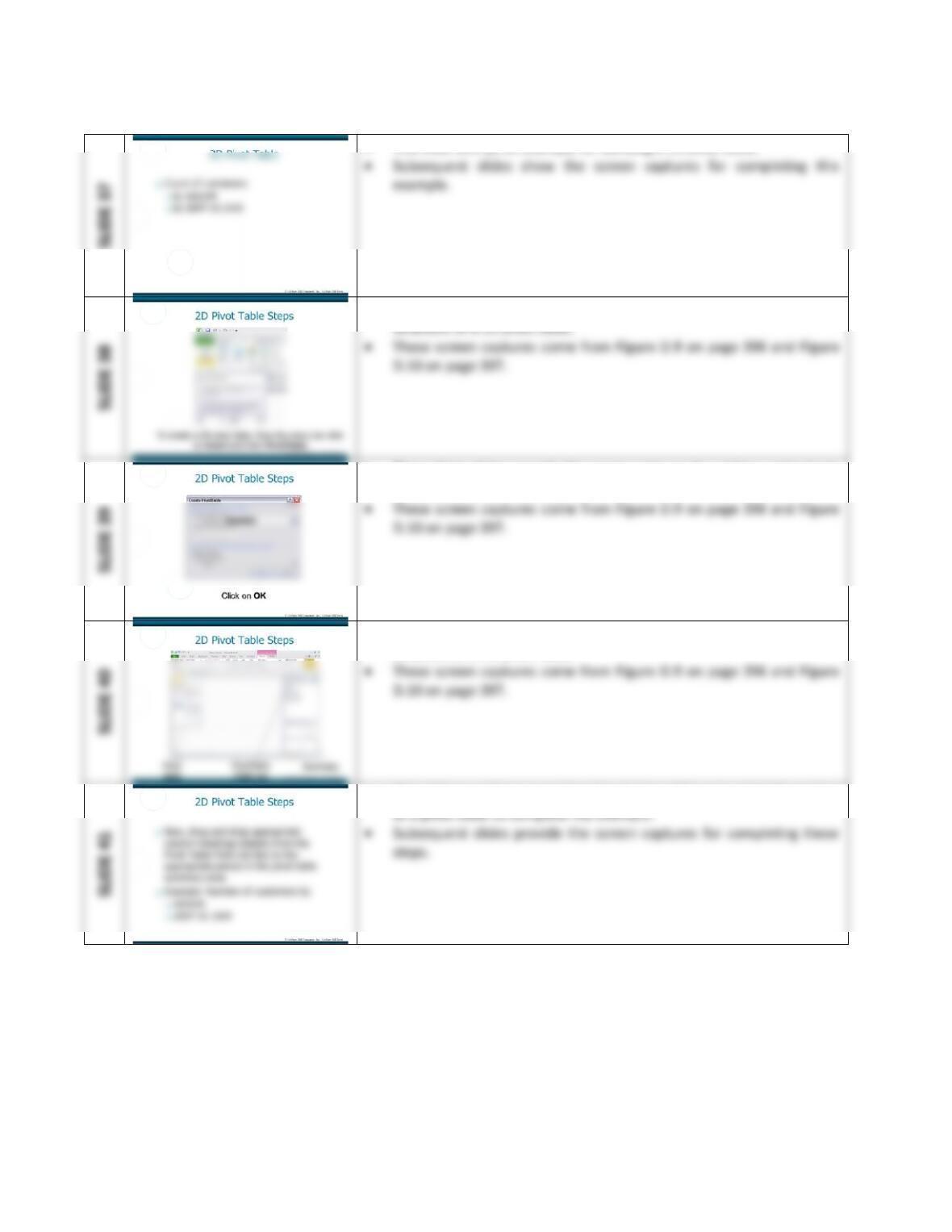
• This slide begins the section on pivot tables (Student Learning
Outcome #4).
• This slide presents one of the screen captures in Figure D.1 on page
387.
• This slide presents the steps for creating a 2D pivot table.
Extended Learning Module D (Book Version, Office 2010) – Decision Analysis with Spreadsheet Software
Mod D Book–11
• This slide sets up an example for building a 2D pivot table.
• These three slides provide the screen captures for setting up the basic
• These three slides provide the screen captures for setting up the basic
structure of a 2D pivot table.
• These three slides provide the screen captures for setting up the basic
structure of a 2D pivot table.
• This slide provides a narrative description of how to add information
Extended Learning Module D (Book Version, Office 2010) – Decision Analysis with Spreadsheet Software
Mod D Book–12
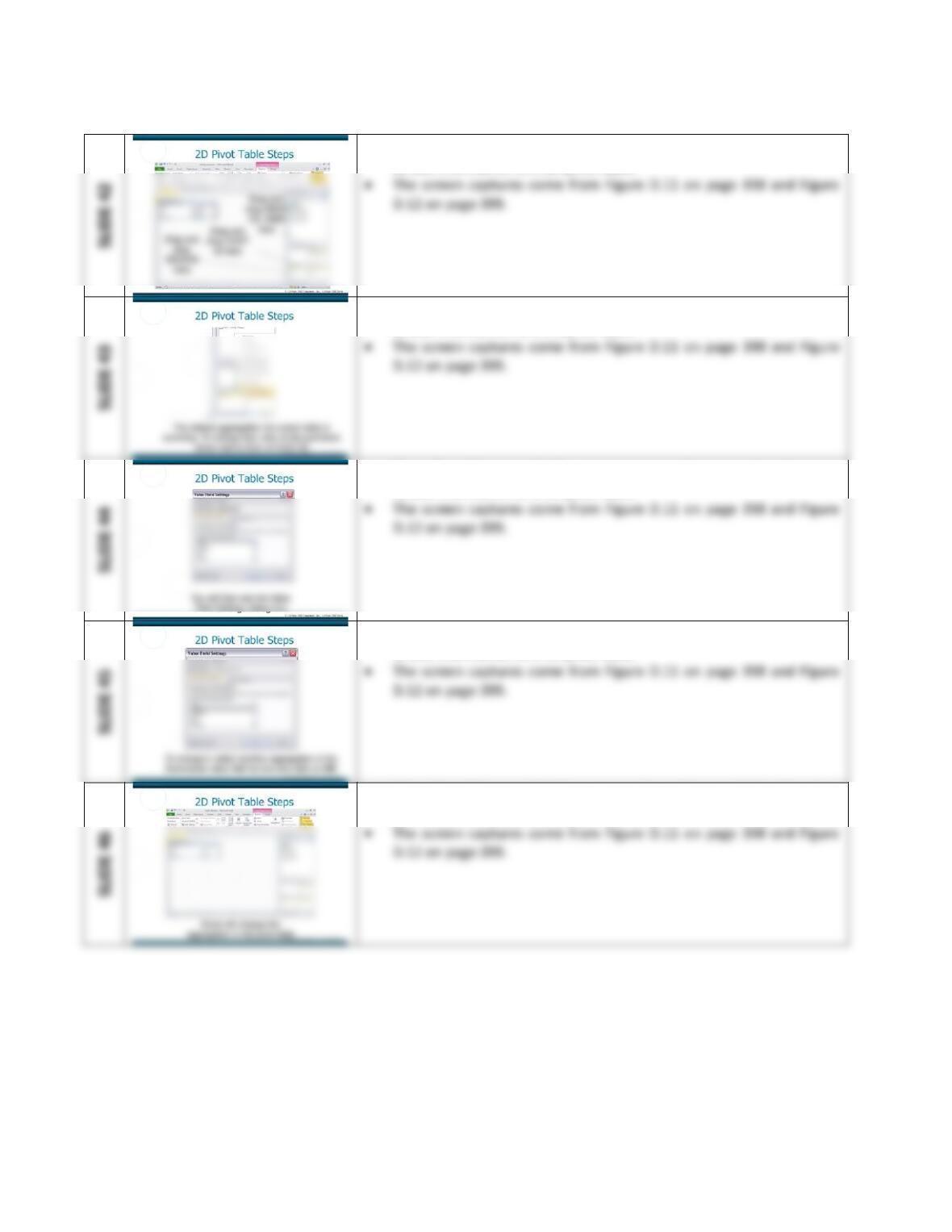
• These five slides provide the screen captures for completing the steps
to add information to a 2D pivot table.
• These five slides provide the screen captures for completing the steps
to add information to a 2D pivot table.
• These five slides provide the screen captures for completing the steps
to add information to a 2D pivot table.
• These five slides provide the screen captures for completing the steps
to add information to a 2D pivot table.
• These five slides provide the screen captures for completing the steps
to add information to a 2D pivot table.