Extended Learning Module D (Web Version, Office 2007) – Decision Analysis with Spreadsheet Software
Mod D Web-1
EXTENDED LEARNING MODULE D (Web Version, Office 2007)
DECISION ANALYSIS WITH SPREADSHEET SOFTWARE
JUMP TO THE SUPPORT YOU WANT
• Lecture Outline
STUDENT LEARNING OUTCOMES
2. Compare and contrast the Filter function and Custom Filter function in spreadsheet
software.
4. Define a pivot table and describe how you can use it to view summarized information by
dimension.
MODULE SUMMARY
This module explores with your students some of the many decision support features in
spreadsheet software, specifically Excel. Instructions and screen captures are given for Office
2007.
Specifically for Excel, this module focuses on Filter, Custom Filter, conditional formatting, and
pivot tables.
The primary sections of this module include:
1. Lists
3. Custom Filter
Extended Learning Module D (Web Version, Office 2007) – Decision Analysis with Spreadsheet Software
Mod D Web-2
LECTURE OUTLINE
INTRODUCTION (p. D.2)
LISTS (p. D.3)
PIVOT TABLES (p. D.11)
BACK TO DECISION SUPPORT (p. D.18)
END OF MODULE (p. D.19)
2. Key Terms and Concepts
Back to Jump List
Extended Learning Module D (Web Version, Office 2007) – Decision Analysis with Spreadsheet Software
Mod D Web-3
MODULES, PROJECTS, AND DATA FILES
Group Projects
• Assessing the Value of Customer Relationship Management: Trevor Toy Auto Mechanics
• Analyzing the Value of Information: Affordable Homes Real Estate
• Analyzing Strategic and Competitive Advantage: Determining Operating Leverage
• Building a Decision Support System: Break-Even Analysis
DATA FILES
Back to Jump List
Extended Learning Module D (Web Version, Office 2007) – Decision Analysis with Spreadsheet Software
Mod D Web-4
• These are the Student Learning Outcomes for the module.
SLIDE 3
• These are the Student Learning Outcomes for the module.
• This slide provides a broad introduction to the module and the
SLIDE 5
• This slide presents the organization for the module.
SLIDE 6
• These next three slides cover the basic concepts of a list (Student
Learning Outcome #1).
SLIDE 2
Extended Learning Module D (Web Version, Office 2007) – Decision Analysis with Spreadsheet Software
Mod D Web-5
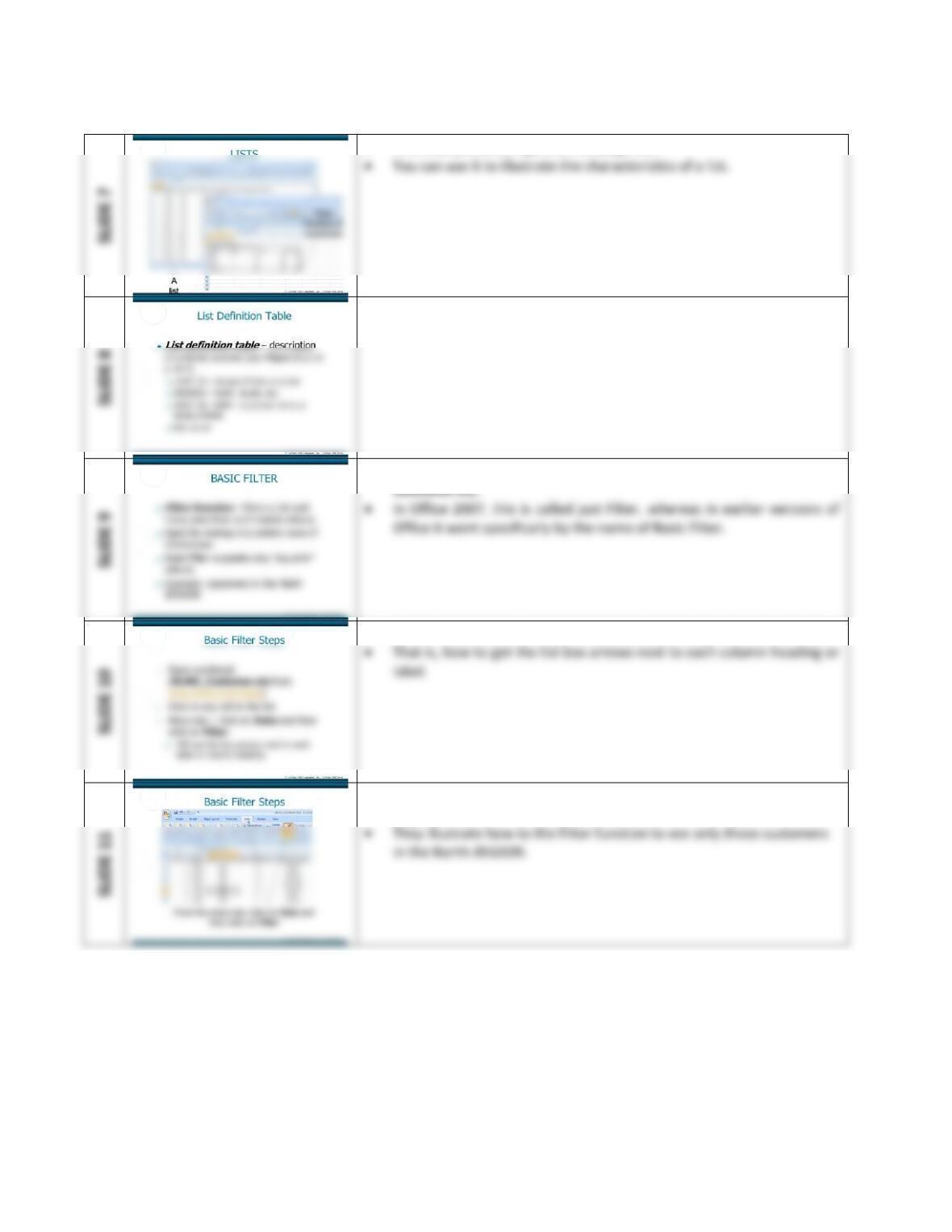
• This slide presents Figure D.1 on page D.2.
• This slide defines and describes a list definition table.
• It uses the customer list as an example.
• This slide begins the section on Basic Filter (Student Learning
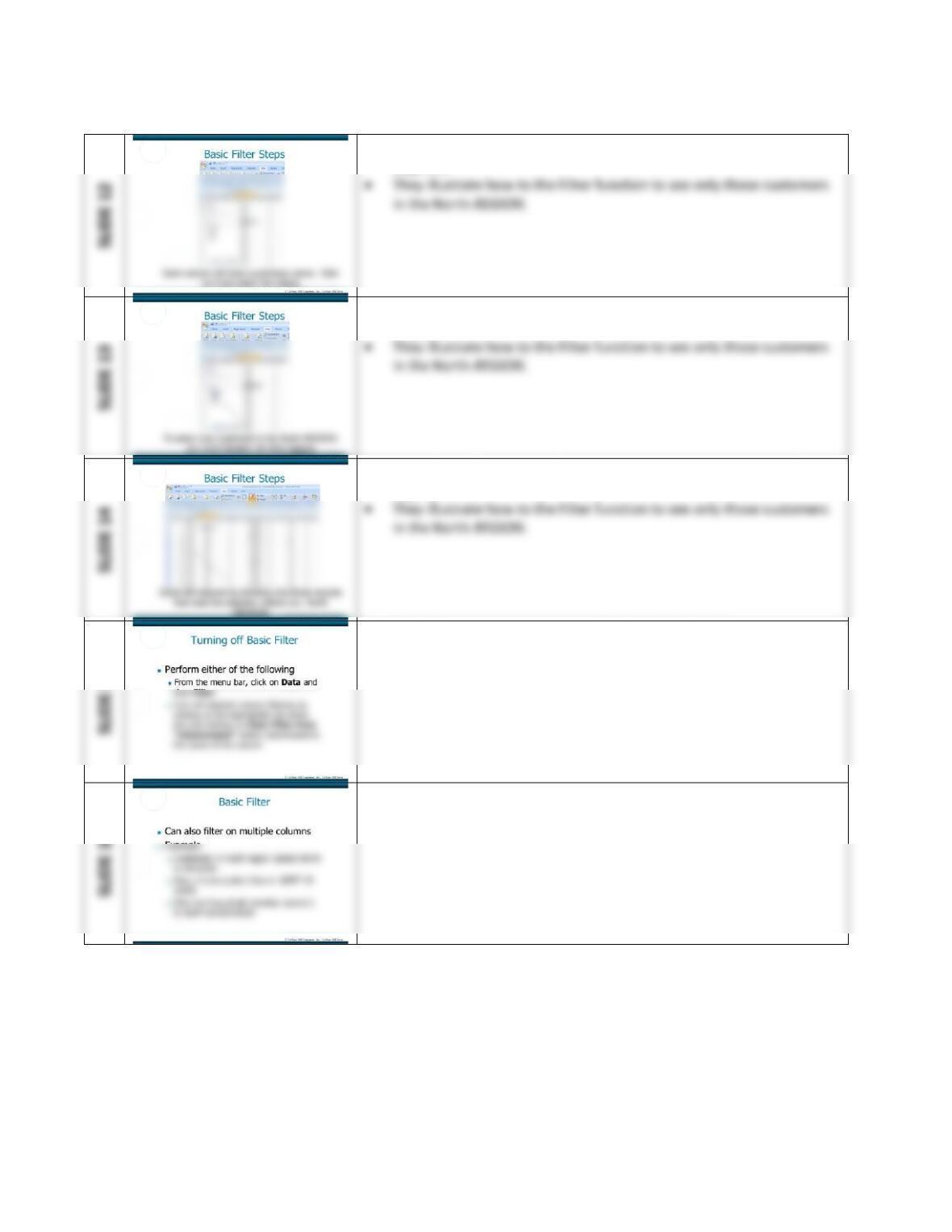
• This slide presents the steps necessary for starting the Filter function.
• These four slides present the various screen captures in Figure D.3 on
page D.5.
Extended Learning Module D (Web Version, Office 2007) – Decision Analysis with Spreadsheet Software
Mod D Web-6
• These four slides present the various screen captures in Figure D.3 on
page D.5.
• These four slides present the various screen captures in Figure D.3 on
page D.5.
• These four slides present the various screen captures in Figure D.3 on
page D.5.
• This slide presents how to turn off the Filter function.
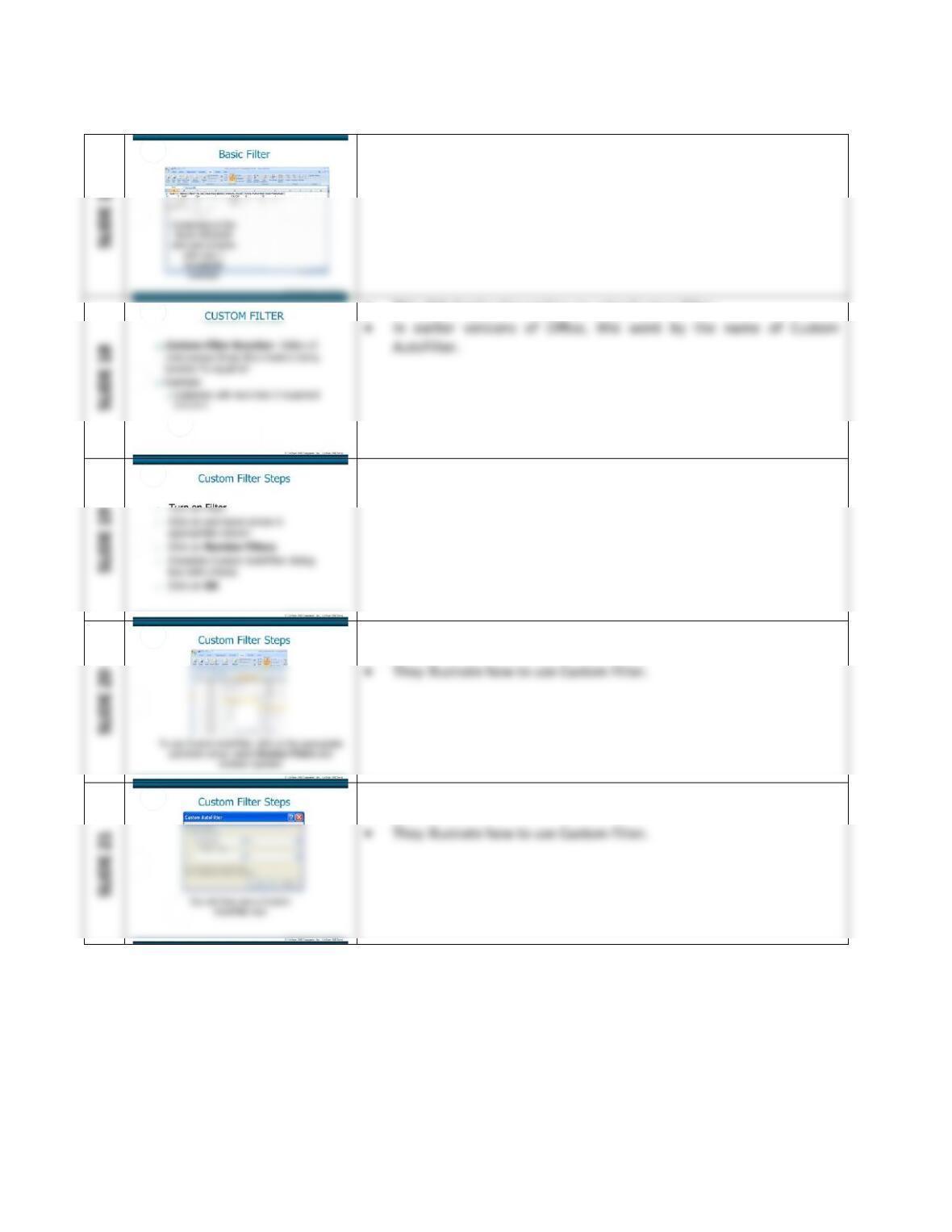
• These two slides present the example of filtering on multiple columns.
Extended Learning Module D (Web Version, Office 2007) – Decision Analysis with Spreadsheet Software
Mod D Web-7
• This slide presents Figure D.4 on page D.6.
• It shows the result of filtering on multiple columns.
• This slide begins the section on using Custom Filter.
• This slide presents the steps for using the Custom Filter function.
• Subsequent slides presents screen captures for each step.
• These four slides presents the screen captures in Figure D.5 on page
D.7.
• These four slides presents the screen captures in Figure D.5 on page
D.7.
Extended Learning Module D (Web Version, Office 2007) – Decision Analysis with Spreadsheet Software
Mod D Web-8
• These four slides presents the screen captures in Figure D.5 on page
D.7.
SLIDE 23
• These four slides presents the screen captures in Figure D.5 on page
D.7.
SLIDE 24
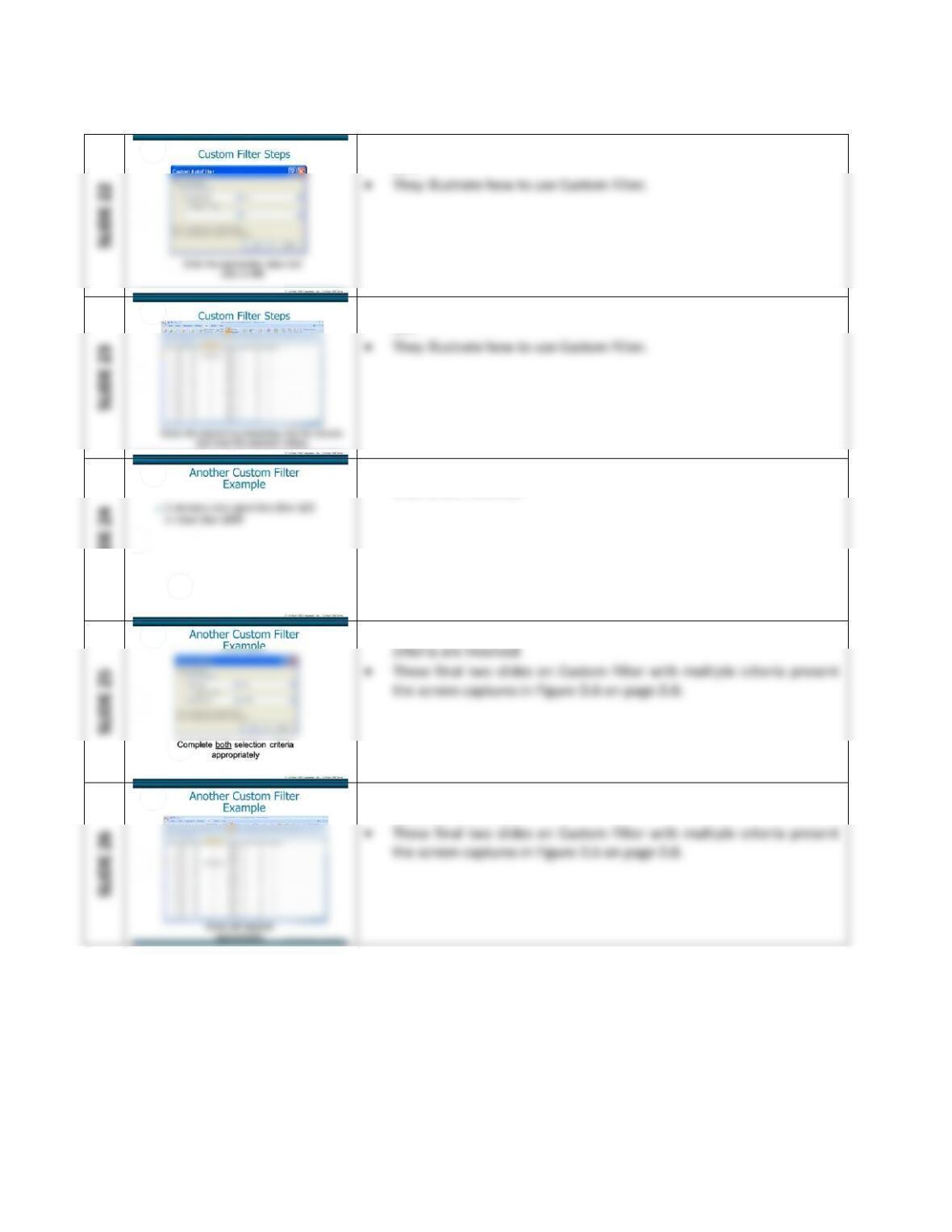
• These three slides demonstrate how to Custom Filter when multiple
criteria are involved.
SLIDE 25
criteria are involved.
• These three slides demonstrate how to Custom Filter when multiple
• These three slides demonstrate how to Custom Filter when multiple
criteria are involved.
SLIDE 22
Extended Learning Module D (Web Version, Office 2007) – Decision Analysis with Spreadsheet Software
Mod D Web-9
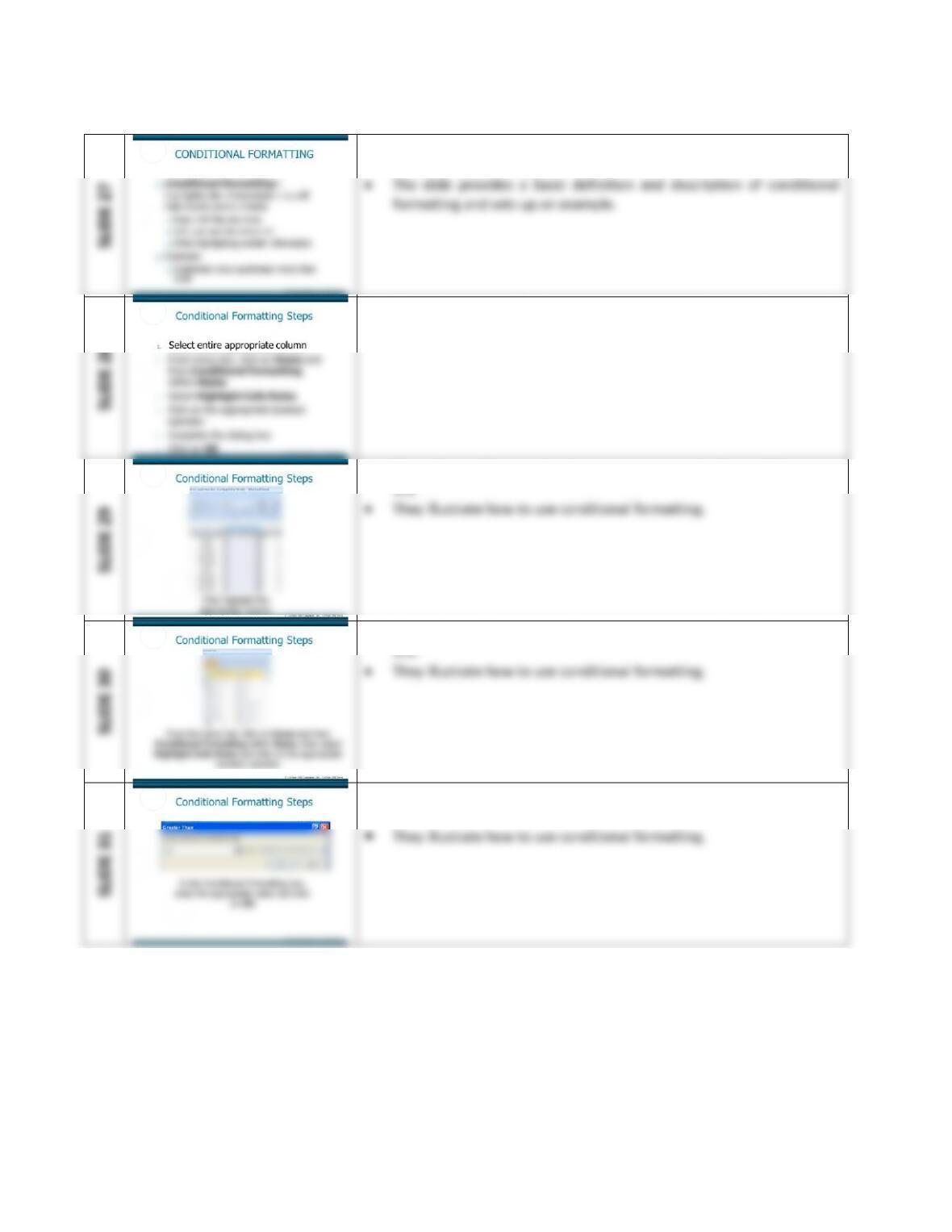
• This slide begins the section on conditional formatting (Student
Learning Outcome #3).
• This slide presents the steps necessary to use conditional formatting.
• Subsequent slides present screen captures for each step.
• These three slides present the screen captures in Figure D.7 on page
• These three slides present the screen captures in Figure D.7 on page
• These three slides present the screen captures in Figure D.7 on page
D.9.
Extended Learning Module D (Web Version, Office 2007) – Decision Analysis with Spreadsheet Software
Mod D Web–10
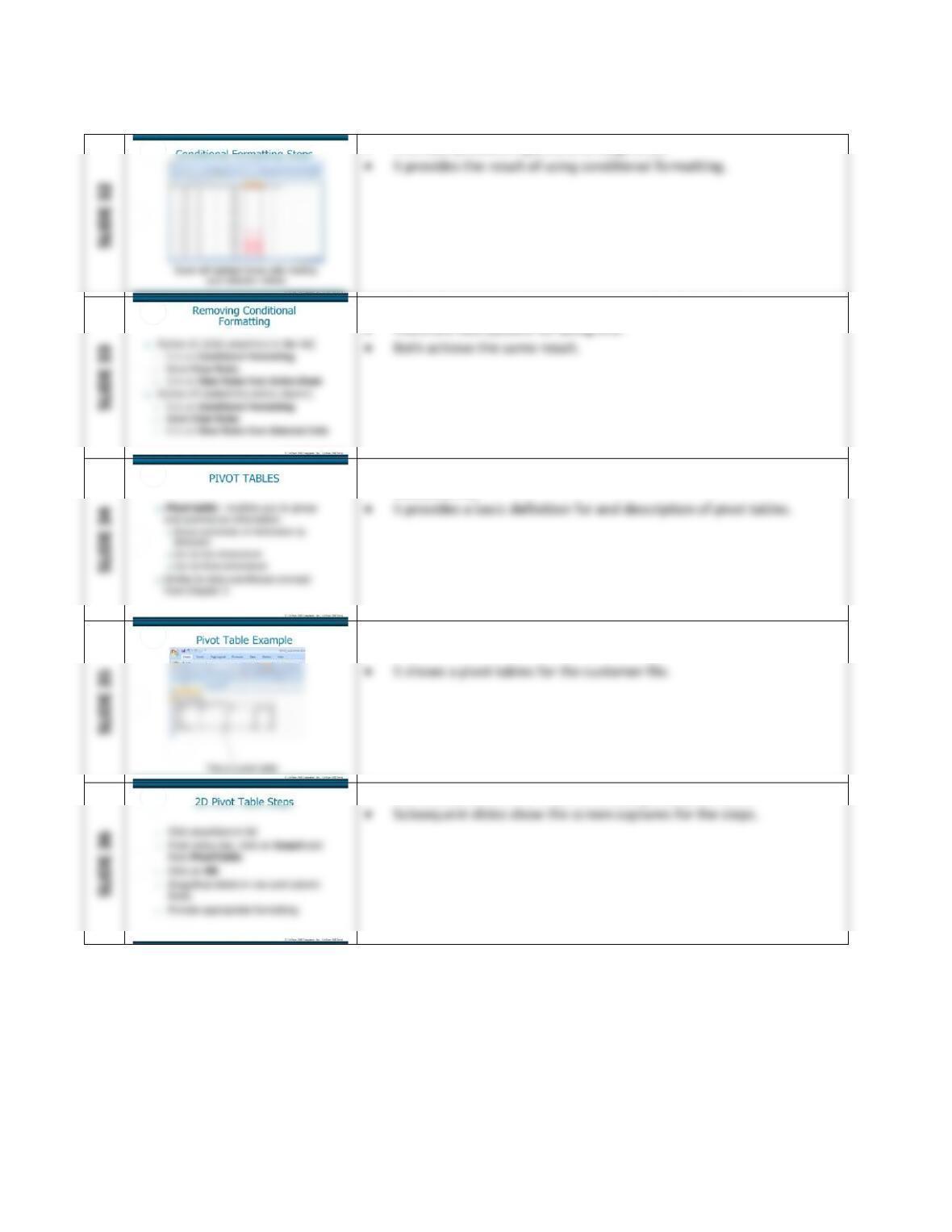
• This slide presents Figure D.8 on page D.10.
• This slide presents how to remove conditional formatting.
• This slide begins the section on pivot tables (Student Learning
Outcome #4).
• This slide presents one of the screen captures in Figure D.1 on page
D.2.
• This slide presents the steps for creating a 2D pivot table.
Extended Learning Module D (Web Version, Office 2007) – Decision Analysis with Spreadsheet Software
Mod D Web–11
SLIDE 37
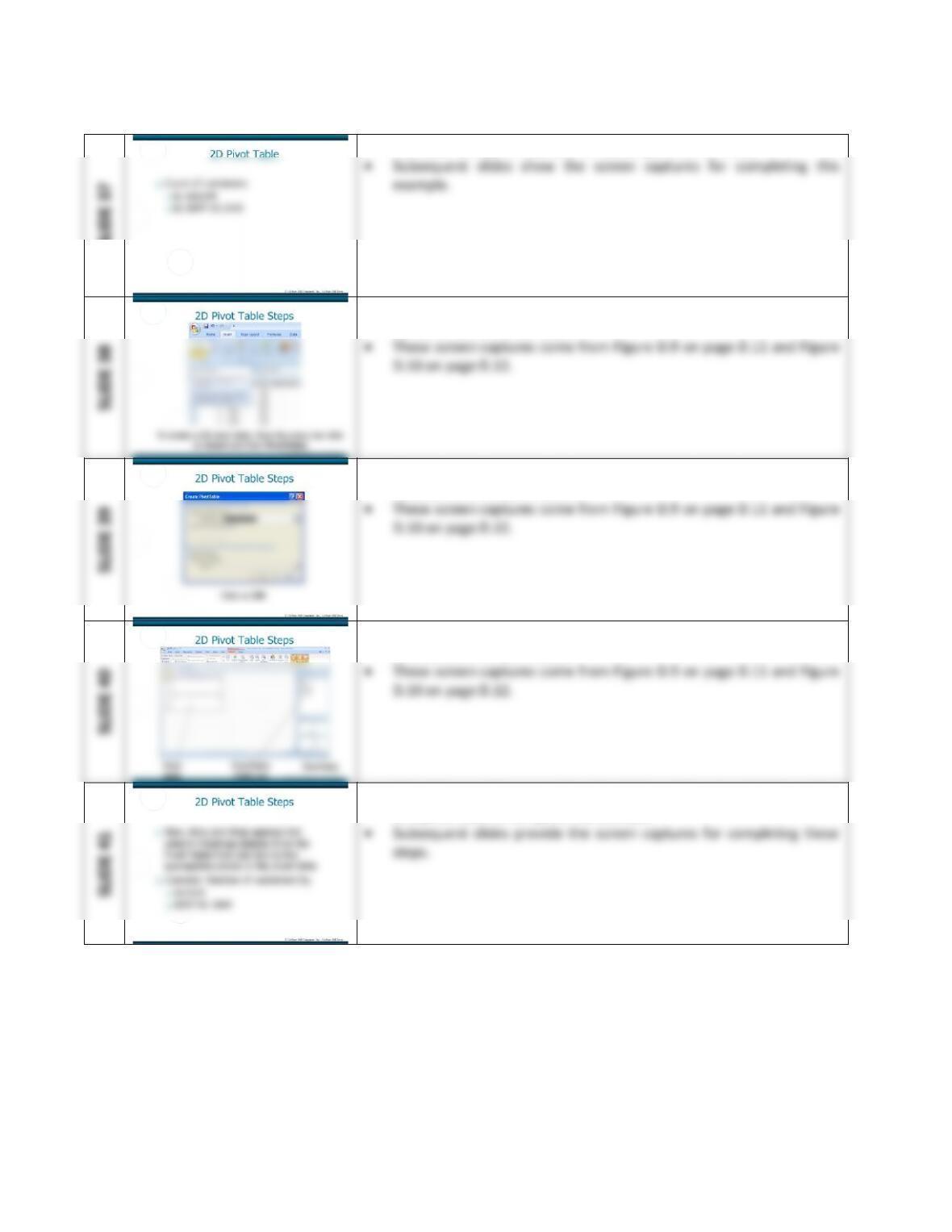
• This slide sets up an example for building a 2D pivot table.
SLIDE 38
• These three slides provide the screen captures for setting up the basic
structure of a 2D pivot table.
SLIDE 39
• These three slides provide the screen captures for setting up the basic
structure of a 2D pivot table.
SLIDE 40
• These three slides provide the screen captures for setting up the basic
structure of a 2D pivot table.
• This slide provides a narrative description of how to add information
to a pivot table to complete the example.