
Lab Exercise – IPv4
Objective
To learn about the details of IP (Internet Protocol). IP is the network layer protocol used throughout the
Internet. We will examine IP version 4, since it is ubiquitously deployed, while the IP version 6 is partly
deployed. IP is covered in §5.6.1 to §5.6.3 of your text. Review those sections before doing this lab.
Requirements
Wireshark: This lab uses the Wireshark software tool to capture and examine a packet trace. A packet
trace is a record of traffic at a location on the network, as if a snapshot was taken of all the bits that
passed across a particular wire. The packet trace records a timestamp for each packet, along with the
bits that make up the packet, from the lower–layer headers to the higher–layer contents. Wireshark runs
wget / curl: This lab uses wget (Linux and Windows) and curl (Mac) to fetch web resources. wget
and curl are command-line programs that let you fetch a URL. Unlike a web browser, which fetches
traceroute / tracert: This lab uses “traceroute” to find the router level path from your computer to a
remote Internet host. traceroute is a standard command–line utility for discovering the Internet paths
Step 1: Capture a Trace
Proceed as follows to capture a trace assuming that your computer has IPv4 connectivity; alternatively,
you may use a supplied trace. The trace we want to gather is a simple web fetch from a remote server,
which will cause your computer to send and receive IP packets, followed by a traceroute to the re-
mote server to find the path it uses over the Internet.
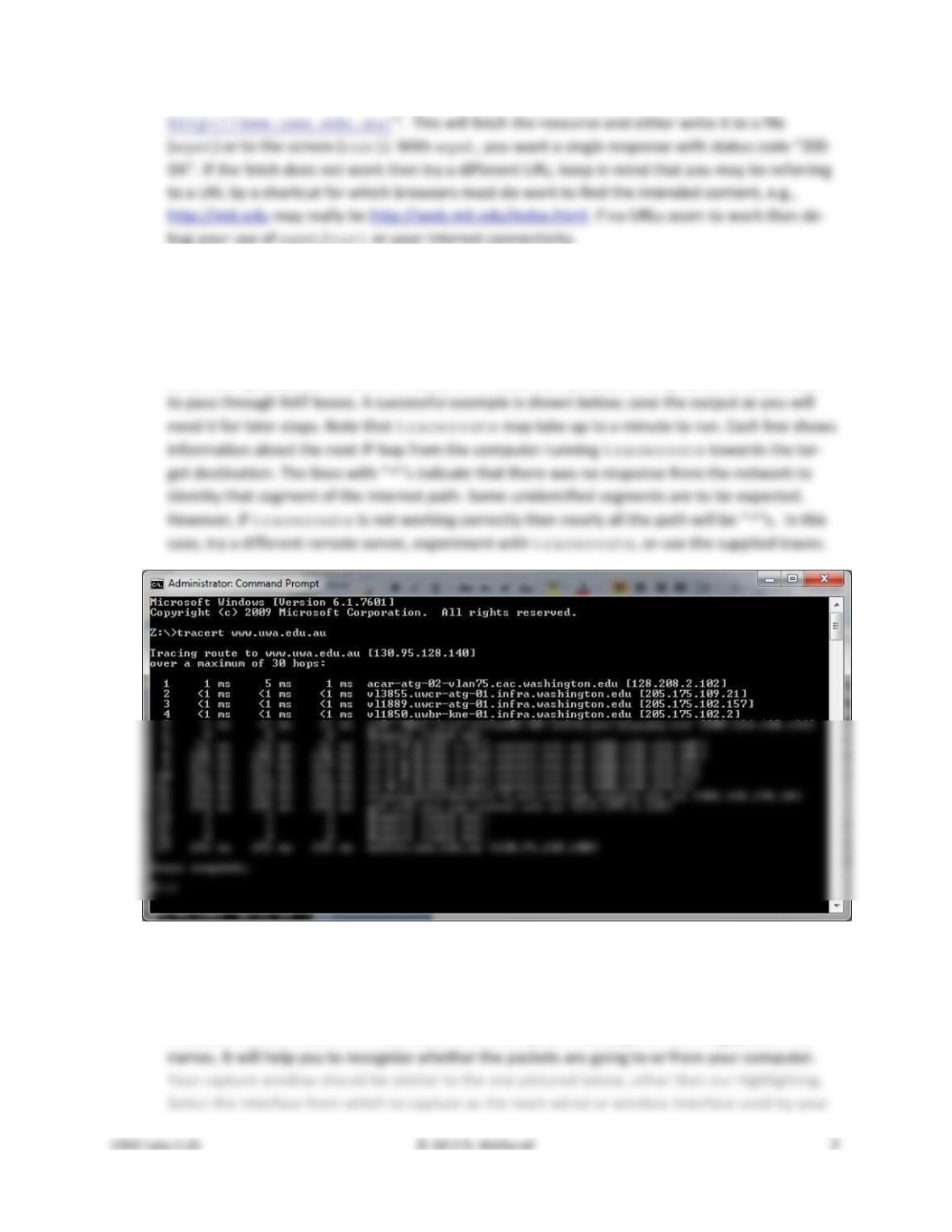
2. Perform a traceroute to the same remote server to check that you can discover information
about the network path. On Windows, type, e.g., “tracert www.uwa.edu.au”. On Linux /
Mac, type, e.g., “traceroute www.uwa.edu.au”. If you are on Linux / Mac and behind a
NAT (as most home users or virtual machine users) then use the –I option (that was a capital i)
to traceroute, e.g., “traceroute –I www.uwa.edu.au”. This will cause traceroute to
send ICMP probes like tracert instead of its usual UDP probes; ICMP probes are better able
Figure 1: Running traceroute (as tracert on Windows)
3. Launch Wireshark and start a capture with a filter of “tcp port 80“. Make sure to check
“enable network name resolution”. We use this filter to record only standard web traffic. Name
resolution will translate the IP addresses of the computers sending and receiving packets into
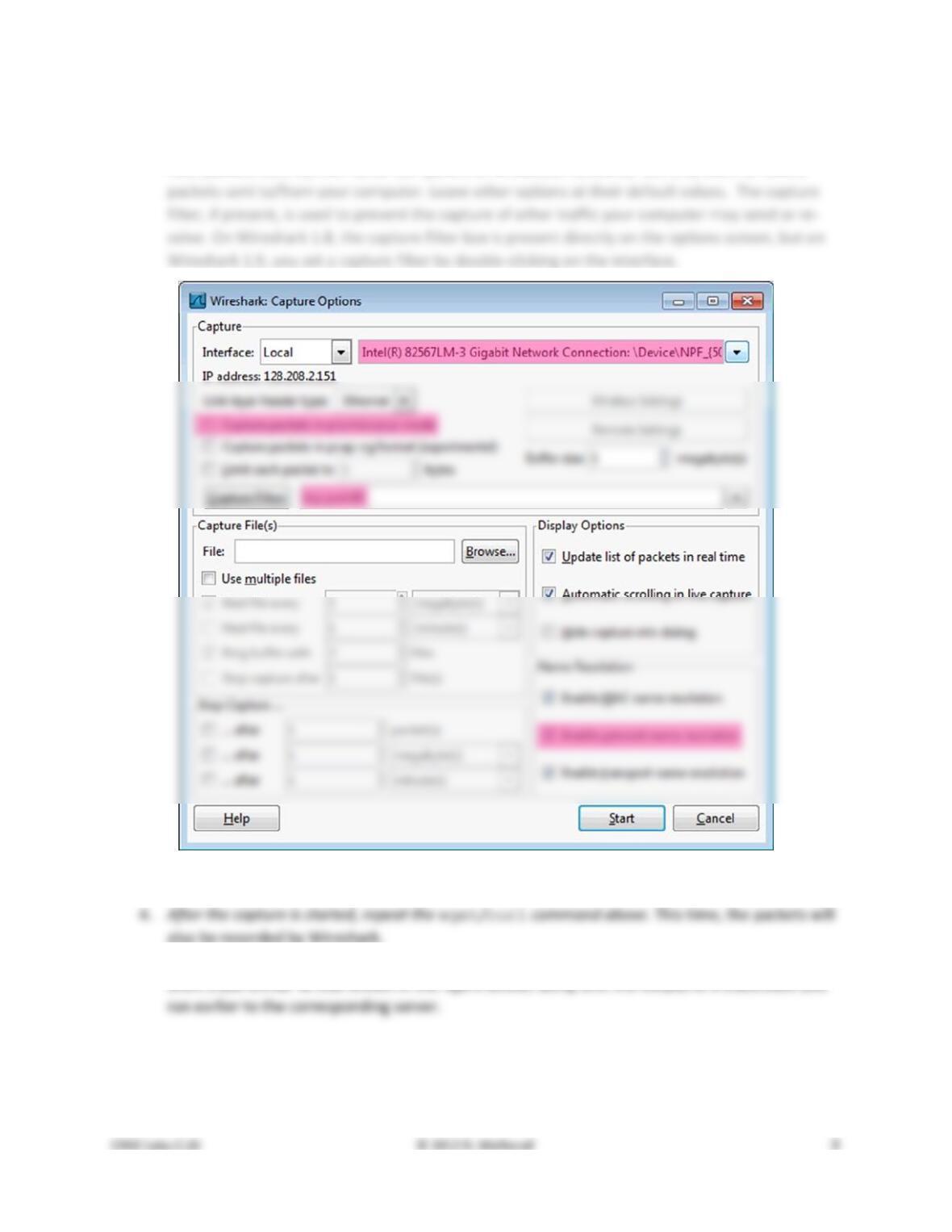
computer to connect to the Internet. If unsure, guess and revisit this step later if your capture is
not successful. Uncheck “capture packets in promiscuous mode”. This mode is useful to over-
hear packets sent to/from other computers on broadcast networks. We only want to record
Figure 2: Setting up the capture options
5. After the command is complete, return to Wireshark and stop the trace. You should now have a
short trace similar to that shown in the figure below, along with the output of a traceroute you
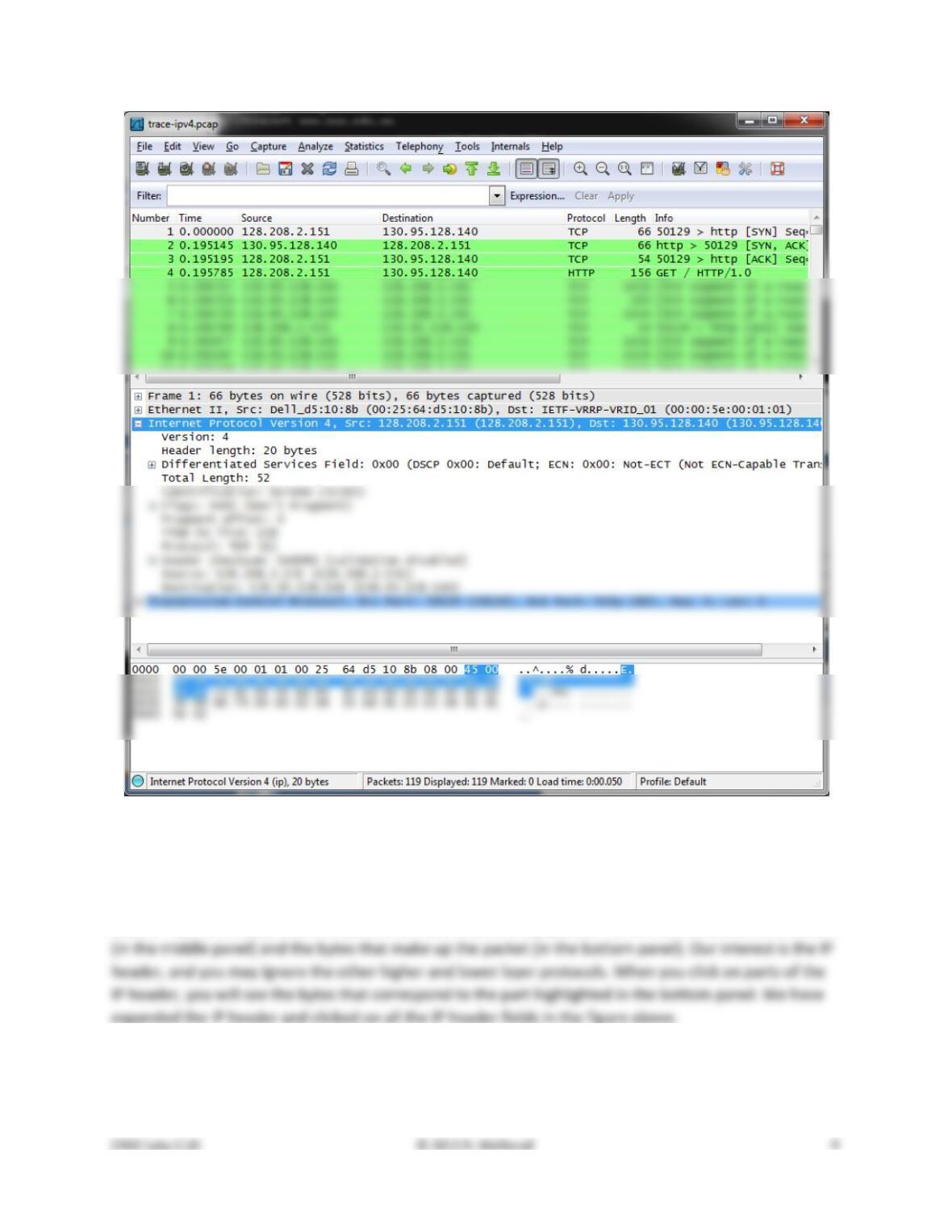
Figure 3: Trace of wget/curl traffic showing the details of the IP header
Step 2: Inspect the Trace
Select any packet in the trace and expand the IP header fields (using the “+” expander or icon) to see the
details. You can simply click on a packet to select it (in the top panel). You will see details of its structure
Let us go over the fields in turn:
• The version field is set to 4. This is “IPv4” after all.
• Then there is the header length field. Observe by looking at the bytes selected in the packet da-
ta that version and header length are both packed into a single byte.
• Next comes the header checksum. Is your header checksum carrying 0 and flagged as incorrect
for IP packets sent from your computer to the remote server? On some computers, the operat-
ing system software leaves the header checksum blank (zero) for the NIC to compute and fill in
• The last fields in the header are the normally the source and destination address. It is possible
for there to be IP options, but these are unlikely in standard web traffic.
Step 3: IP Packet Structure
To show your understanding of IP, sketch a figure of an IP packet you studied. It should show the position
and size in bytes of the IP header fields as you can observe using Wireshark. Since you cannot easily de-
termine sub–byte sizes, group any IP fields that are packed into the same bytes. Your figure can simply
show the frame as a long, thin rectangle. Try not to look at the figure of an IPv4 packet in your text;
check it afterwards to note and investigate any differences.
By looking at the IP packets in your trace, answer these questions:
1. What are the IP addresses of your computer and the remote server?
2. Does the Total Length field include the IP header plus IP payload, or just the IP payload?
3. How does the value of the Identification field change or stay the same for different packets? For
instance, does it hold the same value for all packets in a TCP connection or does it differ for each
packet? Is it the same in both directions? Can you see any pattern if the value does change?
4. What is the initial value of the TTL field for packets sent from your computer? Is it the maximum
possible value, or some lower value?
Step 4: Internet Paths
The source and destination IP addresses in an IP packet denote the endpoints of an Internet path, not
the IP routers on the network path the packet travels from the source to the destination. traceroute
is a utility for discovering this path. It works by eliciting responses (ICMP TTL Exceeded messages) from
the router 1 hop away from the source towards the destination, then 2 hops away from the source, then
3 hops, and so forth until the destination is reached. The responses will identify the IP address of the
router. The output from traceroute normally prints the information for one hop per line, including
the measured round trip times and IP address and DNS names of the router. The DNS name is handy for
To finish your drawing, label the routers along the path with the name of the real–world organization to
which they belong. To do this, you will need to interpret the domain names of the routers given by
traceroute. If you are unsure, label the routers with the domain name of what you take to be the or-
ganization. Ignore or leave blank any routers for which there is no domain name (or no IP address).
This is not an exact science, so we will give some examples. Suppose that traceroute identifies a
ton.edu is the University of Washington. This means that “cac” portion is an internal structure in the
University of Washington, and not important for the organization name. You would write “University of
Washington” on your figure for any routers with domain names of the form *.washington.edu.
Step 5: IP Header Checksum
We will now look at the IP header checksum calculation by validating a packet. The checksum algorithm
adds the header bytes 16 bits at a time. It is computed so that re–computing the sum across the entire IP
header (including the checksum value) will produce the result of zero. A complicating factor for us is that
this is done using 1s complement arithmetic, rather than 2s complement arithmetic that is normally
used for computing. The steps below explain how to perform the necessary computation.
From the trace, pick a packet sent from the remote server to your computer and check that you have a
non–zero value in the checksum field. The checksum value sent over the network will be non–zero, so if
you have a zero value it is because of the capture setup. Try a packet that has an IP header of 20 bytes,
the minimum header size when there are no options, to make this exercise easier.
Follow these steps to check that the checksum value is correct:
1. Divide the header into 10 two byte (16 bit) words. Each word will be 4 hexadecimal digits shown
2. Add these 10 words using regular addition. You may add them with a hexadecimal calculator
3. To compute the 1s complement sum from your addition so far, take any leading digits (beyond
4. The end result should be 0xffff. This is actually zero in 1s complement form, or more precise-
ly 0xffff is –0 (negative zero) while 0x0000 is +0 (positive zero).
If you cannot get your sum to come out and are sure that the checksum must be wrong, you can get
Explore on your own
We encourage you to explore IP on your own once you have completed this lab. Some ideas:
• Read about and experiment with IPv6. Modern operating systems already include support for
IPv6, so you may be able to capture IPv6 traffic on your network. You can also “join the IPv6”
Solutions – IPv4
The solutions below are based on our capture and use of tools. Your answers will differ in the details if
they are based on your own capture and use of tools in a different network setting. Nonetheless, we ex-
pect our solutions to help you understand whether your answers are correct.
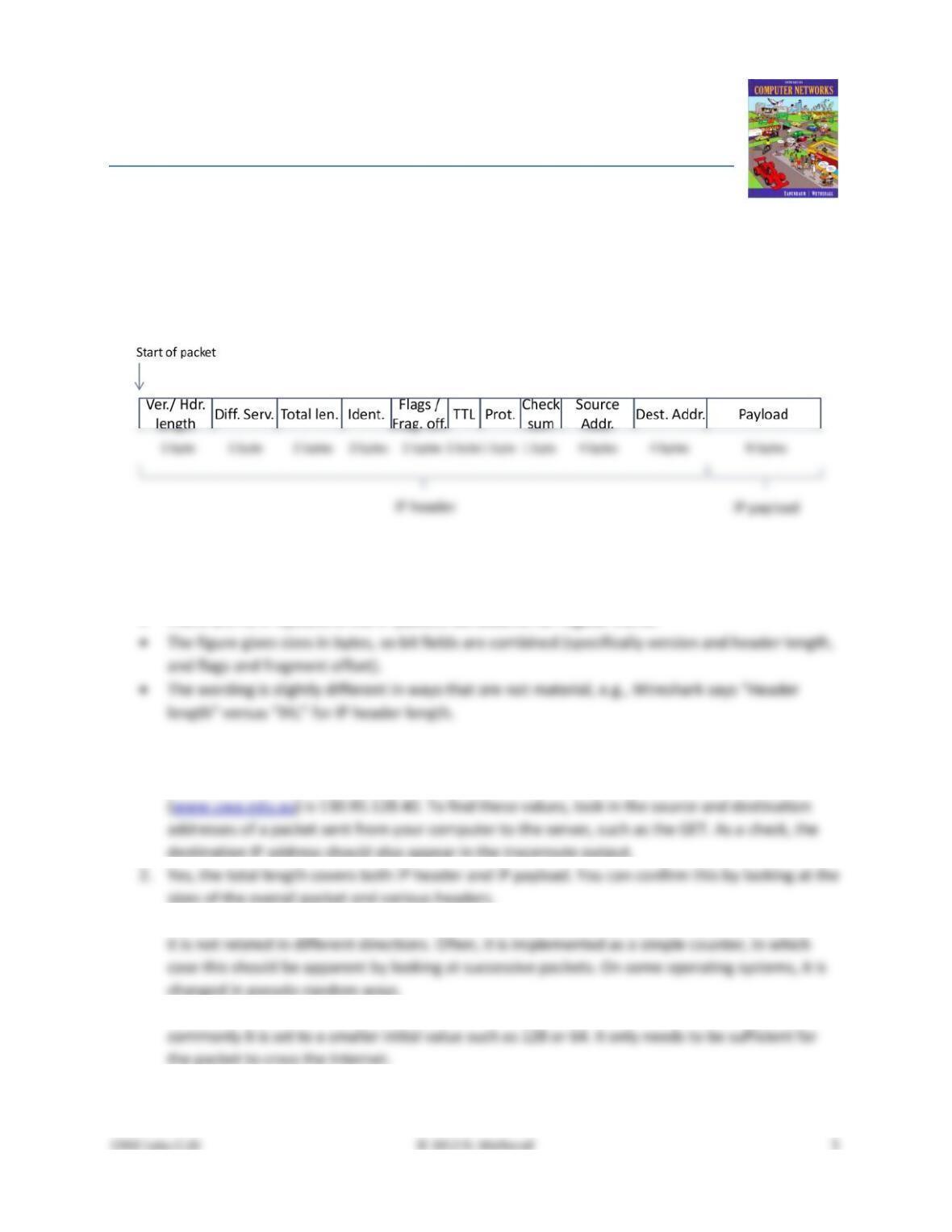
Step 3: IP Packet Structure
Figure 1: Structure of an IP packet
This drawing differs from the text drawing in Fig. 5–46 in only minor respects:
• There are no IP options in the IP packets we observe for regular traffic.
The answers to the questions are:
1. For our trace, the IP address of the computer is 128.208.2.151 and the IP address of the server
3. Identification changes on each new packet. It is set independently by each sending computer, so
4. In our case the initial value is 128. It is the maximum of 255 on some computers, but more
5. A packet cannot be a fragment if the Don’t Fragment bit is set. If not set, a packet is not a frag-
ment if the fragment offset is zero and the More Fragments bit is zero. These settings imply that
6. The header length of our packets is 20 bytes; your header will be 20 bytes or possibly longer. But
Step 4: Internet Paths
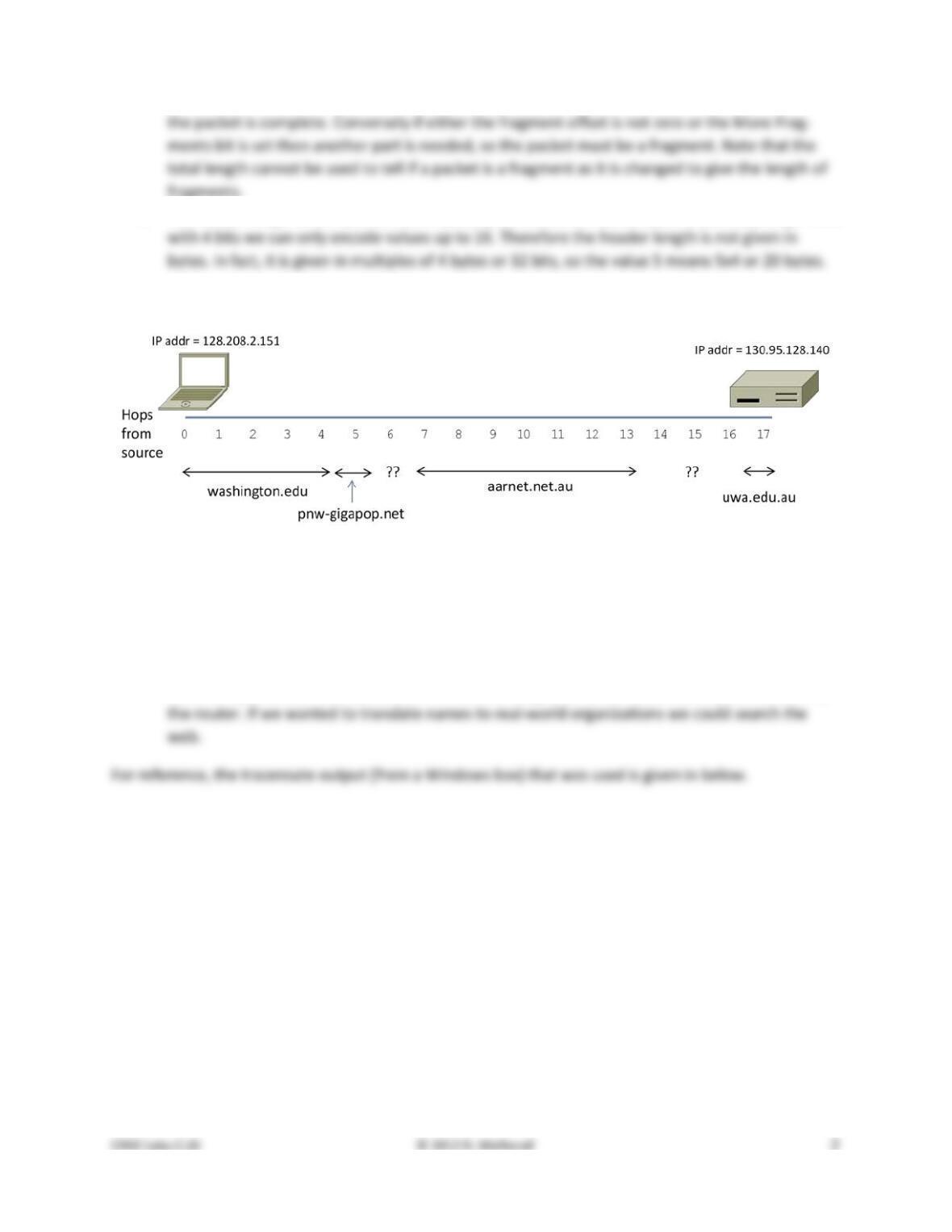
Figure 2: Internet path from our computer to the remote server
Your figure will differ in the details, but is also likely to show a path going through more than a dozen
routers and several organizations. There are several features to note:
• The sketch shows 17 router hops because this matches the output of the traceroute.
• The ranges are taken from the DNS names of routers. They are a guess using the last two or
three components of the name. The “??” denote ranges for which traceroute could not identify
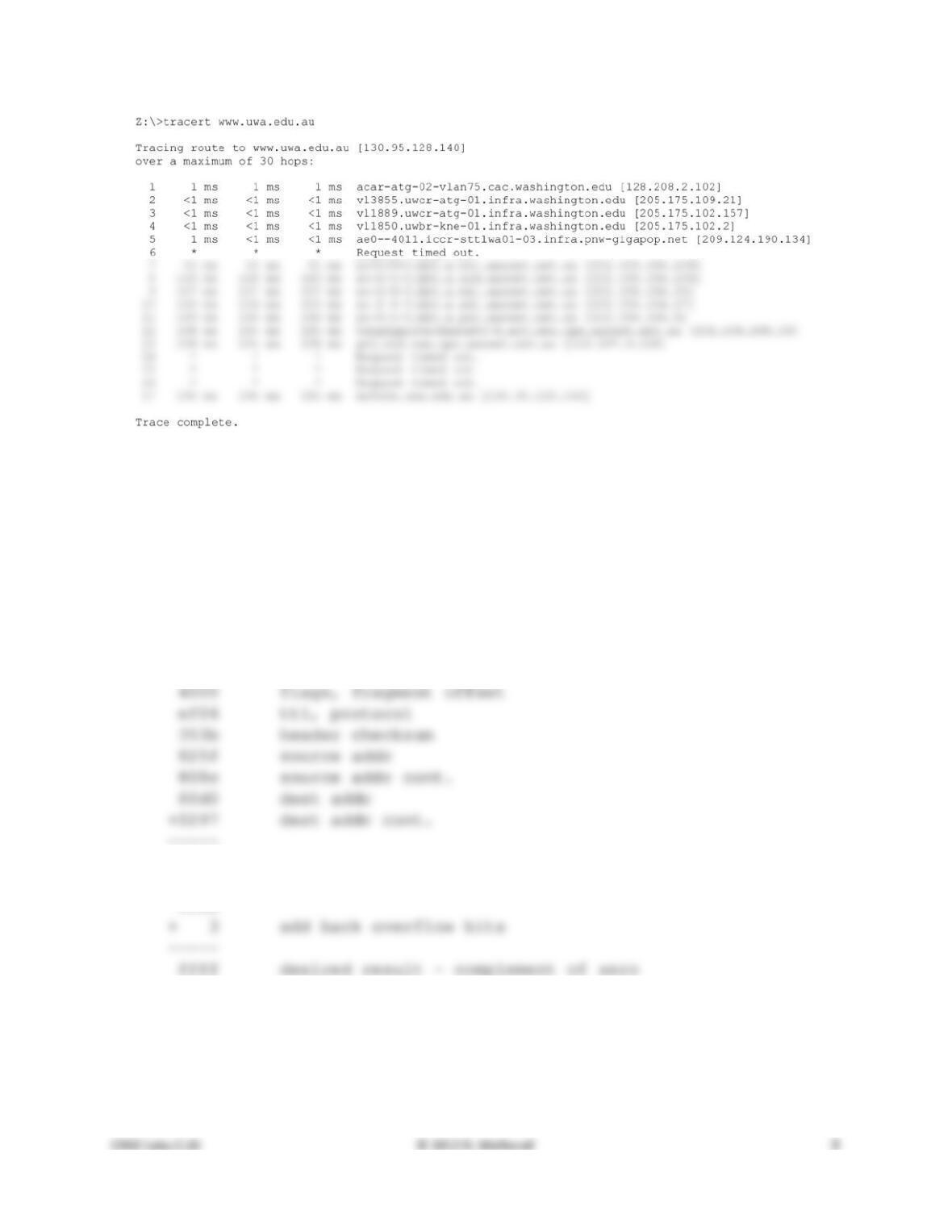
Figure 3: Output of tracert showing the router–level path
Step 5: IP Header Checksum
Here is an example checksum calculation for one of our packets (packet #17 of the supplied trace). Your
sum will have different numbers but a similar form. Note that you must choose a packet with a non–zero
checksum; the zero checksum packets have the checksum stripped out.
4500 version, header len, diff. serv
058c total length
cadd identification
—–
3fffc
fffc
[END]