Chapter Twelve – Data Warehouses, Business Intelligence Systems, and Big Data
Page 12-38
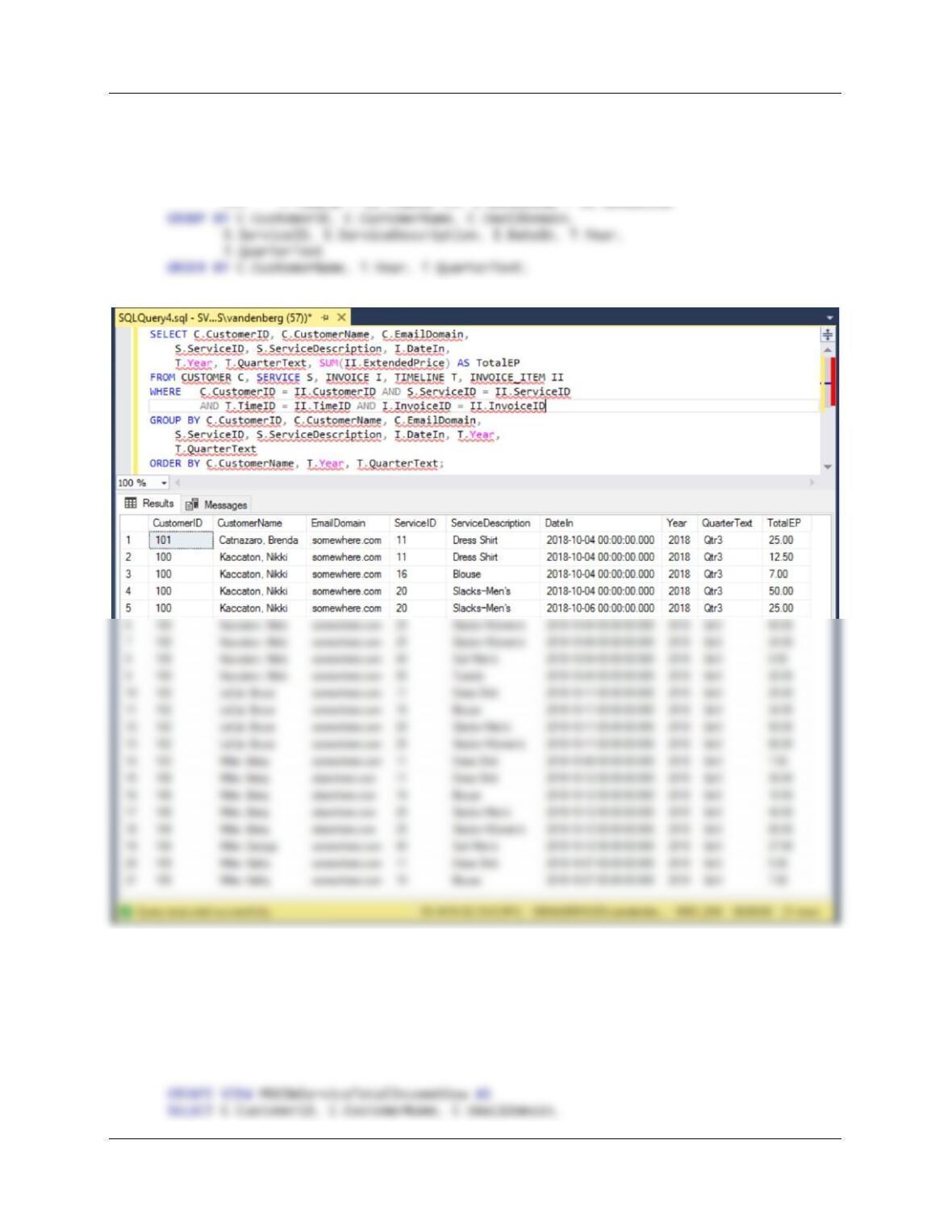
SELECT C.CustomerID, C.CustomerName, C.EmailDomain,
S.ServiceID, S.ServiceDescription, I.DateIn,
T.Year, T.QuarterText, SUM(II.ExtendedPrice) AS TotalEP
FROM CUSTOMER C, SERVICE S, INVOICE I, TIMELINE T, INVOICE_ITEM II
WHERE C.CustomerID = II.CustomerID AND S.ServiceID = II.ServiceID
G. Write the SQL view equivalent of the SQL query you wrote to answer part F.
See SQL solutions in file DBP-e15-MSSQL-MDC–DW-CQ.sql:
Chapter Twelve – Data Warehouses, Business Intelligence Systems, and Big Data
Page 12-39
S.ServiceID, S.ServiceDescription, I.DateIn,
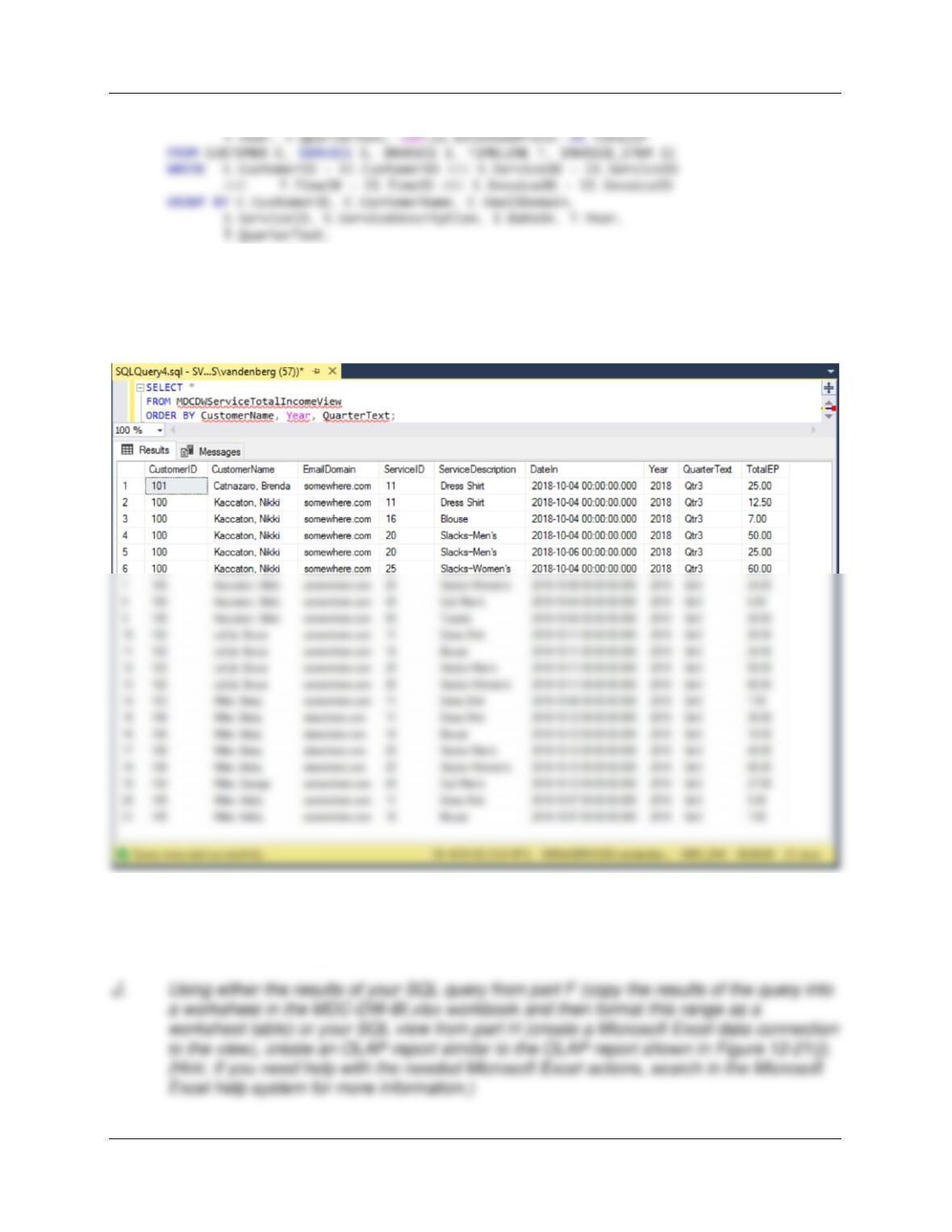
H. Create the SQL view you wrote to answer part G in your MDC_DW database.
This is self-explanatory. Here is a query to display and sort the contents of the view. See SQL
solutions in file DBP-e15-MSSQL-MDC-DW-CQ.sql:
I. Create the Microsoft Excel 2016 workbook named MDC-DW–BI-Exercises.xlsx.
This is self-explanatory.
Chapter Twelve – Data Warehouses, Business Intelligence Systems, and Big Data
Page 12-40
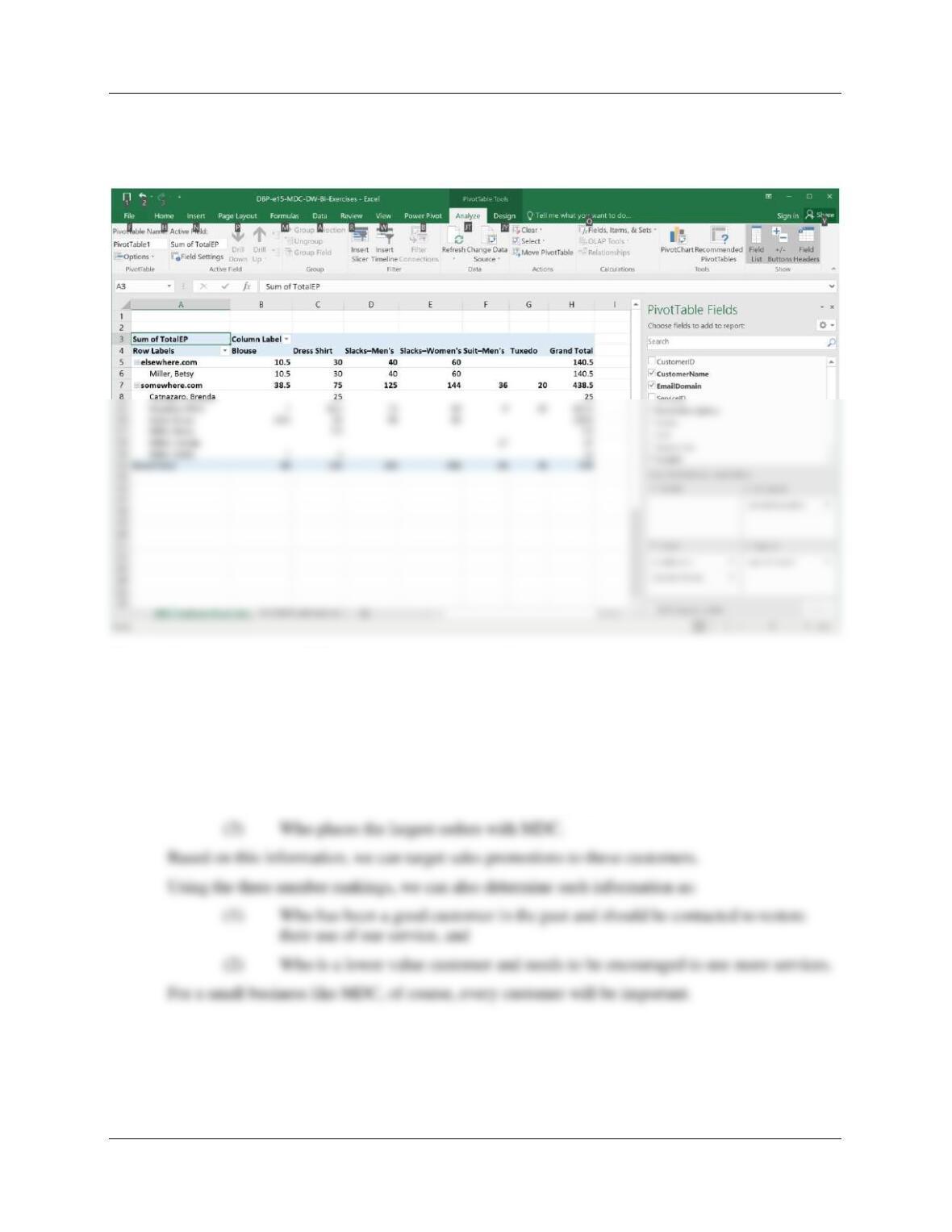
As with the other pivot table and OLAP exercises in this chapter, there are a number of correct
and useful ways to present the data. See the Teaching Suggestions for other tips. Here is one
way to present the data:
K. Describe how an RFM analysis could be useful in Marcia’s business.
RFM analysis is a tool for analyzing and ranking customers based on their purchasing patterns.
By running an RFM analysis at Marcia’s Dry Cleaning, we can learn who our best customers are
in terms of:
(1) Who our current customers (most recent) are,
(2) Who uses our services the most frequently, and
Chapter Twelve – Big Data, Data Warehouse, and Business Intelligence Systems
Page 12–41
❖ THE QUEEN ANNE CURIOSITY SHOP PROJECT QUESTIONS
If you have not already implemented the Queen Anne Curiosity Shop database shown in
Chapter 7 in a DBMS product, create and populate the QACS database now in the DBMS of
your choice (or as assigned by your instructor).
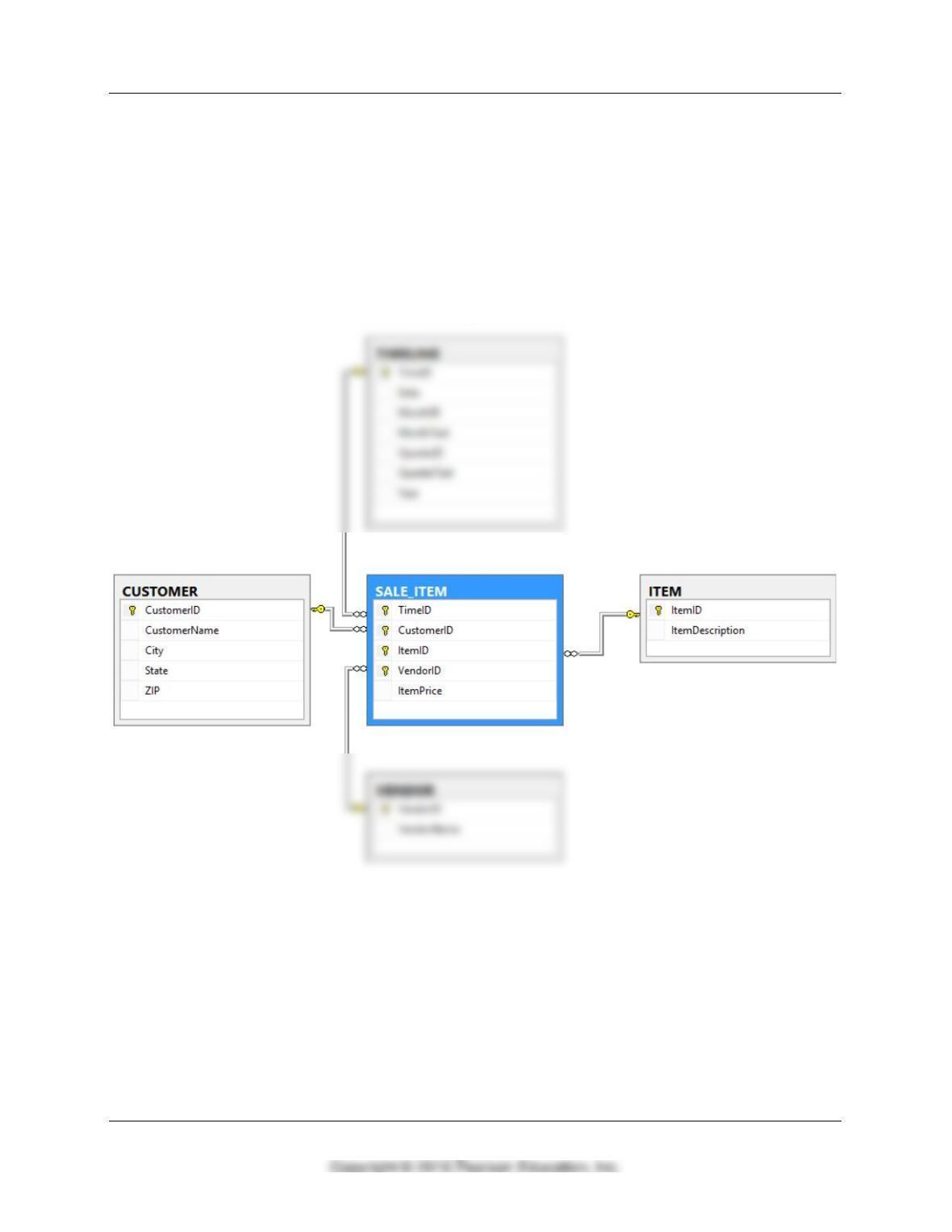
A. Design a data warehouse star schema for a dimensional database named QACS_DW.
The fact table measure will be ItemPrice.
We’ll take a look at how customers react to products from various vendors.
Chapter Twelve – Big Data, Data Warehouse, and Business Intelligence Systems
Page 12–42
B. Create the QACS_DW database in a DBMS product.
See the file DBP-e15-MSSQL-QACS-DW-Create-Tables.sql.
CREATE TABLE TIMELINE(
TimeID Int NOT NULL,
Date Date NOT NULL,
MonthID Int NOT NULL,
MonthText Char(15) NOT NULL,
QuarterID Int NOT NULL,
QuarterText Char(10) NOT NULL,
Year Int NOT NULL,
CONSTRAINT TIMELINE_PK PRIMARY KEY(TimeID)
);
CREATE TABLE VENDOR(
VendorID Int NOT NULL,
VendorName Char(100) NOT NULL,
CONSTRAINT VENDOR_PK PRIMARY KEY(VendorID)
);
CREATE TABLE ITEM(
ItemID Int NOT NULL,
ItemDescription VarChar(255) NOT NULL,
CONSTRAINT ITEM_PK PRIMARY KEY(ItemID)
);
ON DELETE NO ACTION,
CONSTRAINT SI_CUSTOMER_FK FOREIGN KEY (CustomerID)
REFERENCES CUSTOMER(CustomerID)
ON UPDATE NO ACTION
ON DELETE NO ACTION,
CONSTRAINT SI_VENDOR_FK FOREIGN KEY (VendorID)
REFERENCES VENDOR(VendorID)
ON UPDATE NO ACTION
);
Chapter Twelve – Big Data, Data Warehouse, and Business Intelligence Systems
Page 12–43
C. What transformations of data will need to be made before the QACS_DW database can
be loaded with data? List all the transformations, showing the original format of the
QACS database and how it appears in the QACS_DW database.
D. Write the complete set of SQL statements necessary to load the transformed data into
the QACS_DW database.
See the file DBP-e15-MSSQL-QACS-DW-Insert-Data.sql.
/***** TIMELINE *******************************************************/
INSERT INTO TIMELINE VALUES(
43083, ’14-DEC-17′, 12, ‘Dec’, 4, ‘Qtr4’, 2017);
INSERT INTO TIMELINE VALUES(
/***** CUSTOMER DATA **************************************************/
INSERT INTO CUSTOMER VALUES(
1, ‘Shire, Robert’, ‘Seattle’, ‘WA’, ‘98103’);
INSERT INTO CUSTOMER VALUES(
2, ‘Goodyear, Katherine’, ‘Seattle’, ‘WA’, ‘98105’);
INSERT INTO CUSTOMER VALUES(
3, ‘Bancroft, Chris’, ‘Bellevue’, ‘WA’, ‘98005’);
INSERT INTO CUSTOMER VALUES(
Chapter Twelve – Big Data, Data Warehouse, and Business Intelligence Systems
Page 12–44
/***** ITEM DATA *****************************************************/
INSERT INTO ITEM VALUES(1, ‘Antique Desk’);
INSERT INTO ITEM VALUES(2, ‘Antique Desk Chair’);
INSERT INTO ITEM VALUES(3, ‘Dining Table Linens’);
INSERT INTO ITEM VALUES(4, ‘Candles’);
INSERT INTO ITEM VALUES(5, ‘Candles’);
INSERT INTO ITEM VALUES(6, ‘Desk Lamp’);
INSERT INTO ITEM VALUES(7, ‘Dining Table Linens’);
/***** SALE_ITEM DATA *************************************************/
INSERT INTO SALE_ITEM VALUES(43083, 1, 1, 2, 3000.00);
INSERT INTO SALE_ITEM VALUES(43083, 1, 2, 4, 500.00);
INSERT INTO SALE_ITEM VALUES(43084, 2, 3, 1, 1000.00);
INSERT INTO SALE_ITEM VALUES(43084, 3, 4, 1, 50.00);
INSERT INTO SALE_ITEM VALUES(43092, 4, 5, 1, 45.00);
INSERT INTO SALE_ITEM VALUES(43105, 1, 6, 3, 250.00);
INSERT INTO SALE_ITEM VALUES(43110, 5, 7, 1, 750.00);
Chapter Twelve – Big Data, Data Warehouse, and Business Intelligence Systems
Page 12–45
E. Populate the QACS_DW database using the appropriate QACS database data or
transformations of that data.
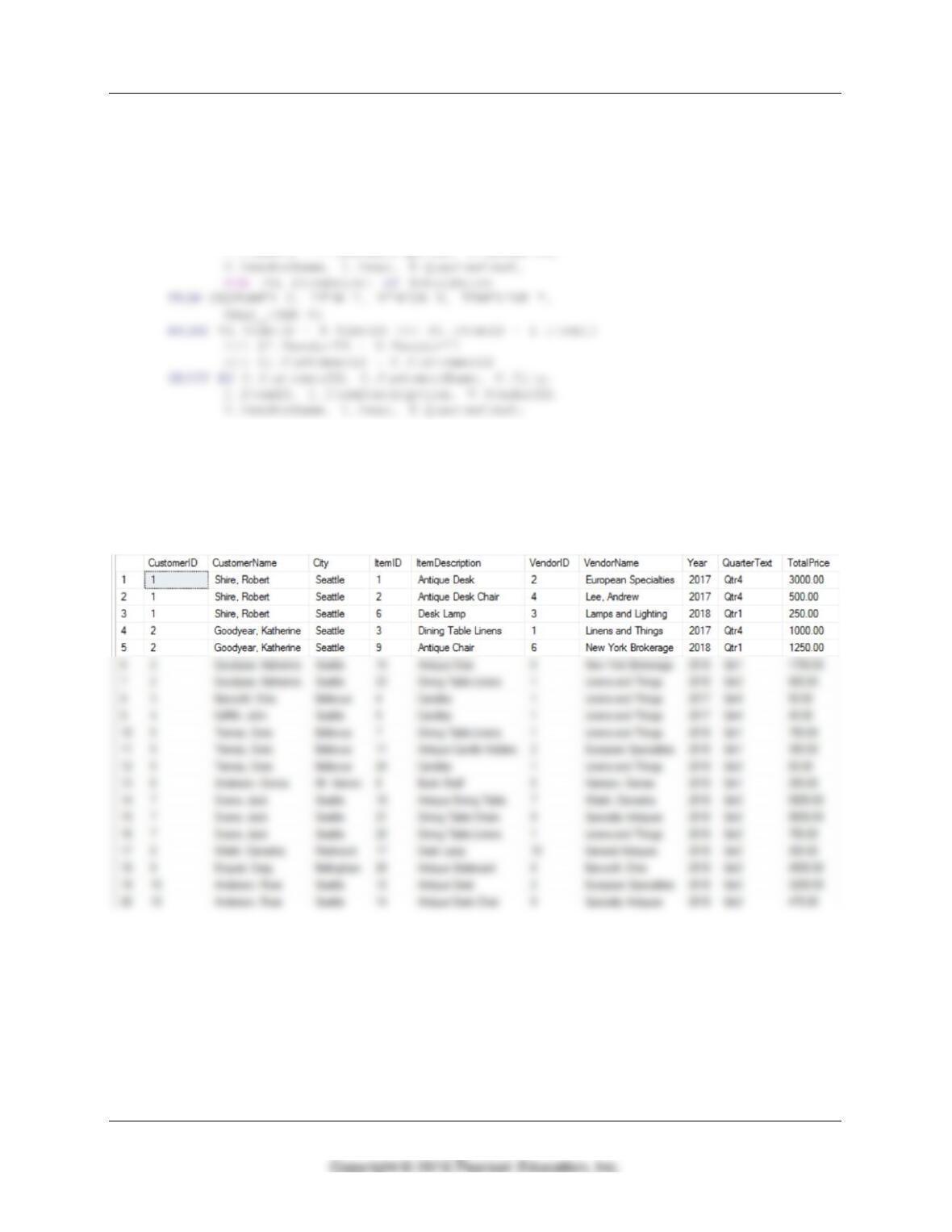
F. Write an SQL query similar to SQL-Query-CH12-02 on page 589 that uses retail price as
the measure.
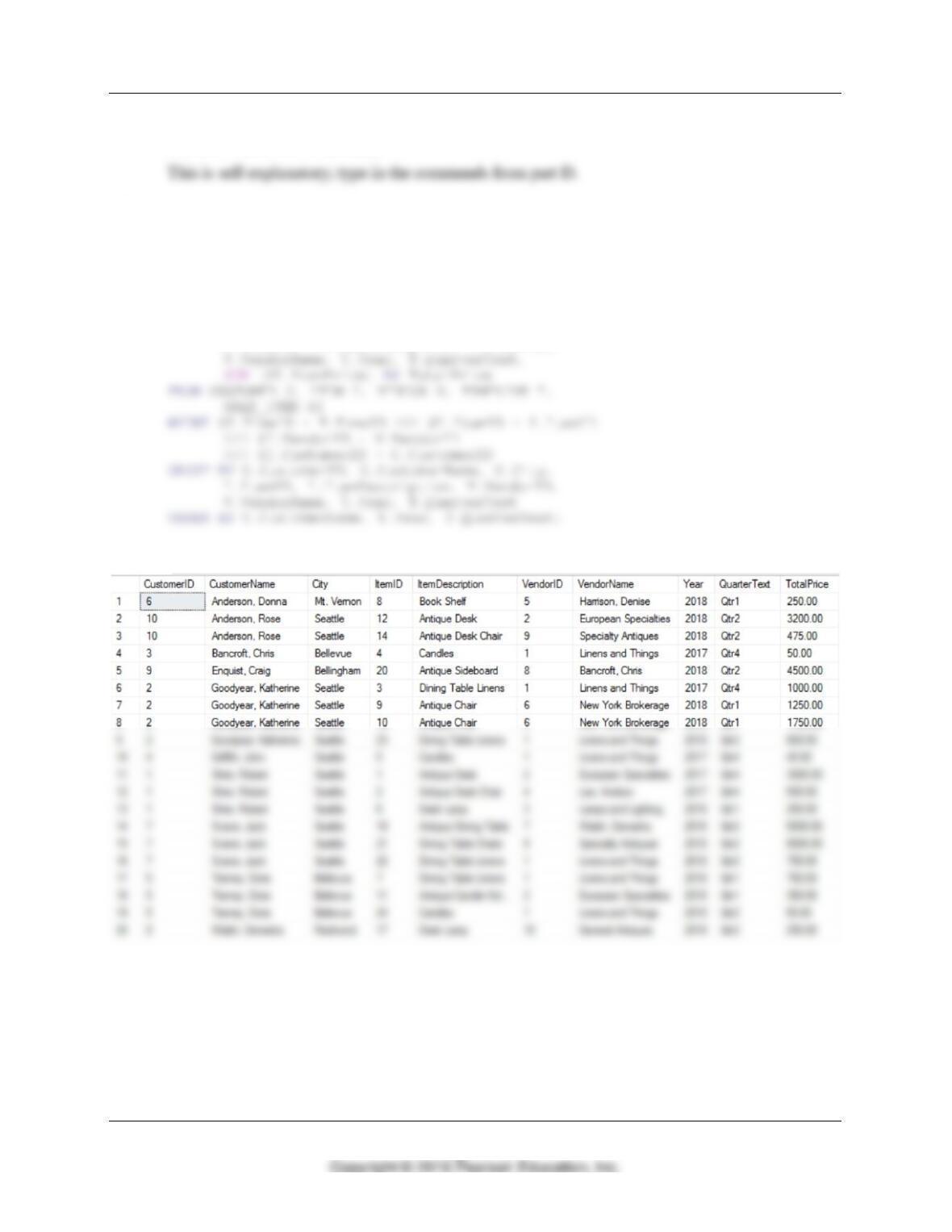
See the file DBP-e15-MSSQL-QACS-DW-CQ.sql.
/* ******** Question F Query ******************************************/
SELECT C.CustomerID, C.CustomerName, C.City,
I.ItemID, I.ItemDescription, V.VendorID,
Chapter Twelve – Big Data, Data Warehouse, and Business Intelligence Systems
Page 12–46
G. Write the SQL view equivalent of the SQL query you wrote to answer part F.
See the file DBP-e15-MSSQL-QACS-DW–CQ.sql .
/* ******** Guestion H View Defintion *********************************/
CREATE VIEW QACSDWVendorDollarSalesView AS
SELECT C.CustomerID, C.CustomerName, C.City,
H. Create the SQL view you wrote to answer part H in your QACS_DW database.
This is self-explanatory. See the file DBP-e15-MSSQL-QACS-DW–CQ.sql for a query to
retrieve all data from the view:
SELECT * FROM QACSDWVendorDollarSalesView;
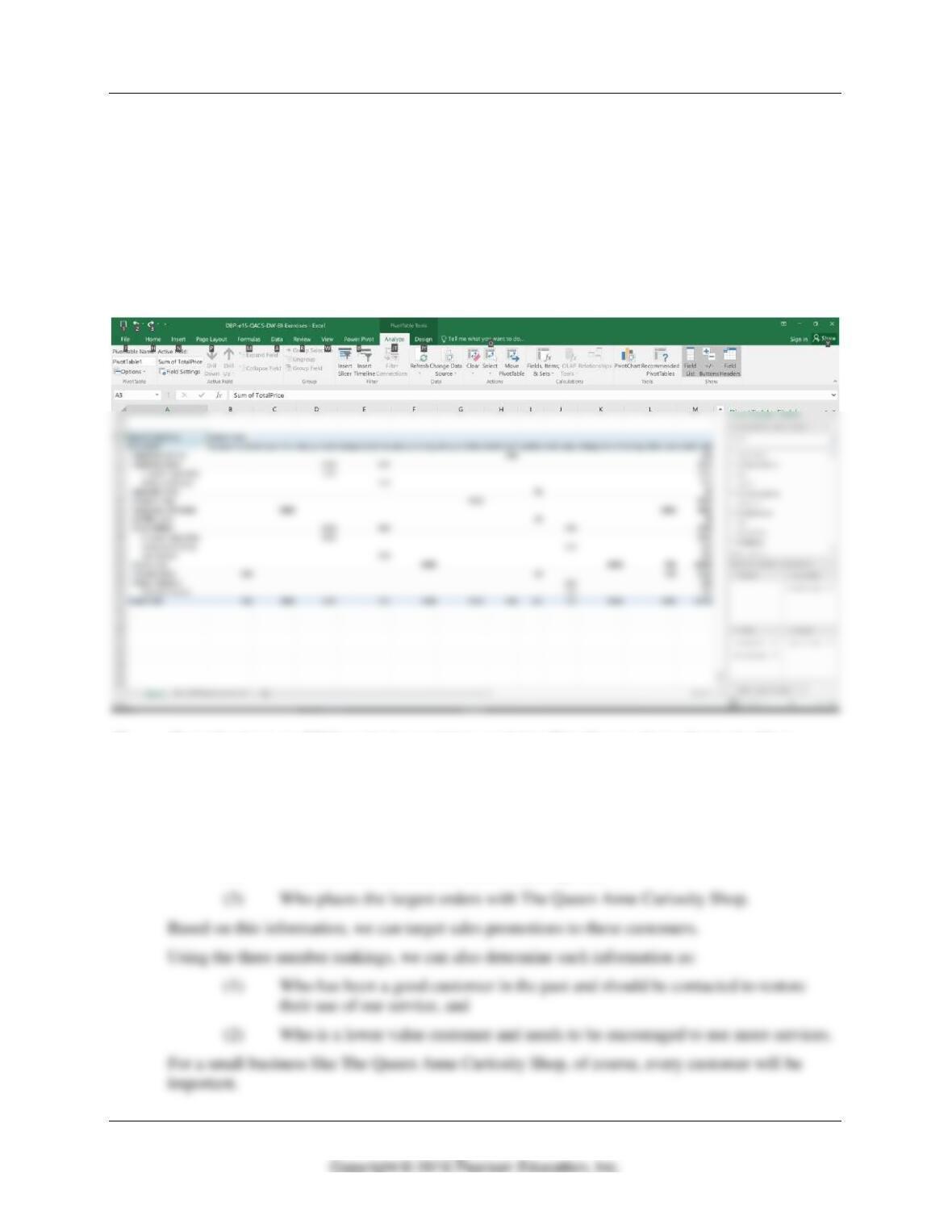
I. Create a Microsoft Excel 2016 workbook named QACS-DW–BI–Exercises.xlsx.
This is self-explanatory. See file: DBP-e15-QACS-DW–BI-Exercises.xlsx.
Chapter Twelve – Big Data, Data Warehouse, and Business Intelligence Systems
Page 12–47
J. Using either the results of your SQL query from part F (copy the results of the query into
a worksheet in the QACS-DW-BI.xlsx workbook and then format this range as a
worksheet table) or your SQL view from part G (create a Microsoft Excel data connection
to the view), create an OLAP report similar to the OLAP report shown in Figure 12-21(j).
(Hint: If you need help with the necessary Microsoft Excel actions, search in the
Microsoft Excel help system for more information.)
See file: DBP-e15-QACS-DW–BI-Exercises.xlsx. As with the other pivot table and OLAP
exercises in this chapter, there are a number of correct and useful ways to present the data. See
the Teaching Suggestions for other tips. Here is one way to present the data:
K. Describe how an RFM analysis could be useful to The Queen Anne Curiosity Shop.
RFM analysis is a tool for analyzing and ranking customers based on their purchasing patterns.
By running an RFM analysis at The Queen Anne Curiosity Shop, we can learn who our best
customers are in terms of:
(1) Who our current customers (most recent) are,
(2) Who uses our services the most frequently, and
Chapter Twelve – Big Data, Data Warehouse, and Business Intelligence Systems
Page 12–48
❖ MORGAN IMPORTING PROJECT QUESTIONS
If you have not already implemented the Morgan Importing database shown in Chapter 7 in a
DBMS product, create and populate the MI database now in the DBMS of your choice (or as
assigned by your instructor).
Because Morgan Importing purchasing agents are responsible for contacting the shippers and
arranging the shipments, James also wants an analysis of purchasing agents’ performance
based on the same measure.
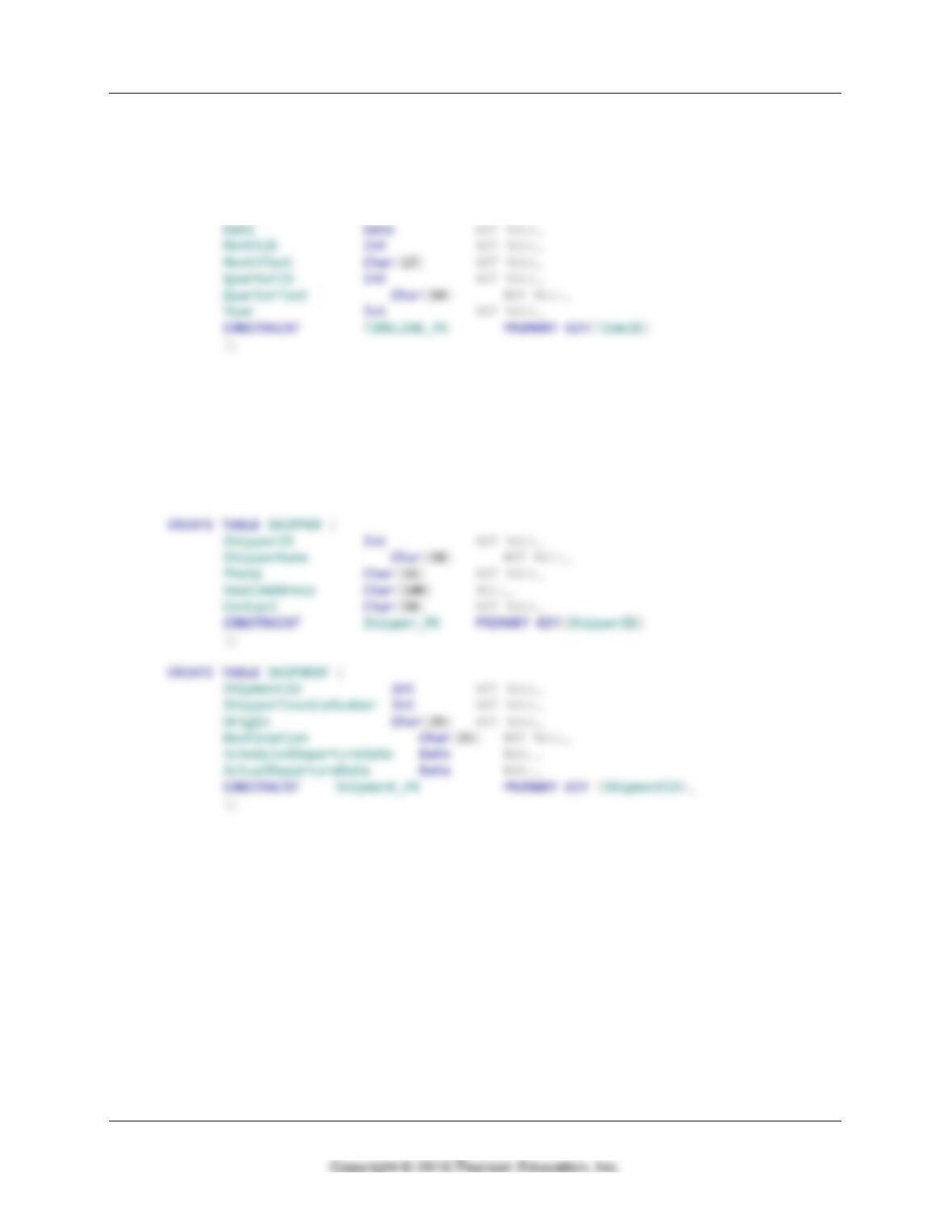
A. Design a data warehouse star schema for a dimensional database named MI_DW. The
fact table measure will be DepartureDelay (the difference between
ScheduledDepartureDate and ActualDepartureDate). Dimension tables will be
TIMELINE, SHIPMENT, SHIPPER and PURCHASING_AGENT
(PURCHASING_AGENT is a subset of EMPLOYEE containing data on only the
employees who are purchasing agents).
Chapter Twelve – Big Data, Data Warehouse, and Business Intelligence Systems
Page 12–49
B. Create the MI_DW database in a DBMS product.
See SQL Server solutions in file DBP-e15-MSSQL-MI–DW-Create-Tables.sql:
CREATE TABLE TIMELINE(
TimeID Int NOT NULL,
CREATE TABLE PURCHASING_AGENT(
EmployeeID Int NOT NULL,
LastName Char(25) NOT NULL,
FirstName Char(25) NOT NULL,
OfficePhone Char(12) NULL,
EmailAddress VarChar(100) NOT NULL UNIQUE,
CONSTRAINT EMPLOYEE_PK PRIMARY KEY(EmployeeID)
)
Chapter Twelve – Big Data, Data Warehouse, and Business Intelligence Systems
Page 12–50
CREATE TABLE SHIPMENT_DELAY(
TimeID Int NOT NULL,
PurchasingAgentID Int NOT NULL,
ShipperID Int NOT NULL,
ShipmentID Int NOT NULL,
DepartureDelay Int NOT NULL,
CONSTRAINT SHIPMENT_DELAY_PK
PRIMARY KEY (TimeID, PurchasingAgentID, ShipperID, ShipmentID),
CONSTRAINT SD_TIMELINE_FK FOREIGN KEY (TimeID)
REFERENCES TIMELINE(TimeID)
ON UPDATE NO ACTION
);
C. What transformations of data will need to be made before the MI_DW database can be
loaded with data? List all the transformations, showing the original format of the MI
database and how it appears in the MI_DW database.
D. Write the complete set of SQL statements necessary to load the transformed data into
the MI_DW database.
See SQL Server solutions in file DBP-e15-MSSQL-MI–DW-Create-Tables.sql:
/***** TIMELINE *************************************************************/
INSERT INTO TIMELINE VALUES(
43079, ’10–DEC–17‘, 12, ‘Dec’, 4, ‘Qtr4’, 2017);
Chapter Twelve – Big Data, Data Warehouse, and Business Intelligence Systems
Page 12–51
/***** PURCHASING_AGENT Data ************************************************/
INSERT INTO PURCHASING_AGENT VALUES(
101, ‘Morgan’, ‘James’, ‘310-208-1401′,
‘James.Morgan@morganimporting.com’);
/***** SHIPPER Data ***********************************************************/
INSERT INTO SHIPPER VALUES (
1, ‘ABC Trans-Oceanic’, ‘800-234-5656′,
‘Sales@ABCTransOceanic.com’, ‘Jonathan’);
INSERT INTO SHIPPER VALUES (
2, ‘International’, ‘800-123-8898′,
‘Sales@International.com’, ‘Marilyn’);
INSERT INTO SHIPPER VALUES (
3, ‘Worldwide’, ‘800-123-4567′,
‘Sales@worldwide.com’, ‘Jose’);
/***** SHIPMENT Data ***********************************************************/
INSERT INTO SHIPMENT (ShipmentID, ShipperInvoiceNumber, Origin, Destination,
ScheduledDepartureDate, ActualDepartureDate)
VALUES
/***** SHIPMENT_DELAY ***********************************************************/
INSERT INTO SHIPMENT_DELAY
(TimeID, PurchasingAgentID, ShipperID, ShipmentID, DepartureDelay)
VALUES
(43079, 103, 1, 100, 0),
Chapter Twelve – Big Data, Data Warehouse, and Business Intelligence Systems
Page 12–52
E. Populate the MI_DW database using the appropriate MI database data or
transformations of that data.
F. Write an SQL query similar to SQL-Query-CH12-02 on page 589 that uses
DepartureDelay as the measure.
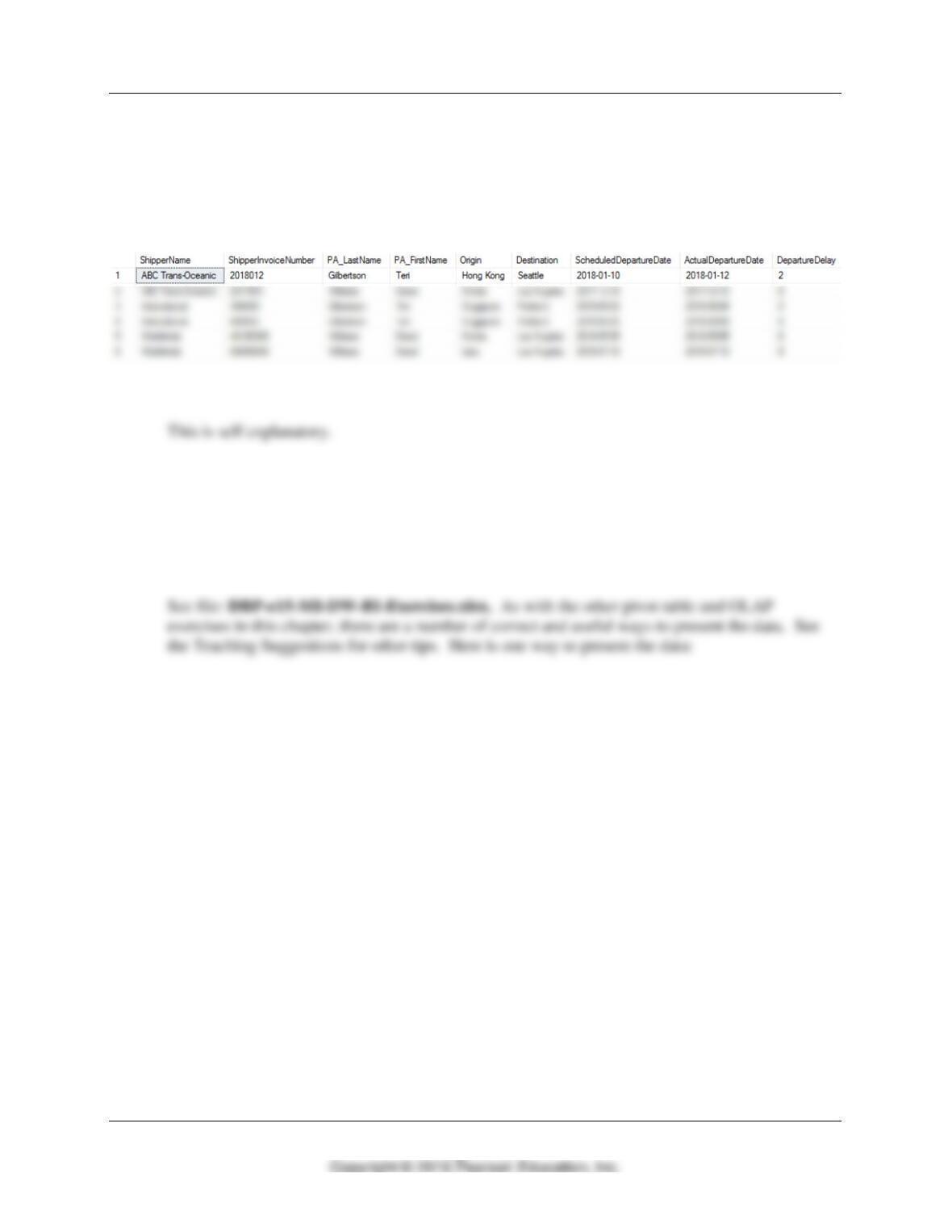
See the file DBP-e15-MSSQL-MI–DW-CQ.sql for solutions.
SELECT S.ShipperName, SMNT.ShipperInvoiceNumber,
PA.LastName AS PA_LastName, PA.FirstName AS PA_FirstName,
SMNT.Origin, SMNT.Destination,
SMNT.ScheduledDepartureDate,
SMNT.ActualDepartureDate,
G. Write the SQL view equivalent of the SQL query you wrote to answer part F.
See the file DBP-e15-MSSQL-MI–DW-CQ.sql for solutions.
CREATE VIEW ShipmentDepartureDelayView AS
SELECT S.ShipperName, SMNT.ShipperInvoiceNumber,
PA.LastName AS PA_LastName, PA.FirstName AS PA_FirstName,
SMNT.Origin, SMNT.Destination,
SMNT.ScheduledDepartureDate,
SMNT.ActualDepartureDate,
SD.DepartureDelay
Chapter Twelve – Big Data, Data Warehouse, and Business Intelligence Systems
Page 12–53
H. Create the SQL view you wrote to answer part G in your MI_DW database.
See the file DBP-e15-MSSQL-MI–DW-CQ.sql for solutions.
SELECT *
FROM ShipmentDepartureDelayView
ORDER BY ShipperName, PA_LastName, PA_FirstName, ScheduledDepartureDate;
I. Create a Microsoft Excel 2016 workbook named MI-DW–BI-Exercises.xlsx.
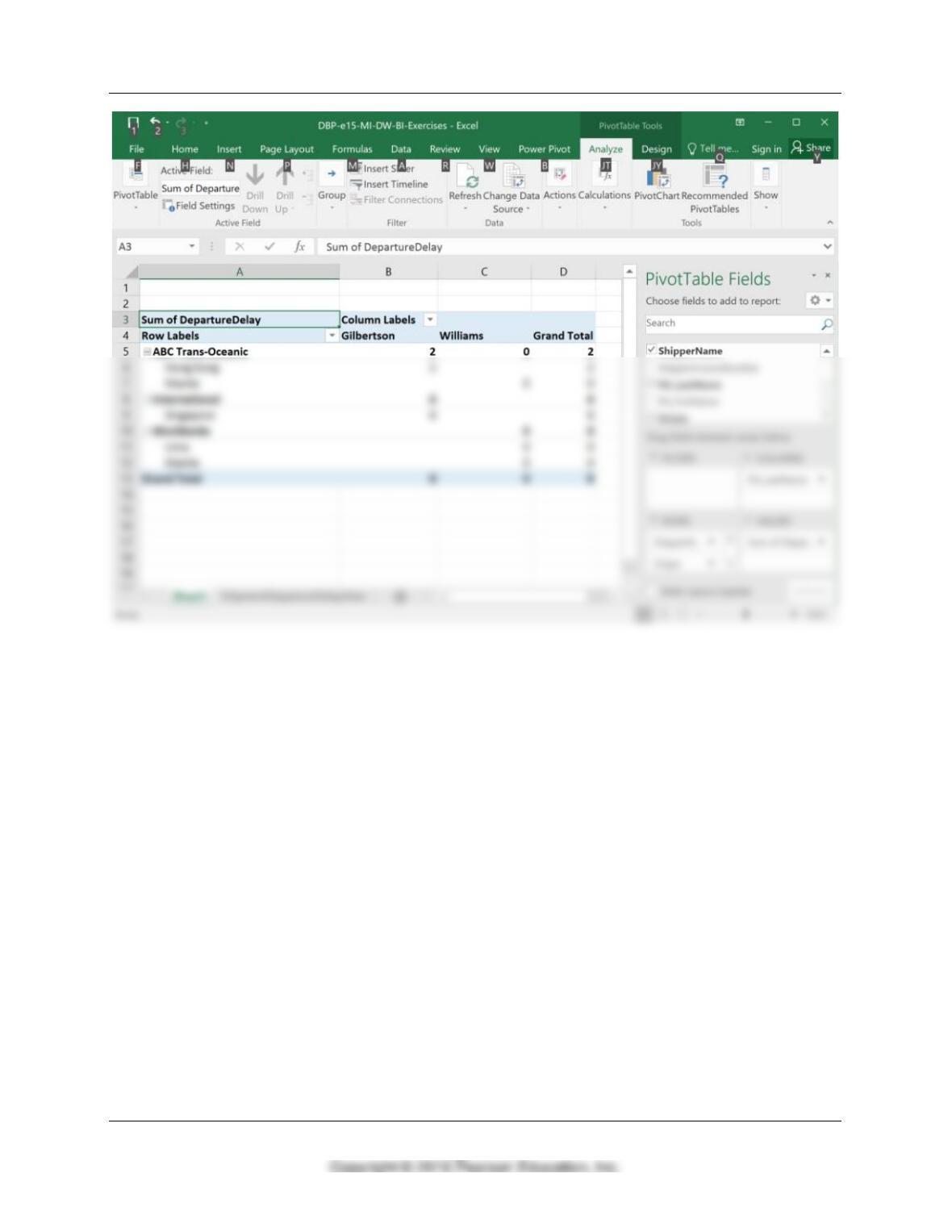
J. Using either the results of your SQL query from part F (copy the results of the query into
a worksheet in the MI-DW–BI.xlsx workbook and then format this range as a worksheet
table) or your SQL view from part H (create a Microsoft Excel data connection to the
view), create an OLAP report similar to the OLAP report shown in Figure 12-21(j). (Hint:
If you need help with the necessary Microsoft Excel actions, search in the Microsoft
Excel help system for more information.)
Chapter Twelve – Big Data, Data Warehouse, and Business Intelligence Systems
Page 12–54