Chapter Eleven – The Web Server Environment
Page 11–61
Web/PHP Page code:
<!DOCTYPE HTML>
<html>
<head>
</head>
<body>
<?php
// Get connection
$DSN = “QACS”;
$User = “QACS-User”;
$Password = “QACS-User+password”;
$Conn = odbc_connect($DSN, $User, $Password);
// Create SQL statement
$SQL = “SELECT * FROM CustomerPurchasesView “;
$SQL .= “WHERE SaleDate = ‘$AsOfDate‘ “;
$SQL .= “OR SaleDate > ‘$AsOfDate‘”;
?>
<!– Page Headers –>
<h1>
The Queen Anne Curiosity Shop Customer Purchases View
</h1>
<hr />
<h2>
Chapter Eleven – The Web Server Environment
Page 11–62
<?php
// Table headers
echo “<table class=’output’ border=’1′
<tr>
<th>CustomerID</th>
<th>LastName</th>
//Table data
while($RecordSetRow = odbc_fetch_array($RecordSet))
{
echo “<tr>”;
echo “<td>” . $RecordSetRow[‘CustomerID’] . “</td>”;
echo “<td>” . $RecordSetRow[‘LastName’] . “</td>”;
}
echo “</table>”;
// Close connection
odbc_close($Conn);
?>
<br />
<hr />
Chapter Eleven – The Web Server Environment
Page 11–63
G. Write a stored procedure that receives values for ITEM.ItemID and NewItemPrice and
sets the value of ItemPrice to NewItemPrice for the row having the given value of
ITEM.ItemID. Generate an error message if no row has the given value of ITEM.ItemID.
Using your sample database, demonstrate that your stored procedure works.
CREATE OR ALTER PROCEDURE [dbo].[Update_ItemPrice]
(
@ItemID Int,
@newItemPrice Numeric(9,2)
)
IF @rowCount = 0
BEGIN
PRINT ‘======================================================================’
PRINT ”
PRINT ‘ There is no ITEM with ItemID: ‘ + CONVERT(Char(12),@ItemID)
PRINT ”
PRINT ‘ No Action Taken’
PRINT ”
PRINT ‘======================================================================’
RETURN
END
PRINT ‘======================================================================’
PRINT ”
PRINT ‘ The price for the ITEM with ItemID: ‘ + CONVERT(Char(12), @ItemID)
PRINT ”
Chapter Eleven – The Web Server Environment
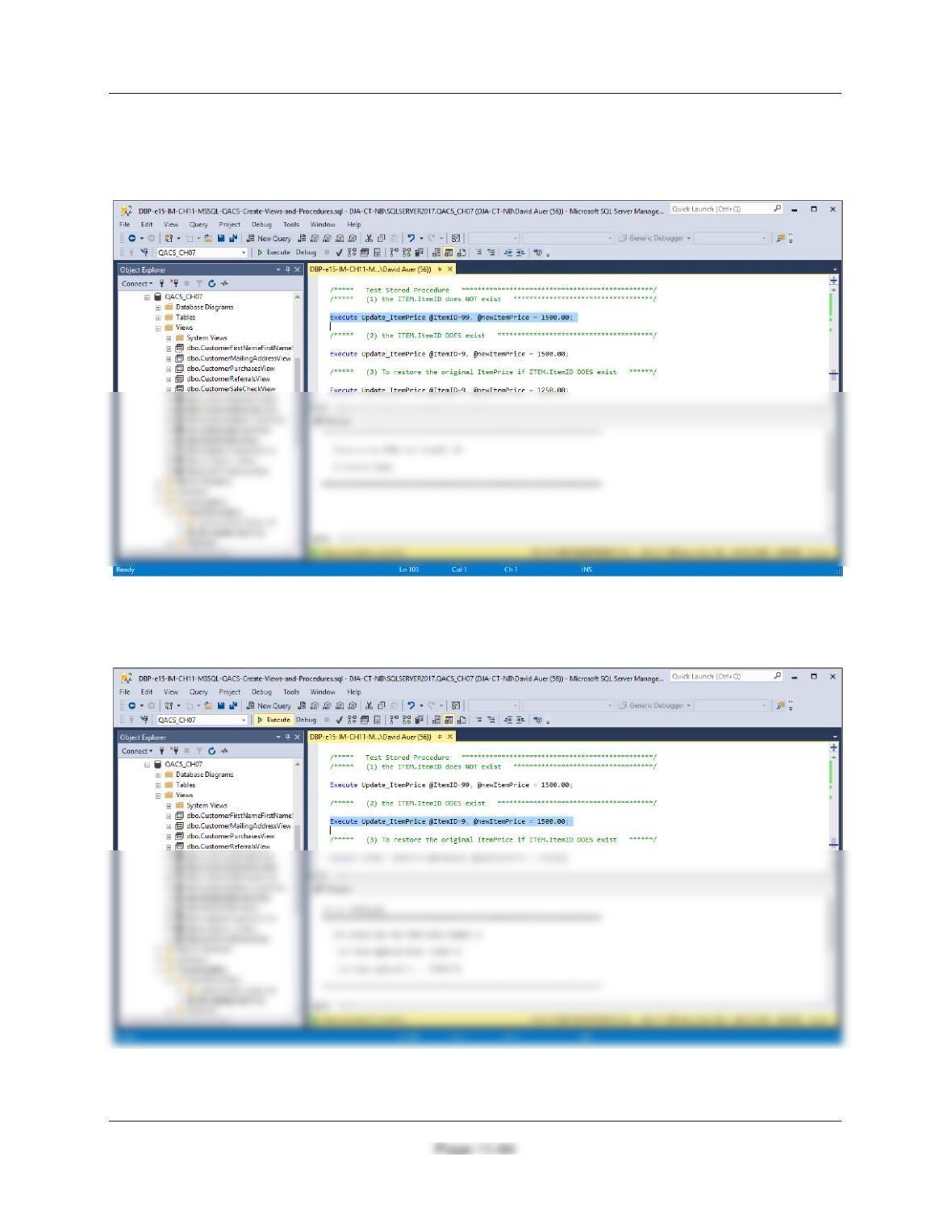
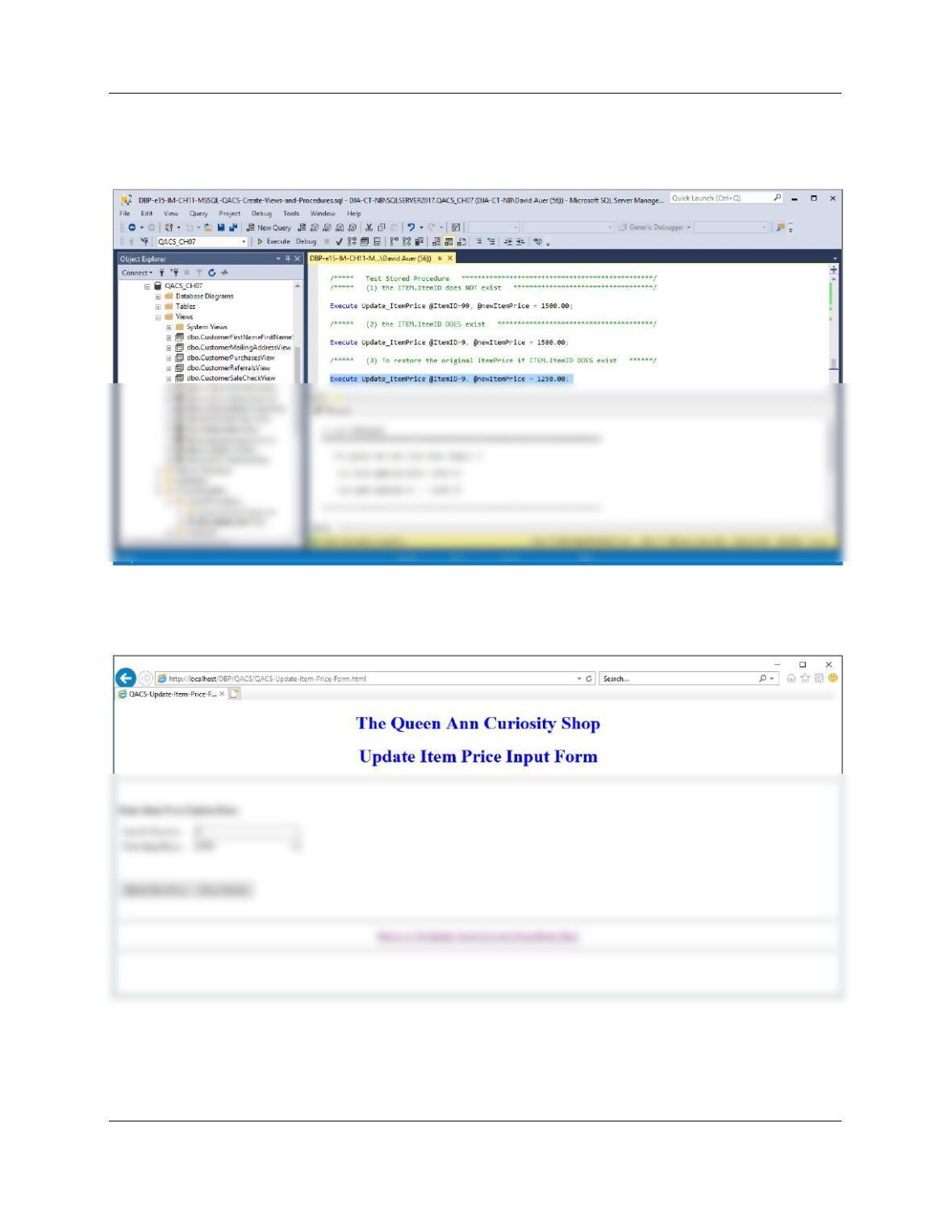
/***** Test Stored Procedure ************************************************/
/***** (1) the ITEM.ItemID does NOT exist ***********************************/
Execute Update_ItemPrice @ItemID=99, @newItemPrice = 1500.00;
/***** (2) the ITEM.ItemID DOES exist ***************************************/
Execute Update_ItemPrice @ItemID=9, @newItemPrice = 1500.00;
Chapter Eleven – The Web Server Environment
Page 11–65
/***** (3) To restore the original ItemPrice if ITEM.ItemID DOES exist ******/
Execute Update_ItemPrice @ItemID=9, @newItemPrice = 1250.00;
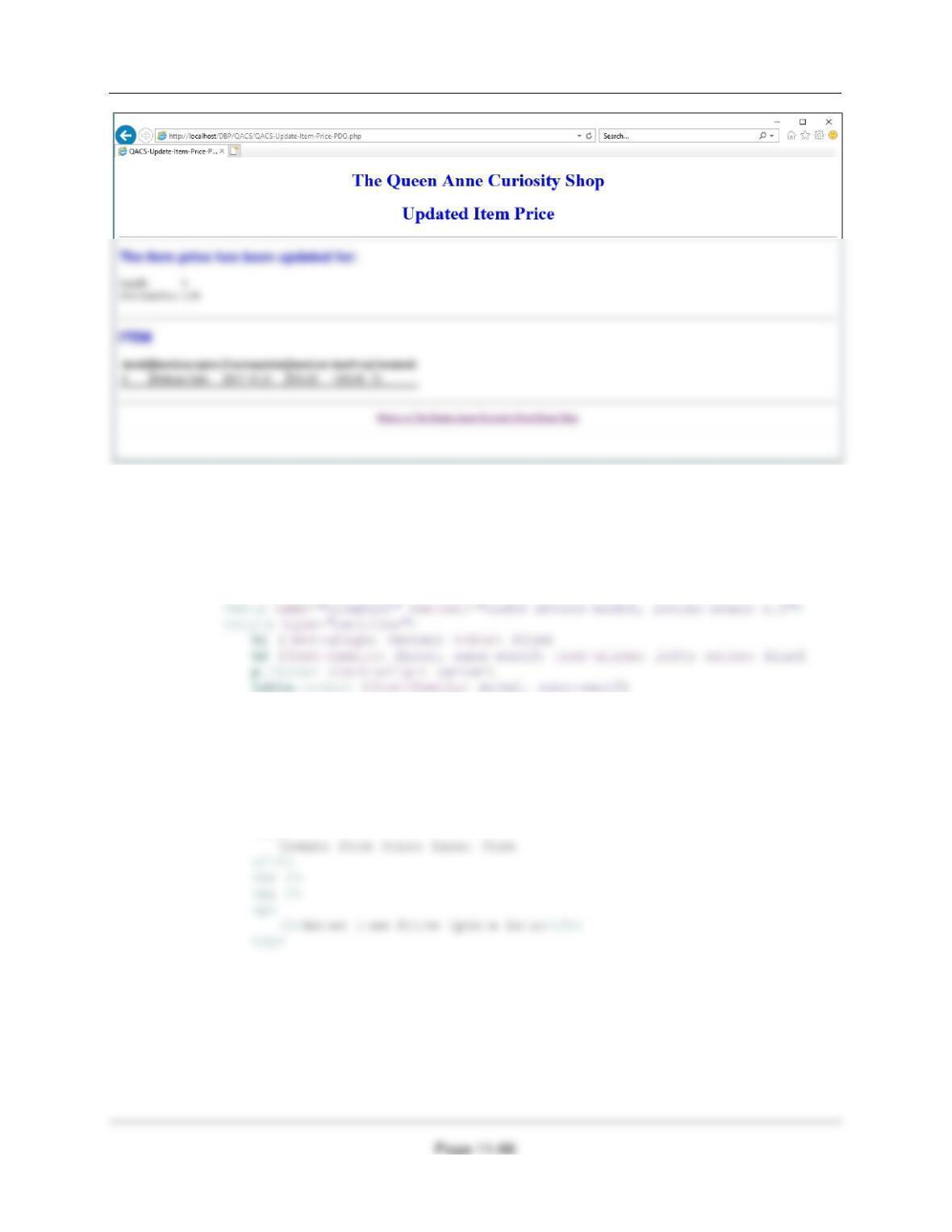
H. Code two HTML/PHP pages to invoke the stored procedure created in part G. Using
your sample database, demonstrate that your page works.
Chapter Eleven – The Web Server Environment
Web/PHP Page code:
<!DOCTYPE HTML>
<html>
<head>
<title>QACS-Update-Item-Price-Form HTML Page</title>
<meta charset=“UTF-8”>
</style>
</head>
<body>
<form action=“QACS-Update-Item-Price-PDO.php” method=“POST”>
<!– Page Headers –>
<h1>
The Queen Ann Curiosity Shop
</h1>
<h1>
Chapter Eleven – The Web Server Environment
Page 11–67
<table>
<tr>
<input type=“text” name=“NewItemPrice” size=“25” />
</td>
</tr>
</table>
<p>
<br />
Web/PHP Page code:
<!DOCTYPE HTML>
<html>
<head>
<title>QACS-Update-Item-Price-PDO PHP Page</title>
<meta charset=“UTF-8”>
<?php
// Get connection
$DSN = “QACS”;
$User = “QACS-User”;
$Password = “QACS-User+password”;
Chapter Eleven – The Web Server Environment
Page 11–68
// Test connection
if (!$PDOconnection)
// Execute SQL statement
$Result = $PDOconnection->exec($SQLSP);
// Test existence of $Result
if (!$Result)
{
// Execute SQL statement
$RecordSet = $PDOconnection->query($SQL);
// Test existence of $RecordSet
if (!$RecordSet)
{
exit (“SQL Statement Error: ” . $SQL);
}
Chapter Eleven – The Web Server Environment
Page 11–69
echo “<h2>
The item price has been updated for:
</h2>
echo “<h2>
ITEM
</h2>”;
// Table headers
echo “<table class=’output’ border=’1′
<tr>
<th>ItemID</th>
//Table data
while($RecordSetRow = $RecordSet->fetch())
{
echo “<tr>”;
echo “<td>” . $RecordSetRow[‘ItemID’] . “</td>”;
echo “<td>” . $RecordSetRow[‘ItemDescription’] . “</td>”;
echo “<td>” . $RecordSetRow[‘PurchaseDate’] . “</td>”;
echo “<td>” . $RecordSetRow[‘ItemCost’] . “</td>”;
echo “<td>” . $RecordSetRow[‘ItemPrice’] . “</td>”;
echo “<td>” . $RecordSetRow[‘VendorID’] . “</td>”;
echo “</tr>”;
Chapter Eleven – The Web Server Environment
Page 11–70
❖ ANSWERS TO MORGAN IMPORTING PROJECT QUESTIONS
If you have not already done so, answer the questions for Morgan Importing at the end of
Chapter 7 (pages 416-423), and for the DBMS you are using as described in:
● Chapter 10A for Microsoft SQL Server 2017
● Chapter 10B for Oracle Database
● Chapter 10C Oracle MySQL 5.7
The solutions will be shown here in Microsoft SQL Server 2017.
NOTE [This applies to all projects]:
You should have created the necessary and appropriate DBMS security accounts in the MI Project
Questions for Chapter 10A, Chapter 10B or Chapter 10CB. That user name and password will be used to
authenticate to the database.
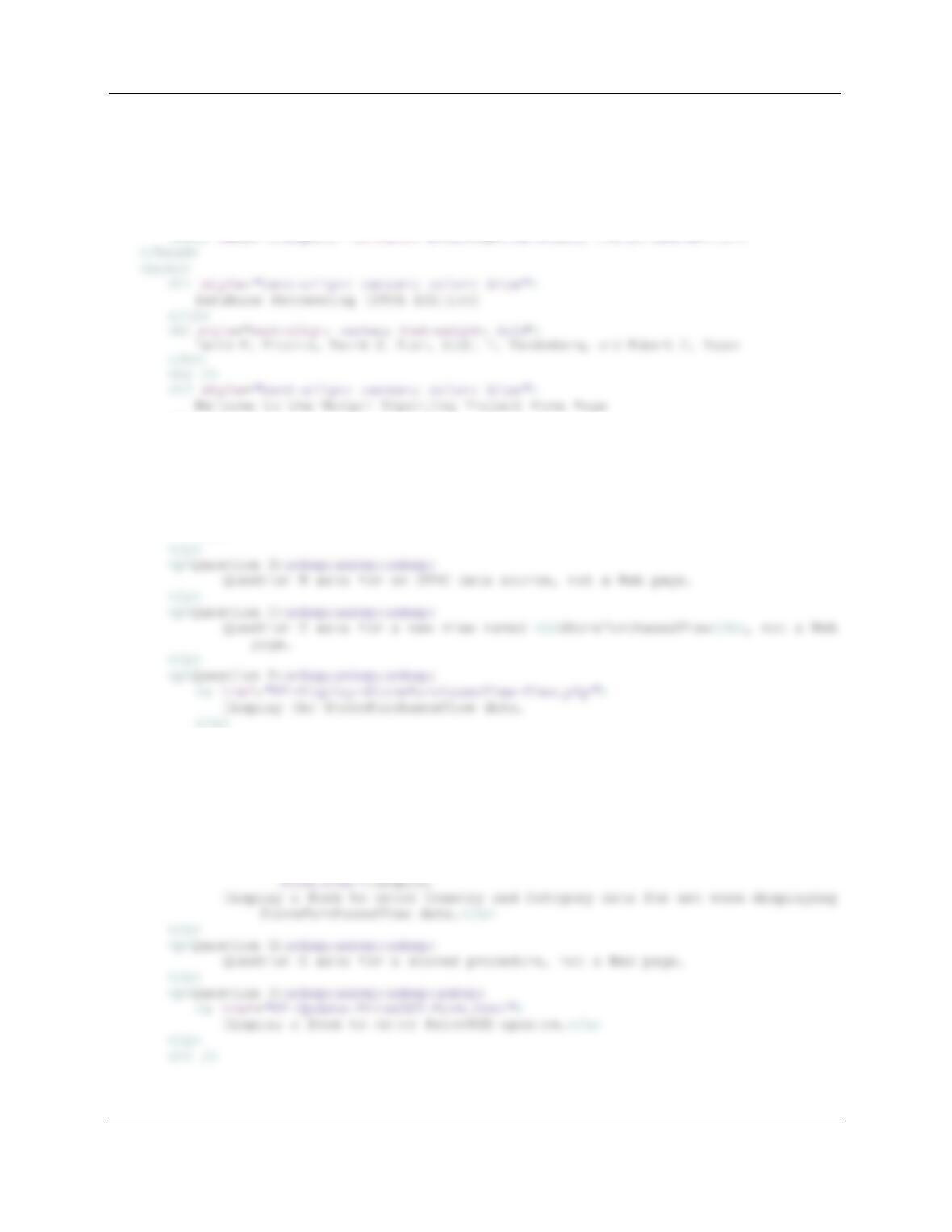
A. Add a new folder to the DBP Web Site named MI. Create a Web page for Morgan Importing
in this folder named index.html. Link this page to the DBP Web page.
Chapter Eleven – The Web Server Environment
Page 11–71
The code to create this page:
<!DOCTYPE HTML“>
<html>
<head>
<title>Morgan Importing Demonstration Pages Home Page</title>
<meta charset=“UTF-8”>
</h2>
<hr />
<h3>Web Pages From MI Project Questions in the Text:</h3>
<hr />
<p>Question A:
<a href=“index.html”>
Display this MI Home Page.
</a>
</p>
<p>Question E:
<a href=“MI-Display-StorePurchasesView-By-Date-Form.html”>
Display a form to enter a date for use when displaying StorePurchasesView
data.
</a>
</p>
<p>Question F:
<a href=“MI-Display-StorePurchasesView-By-Country-and-Category-
Chapter Eleven – The Web Server Environment
Page 11–72
B. Create an appropriate ODBC data source for your database.
Before you do this, you must have created an appropriate user account as described in Chapter
10A for Microsoft SQL Server, Chapter 10B for Oracle Database, and 10C for MySQL 5.7. Use
the user name as created in the Chapter 10A, Chapter 10B and Chapter 10C case and project
questions, or create a user name similar to MI-User.
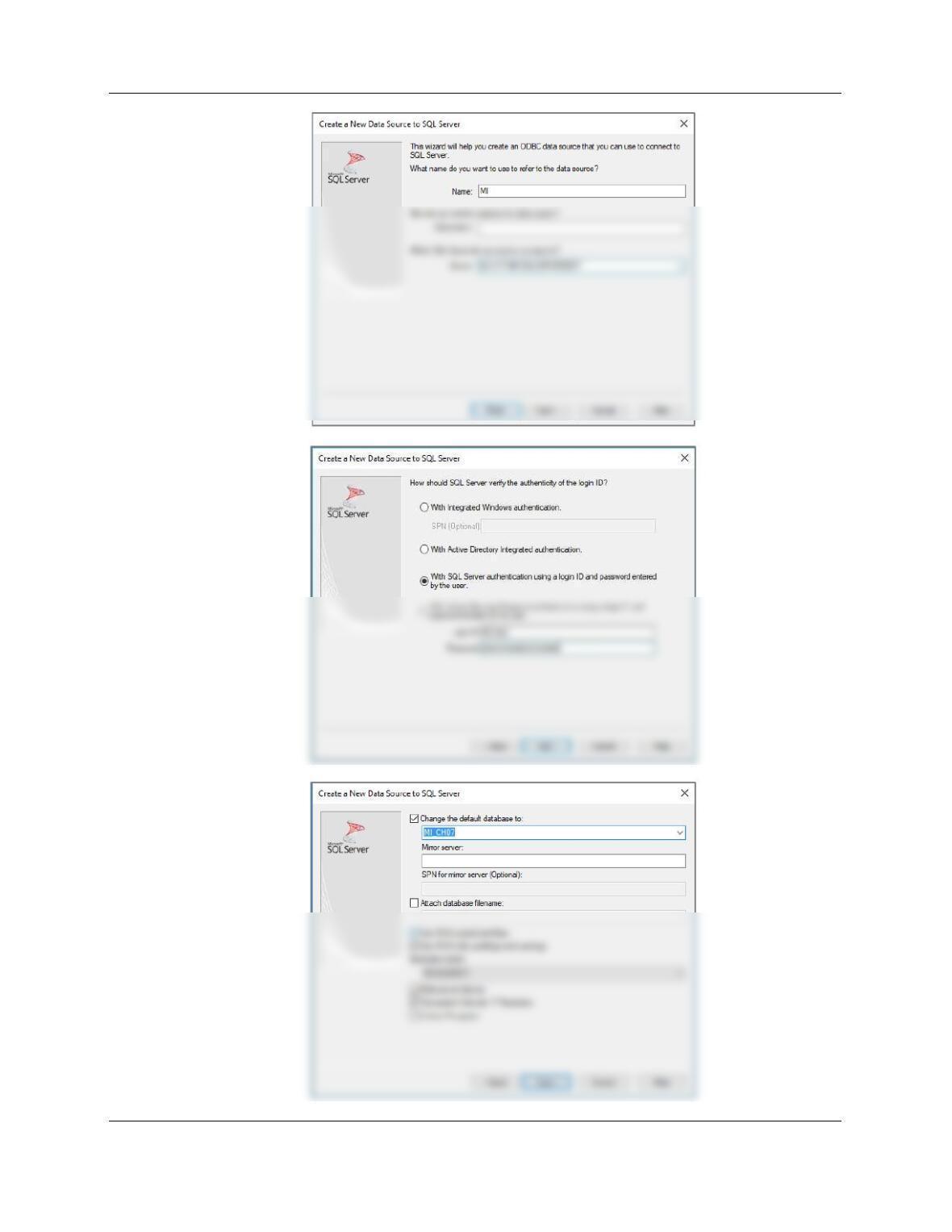
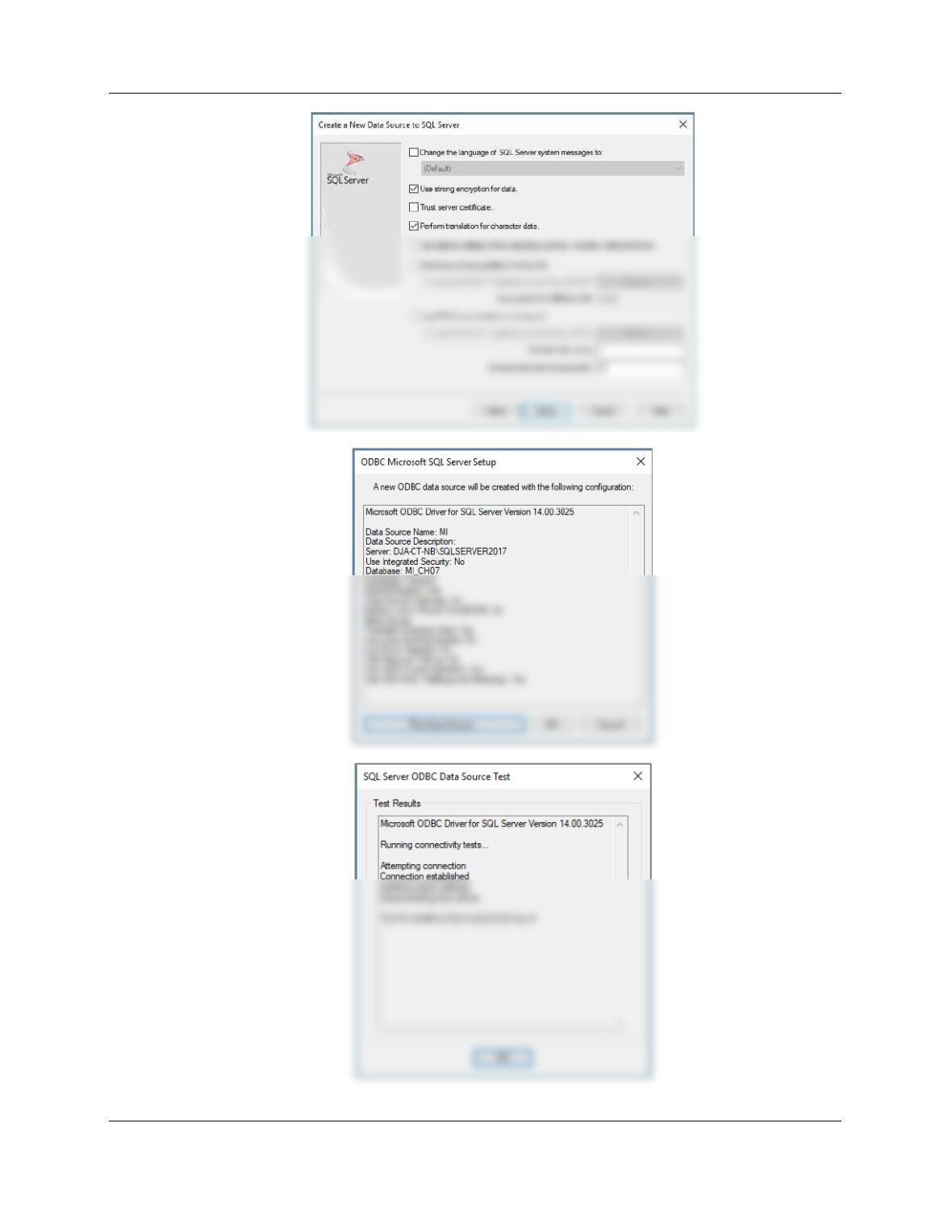
See the instructions starting on page 508, and see Figures 11-9, 11-10 and 11-11. The screen
shots below show the steps in the creation of a system DSN to connect to the SQL Server
database named MI_CH07.
Chapter Eleven – The Web Server Environment
Page 11–73
Chapter Eleven – The Web Server Environment
Page 11–74
Chapter Eleven – The Web Server Environment
Page 11–75
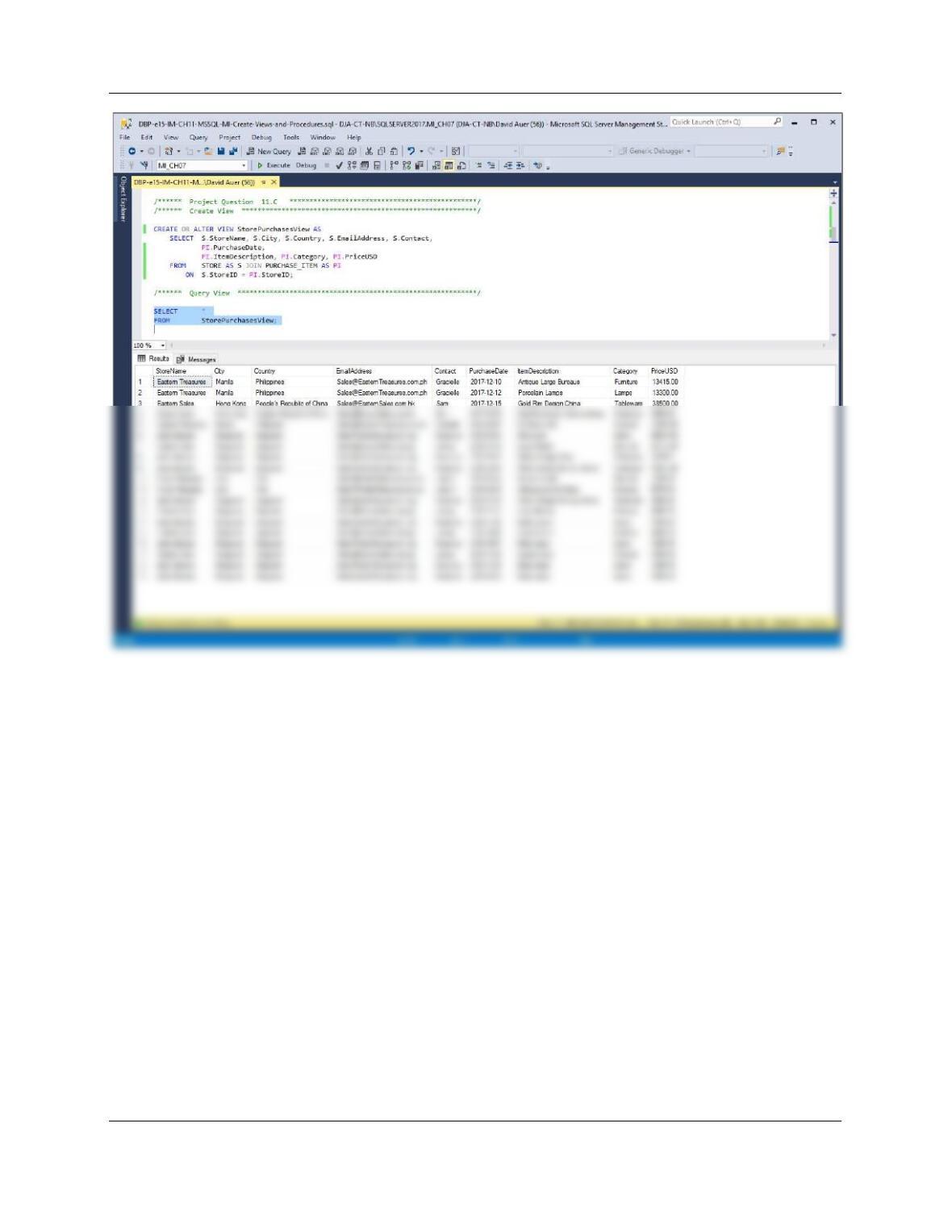
C. Create a view called StorePurchasesView that has the columns StoreName, City,
Country, Email, Contact, Date, Description, Category, and PriceUSD.
/****** Project Question 11.C **********************************************/
/****** Create View ***********************************************************/
CREATE OR ALTER VIEW StorePurchasesView AS
SELECT S.StoreName, S.City, S.Country, S.EmailAddress, S.Contact,
Chapter Eleven – The Web Server Environment
Page 11–76
Chapter Eleven – The Web Server Environment
Page 11–77
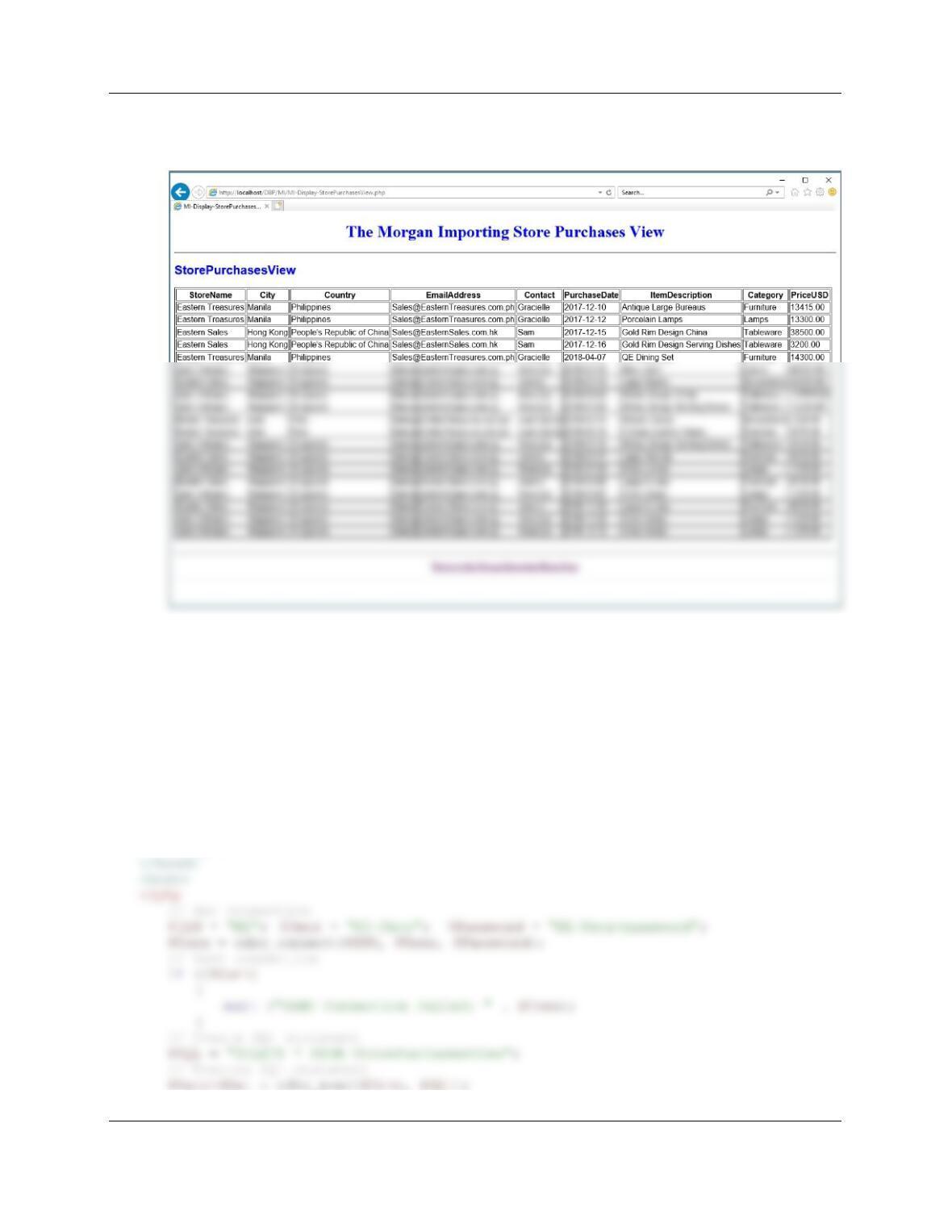
D. Code a PHP page to display StorePurchasesView. Using your sample database,
demonstrate that your page works.
Here is the code to display the StorePurchasesView view:
<!DOCTYPE HTML>
<html>
<head>
<title>MI-Display-StorePurchasesView</title>
<meta charset=“UTF-8”>
<meta name=“viewport” content=“width=device-width, intial-scale=1.0”>
<style type=“text/css”>
h1 {text-align: center; color: blue}
h2 {font-family: Ariel, sans-serif; text-align: left; color: blue;}
p.footer {text-align: center}
table.output {font-family: Ariel, sans-serif}
</style>