Chapter Eleven – The Web Server Environment
Page 11–21
❖ ANSWERS TO PROJECT QUESTIONS
11.92 In this exercise you’ll create a Web home page in the DBP folder and link it to the VRG
Home page in the VRG folder.
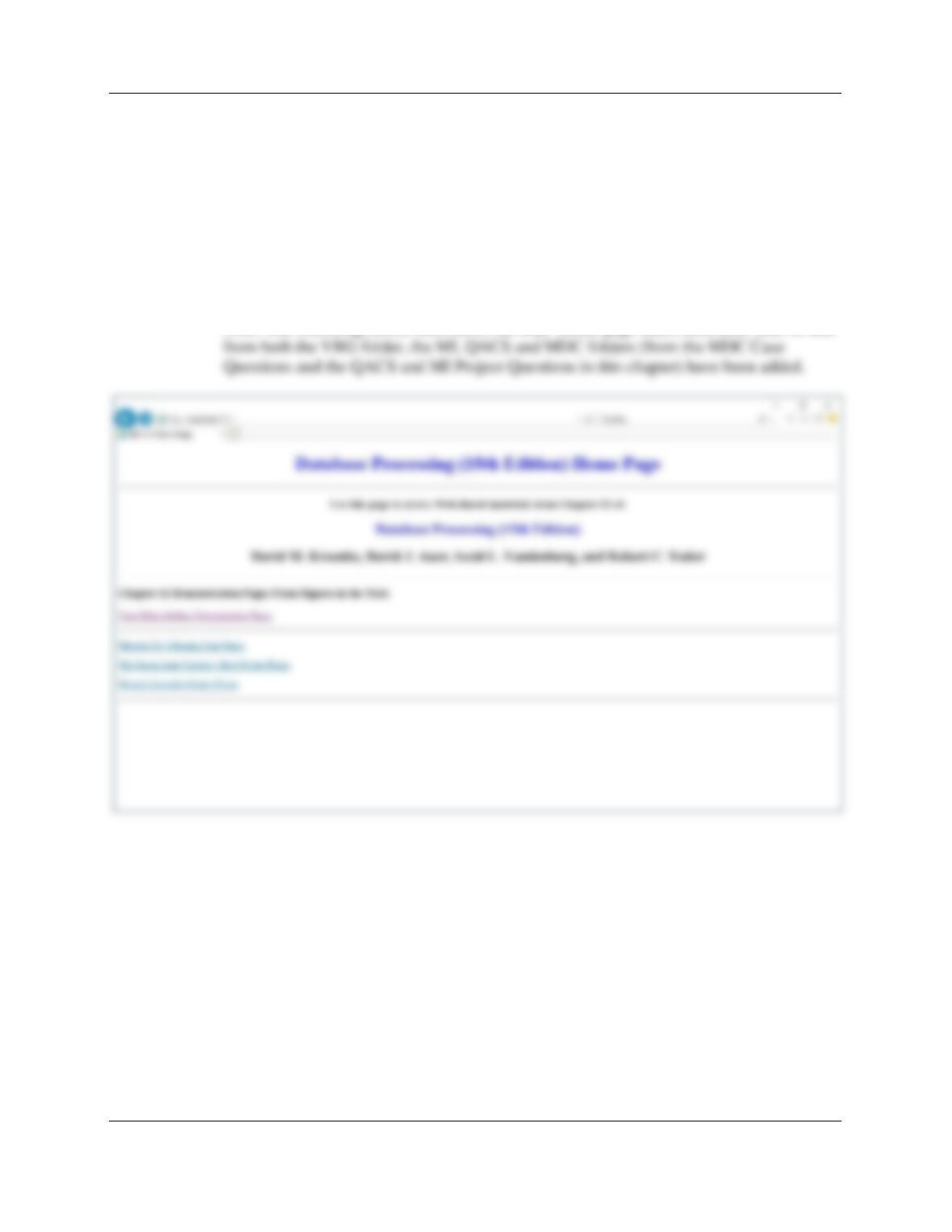
A. Figure 11–49 shows the HTML code for a Web home page for the DBP folder.
Note that the page is called index.html, the same name as the Web home page
in the VRG folder. This is not a problem since the files are in different folders.
Create the index.html in the DBP folder.
Note: The following screen shot shows the DBP Home page index.html after links to and
Chapter Eleven – The Web Server Environment
Page 11–22
B. Figure 11-50 shows some additional HTML to be added near the end of code for
the VRG Web home page in the file index.html in the VRG folder. Update the
VRG index.html file with the code.
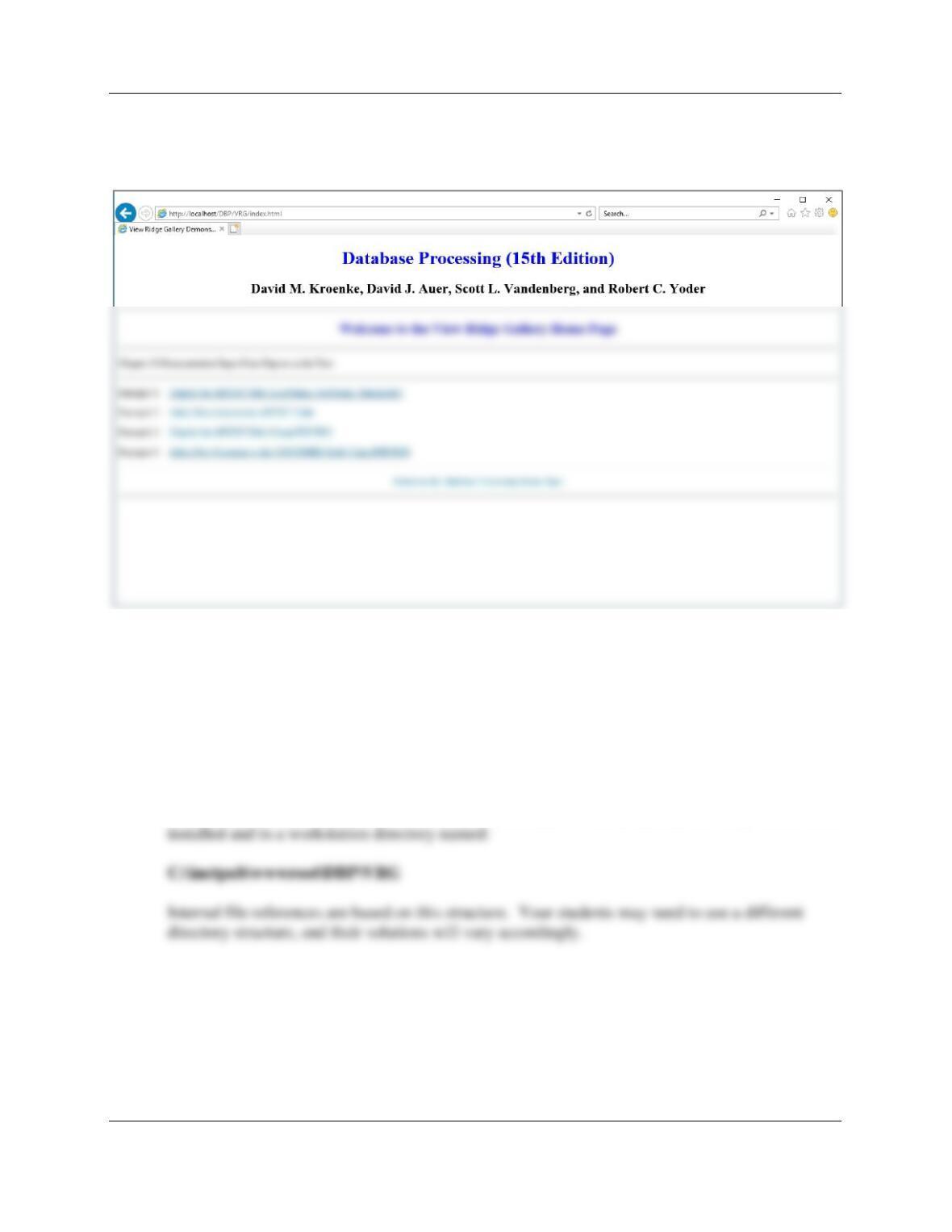
C. Try out the pages. Type http://localhost/DBP into your Web browser to display
the DBP home page. From there, you should be able to move back and forth
between the two pages by using the hyperlinks on each page. Note: You may
need to hit the Refresh button on your Web browser when using the HDS home
page to get the hyperlink back to the DBP home page to work properly.
The above screenshots were made by moving between the pages.
A note on file locations:
All files for this set of questions were located on a workstation with the Microsoft IIS Web server
Chapter Eleven – The Web Server Environment
Page 11–23
❖ MARCIA’S DRY CLEANING CASE QUESTIONS
If you have not already done so, implement the Marcia’s Dry Cleaning database as
described in:
● Chapter 10A for Microsoft SQL Server 2017
NOTE [This applies to all projects]:
You should have created the necessary and appropriate DBMS security accounts in the MDC Project
Questions for Chapter 10A, Chapter 10B or Chapter 10C . That user name and password will be used to
authenticate to the database.
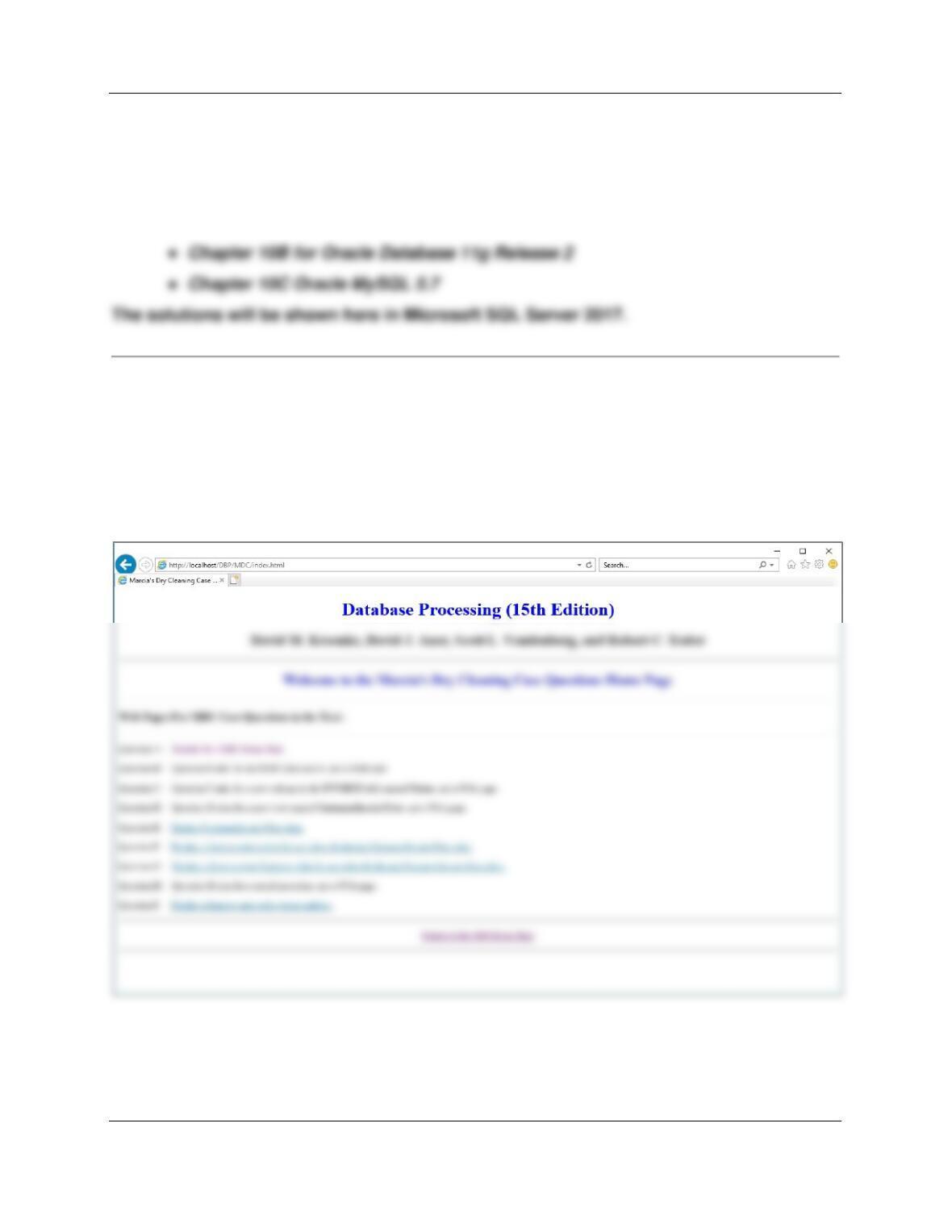
A. Add a new folder to the DBP Web site named MDC. Create a Web page for Marcia’s Dry
Cleaning in this folder named index.html. Link this page to the DBP Web page.
Chapter Eleven – The Web Server Environment
Page 11–24
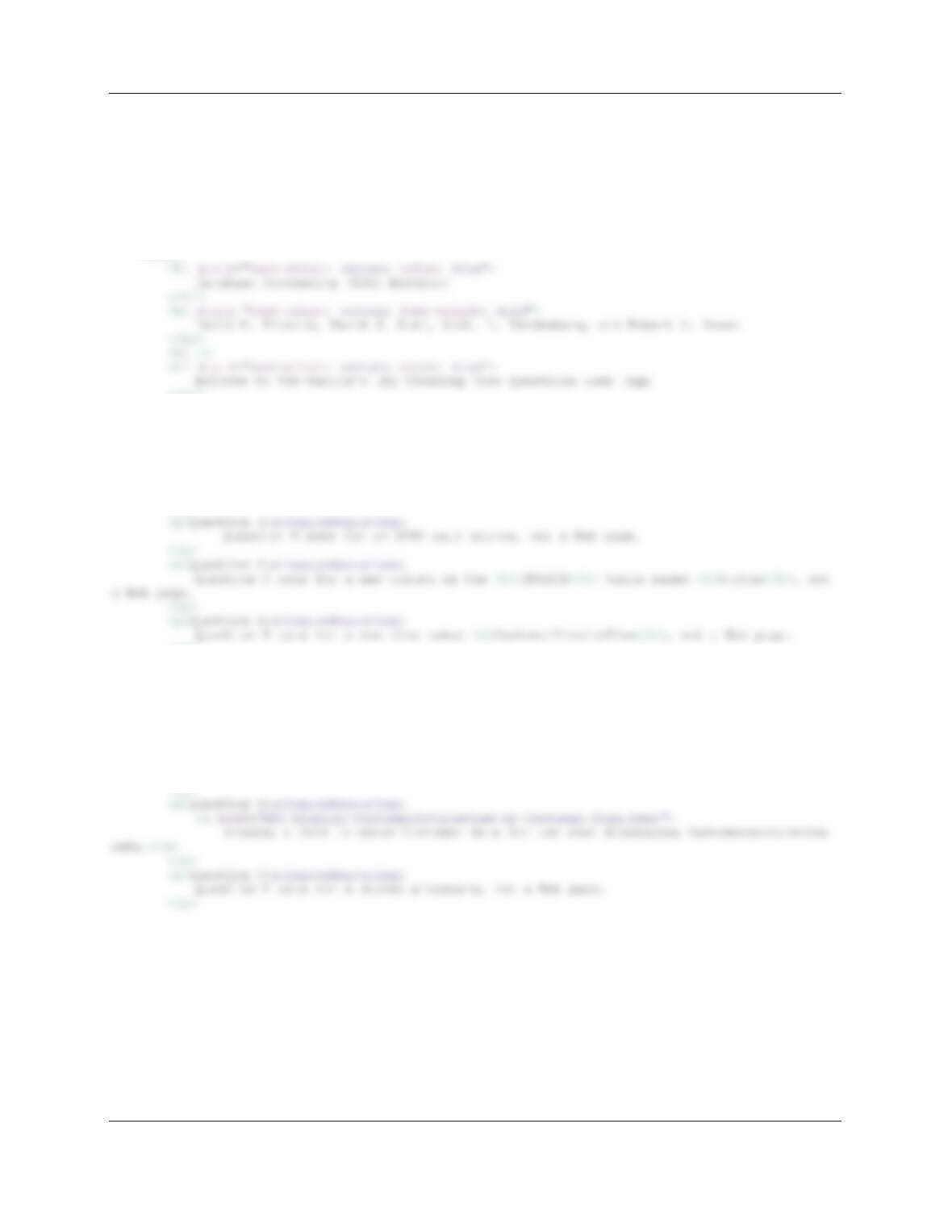
Web Page code:
<!DOCTYPE htm>
<html>
<head>
<title>Marcia’s Dry Cleaning Case Questions Home Page</title>
<meta charset=“UTF-8″>
<meta name=“viewport“ content=“width=device–width, intial–scale=1.0“>
</head>
<body>
</h2>
<hr />
<h3>Web Pages For MDC Case Questions in the Text:</h3>
<hr />
<p>Question A:
<a href=“index.html”>
Display this MDC Home Page.
</a>
</p>
</p>
<p>Question E:
<a href=“MDC–Display–CustomerInvoiceView.php”>
Display CustomerInvoiceView data.
</a>
</p>
<p>Quesiton F:
<a href=“MDC–Display–CustomerInvoiceView–By–Date–Form.html”>
Display a form to enter a date for use when displaying CustomerInvoiceView data.
</a>
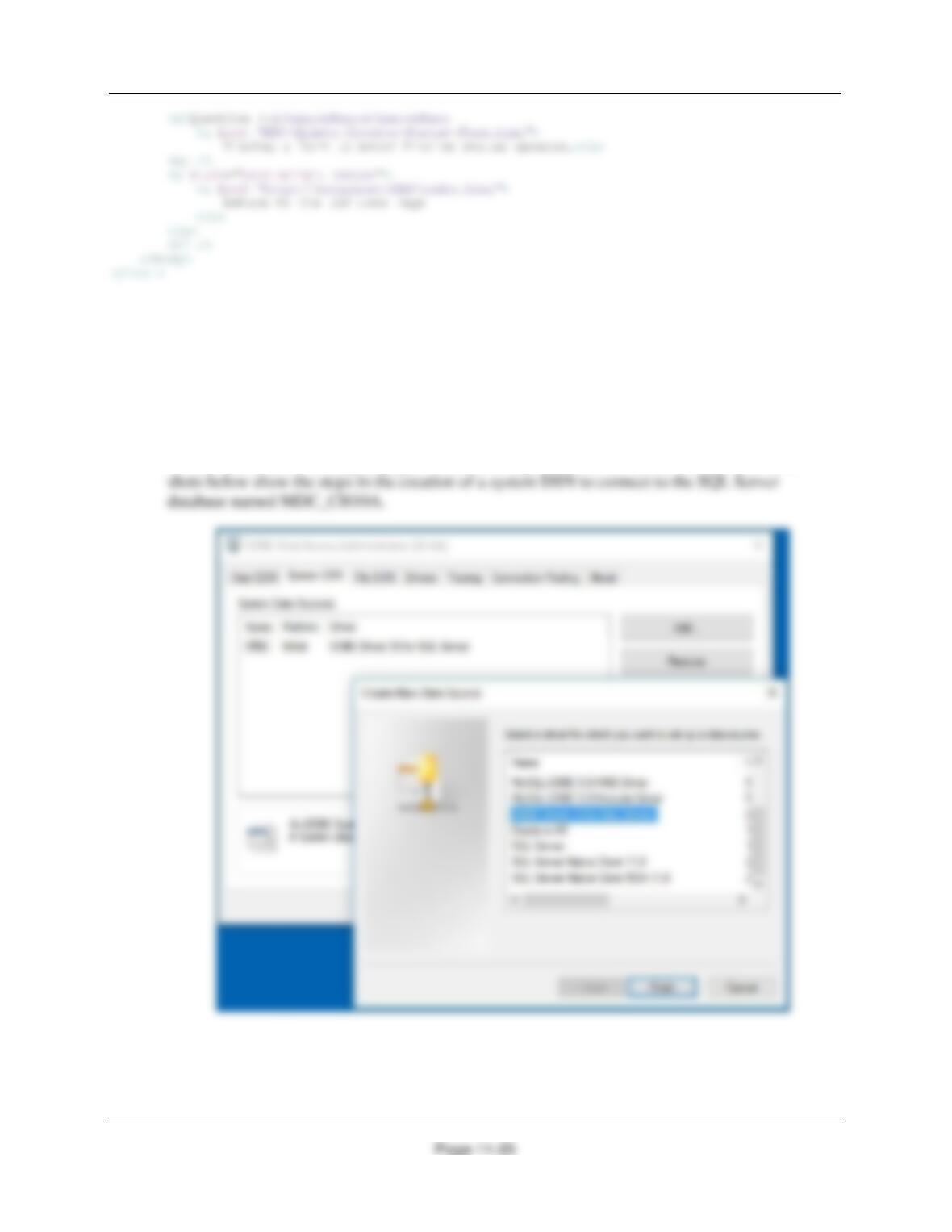
Chapter Eleven – The Web Server Environment
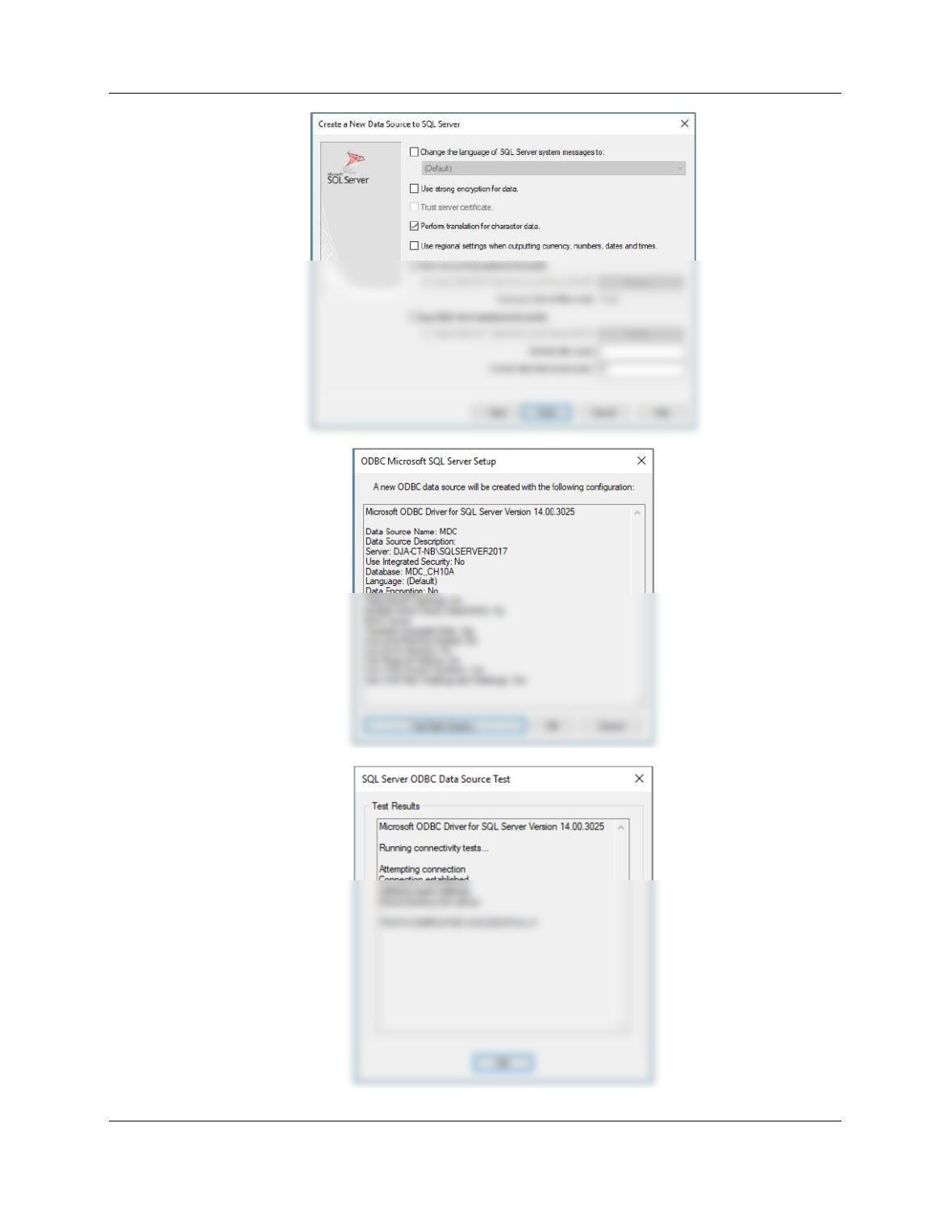
B. Create an appropriate ODBC data source for your database.
Before you do this, you must have created an appropriate user account as described in Chapter
10A for Microsoft SQL Server, Chapter 10B for Oracle Data+, and 10C for MySQL 5.7. Use the
user name as created in the Chapter 10A, Chapter 10B and Chapter 10C case and project
questions, or create a user name similar to MDC-User.
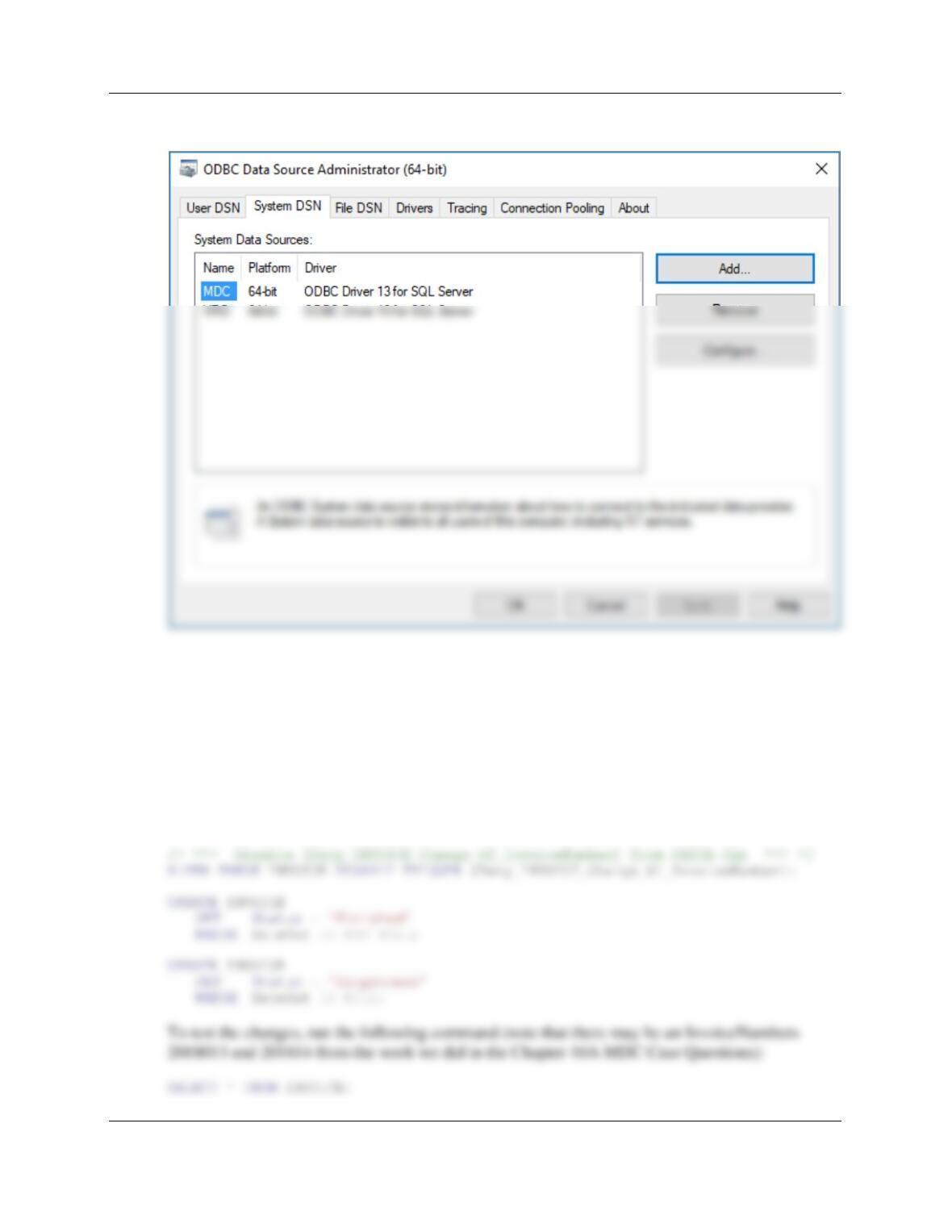
See the instructions starting on page 508, and see Figures 11-9, 11-10 and 11-11. The screen
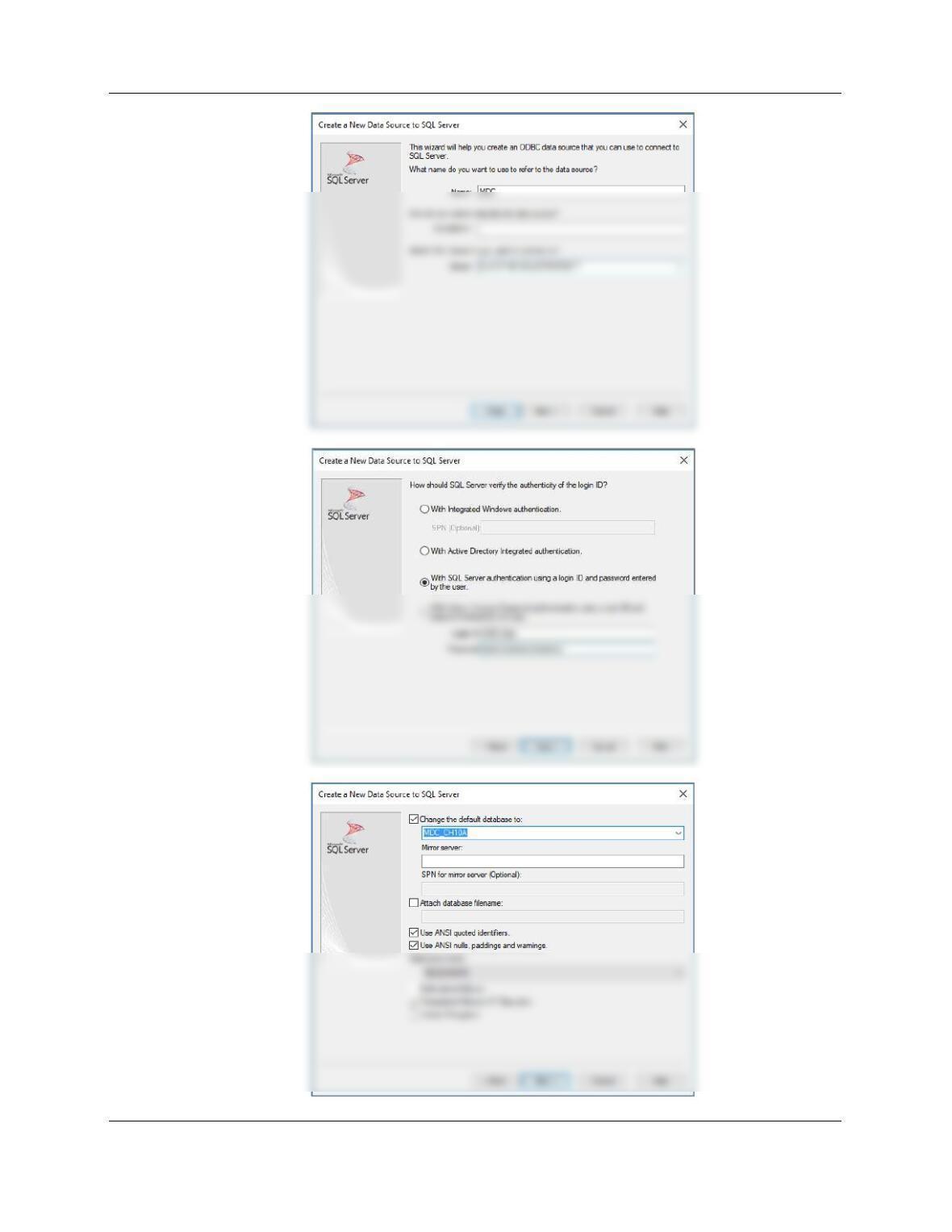
Chapter Eleven – The Web Server Environment
Page 11–26
Chapter Eleven – The Web Server Environment
Page 11–27
Chapter Eleven – The Web Server Environment
Page 11–28
Note the new system DSN name MDC:
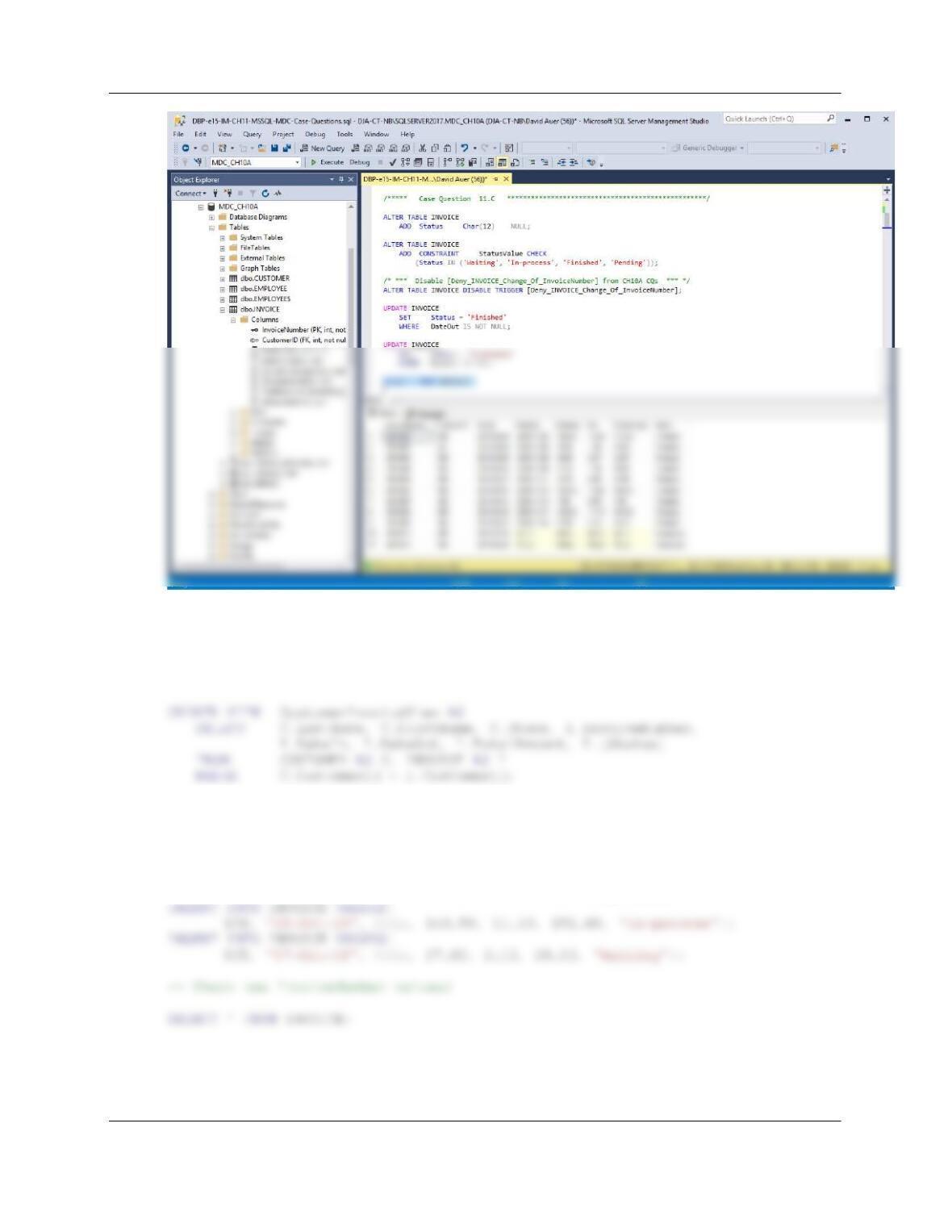
C. Add a new column Status to ORDER. Assume that Status can have the values
[‘Waiting’, ‘In–process’, ‘Finished’, ‘Pending’].
For SQL Server:
ALTER TABLE INVOICE
ADD Status Char(12) NULL;
ALTER TABLE INVOICE
ADD CONSTRAINT StatusValue CHECK
(Status IN (‘Waiting’, ‘In-process’, ‘Finished’, ‘Pending’));
Chapter Eleven – The Web Server Environment
Page 11–29
D. Create a view called CustomerInvoiceView that has the columns LastName, FirstName,
Phone, InvoiceNumber, Date, Total, and Status.
For SQL Server:
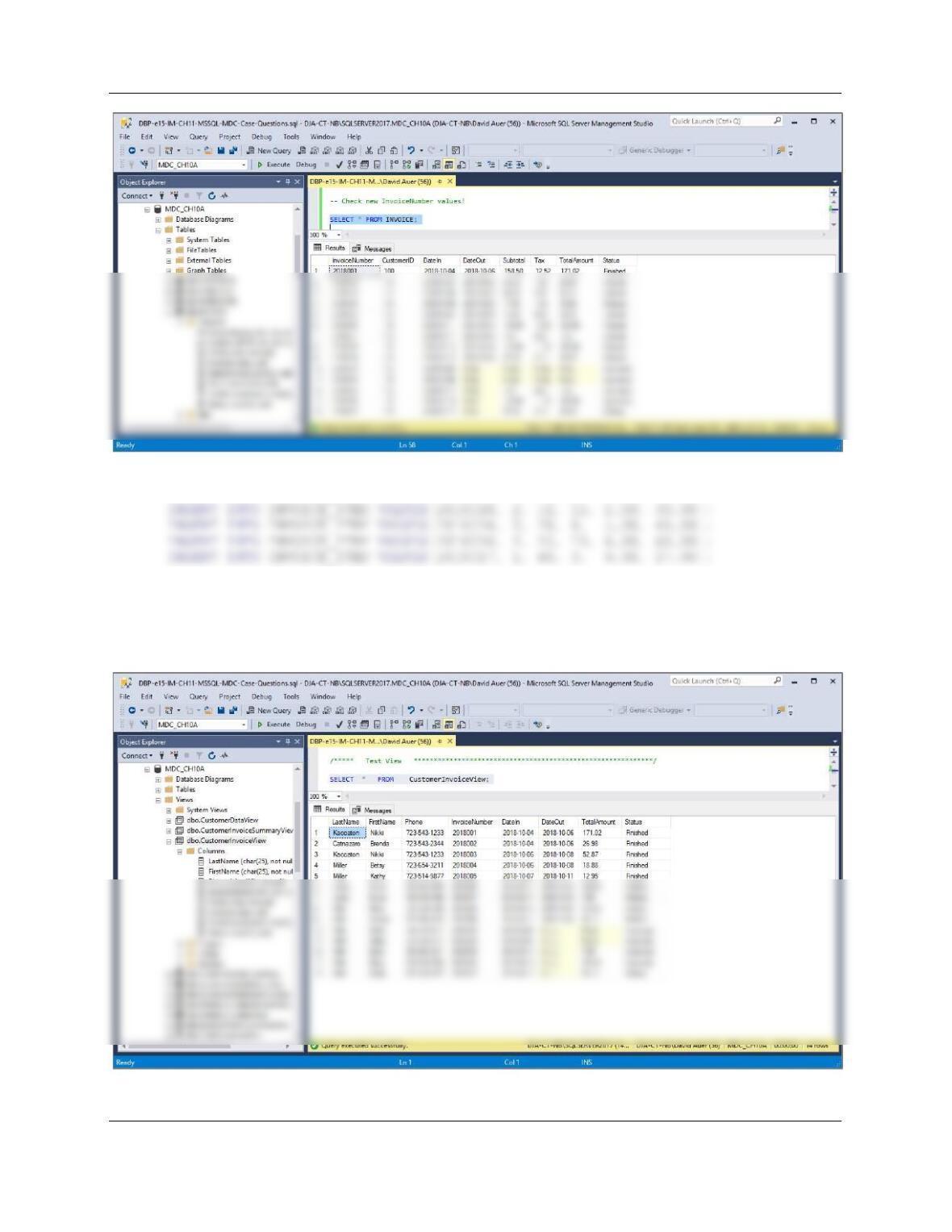
We’ll add some data to have some unfinished orders:
/****** Insert New Data **************************************************/
INSERT INTO INVOICE VALUES(
103, ’14-Oct-18′, NULL, 7.00, 0.55, 7.55, ‘In-process’);
Chapter Eleven – The Web Server Environment
Page 11–30
INSERT INTO INVOICE_ITEM VALUES(2018015, 1, 16, 2, 3.50, 7.00);
INSERT INTO INVOICE_ITEM VALUES(2018016, 1, 16, 3, 3.50, 10.50);
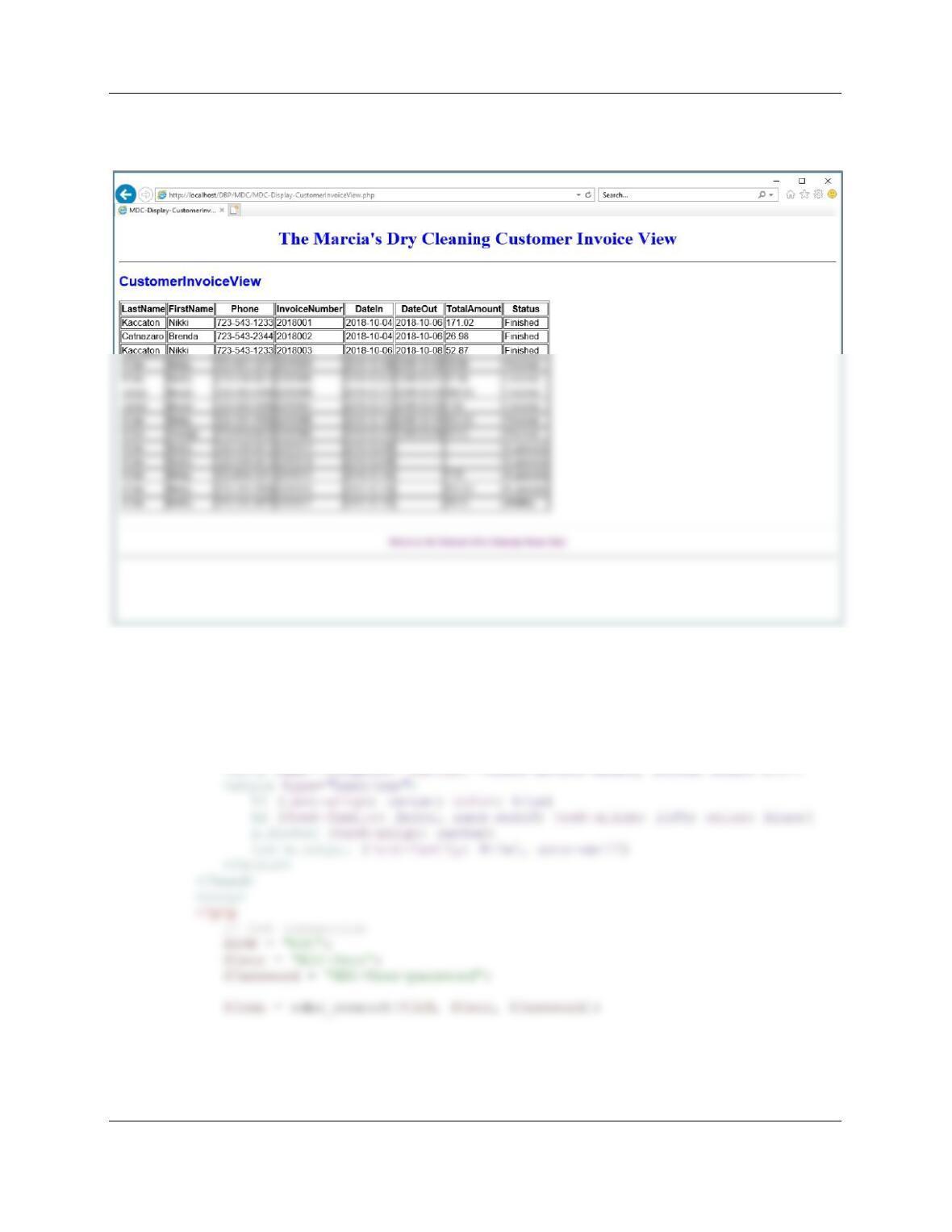
To test the view, run the following command (note that there may be an InvoiceNumber 2013012
from the work we did in the Chapter 10A MDC Project Questions):
SELECT * FROM CustomerInvoiceView;
Chapter Eleven – The Web Server Environment
Page 11–31
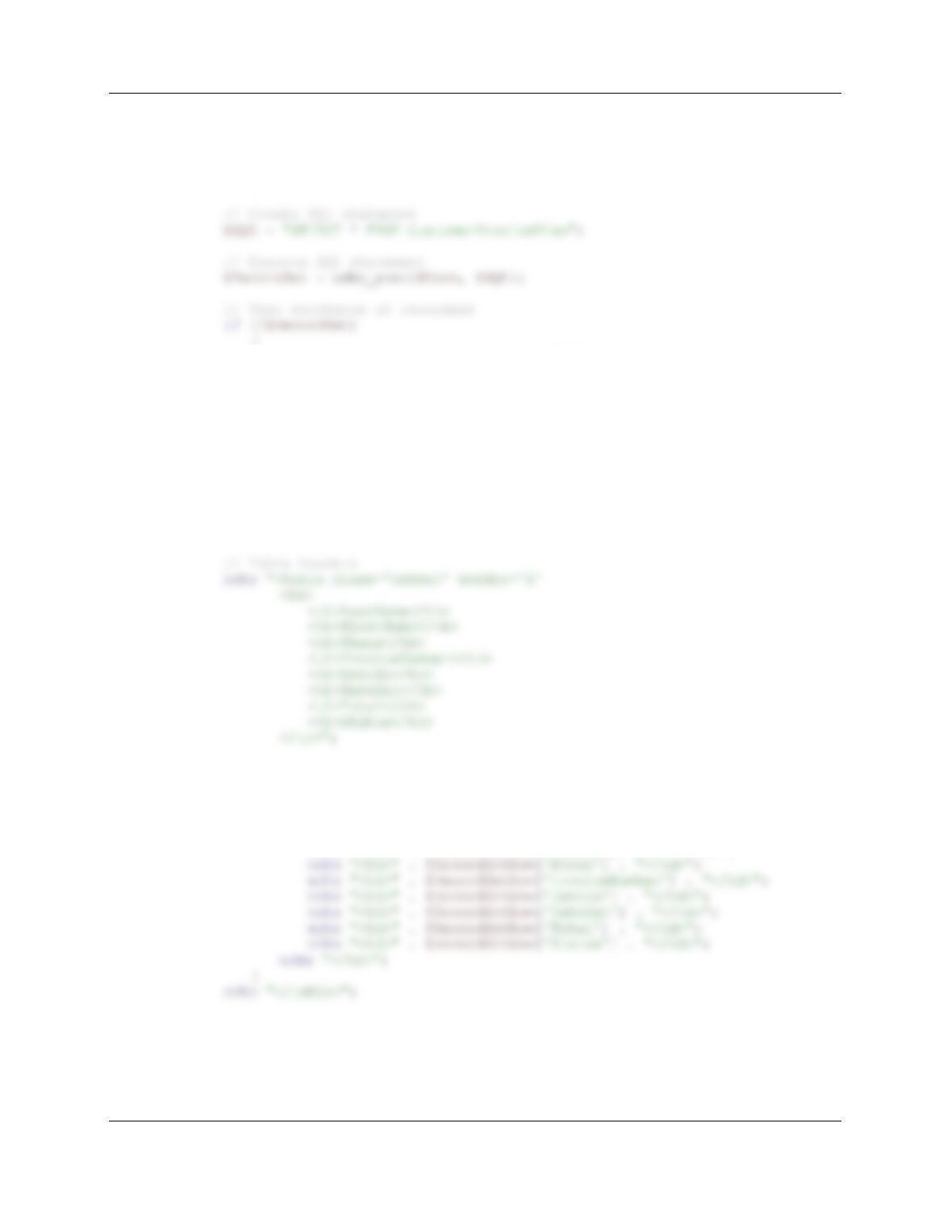
E. Code a PHP to display CustomerInvoiceView. Using your sample database,
demonstrate that your page works.
Here is the code to display the CustomerInvoiceView view:
<!DOCTYPE HTML>
<html>
<head>
<title>MDC-Display-CustomerInvoiceView</title>
<meta charset=“UTF-8”>
Chapter Eleven – The Web Server Environment
Page 11–32
// Test connection
if (!$Conn)
{
exit (“ODBC Connection Failed: ” . $Conn);
}
{
exit (“SQL Statement Error: ” . $SQL);
}
?>
<!– Page Headers –>
<h1>
The Marcia’s Dry Cleaning Customer Invoice View
</h1>
<hr />
<h2>
CustomerOrder
</h2>
<?php
//Table data
while($RecordSetRow = odbc_fetch_array($RecordSet))
{
echo “<tr>”;
echo “<td>” . $RecordSetRow[‘LastName’] . “</td>”;
echo “<td>” . $RecordSetRow[‘FirstName’] . “</td>”;
Chapter Eleven – The Web Server Environment
Page 11–33
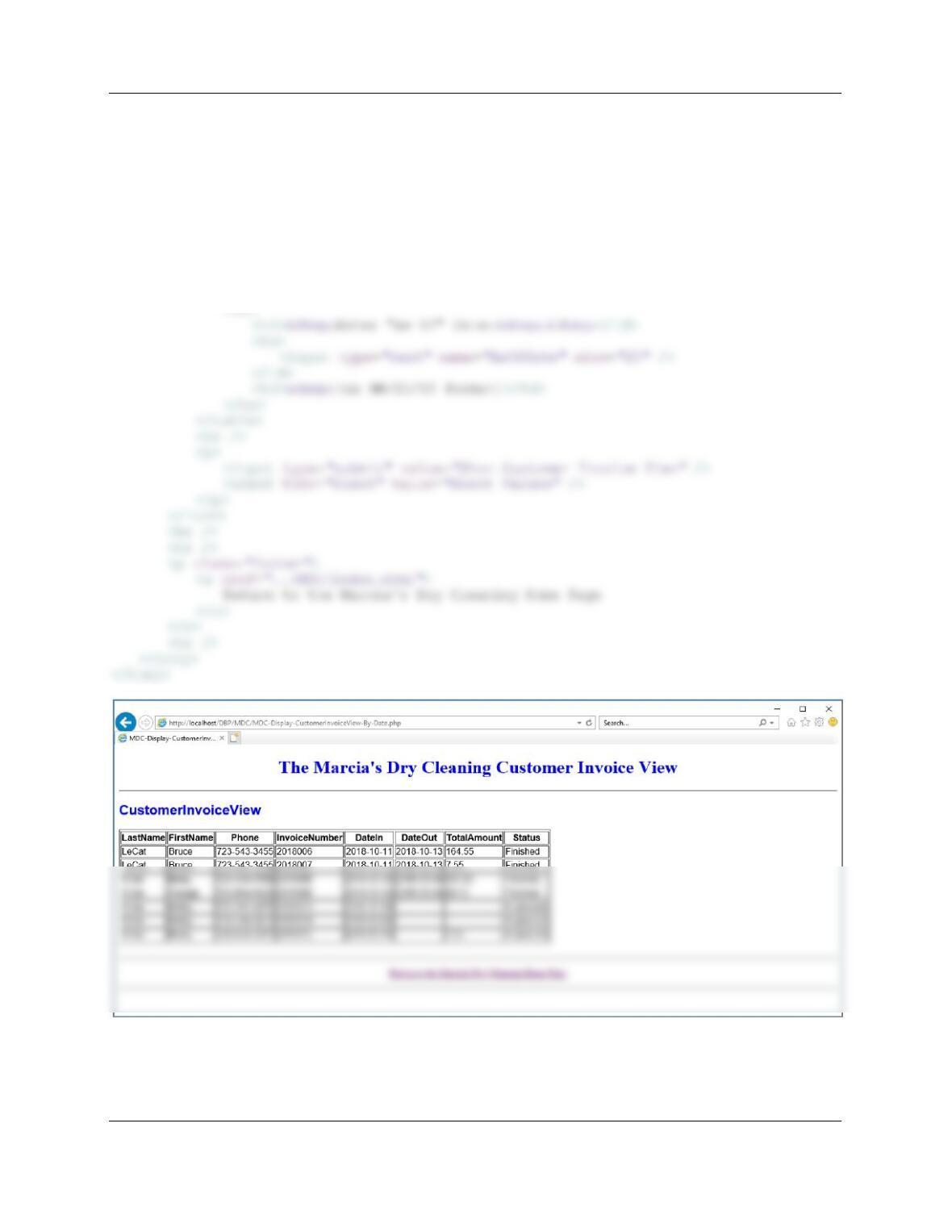
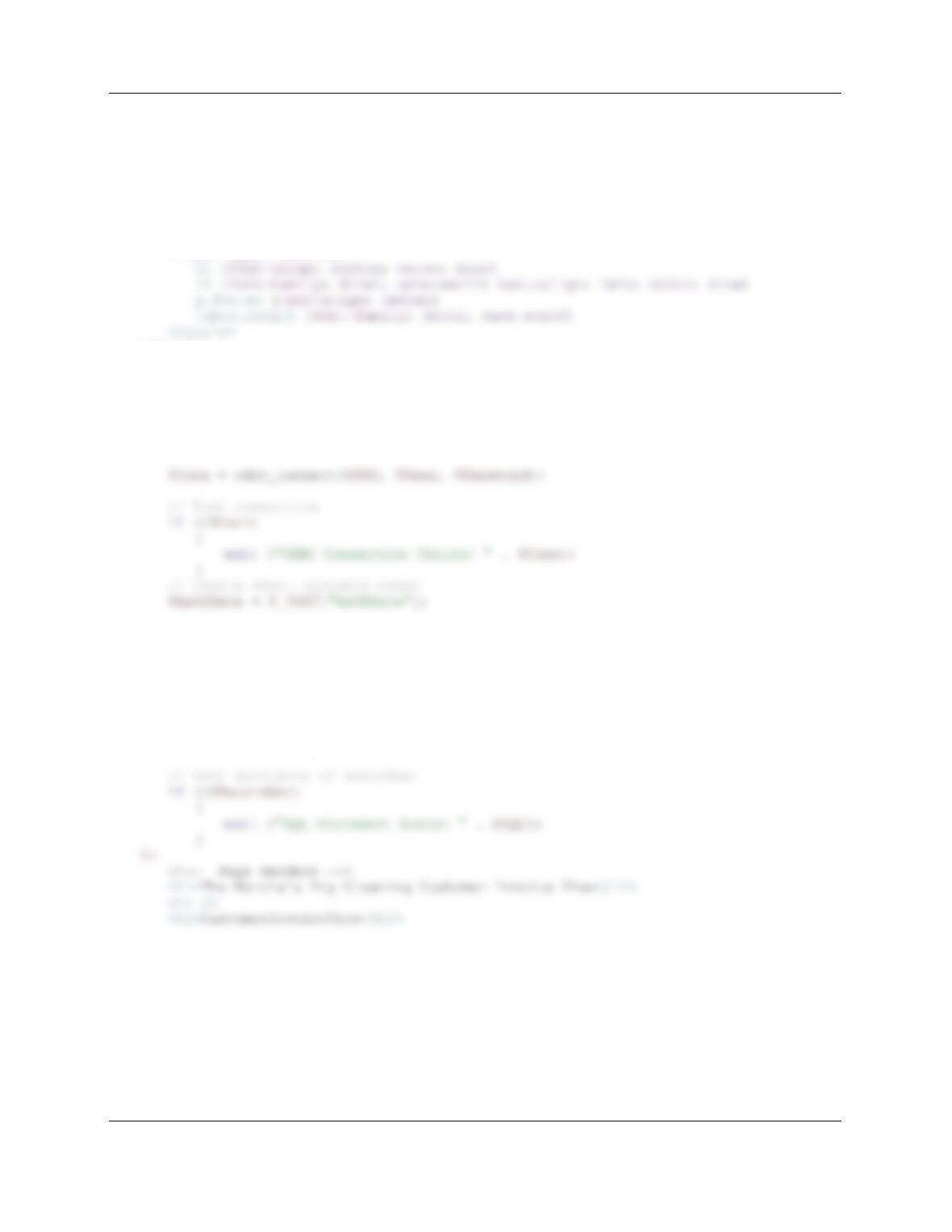
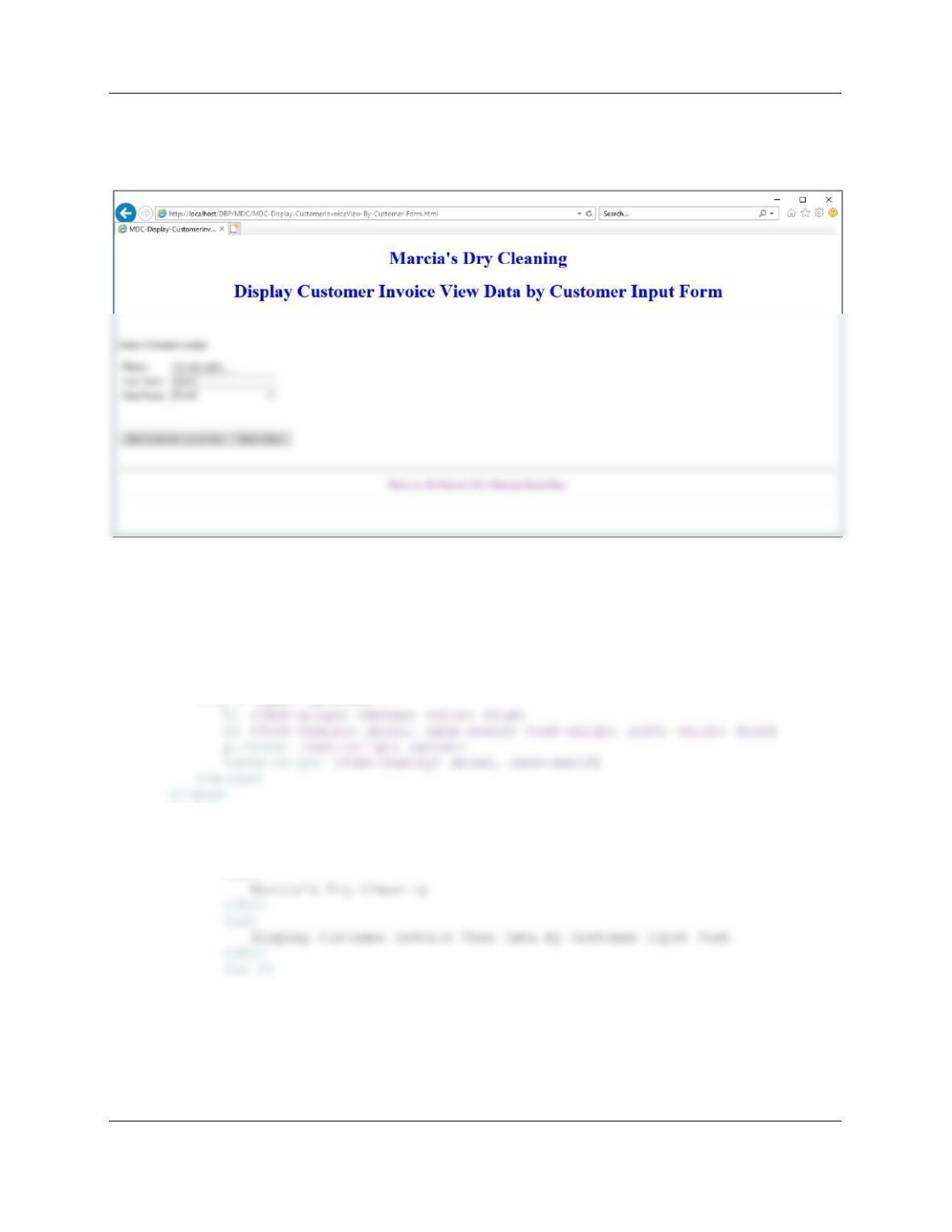
F. Code two HTML/PHP pages to receive a date value AsOfDate and to display rows of
CustomerInvoiceView for orders having DateIn greater than or equal to AsOfDate. Using
your sample database, demonstrate that your pages work.
Here is the code for the form to enter the As Of Date:
<!DOCTYPE HTML>
<html>
<head>
<title>MDC-Display-CustomerInvoiceView-By-Date Form HTML Page</title>
<meta charset=“UTF-8”>
<meta name=“viewport” content=“width=device-width, intial-scale=1.0”>
<style type=“text/css”>
Chapter Eleven – The Web Server Environment
Page 11–34
<body>
<form action=“MDC-Display-CustomerInvoiceView-By-Date.php” method=“POST”>
<!– Page Headers –>
<h1>
Marcia’s Dry Cleaning
</h1>
<h1>
Display Customer Invoice View Data by “As Of” Date Input Form
</h1>
<hr />
<br />
<table>
Chapter Eleven – The Web Server Environment
Page 11–35
Here is the code to display the CustomerInvoiceView using the As Of Date:
<!DOCTYPE HTML>
<html>
<head>
<title>MDC-Display-CustomerInvoiceView-By-Date PHP Page</title>
<meta charset=“UTF-8”>
<meta name=“viewport” content=“width=device-width, intial-scale=1.0”>
<style type=“text/css”>
</head>
<body>
<?php
// Get connection
$DSN = “MDC”;
$User = “MDC-User”;
$Password = “MDC-User+password”;
// Create SQL statement
$SQL = “SELECT * FROM CustomerInvoiceView “;
$SQL .= “WHERE DateIn = ‘$AsOfDate‘ “;
$SQL .= “OR DateIn > ‘$AsOfDate‘”;
// Execute SQL statement
$RecordSet = odbc_exec($Conn, $SQL);
Chapter Eleven – The Web Server Environment
Page 11–36
<?php
// Table headers
echo “<table class=’output’ border=’1′
<tr>
<th>LastName</th>
<th>FirstName</th>
//Table data
while($RecordSetRow = odbc_fetch_array($RecordSet))
{
echo “<tr>”;
echo “<td>” . $RecordSetRow[‘LastName’] . “</td>”;
echo “<td>” . $RecordSetRow[‘FirstName’] . “</td>”;
}
echo “</table>”;
// Close connection
odbc_close($Conn);
?>
<br />
<hr />
<p class=“footer”>
<a href=“../MDC/index.html”>
Return to the Marcia’s Dry Cleaning Home Page
Chapter Eleven – The Web Server Environment
Page 11–37
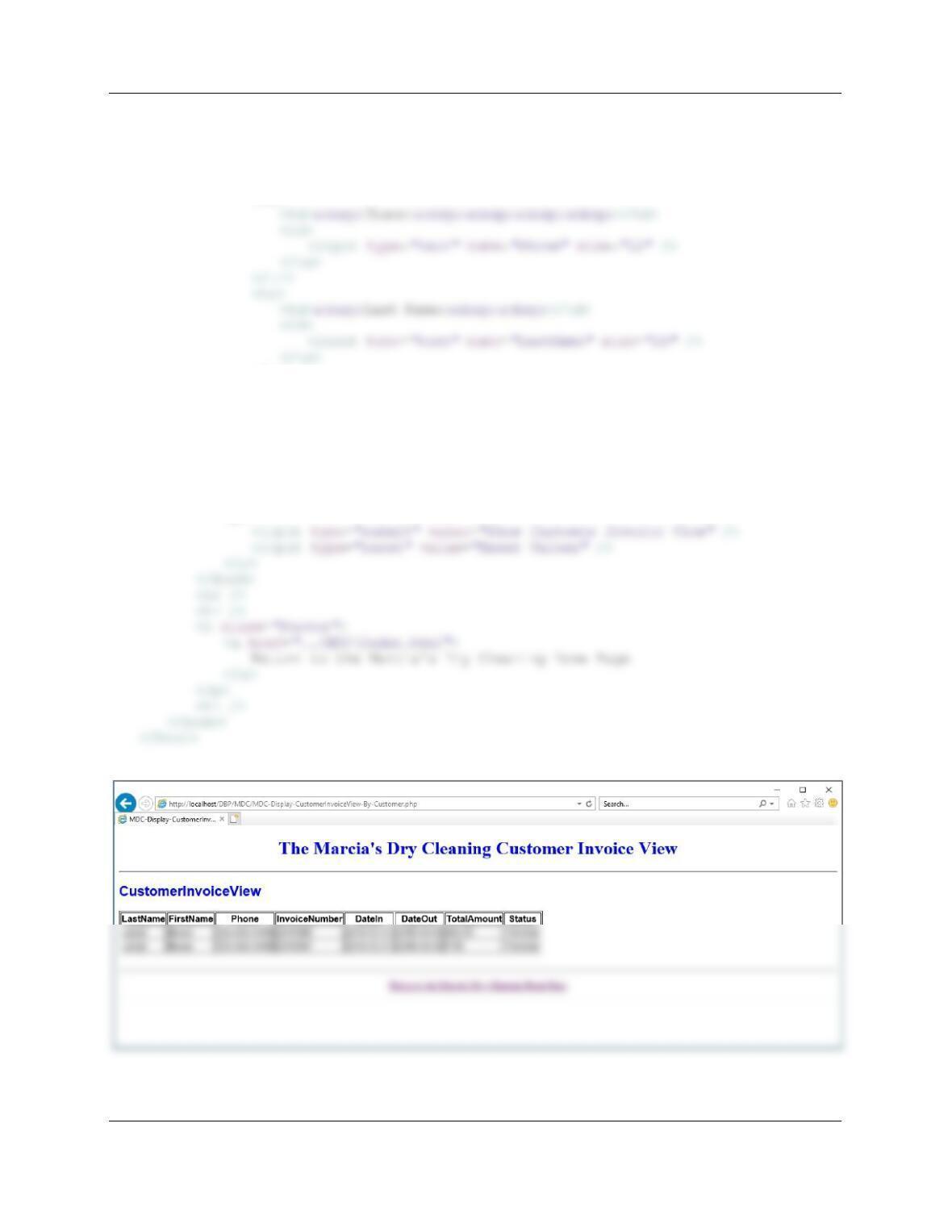
G. Code two HTML/PHP pages to receive customer Phone, LastName, and FirstName and
to display rows for customers having that Phone, LastName, and FirstName. Using your
sample database, demonstrate that your pages work.
Here is the code for the form to enter the customer data:
<!DOCTYPE HTML>
<html>
<head>
<title>MDC-Display-CustomerInvoiceView-By-Customer Form HTML Page</title>
<meta charset=“UTF-8”>
<meta name=“viewport” content=“width=device-width, intial-scale=1.0”>
<style type=“text/css”>
<body>
<form action=“MDC-Display-CustomerInvoiceView-By-Customer.php”
method=“POST”>
<!– Page Headers –>
Chapter Eleven – The Web Server Environment
Page 11–38
<br />
<p>
<b>Enter Customer information:</b>
</p>
<table>
<tr>
</tr>
<tr>
<td> First Name: </td>
<td>
<input type=“text” name=“FirstName” size=“25” />
</td>
</tr>
</table>
<br />
<p>
Chapter Eleven – The Web Server Environment
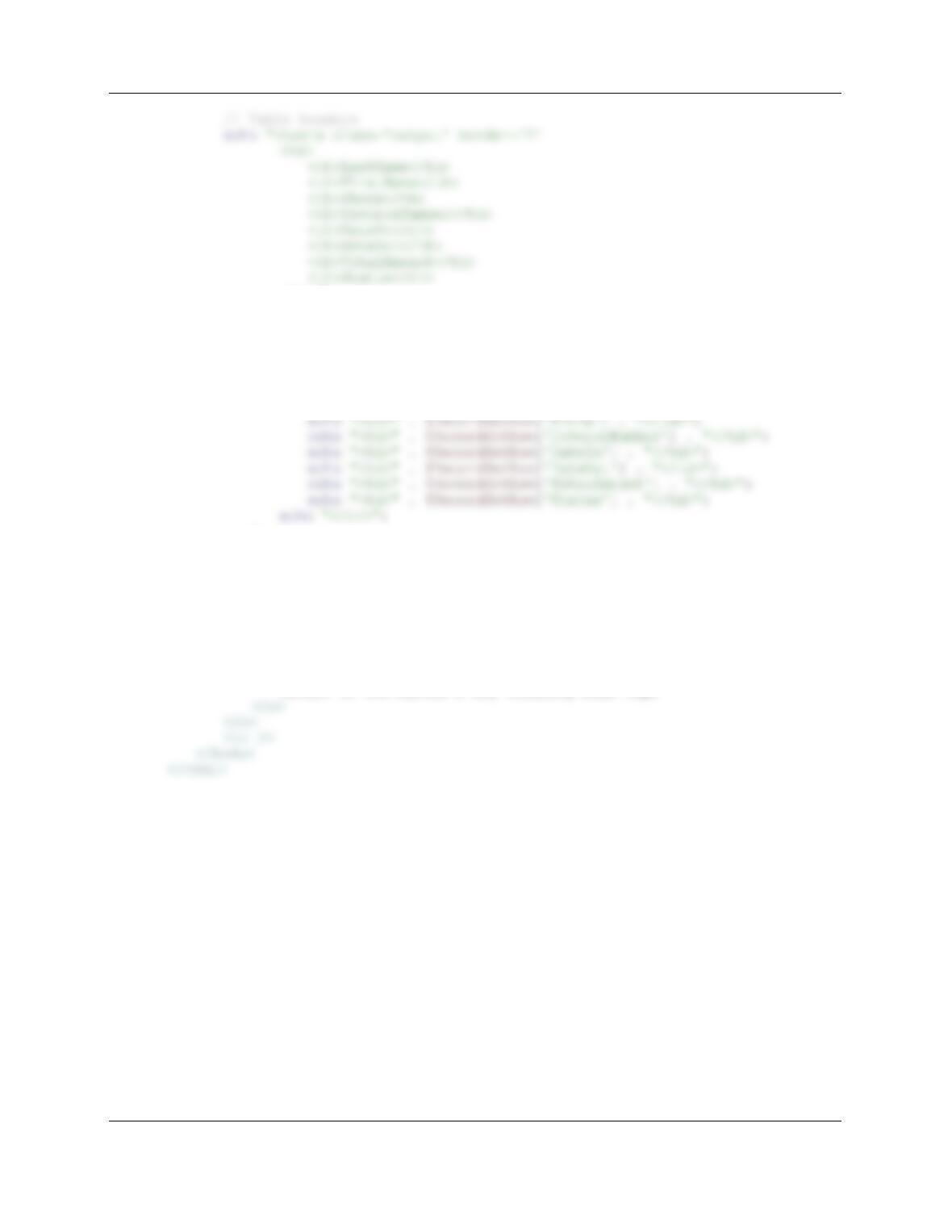
Here is the code to display the CustomerOrder view for the designated customer:
<!DOCTYPE HTML>
<html>
<head>
<title>MDC-Display-CustomerInvoiceView-By-Customer PHP Page</title>
</style>
</head>
<body>
<?php
// Get connection
{
exit (“ODBC Connection Failed: ” . $Conn);
}
// Create short variable names
$Phone = $_POST[“Phone”];
$LastName = $_POST[“LastName”];
$FirstName = $_POST[“FirstName”];
}
?>
<!– Page Headers –>
<h1>
The Marcia’s Dry Cleaning Customer Invoice View
</h1>
<hr />
<h2>
Chapter Eleven – The Web Server Environment
Page 11–40
</tr>”;
//Table data
while($RecordSetRow = odbc_fetch_array($RecordSet))
{
echo “<tr>”;
echo “<td>” . $RecordSetRow[‘LastName’] . “</td>”;
echo “<td>” . $RecordSetRow[‘FirstName’] . “</td>”;
}
echo “</table>”;
// Close connection
odbc_close($Conn);
?>
<br />
<hr />
<p class=“footer”>
<a href=“../MDC/index.html”>
Return to the Marcia’s Dry Cleaning Home Page