Chapter 10A – Managing Databases with SQL Server 2017
Page 10A-141
Here is the trigger code:
CREATE OR ALTER TRIGGER [Insert_SALE_SALE_ITEM]
ON [dbo].[SaleWithSaleItemsView]
INSTEAD OF INSERT
AS
SET NOCOUNT ON;
/* SALE.Sale is a surrogate key. DO NOT INCLUDE IT IN THE VIEW! */
/* There is no need for this trigger to input or calculate the following: */
/* SALE.Subtotal, SALE.Tax, and SALE.Total. */
/* These should be calculated separately after all ORDER_ITEMSs are added */
/* to the SALE. Further, these can all be NULL. */
/* NOTE: We do NOT really need @NewSaleItemID – this HAS to be ‘1’. */
— This is a new SALE combined with the first SALE_ITEM.
— Neither the SALE nor the SALE_ITEM exist.
— CHECK for valid @InvoiceCustomerID.
Chapter 10A – Managing Databases with SQL Server 2017
Page 10A-142
PRINT ‘********************************************************************’
PRINT ”
PRINT ‘ The CUSTOMER ID Number that you have entered does NOT exist. ‘
ELSE
BEGIN
SELECT @CustomerFirstName = FirstName,
@CustomerLastName = LastNAme
FROM CUSTOMER
WHERE CUSTOMER.CustomerID = @SaleCustomerID;
END;
BEGIN
/* Create the SALE and COMMIT the transaction so that SALE */
/* can be re-read to prevent referential integrity errors.
*/
INSERT INTO SALE (SaleDate, CustomerID, EmployeeID)
VALUES(
@NewSaleDate, @SaleCustomerID, @SaleEmployeeID);
COMMIT TRANSACTION;
Chapter 10A – Managing Databases with SQL Server 2017
Page 10A-143
— Create the SALE_ITEM.
— @NewSaleItemID HAS to be 1 – this is the first SALE_ITEM.
INSERT INTO SALE_ITEM VALUES(
@NewSaleID, 1, @NewItemID, @NewItemPrice);
— Print results.
END;
END;
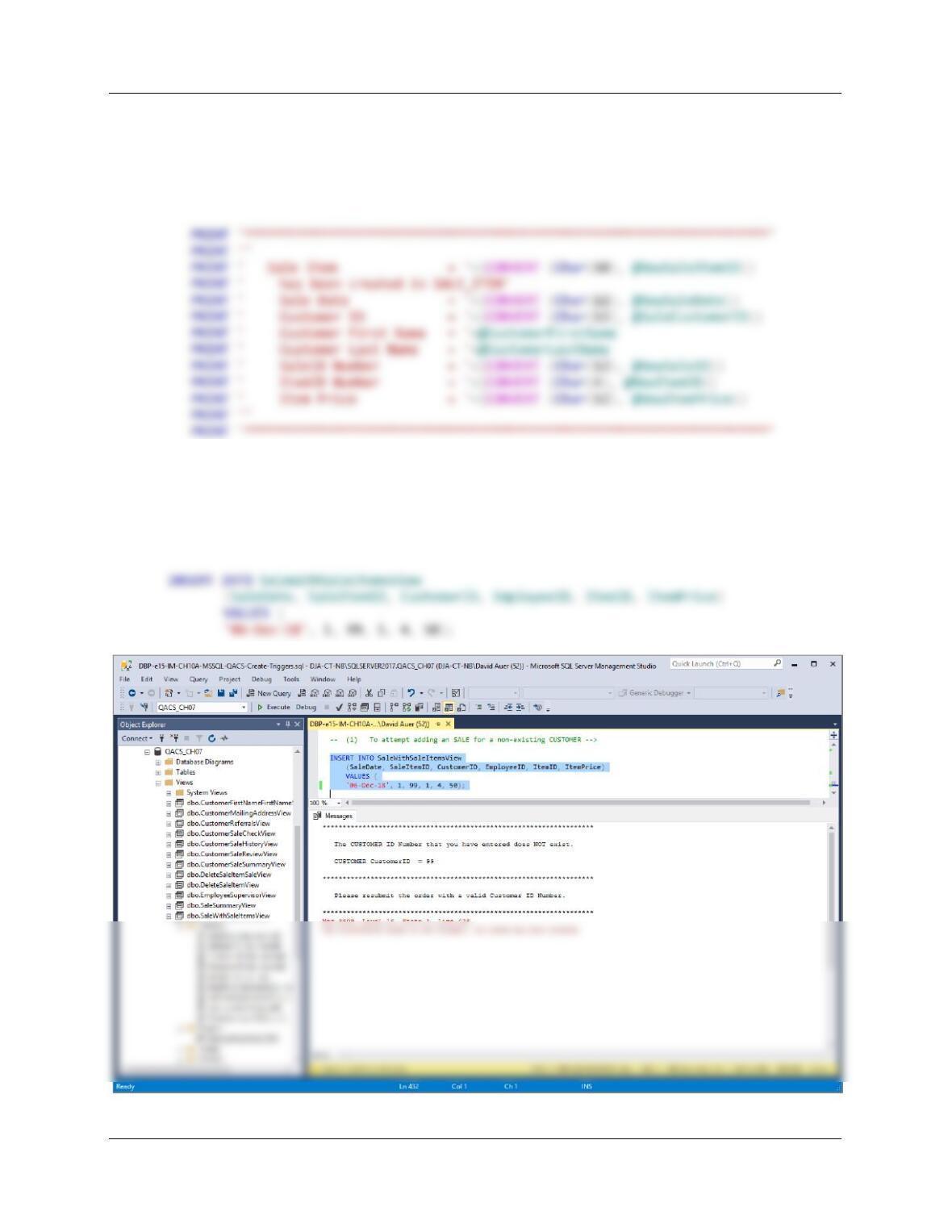
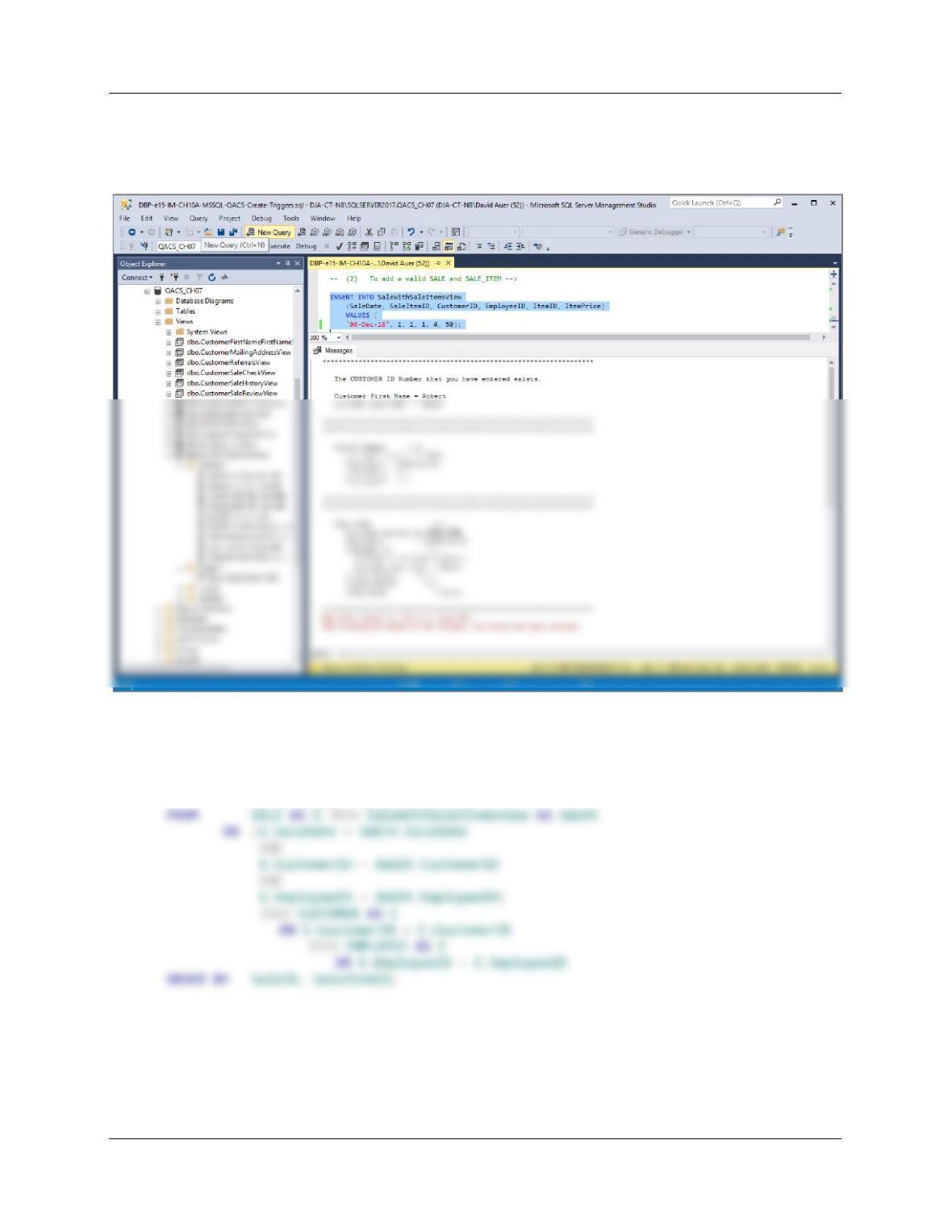
To test this trigger, use:
(1) To attempt adding an INVOICE for a non-existing CUSTOMER:
(2) To add a valid SALE and SALE_ITEM:
Chapter 10A – Managing Databases with SQL Server 2017
Page 10A-144
INSERT INTO SaleWithSaleItemsView
(SaleDate, SaleItemID, CustomerID, EmployeeID, ItemID, ItemPrice)
VALUES (
’06-Dec-18‘, 1, 1, 1, 4, 50);
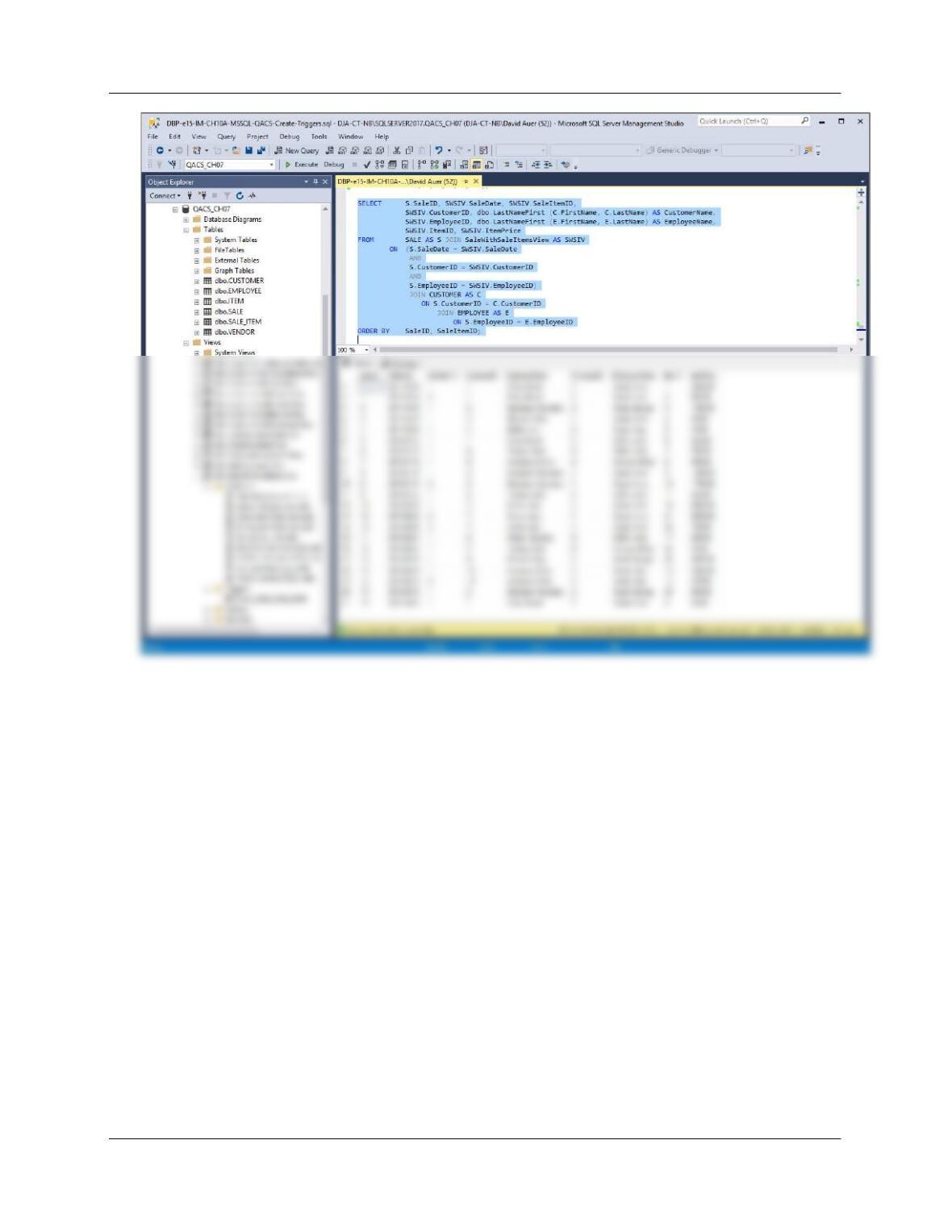
SELECT S.SaleID, SWSIV.SaleDate, SWSIV.SaleItemID,
SWSIV.CustomerID,
dbo.LastNameFirst (C.FirstName, C.LastName) AS CustomerName,
SWSIV.EmployeeID,
dbo.LastNameFirst (E.FirstName, E.LastName) AS EmployeeName,
SWSIV.ItemID, SWSIV.ItemPrice
Chapter 10A – Managing Databases with SQL Server 2017
Page 10A-145
Chapter 10A – Managing Databases with SQL Server 2017
Page 10A-146
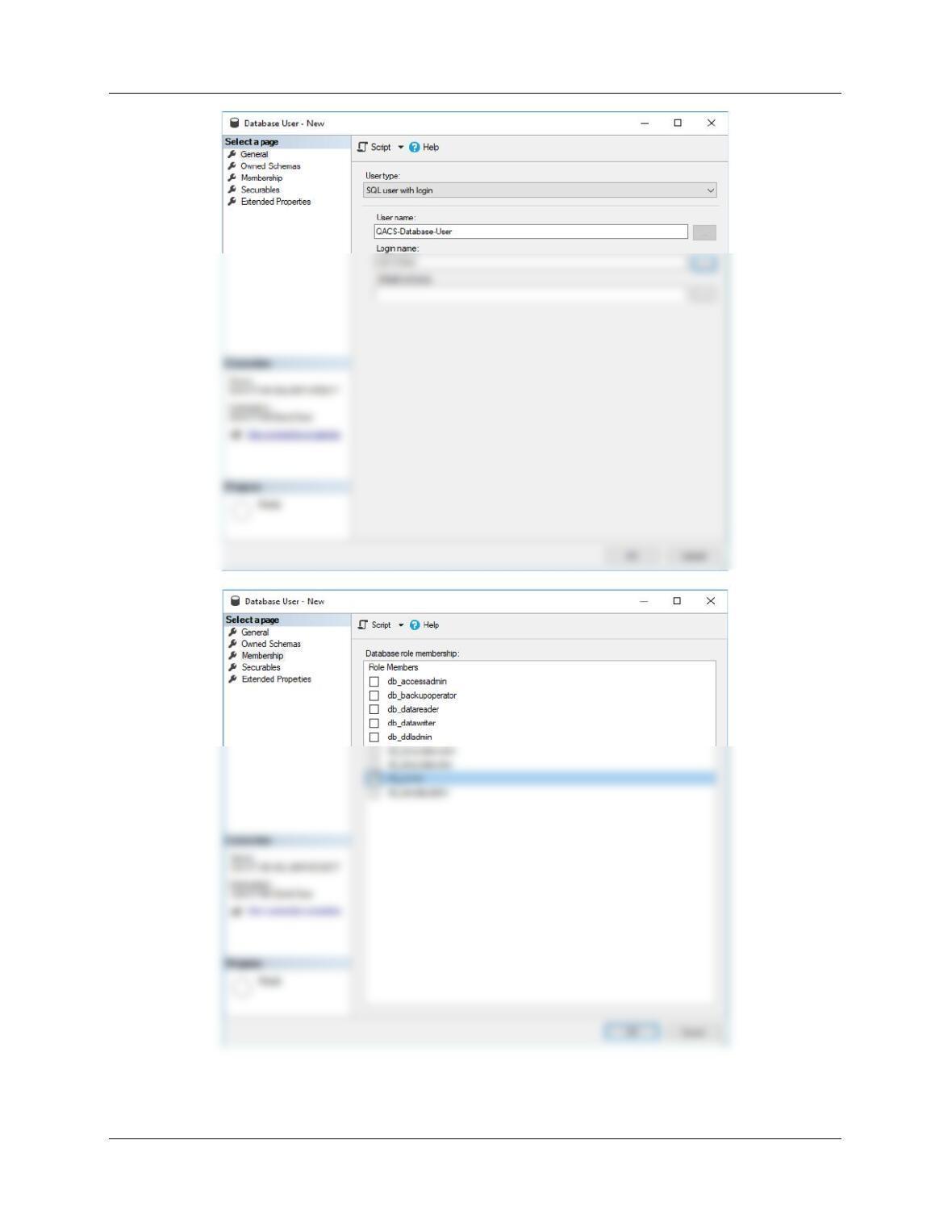
H. Create an SQL Server login named QACS-User, with a password of QACS-User+password.
Create a QACS database user named QACS-Database-User, with is linked to the QACS-
User login. Assign QACS-Database-User db_owner permissions to the QACS database.
Chapter 10A – Managing Databases with SQL Server 2017
Page 10A-147
Chapter 10A – Managing Databases with SQL Server 2017
Page 10A-148
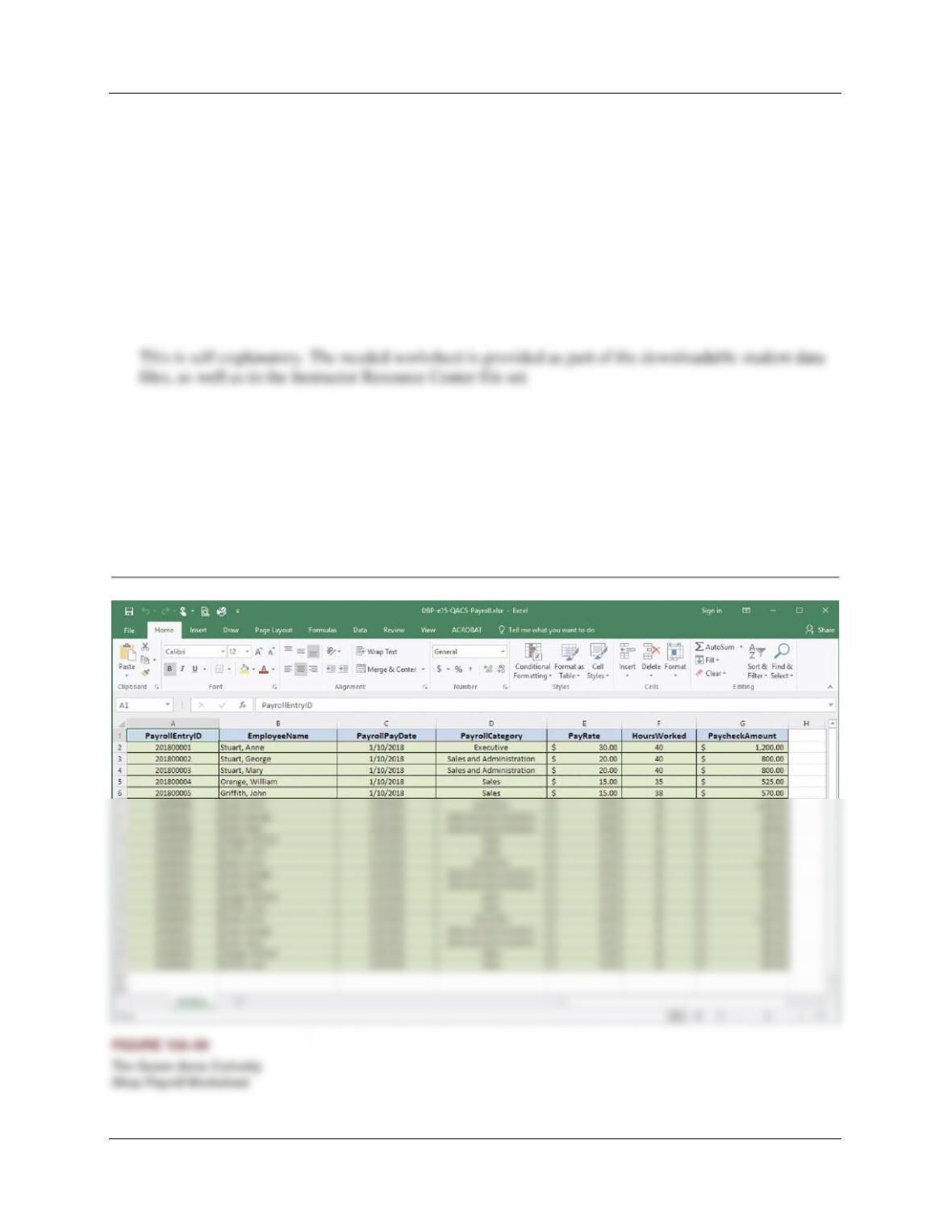
The Queen Anne Curiosity Shop payroll is paid twice monthly, once on the 10th of the
month and once on the 25th of the month. Pay is determined by the type of job (the
payroll category) and the number of hours worked (rounded to a whole number). Of
course, the QACS owners keep detailed payroll records. So far, they have kept their
records for these items in a Microsoft Excel 2016 worksheet, as shown in Figure 10A-99.
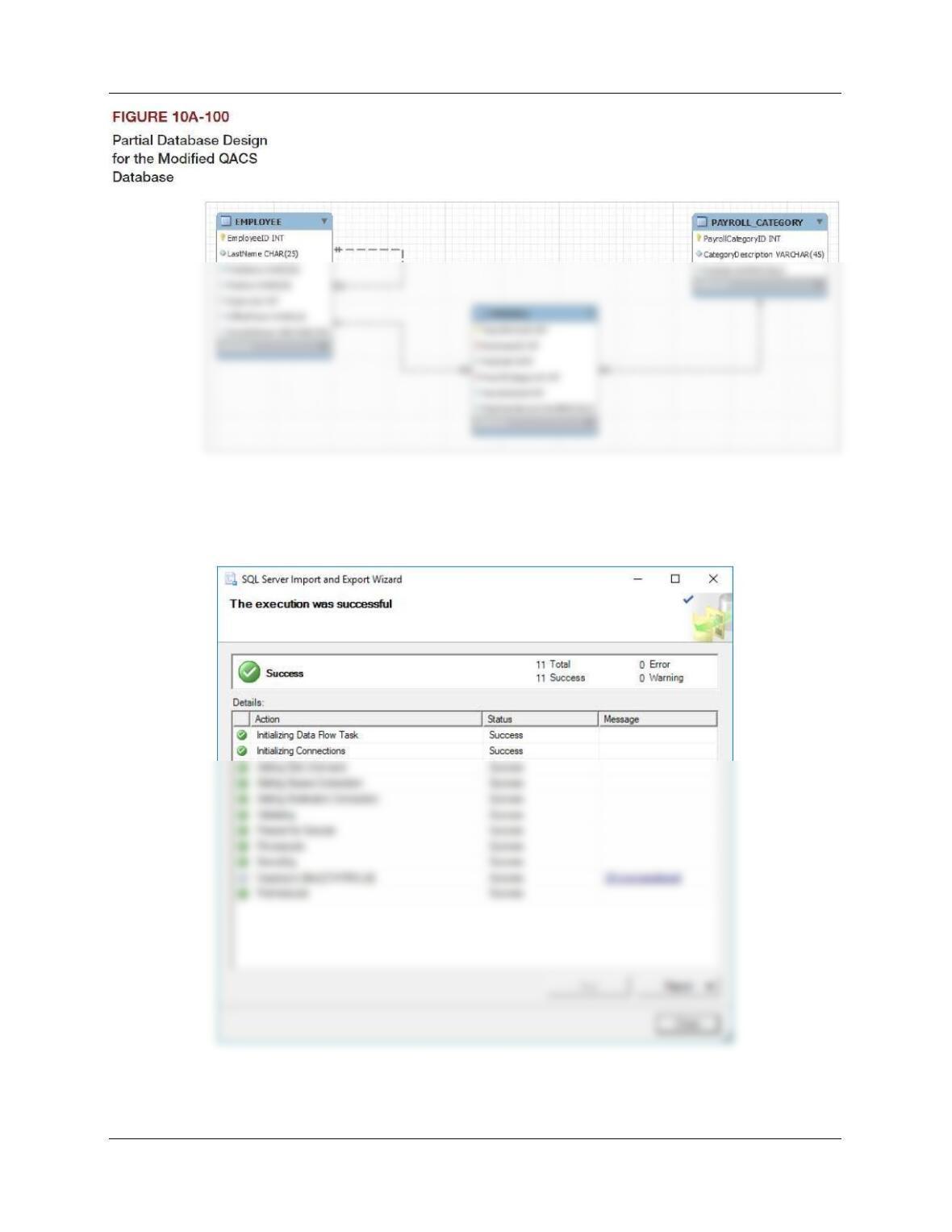
They have decided to integrate this data into the QACS database. The modifications to
the QACS database needed to accomplish this are shown in Figure 10A100 (as a MySQL
Workbench EER diagram). Using the QACS database, create an SQL script named QACS-
Import-Excel-Data.sql to answer parts I through V.
I. Duplicate the PAYROLL worksheet in Figure 10A-95 in a worksheet (or spreadsheet) in an
appropriate tool (such as Microsoft Excel or Apache OpenOffice Calc).
Chapter 10A – Managing Databases with SQL Server 2017
Page 10A-149
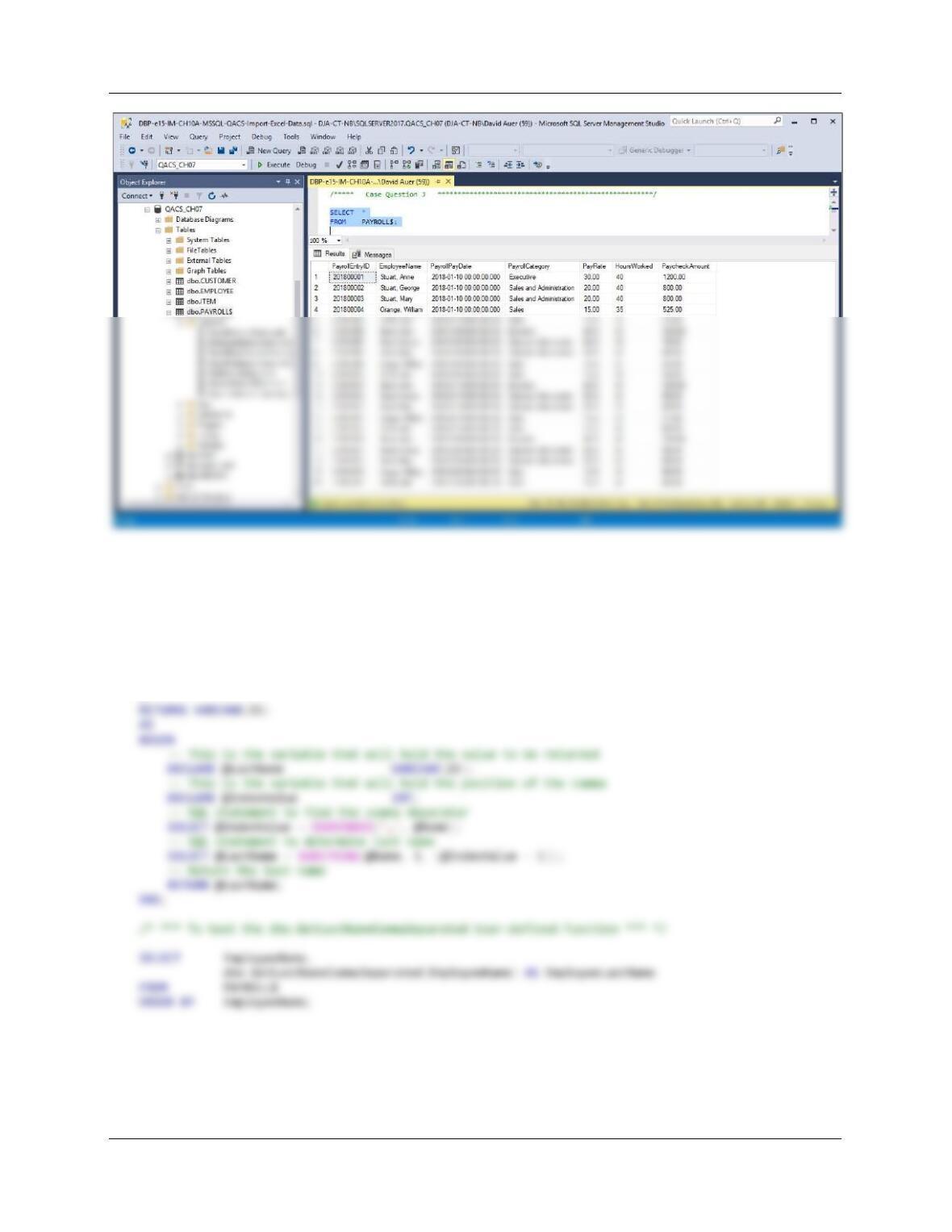
J. Import the data in the PAYROLL worksheet into a table in the QACS database named
PAYROLL$.
This is self-explanatory.
Chapter 10A – Managing Databases with SQL Server 2017
Page 10A-150
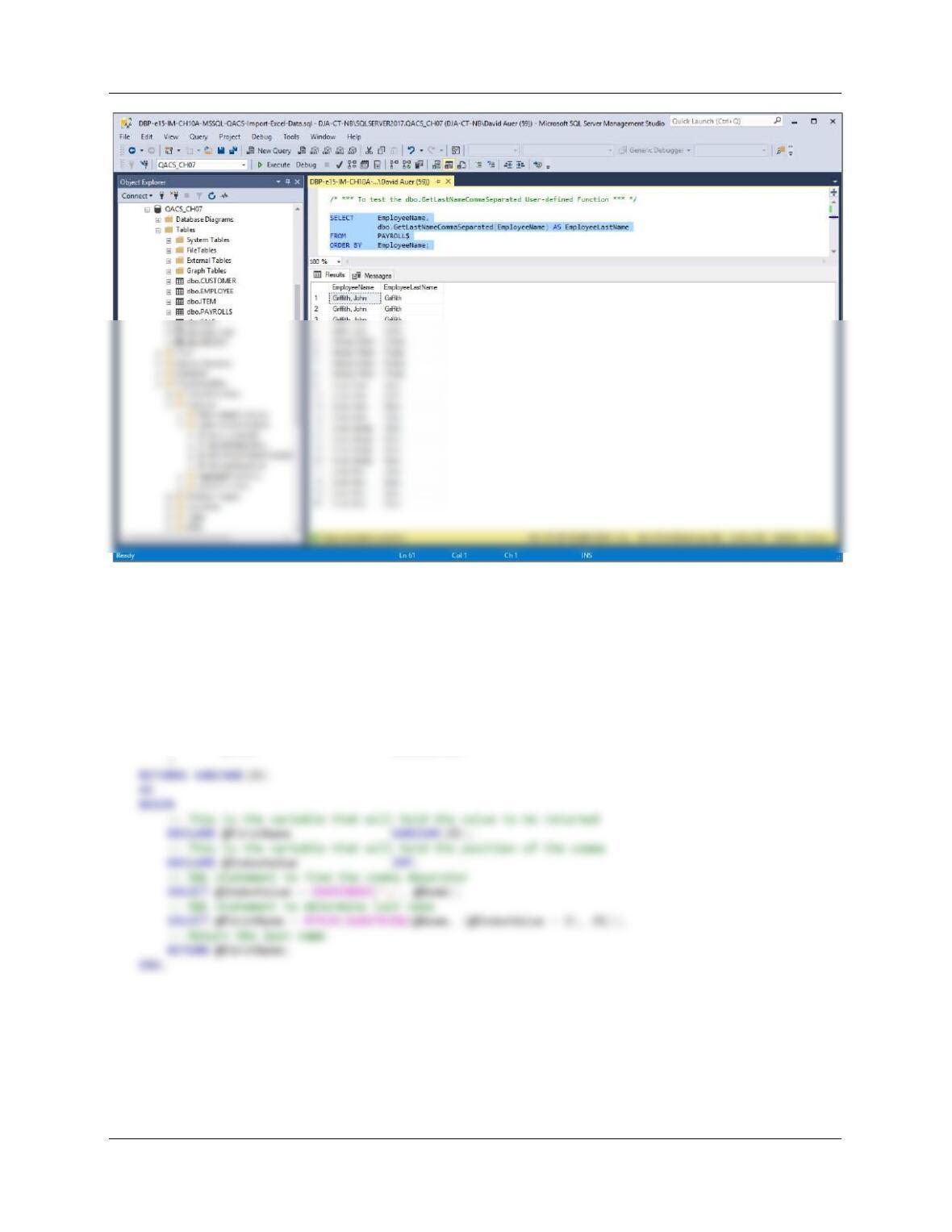
K. Create the GetLastNameCommaSeparated user-defined function shown in Figure 10A-54.
/***** Create Function ******************************************************/
CREATE OR ALTER FUNCTION dbo.GetLastNameCommaSeparated
— These are the input parameters
(
@Name VARCHAR(25)
)
Chapter 10A – Managing Databases with SQL Server 2017
Page 10A-151
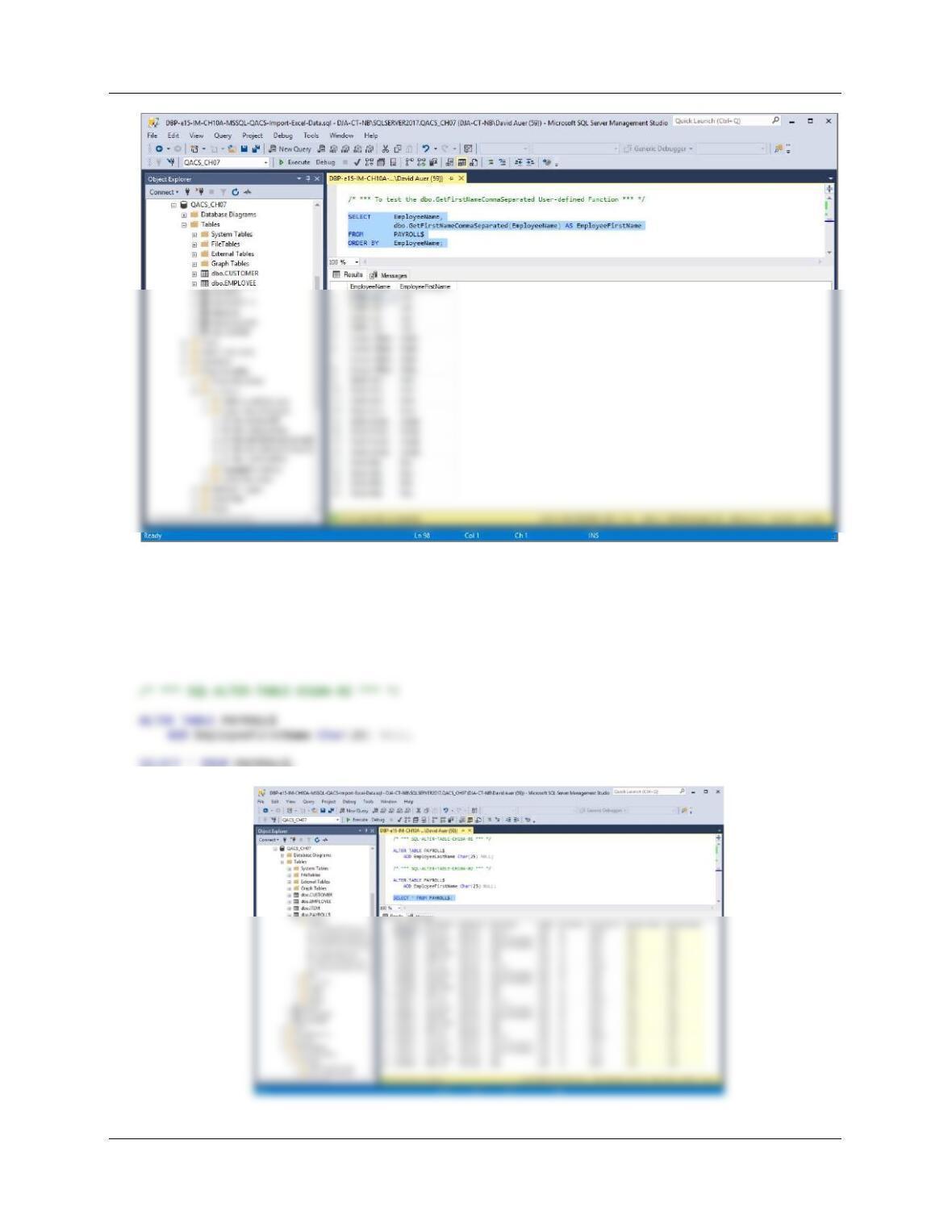
L. Create a user-defined function named GetFirstNameCommaSeparated that will return the
first name from a combined name in last-name-first order, with the names separated by a
comma and one space.
/***** Create Function ******************************************************/
CREATE OR ALTER FUNCTION dbo.GetFirstNameCommaSeparated
— These are the input parameters
(
@Name VARCHAR(25)
/* *** To test the dbo.GetFirstNameCommaSeparated User-defined Function *** */
SELECT EmployeeName,
dbo.GetFirstNameCommaSeparated(EmployeeName) AS EmployeeFirstName
FROM PAYROLL$
ORDER BY EmployeeName;
Chapter 10A – Managing Databases with SQL Server 2017
Page 10A-152
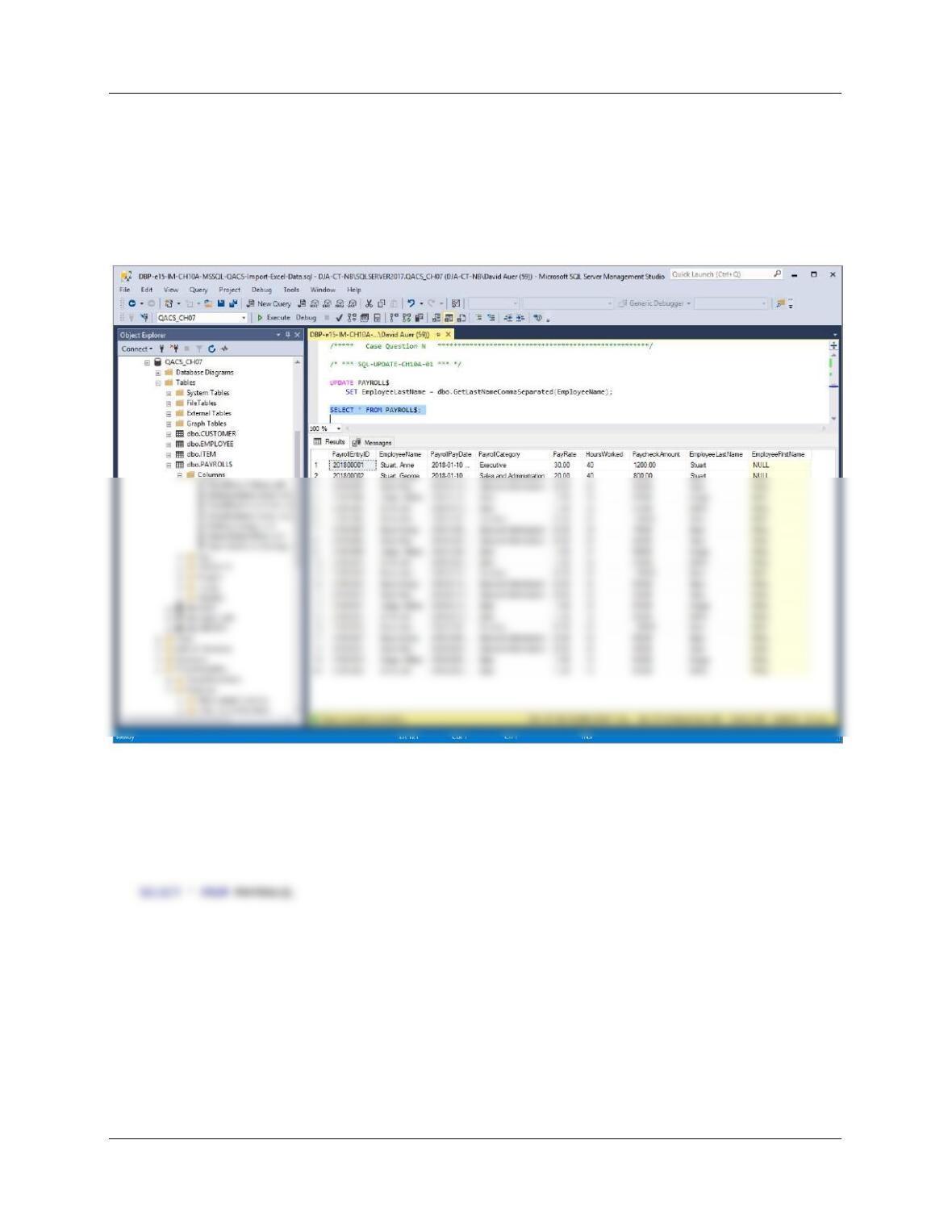
M. Alter the PAYROLL$ table to include EmployeeLastName and EmployeeFirstName columns
(Char(25), allow NULL values).
/* *** SQL-ALTER-TABLE-CH10A-01 *** */
ALTER TABLE PAYROLL$
ADD EmployeeLastName Char(25) NULL;
SELECT * FROM PAYROLL$;
Chapter 10A – Managing Databases with SQL Server 2017
Page 10A-153
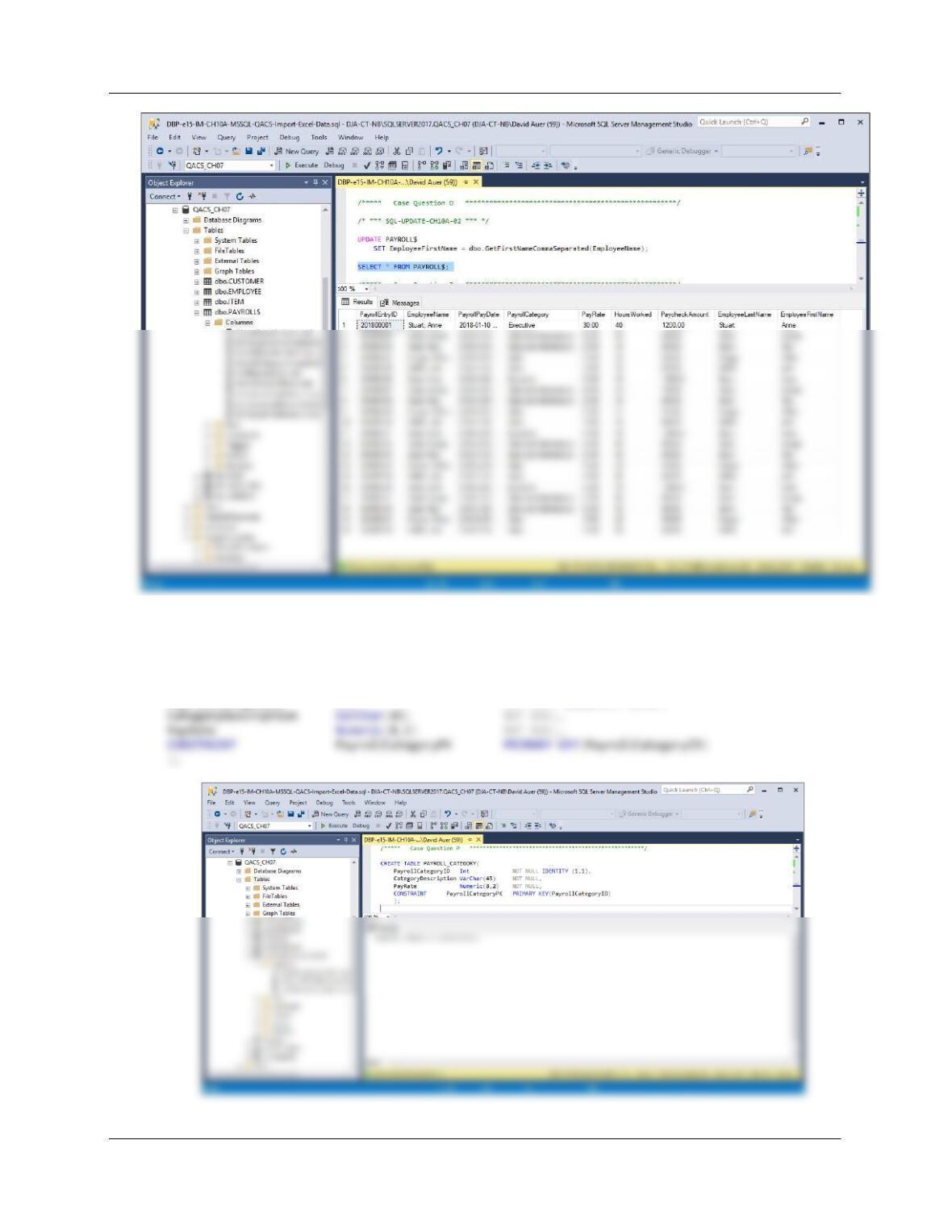
N. Use the GetLastNameCommaSeparated user-defined function you created in step K to
populate the EmployeeLastName column.
/* *** SQL-UPDATE-CH10A-01 *** */
UPDATE PAYROLL$
SET EmployeeLastName = dbo.GetLastNameCommaSeparated(EmployeeName);
SELECT * FROM PAYROLL$;
O. dddUse the GetFirstNameCommaSeparated user-defined function you created in step L to
populate the EmployeeFirstName column.
/* *** SQL-UPDATE-CH10A-02 *** */
UPDATE PAYROLL$
SET EmployeeFirstName = dbo.GetFirstNameCommaSeparated(EmployeeName);
Chapter 10A – Managing Databases with SQL Server 2017
Page 10A-154
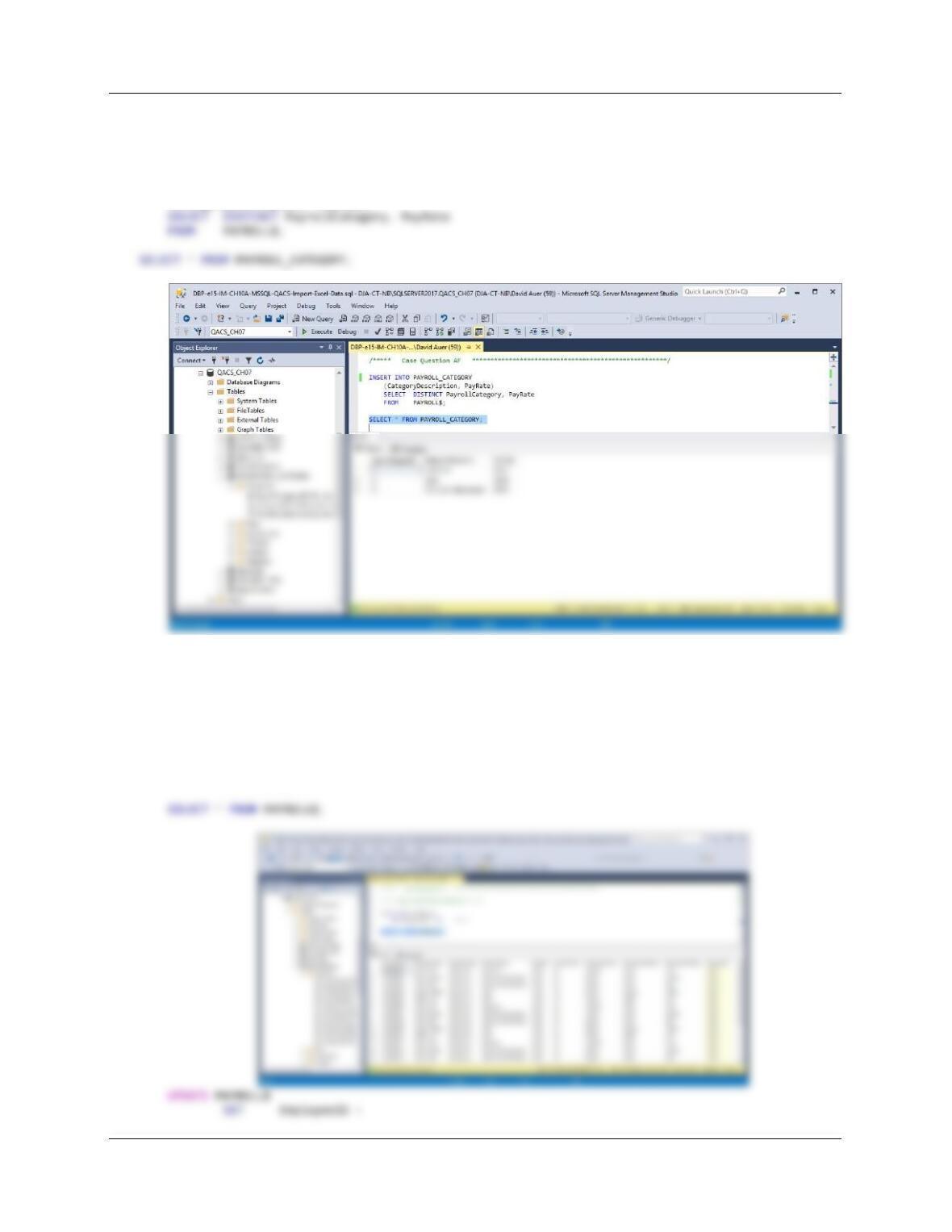
P. Create a new table named PAYROLL_CATEGORY, as shown in Figure 10A-96. Use the
column characteristics shown in Figure 10A-96, where PayrollCategoryID is a surrogate key
starting at 1 and incrementing by 1.
CREATE TABLE PAYROLL_CATEGORY(
PayrollCategoryID Int NOT NULL IDENTITY (1,1),
Chapter 10A – Managing Databases with SQL Server 2017
Page 10A-155
Q. Populate the PAYROLL_CATEGORY table using the data stored in the PAYROLL$ table.
Hint: You should insert distinct data into the table, and your final table will have only 3
records.
INSERT INTO PAYROLL_CATEGORY
(CategoryDescription, PayRate)
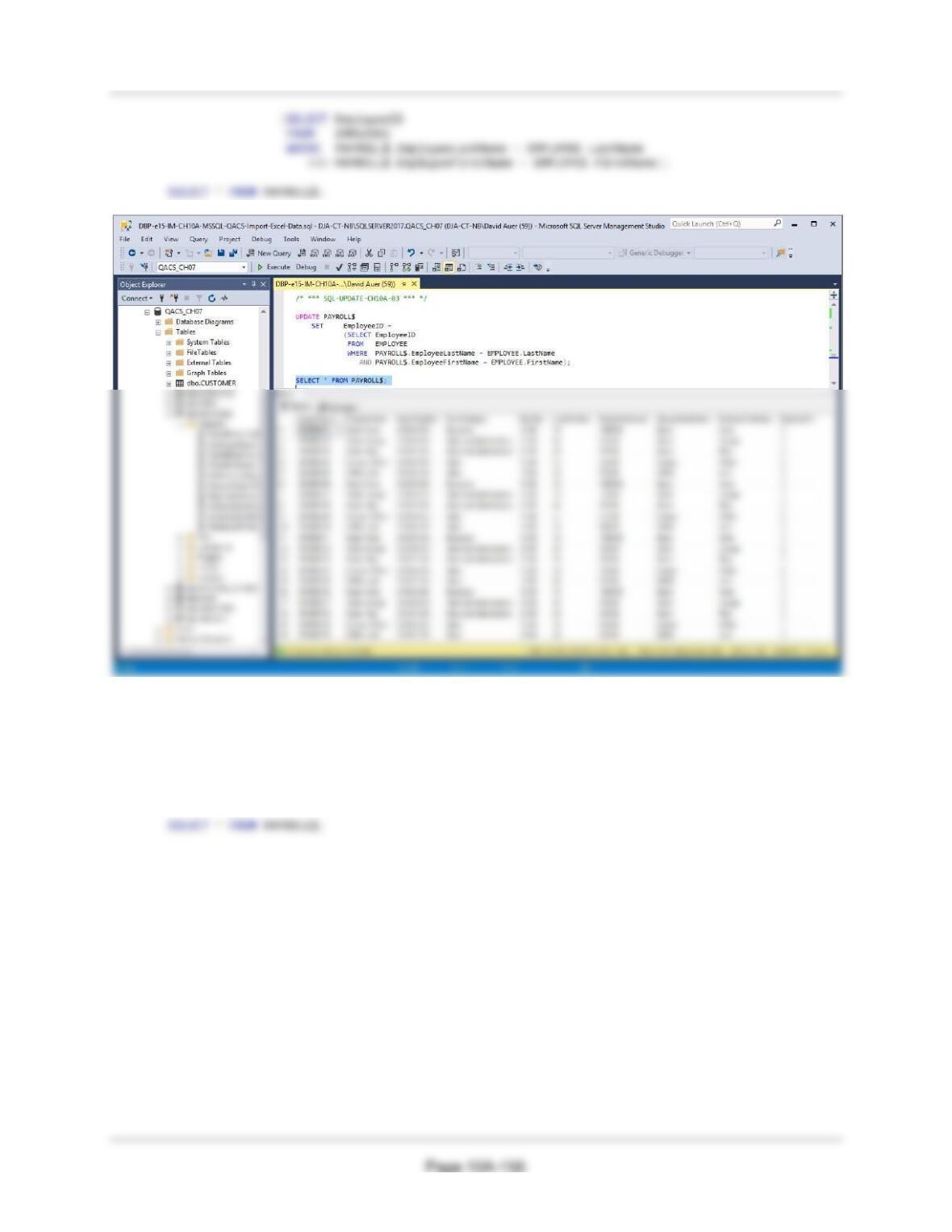
R. Alter the PAYROLL$ table to include an EmployeeID column (Integer data, allow nulls). By
using and comparing the PAYROLL$.EmployeeLastName and PAYROLL$
.EmployeeFirstName columns with the EMPLOYEE.LastName and EMPLOYEE .FirstName
columns, populate this column. Hint: Assume for this question that no two employees have
the same first and last names.
ALTER TABLE PAYROLL$
ADD EmployeeID Int NULL;
Chapter 10A – Managing Databases with SQL Server 2017
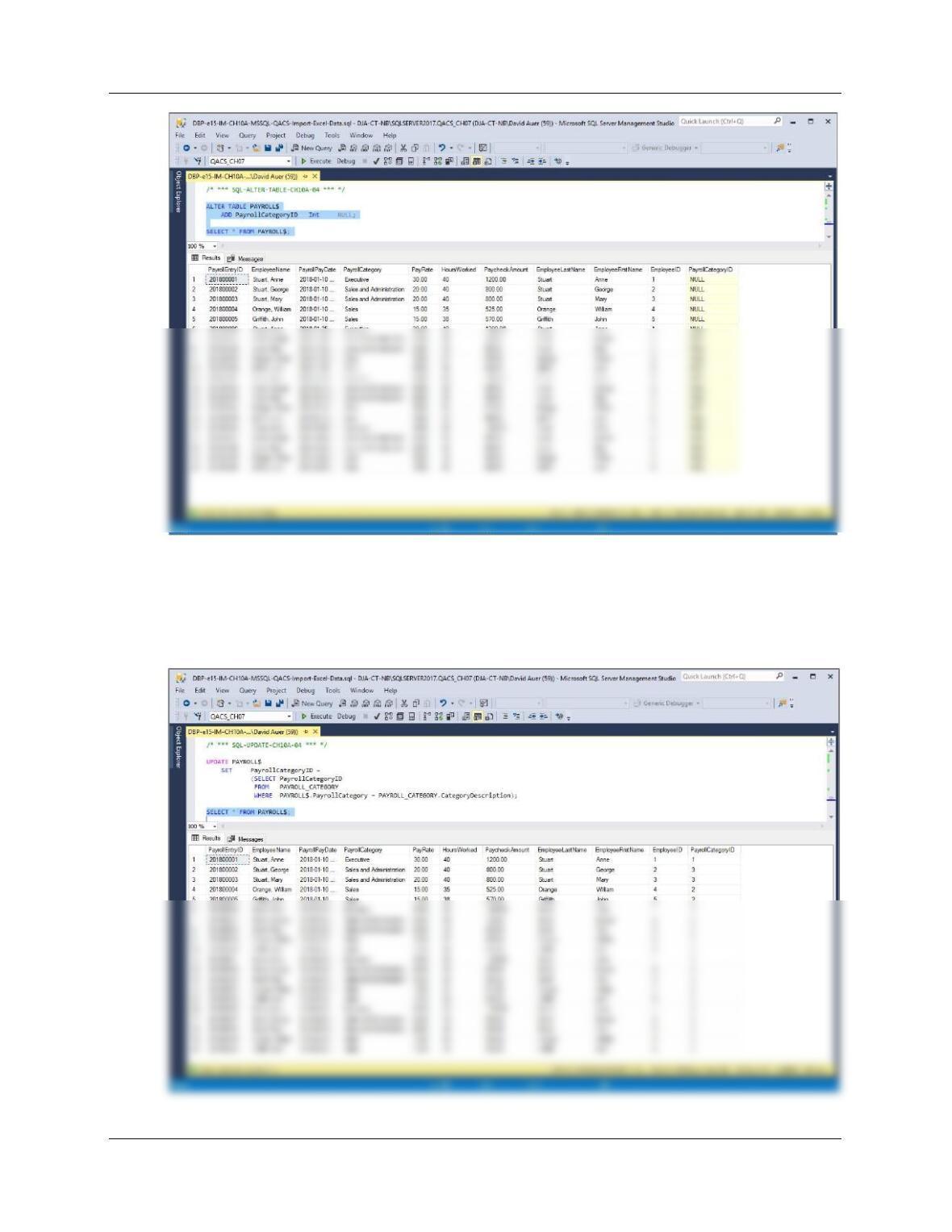
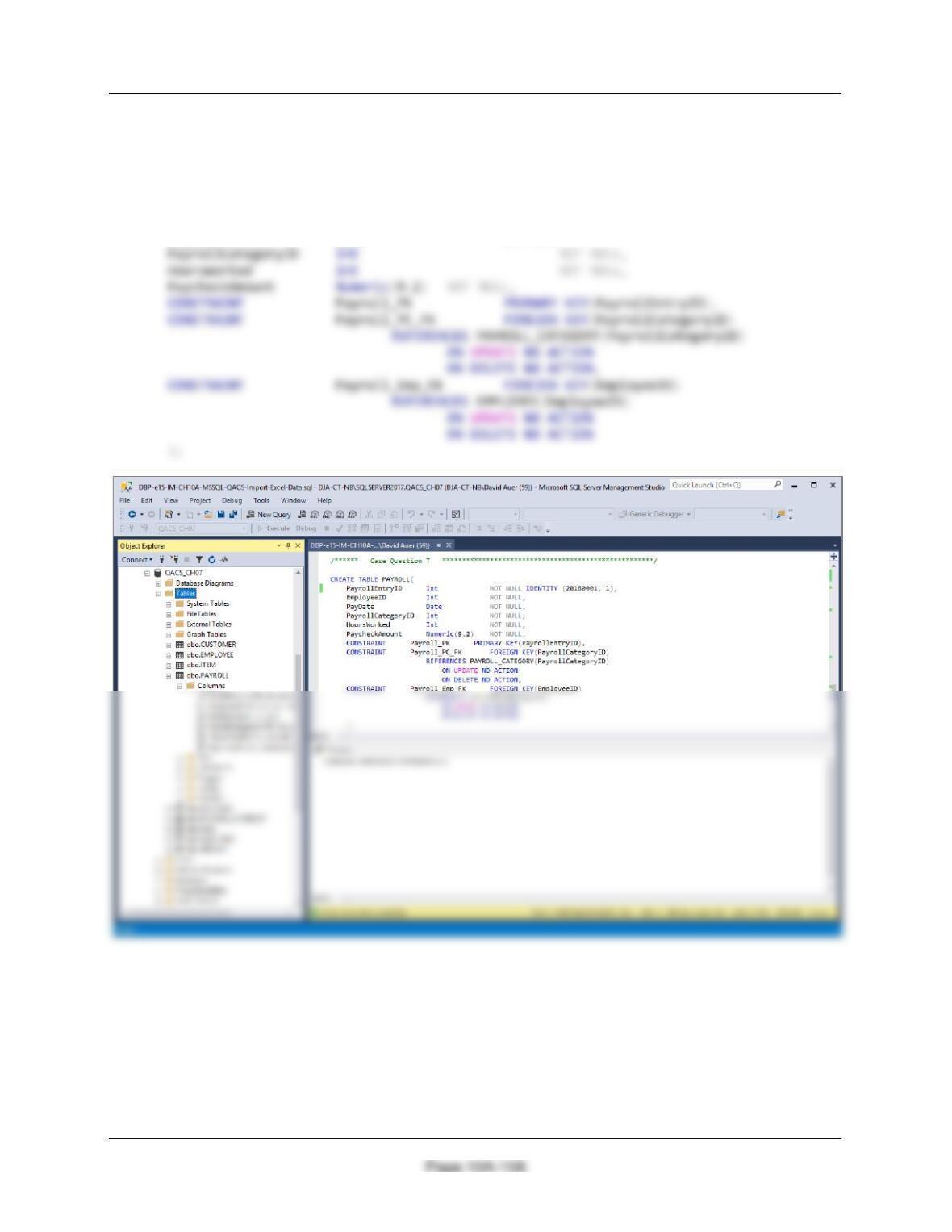
S. Alter the PAYROLL$ table to include a PayrollCategoryID column (Integer data, allow nulls).
By using and comparing the PAYROLL$.PayrollCategory column with the
PAYROLL_CATEGORY.CategoryDescription column, populate this column.
ALTER TABLE PAYROLL$
ADD PayrollCategoryID Int NULL;
Chapter 10A – Managing Databases with SQL Server 2017
Page 10A-157
UPDATE PAYROLL$
SET PayrollCategoryID =
(SELECT PayrollCategoryID
FROM PAYROLL_CATEGORY
WHERE PAYROLL$.PayrollCategory = PAYROLL_CATEGORY.CategoryDescription);
SELECT * FROM PAYROLL$;
Chapter 10A – Managing Databases with SQL Server 2017
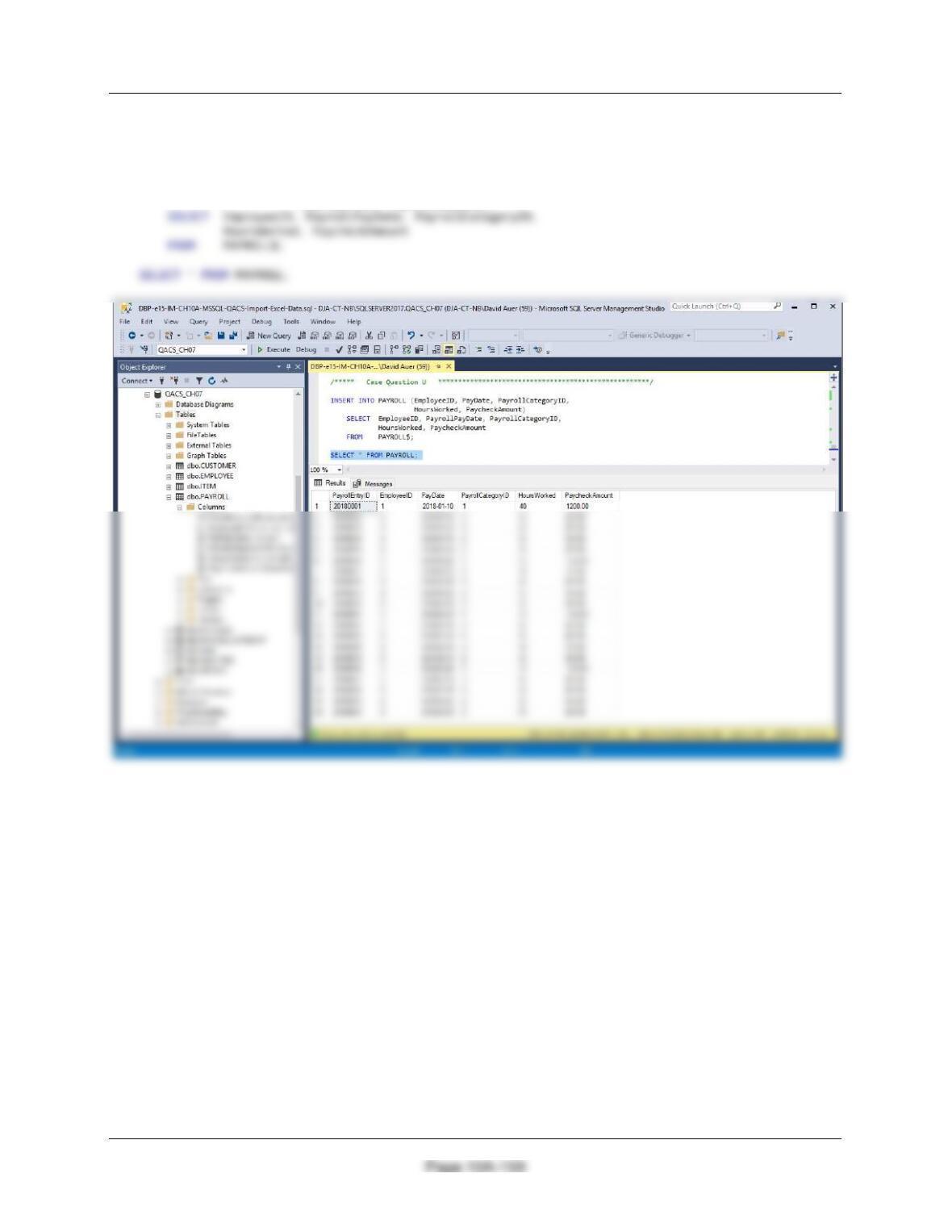
T. Create a new table named PAYROLL, as shown in Figure 10A-96. Use the column
characteristics shown in Figure 10A-96. Note that PayrollEntryID is a surrogate key, with
initial value 20180001 and incrementing by 1.
CREATE TABLE PAYROLL(
PayrollEntryID Int NOT NULL IDENTITY (20180001, 1),
EmployeeID Int NOT NULL,
PayDate Date NOT NULL,
Chapter 10A – Managing Databases with SQL Server 2017
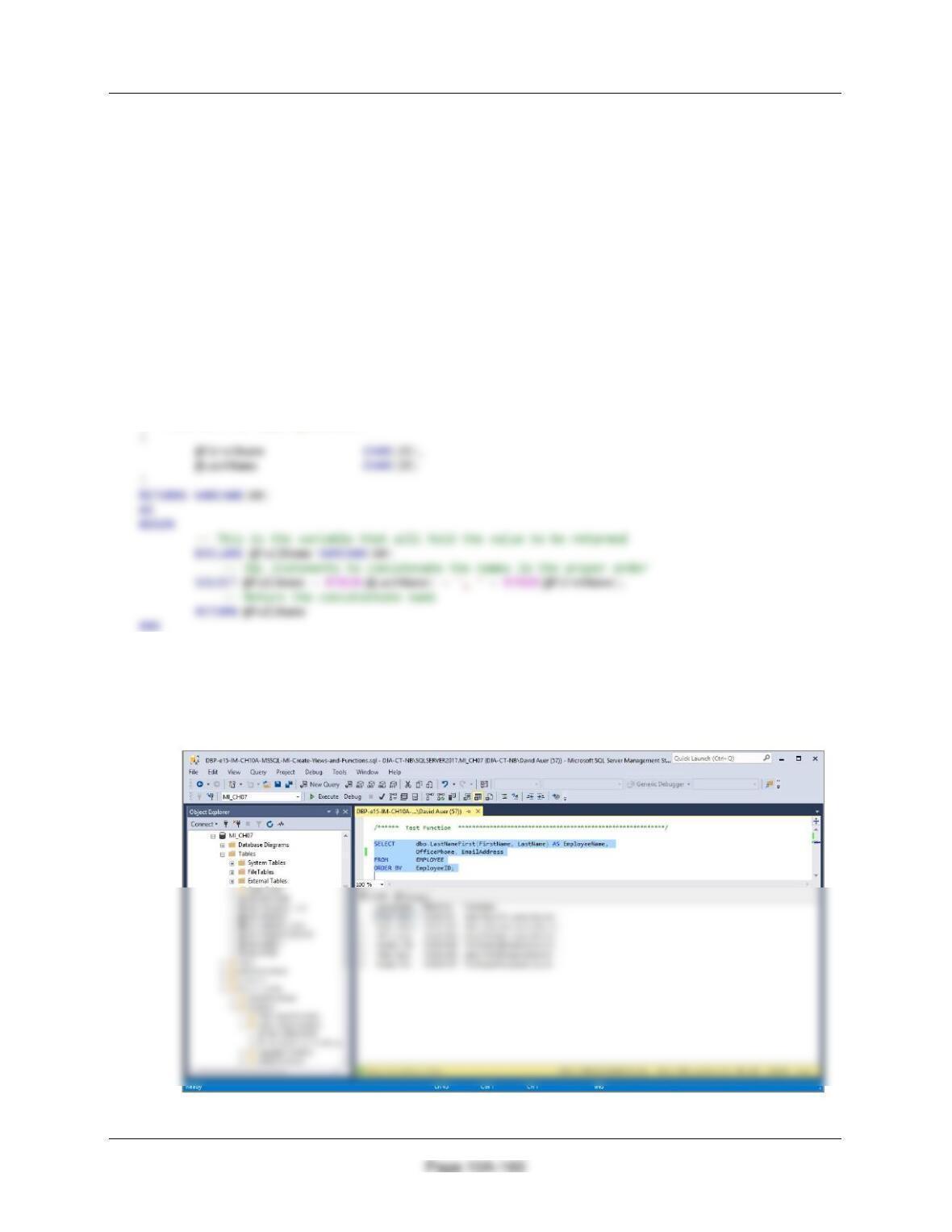
U. Populate the PAYROLL table using the data stored in the PAYROLL$ table. Hint: You will
have one record in the PAYROLL table for every record in the PAYROLL$ table, and your
final table will have 20 records.
INSERT INTO PAYROLL (EmployeeID, PayDate, PayrollCategoryID,
HoursWorked, PaycheckAmount)
V. We have completed the modifications of the QACS database, and are done with the
temporary PAYROLL$ table. We could delete it if we wanted to, but we will keep the
PAYROLL$ table in the database.
This is self-explanatory.
Chapter 10A – Managing Databases with SQL Server 2017
❖ ANSWERS TO MORGAN IMPORTING PROJECT QUESTIONS
If you have not completed the discussion of Morgan Importing database at the end of
Chapter 7 on pages 390–395, work through the Chapter 7 Morgan Importing Project
Questions now. Use the MI database that you created in the Chapter 7 MI Project
Questions as the basis for your answers to the following questions:
Using the MI database, create an SQL script named MI-Create-Views-and-Functions .sql
to answer questions A through D.
NOTE: We are using and extending the MI_CH07 database we created and used in Chapter 7.
A. Create and test a user-defined function named LastNameFirst that combines two
parameters named FirstName and LastName into a concatenated name field formatted
LastName, FirstName (including the comma and space).
CREATE OR ALTER FUNCTION dbo.LastNameFirst
— These are the input parameters
/****** Test Function ***********************************************************/
SELECT dbo.LastNameFirst(FirstName, LastName) AS EmployeeName,
OfficePhone, EmailAddress
FROM EMPLOYEE
ORDER BY EmployeeID;