Chapter 10A – Managing Databases with SQL Server 2017
Page 10A-21
/***** EMPLOYEE DATA ********************************************************/
INSERT INTO EMPLOYEE VALUES(
‘Mary’, ‘Jacobs’, ‘Administration’, ‘CEO’, NULL,
‘360-285-8110’, ‘Mary.Jacobs@WP.com’);
‘Alan’, ‘Adams’, ‘Human Resources’, ‘HR1’, 4,
‘360-285-8320’, ‘Alan.Adams@WP.com’);
INSERT INTO EMPLOYEE VALUES(
‘Ken’, ‘Evans’, ‘Finance’, ‘CFO’, 1,
‘360-285-8410’, ‘Ken.Evans@WP.com’);
‘Ken’, ‘Numoto’, ‘Sales and Marketing’, ‘SM3’, 1,
‘360-287-8510’, ‘Ken.Numoto@WP.com’);
INSERT INTO EMPLOYEE VALUES(
‘Linda’, ‘Granger’, ‘Sales and Marketing’, ‘SM2’, 10,
‘360-287-8520’, ‘Linda.Granger@WP.com’);
‘Jason’, ‘Sleeman’, ‘Research and Development’, ‘RD3’, 14,
‘360-287-8720’, ‘Jason.Sleeman@WP.com’);
INSERT INTO EMPLOYEE VALUES(
‘Mary’, ‘Smith’, ‘Production’, ‘OPS3’, 1,
‘360-287-8810’, ‘Mary.Smith@WP.com’);
INSERT INTO EMPLOYEE VALUES(
‘Tom’, ‘Jackson’, ‘Production’, ‘OPS2’, 14,
‘360-287-8820’, ‘Tom.Jackson@WP.com’);
INSERT INTO EMPLOYEE VALUES(
‘George’, ‘Jones’, ‘Production’, ‘OPS2’, 15,
Chapter 10A – Managing Databases with SQL Server 2017
Page 10A-22
Chapter 10A – Managing Databases with SQL Server 2017
Page 10A-23
10A.36 Code an SQL Server trigger named Deny_EMPLOYEE_Change_Of_DEPARTMENT to
enforce the constraint that an employee can never change his or her department. Create
test data and demonstrate that your trigger works.
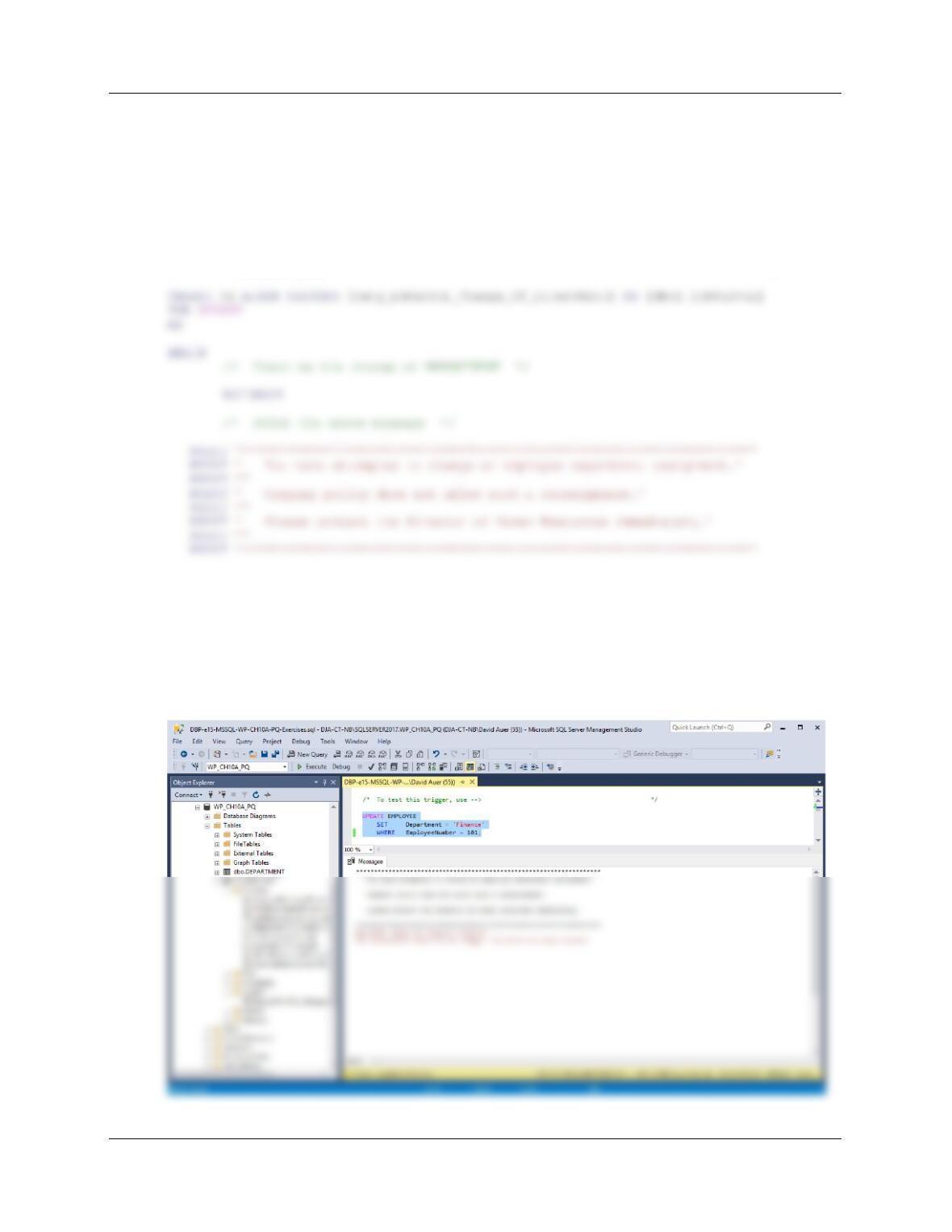
All this requires is a trigger that uses the ROLLBACK command to deny the update, and then
sends an error message to the user.
/***** Exercises 10A.36 ***************************************************/
/****** Trigger Code **********************************************************/
END;
To test this trigger, use:
/* To test this trigger, use —> */
UPDATE EMPLOYEE
SET Department = ‘Finance’
WHERE EmployeeNumber = 101;
Chapter 10A – Managing Databases with SQL Server 2017
Page 10A-24
10A.37 Code an SQL Server trigger named Allow_Deletion_Of_DEPARTMENT to allow the
deletion of a department if it only has one employee. Assign the last employee to the
Human Resources department. Create test data and demonstrate that your trigger
works.
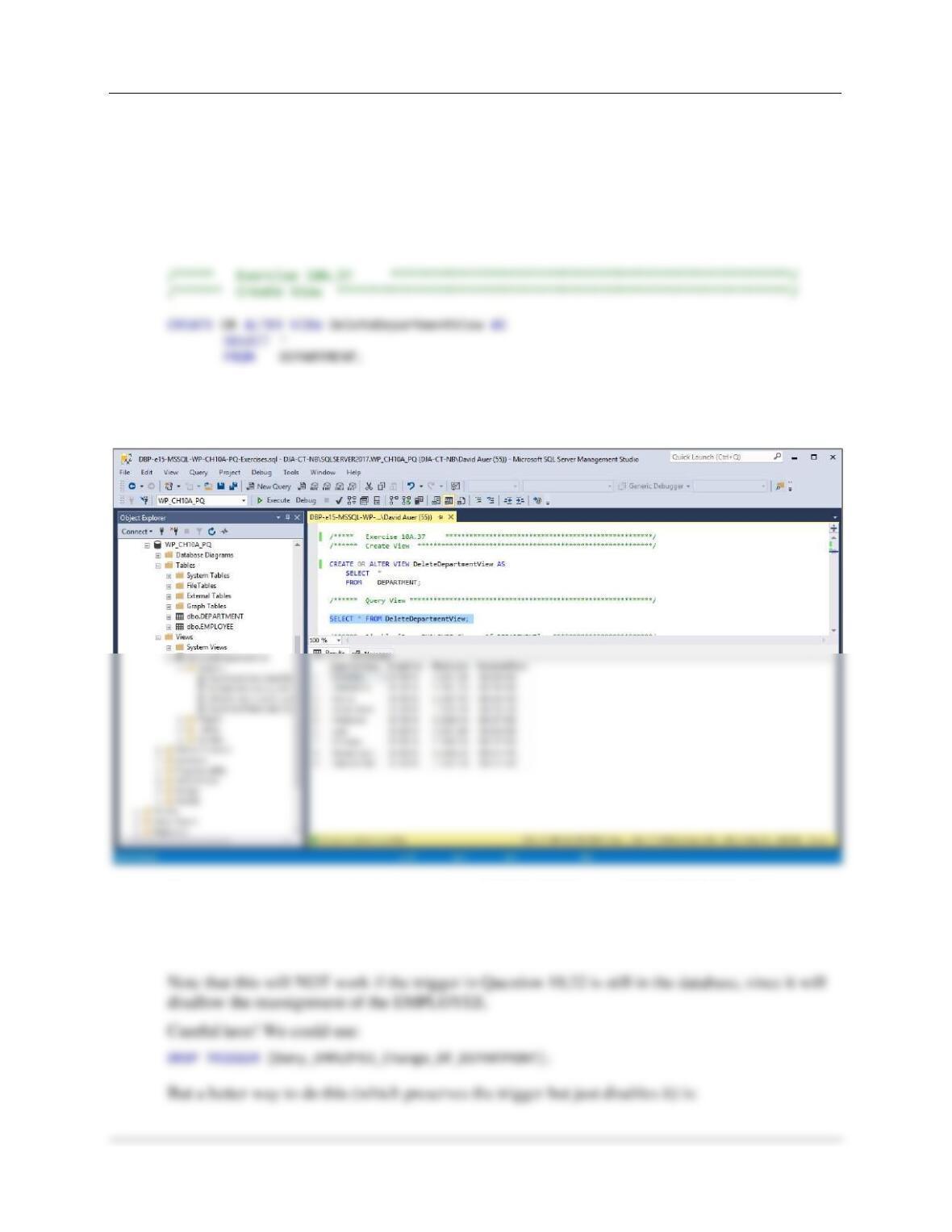
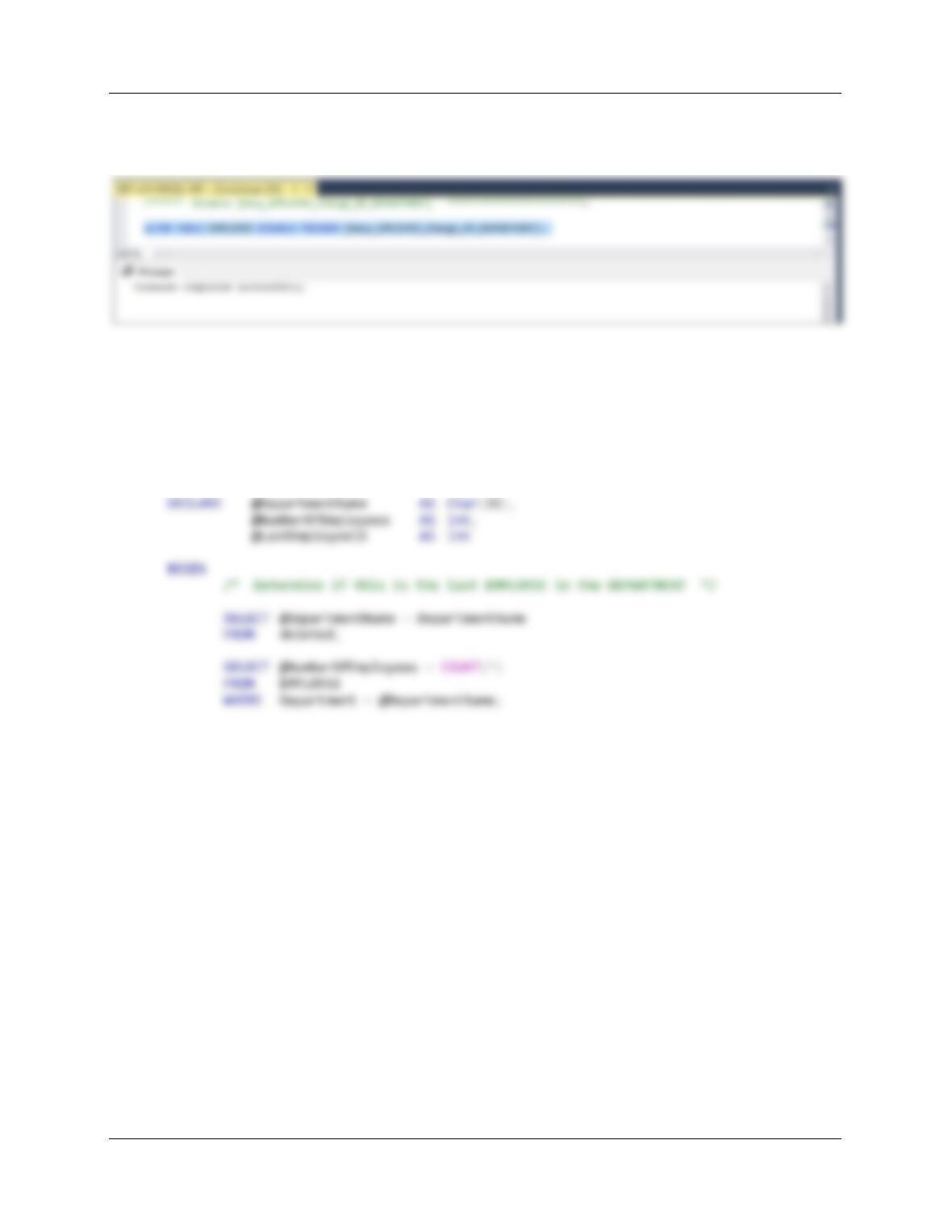
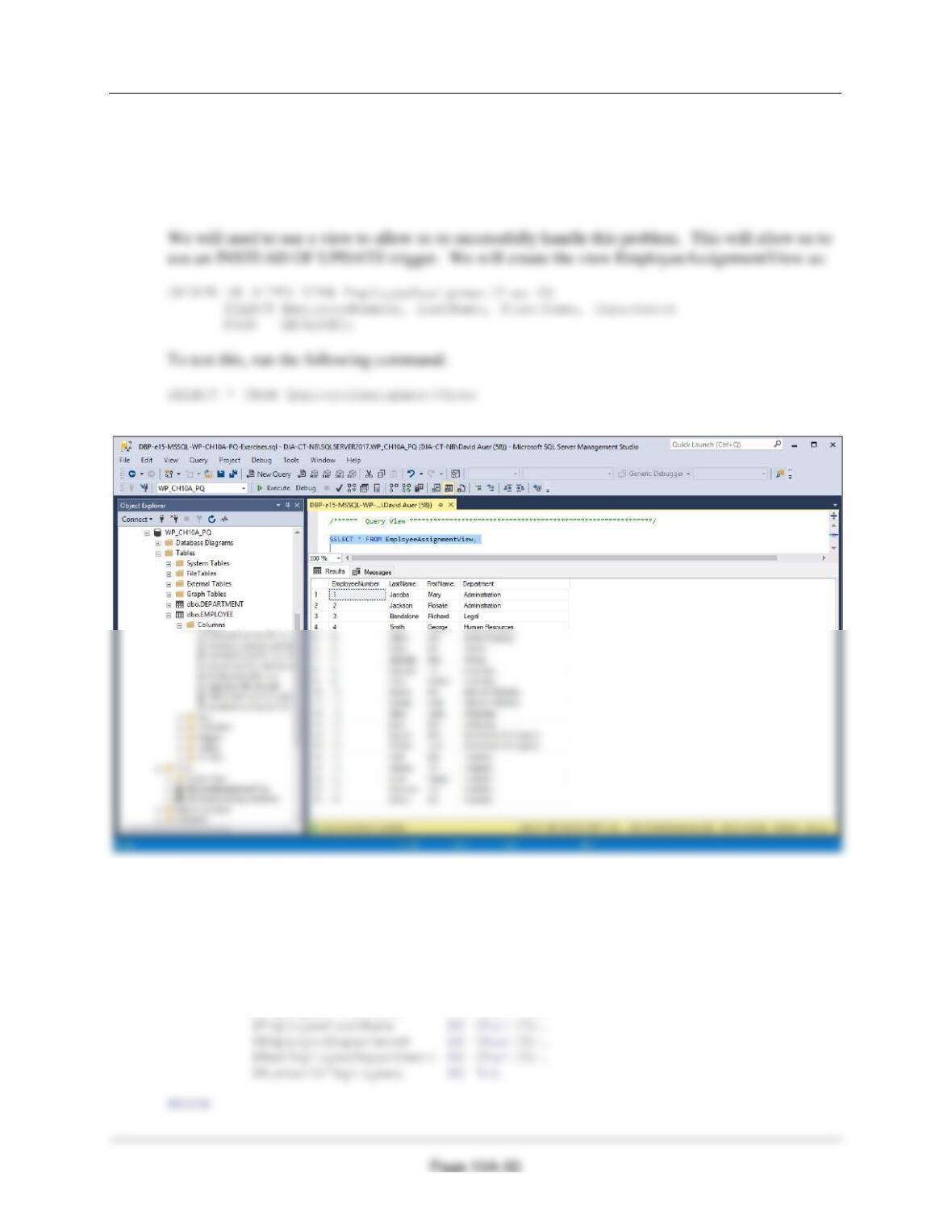
We will need to use a view to allow us to successfully handle this problem. This will allow us to
use an INSTEAD OF DELETE trigger. We will create the view DeleteDepartmentView as
/****** Query View *************************************************************/
SELECT * FROM DeleteDepartmentView;
The trigger requires us to check the number of EMPLOYEEs in a DEPARTMENT. If the
number of EMPLOYEEs is greater than one, we will ROLLBACK the deletion and then send an
error message to the user. If the number of EMPLOYEEs is exactly one, we will reassign that
EMPLOYEE to the Human Resources DEPARTMENT and then delete the DEPARTMENT.
Chapter 10A – Managing Databases with SQL Server 2017
Page 10A-25
/****** Disable [Deny_EMPLOYEE_Change_Of_DEPARTMENT] *************************/
ALTER TABLE EMPLOYEE DISABLE TRIGGER [Deny_EMPLOYEE_Change_Of_DEPARTMENT];
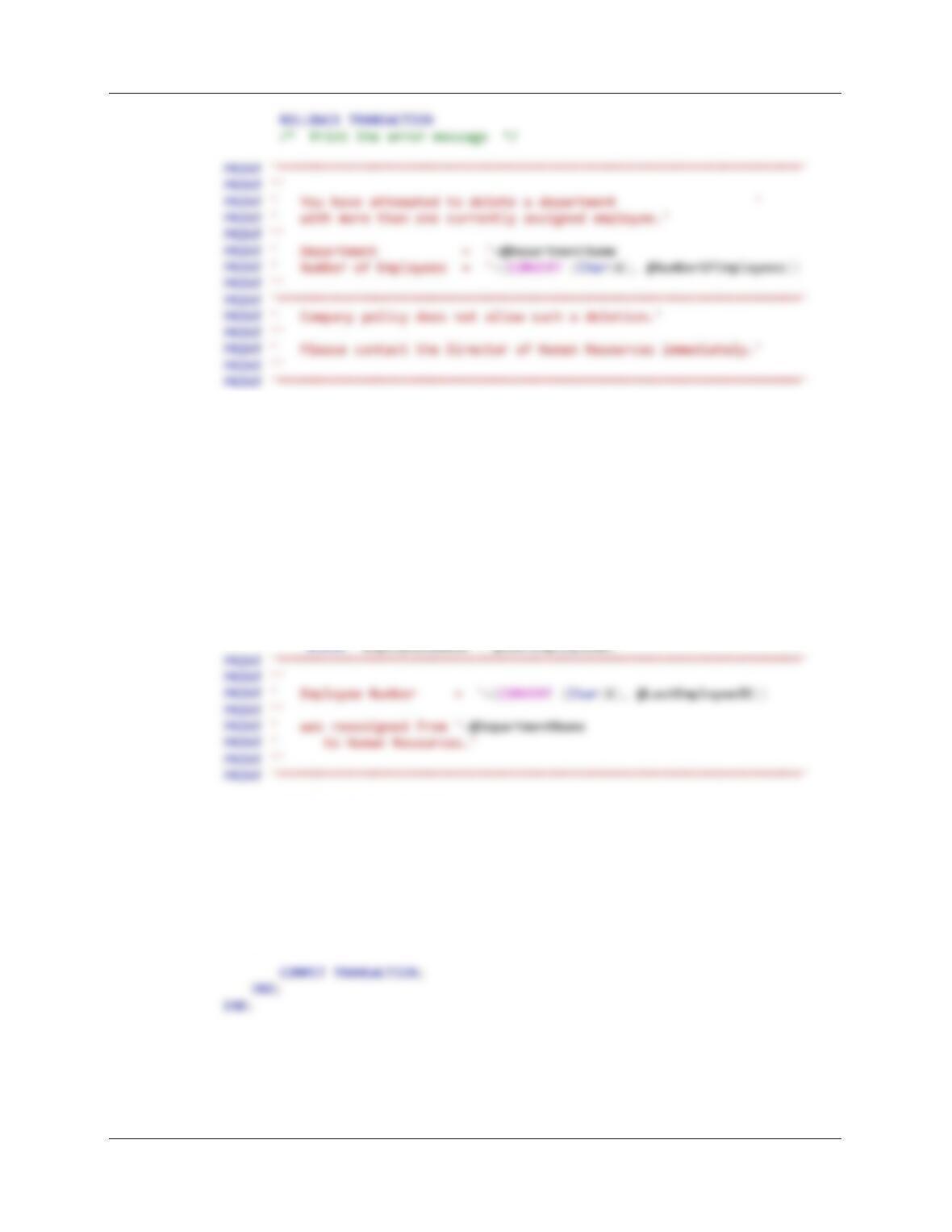
Here is the code for the trigger:
/****** Trigger Code **********************************************************/
CREATE TRIGGER [Allow_Deletion_Of_DEPARTMENT] ON [dbo].[DeleteDepartmentView]
INSTEAD OF DELETE
AS
IF @NumberOfEmployees > 1
/* Not last EMPLOYEE, deny deletion of DEPARTMENT */
BEGIN
/* Disallow the change of DEPARTMENT */
Chapter 10A – Managing Databases with SQL Server 2017
Page 10A-26
END;
ELSE
/* @NumberOf Employees = 1 so this is the last EMPLOYEE */
/* Move EMPLOYEE and delete DEPARTMENT */
BEGIN
SELECT @LastEmployeeID = EmployeeNumber
FROM EMPLOYEE
WHERE Department = @DepartmentName;
UPDATE EMPLOYEE
SET Department = ‘Human Resources’
WHERE EmployeeNumber = @LastEmployeeID;
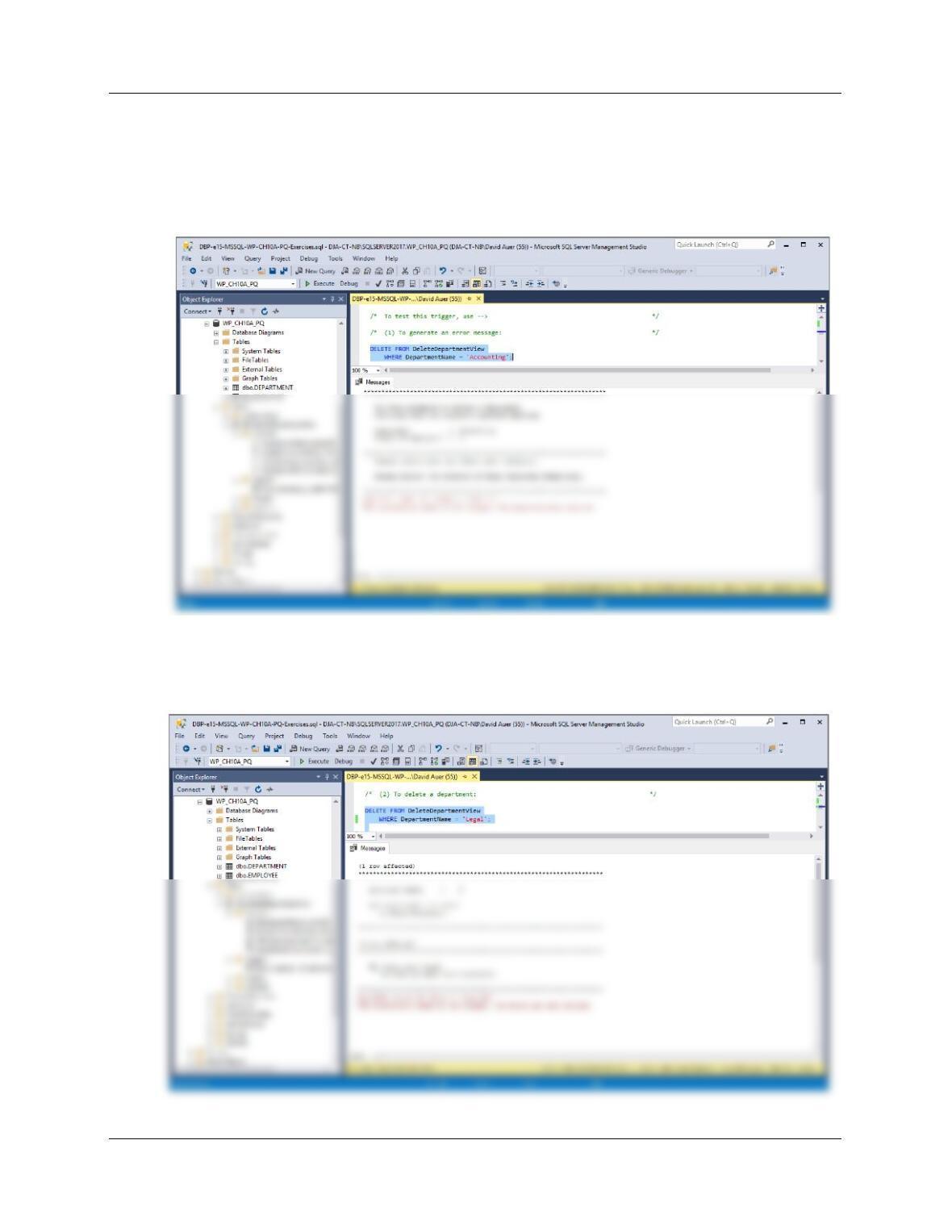
DELETE FROM DEPARTMENT
WHERE DEPARTMENT.DepartmentName = @DepartmentName;
PRINT ‘********************************************************************’
PRINT ”
PRINT ‘ The department ‘+@DepartmentName
PRINT ‘ has been deleted from DEPARTMENT.’
PRINT ”
PRINT ‘********************************************************************’
Chapter 10A – Managing Databases with SQL Server 2017
Page 10A-27
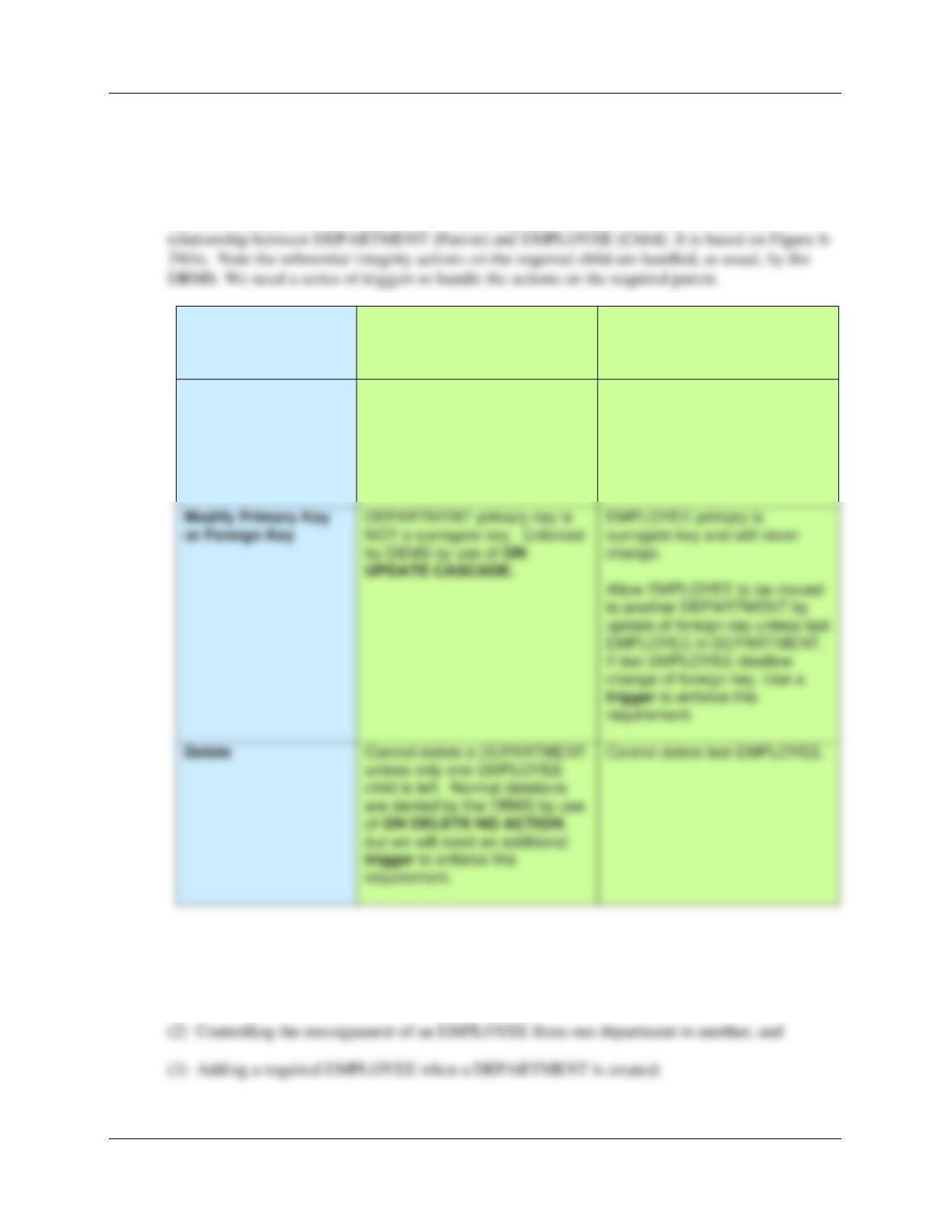
To test this trigger, use:
(1) To generate an error message
DELETE FROM DeleteDepartment
WHERE DepartmentName = ‘Accounting’;
(2) To delete a department
DELETE FROM DeleteDepartment
WHERE DepartmentName = ‘Legal’;
Chapter 10A – Managing Databases with SQL Server 2017
Page 10A-28
10A.38 Design and code a system of triggers to enforce the M-M relationship. Use
Figure 10A-72 as an example, but assume that departments with only one employee can
be deleted by assigning the last employee in a department to Human Resources. Create
test data, and demonstrate that your triggers work.
Here is the analysis of the required referential integrity enforcement actions for the M–M
Both DEPARTMENT
and EMPLOYEE are
Required
DEPARTMENT
[Parent]
EMPLOYEE
[Child]
Insert
Move an existing employee or
create a new EMPLOYEE row.
Use a trigger to create new row
in EMPLOYEE. Supply Name
and Email addresses to trigger.
New EMPLOYEE row must
have a valid Department
(enforced by DBMS).
change of foreign key. Use a
but we will need an additional
requirement.
There are three actions needing triggers:
(1) Controlling the deletion of a department
Chapter 10A – Managing Databases with SQL Server 2017
Page 10A-29
The trigger needed for the first action was the solution to project question 10A.37 above, so we
only need to write the triggers for the other two actions.
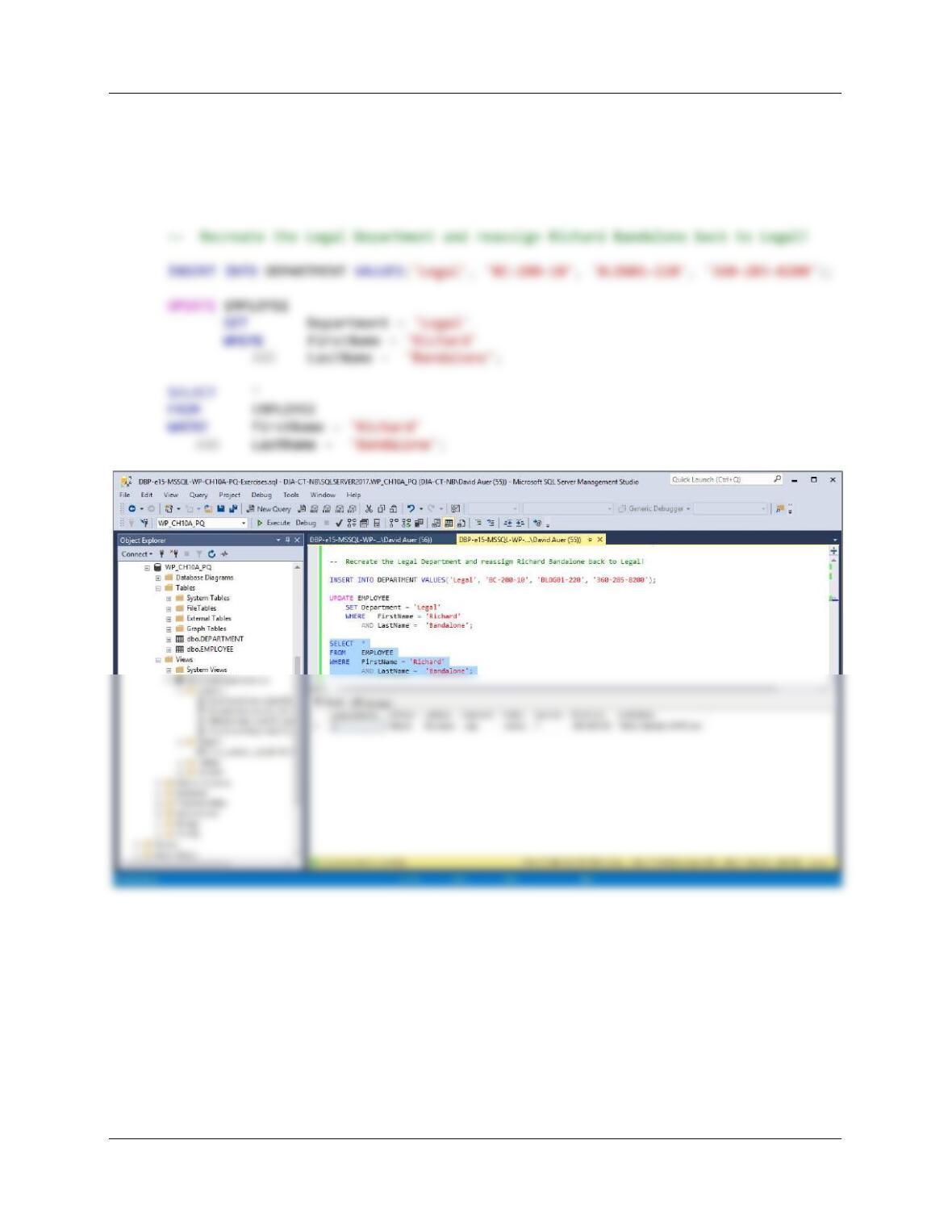
Before working on the rest of the solutions, we need to restore the Legal department, and move
Richard Bandalone back to Legal.
Chapter 10A – Managing Databases with SQL Server 2017
A. Controlling the reassignment of an EMPLOYEE from one department to another.
We will write the trigger for “(2) Controlling the reassignment of an EMPLOYEE from one
department to another” first, because we will also need the same logic in the next trigger. Note
that this problem is similar to the one discussed in Chapter 7 and illustrated in Figure 7-29.
Here is the trigger code:
CREATE OR ALTER TRIGGER [Deny_Reassignment_Of_DEPARTMENT_EMPLOYEE]
ON [dbo].[EmployeeAssignmentView] INSTEAD OF UPDATE
AS
DECLARE @EmployeeNumber AS Int,
@EmployeeFirstName AS Char(25),
Chapter 10A – Managing Databases with SQL Server 2017
Page 10A-31
BEGIN
SELECT @EmployeeFirstName = FirstName
FROM EMPLOYEE
WHERE EmployeeNumber = @EmployeeNumber
SELECT @EmployeeLastName = LastName
FROM EMPLOYEE
WHERE EmployeeNumber = @EmployeeNumber
BEGIN
/* Disallow the insert of the new DEPARTMENT */
ROLLBACK TRANSACTION;
/* Print the error message */
PRINT ‘********************************************************************’
PRINT ”
PRINT ‘ You have attempted to reassign the only employee in ‘
PRINT ”
Chapter 10A – Managing Databases with SQL Server 2017
Page 10A-32
ELSE
/* There is an Employee who can be moved to the new Department. */
PRINT ‘********************************************************************’
PRINT ”
PRINT ‘ The employee ‘+@EmployeeFirstName+‘ ‘+@EmployeeLastName
PRINT ”
PRINT ‘ has been reassigned to:’
PRINT ”
PRINT ‘ Department = ‘+@NewEmployeeDepartment
PRINT ”
PRINT ‘********************************************************************’
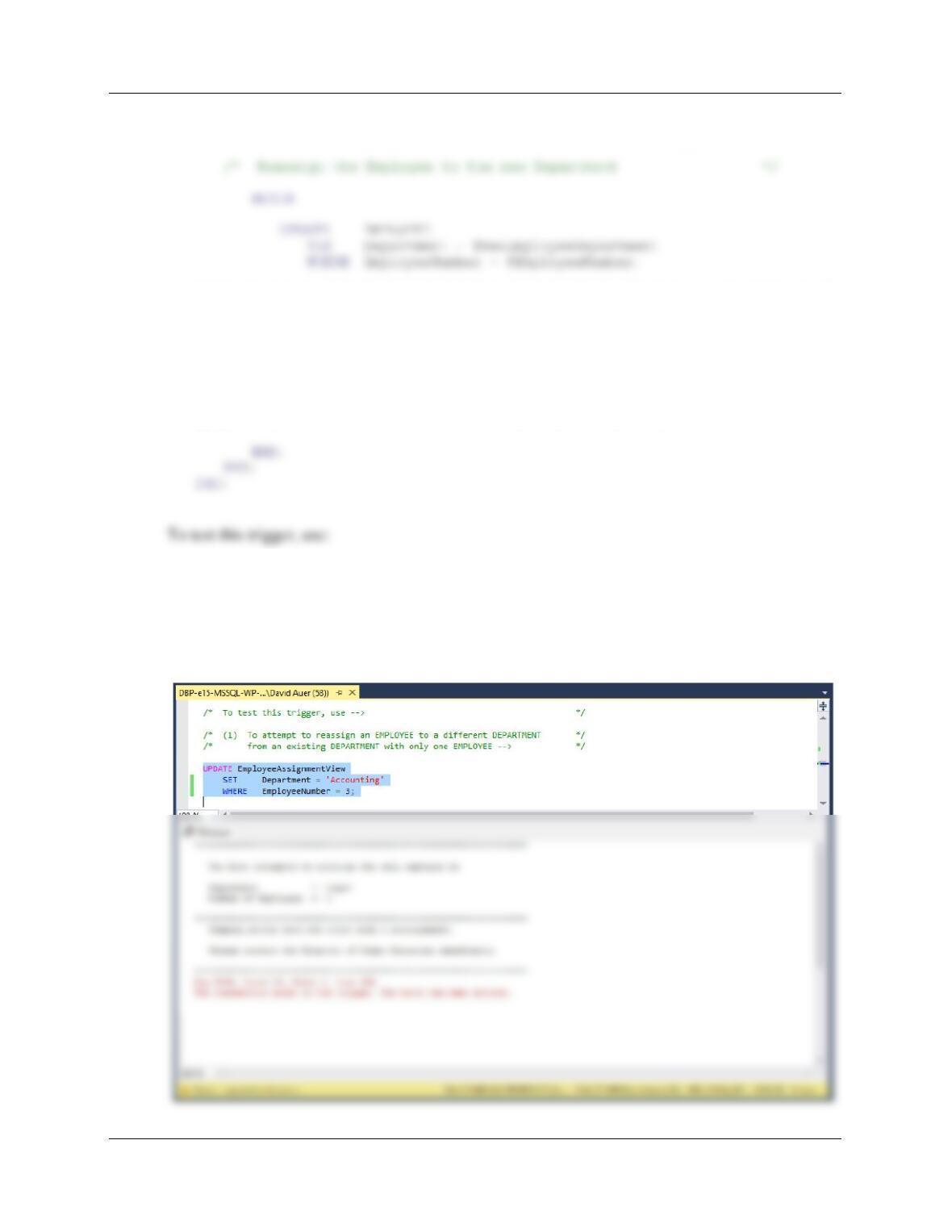
(1) To attempt to reassign an EMPLOYEE to a different DEPARTMENT from an existing
DEPARTMENT with only one EMPLOYEE:
UPDATE EmployeeAssignmentView
SET Department = ‘Accounting’
WHERE EmployeeNumber = 3;
Page 10A-33
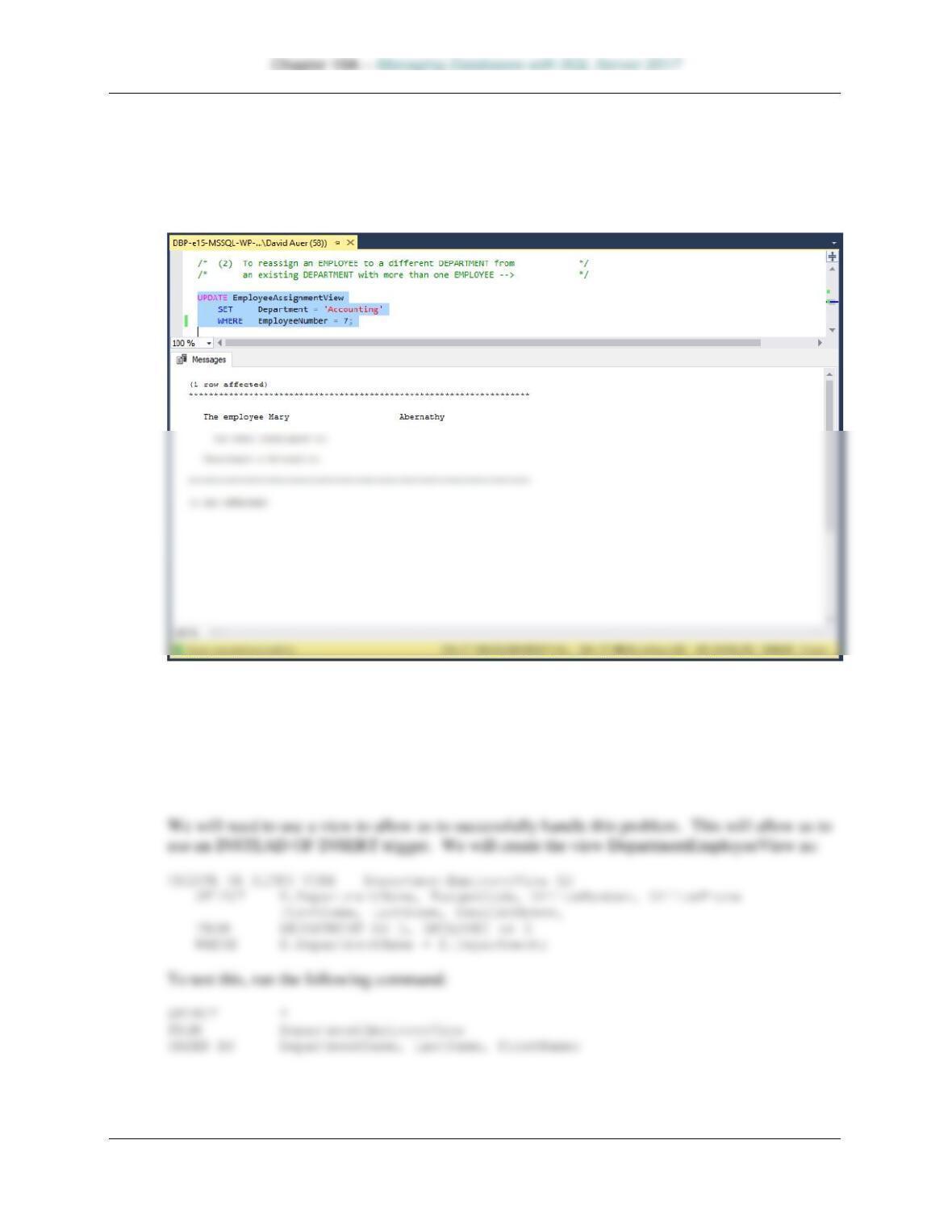
(2) To reassign an EMPLOYEE to a different DEPARTMENT from an existing
DEPARTMENT with more than one EMPLOYEE:
UPDATE EmployeeAssignmentView
SET Department = ‘Accounting’
WHERE EmployeeNumber = 7;
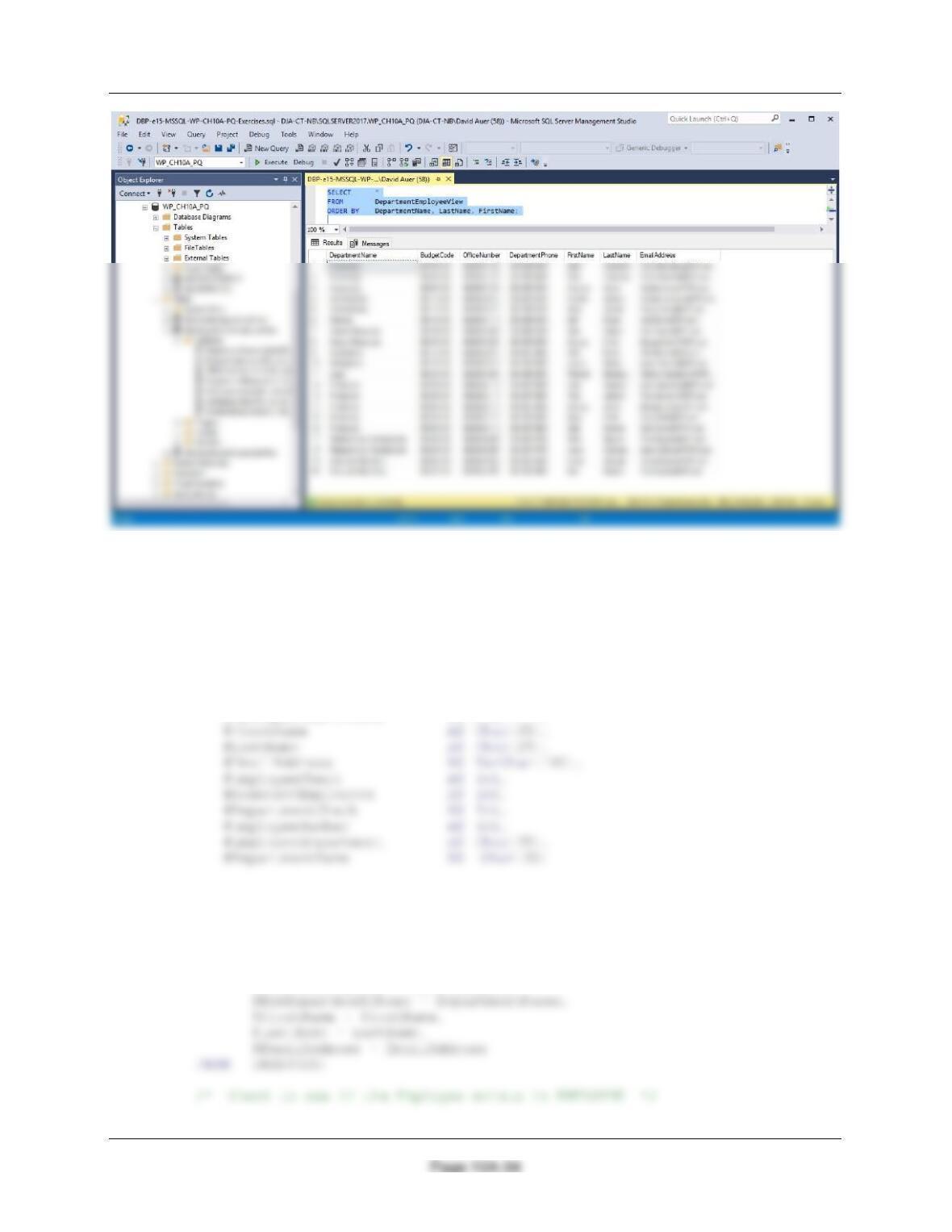
B. Adding a required EMPLOYEE when a DEPARTMENT is created.
The solution for this situation is discussed in Chapter 10A, and we will use that discussion and
Figure 10A-74 as a model for this trigger. Note that the requirement that EMPLOYEE have a
DEPARTMENT is automatically enforced by the foreign key referential integrity constraint on
EMPLOYEE.
Chapter 10A – Managing Databases with SQL Server 2017
Here is the trigger code:
CREATE OR ALTER TRIGGER [Insert_DEPARTMENT_EMPLOYEE]
ON [dbo].[DepartmentEmployeeView] INSTEAD OF INSERT
AS
DECLARE @NewDepartment AS Char(35),
@NewBudgetCode AS Char(30),
@NewOfficeNumber AS Char(15),
@NewDepartmentPhone AS Char(12),
BEGIN
/* Get the values provided for the INSERT on the view */
SELECT @NewDepartment = DepartmentName,
@NewBudgetCode = BudgetCode,
@NewOfficeNumber = OfficeNumber,
Chapter 10A – Managing Databases with SQL Server 2017
SELECT @EmployeeCheck = COUNT(*)
FROM EMPLOYEE
WHERE FirstName = @FirstName
AND LastName = @LastName
AND EmailAddress = @EmailAddress;
BEGIN
SELECT @EmployeeDepartment = Department
FROM EMPLOYEE
WHERE FirstName = @FirstName
AND LastName = @LastName
AND EmailAddress = @EmailAddress;
BEGIN
/* Disallow the insert of the new DEPARTMENT */
ROLLBACK TRANSACTION;
/* Print the error message */
PRINT ‘********************************************************************’
PRINT ”
PRINT ‘ You have attempted to reassign the only employee in ‘
END;
ELSE
/* There is an Employee who can be moved to the new Department. */
/* Create the new Department and BudgetCode */
Chapter 10A – Managing Databases with SQL Server 2017
Page 10A-36
PRINT ‘********************************************************************’
PRINT ”
/* The Employee is not the only Employee in the Department. */
/* Reassign the Employee to the new Department */
/* Re-read DEPARTMENT now that the new Department is inserted. */
UPDATE EMPLOYEE
SET Department = @DepartmentName
WHERE EmployeeNumber = @EmployeeNumber;
PRINT ‘********************************************************************’
/* We need to add a new Employee record and assign the new Employee */
/* to the new Department. */
/* Create the new Department and BudgetCode */
BEGIN
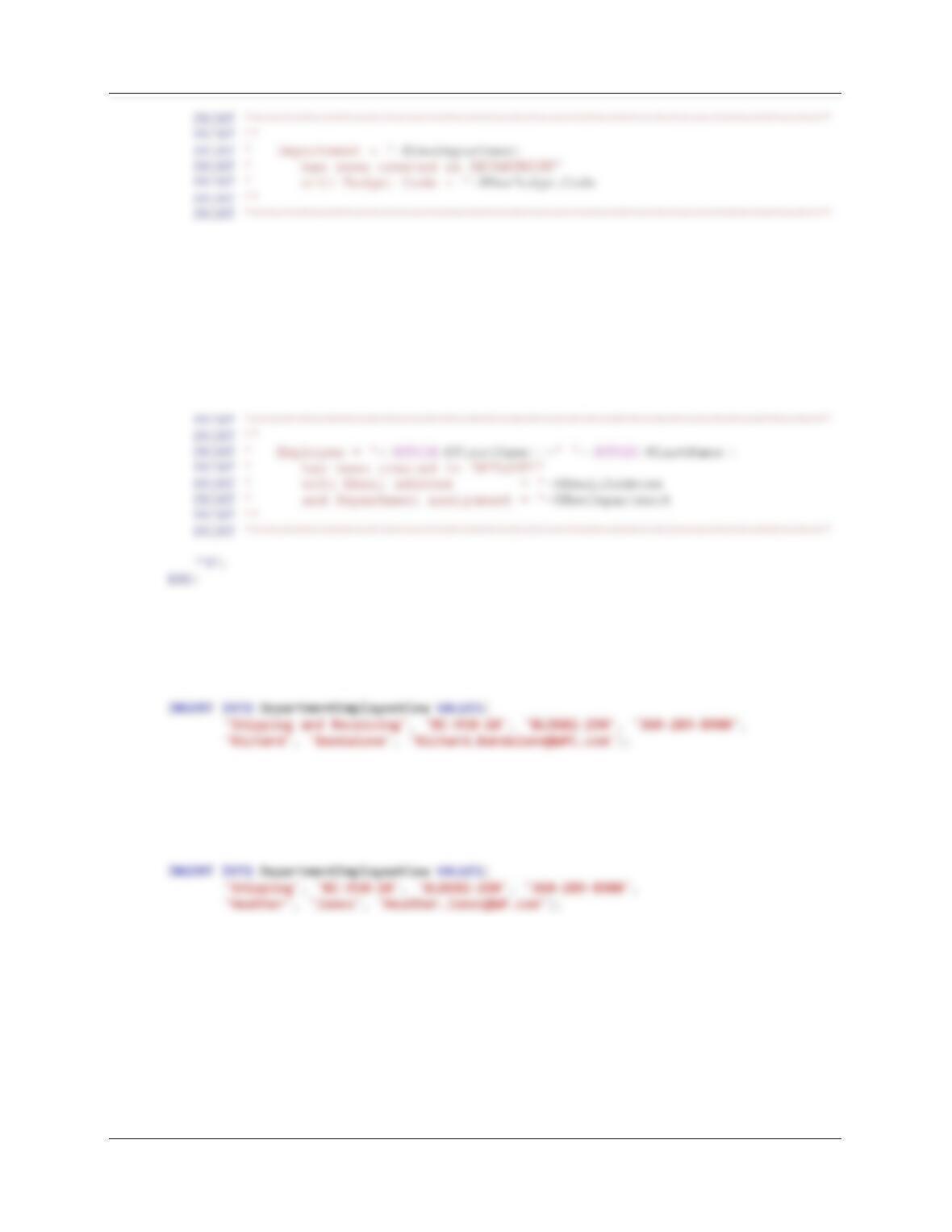
INSERT INTO DEPARTMENT VALUES(
@NewDepartment, @NewBudgetCode, @NewOfficeNumber,
@NewDepartmentPhone);
COMMIT TRANSACTION;
Chapter 10A – Managing Databases with SQL Server 2017
Page 10A-37
/* Re-read DEPARTMENT now that the new Department is inserted. */
SELECT @DepartmentName = DepartmentName
FROM DEPARTMENT
WHERE DepartmentName = @NewDepartment;
/* Add new Employee to EMPLOYEE as a member of the Department. */
INSERT INTO EMPLOYEE(FirstName, LastName, Department, EmailAddress)
VALUES(@FirstName, @LastName, @NewDepartment, @EmailAddress);
To test this trigger, use:
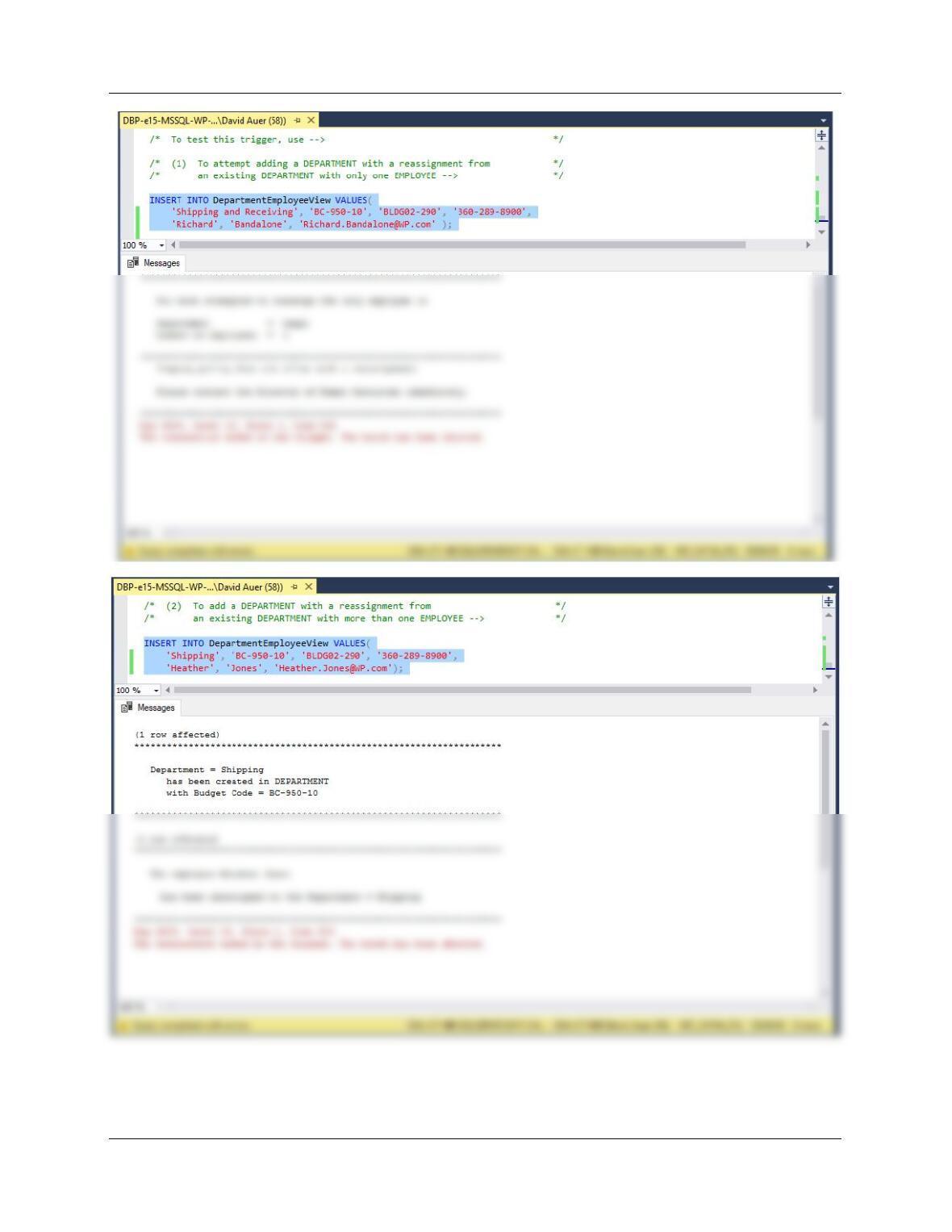
(1) To attempt adding a DEPARTMENT with a reassignment from an existing
DEPARTMENT with only one EMPLOYEE:
See results screenshot on next page.
(2) To add a DEPARTMENT with a reassignment from an existing DEPARTMENT with
more than one EMPLOYEE:
See results screenshot on next page.
Chapter 10A – Managing Databases with SQL Server 2017
Page 10A-38
Chapter 10A – Managing Databases with SQL Server 2017
Page 10A-39
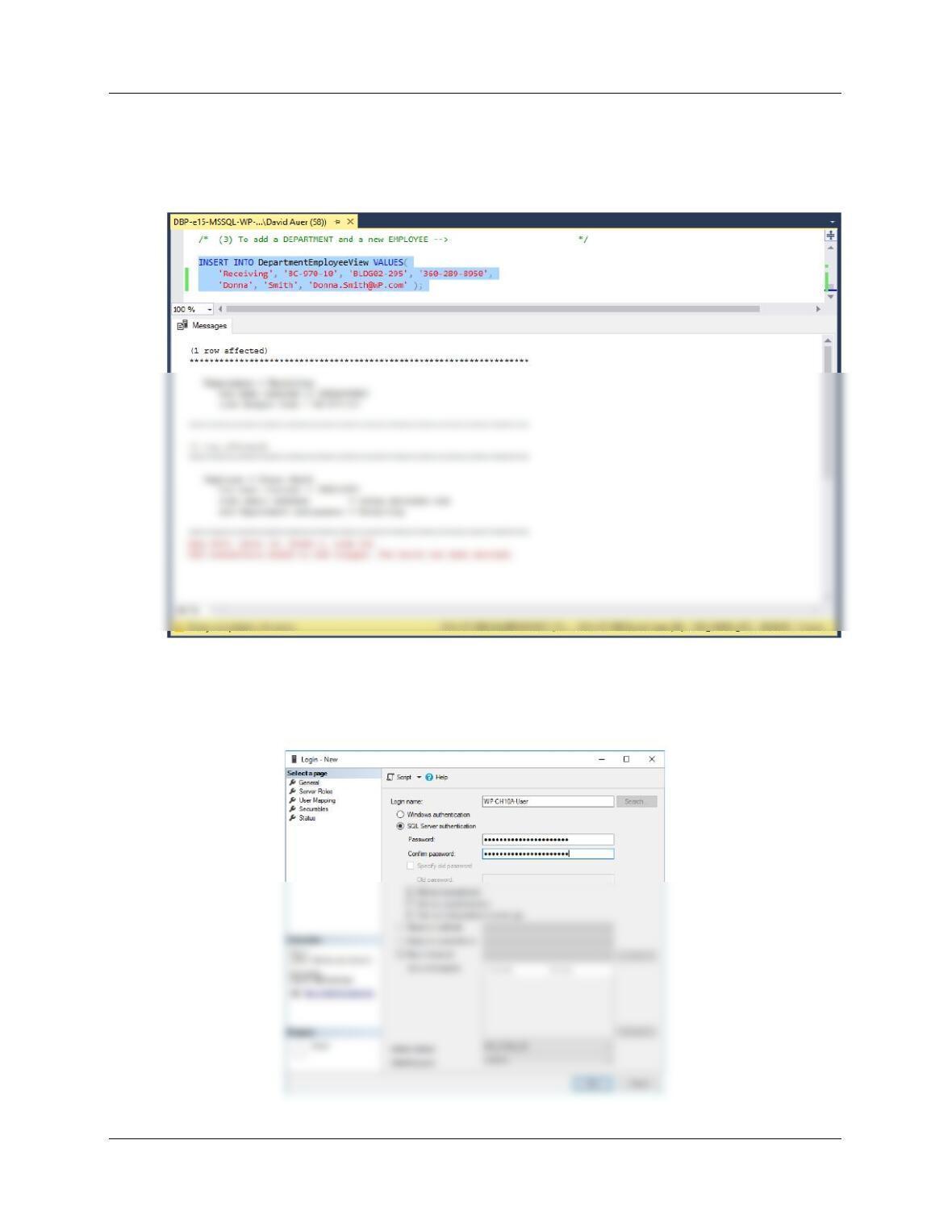
(3) To add a DEPARTMENT and a new EMPLOYEE:
INSERT INTO DepartmentEmployeeView VALUES(
‘Receiving’, ‘BC-970-10’, ‘BLDG02-295’, ‘360-289-8950’,
‘Donna’, ‘Smith’, ‘Donna. Smith@WP.com’ );
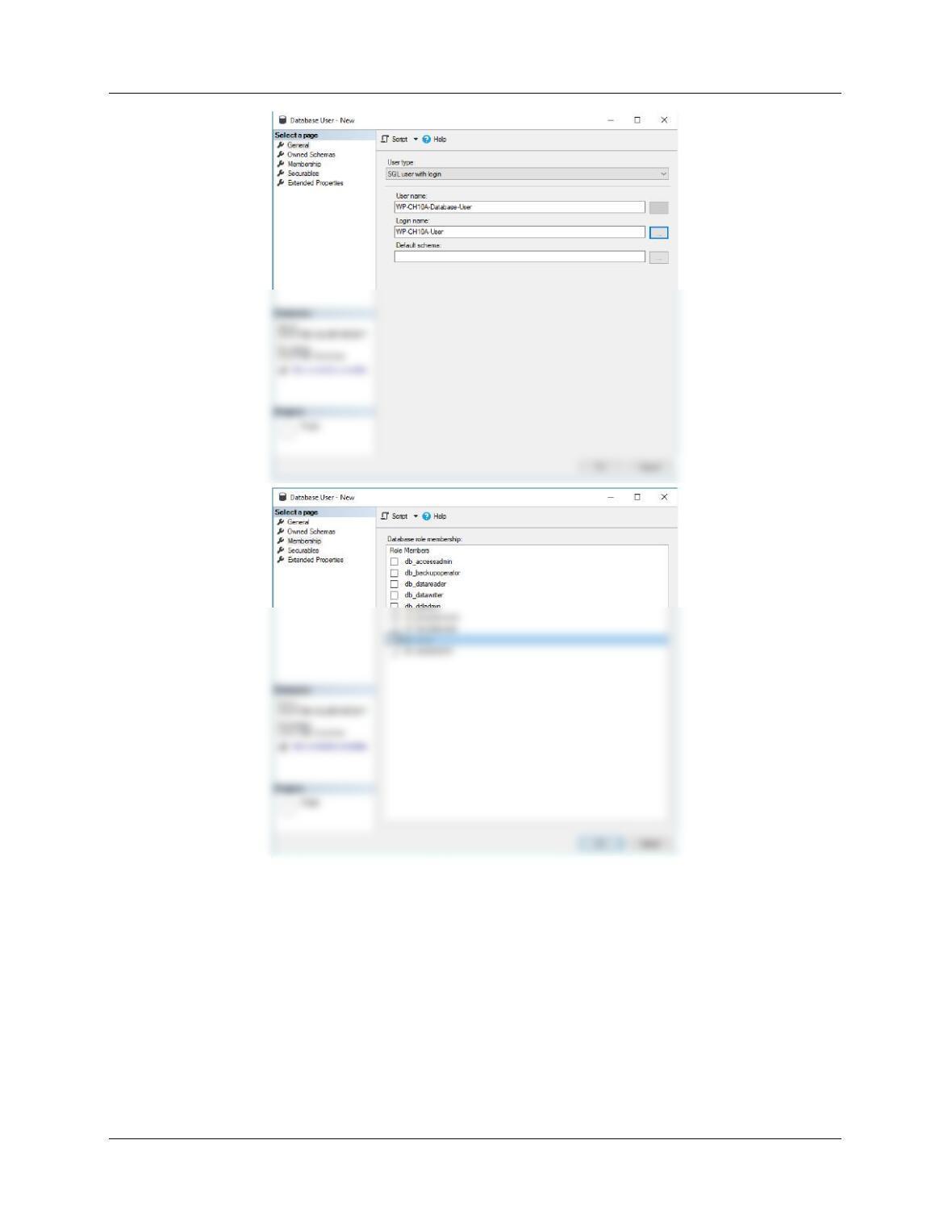
10A.39 Create an SQL Server login named WP-CH10A-User, with a password of WP–
CH10A-User+password. Create a WP-CH10A-PQ database user named WP-CH10A-
Database-User, with is linked to the WP-CH10A-User login. Assign WP-CH10A-
Database-User db_owner permissions to the WP-CH10A-PQ database.
Chapter 10A – Managing Databases with SQL Server 2017
Page 10A-40