
INSTRUCTOR’S MANUAL
TO ACCOMPANY
40th Anniversary Edition
DATABASE PROCESSING
Fundamentals, Design, and Implementation
15th Edition
Online Chapter 10A
Managing Databases with SQL Server 2017
David M. Kroenke | David J. Auer | Scott L. Vandenberg | Robert C. Yoder
Chapter 10A – Managing Databases with SQL Server 2017
Page 10A-2
❖ CHAPTER OBJECTIVES
• To be able to install SQL Server and create a database
• To be able to use SQL Server’s graphical utilities
❖ IMPORTANT TEACHING NOTES – READ THIS FIRST!
1. Microsoft SQL Server 2017 technology changes rapidly. Be sure your versions of
SQL Server 2017 software packages are up to date, and teach your students to
do the same. As this Instructor’s manual chapter is being written, the following
updates to SQL Server 2017 are available (and will probably be superseded by
the time you read this!):
2. Pages 10A-1 through 10A-58 of Online Chapter 10A – Managing Databases
with Microsoft SQL server 2017 are intended to be taught in conjunction with
Chapter 2 – Introduction to Structured Query Language.
a. If you are using Microsoft SQL Server 2017 as your DBMS, you should
cover these pages to help your students get set up for the SQL work in
Chapter 2.
3. Pages 10A-94 through 10A-140 of Online Chapter 10A – Managing
Databases with Microsoft SQL server 2017 are intended to be taught in
conjunction with Chapter 7 –SQL for Database Construction and Application
Processing.
a. For each topic discussed in Chapter 7, there is a more detailed and
DBMS specific treatment of the same topic in online Chapter 10A.
Chapter 10A – Managing Databases with SQL Server 2017
Page 10A-3
4. Pages 10A-85 through 10A-94 of Online Chapter 10A – Managing Databases
with Microsoft SQL server 2017 discuss how to import spreadsheet data into
an SQL Server 2017 database table. While the chapter text covers the basic
steps to import the data, the use of that data in the end of chapter review
questions, exercises, case questions and project questions requires techniques
discussed in Chapter 8 – Database Redesign.
associated material in online Chapter 10A.
5. Pages 10A-130 through 10A-140 of Online Chapter 10A – Managing
Databases with Microsoft SQL server 2017 are intended to be taught in
conjunction with Chapter 9 – Managing Multiuser Databases.
a. For many of the topics discussed in Chapter 9, there is a DBMS specific
treatment of the same topic in online Chapter 10A.
Chapter 10A – Managing Databases with SQL Server 2017
Page 10A-4
❖ ERRATA
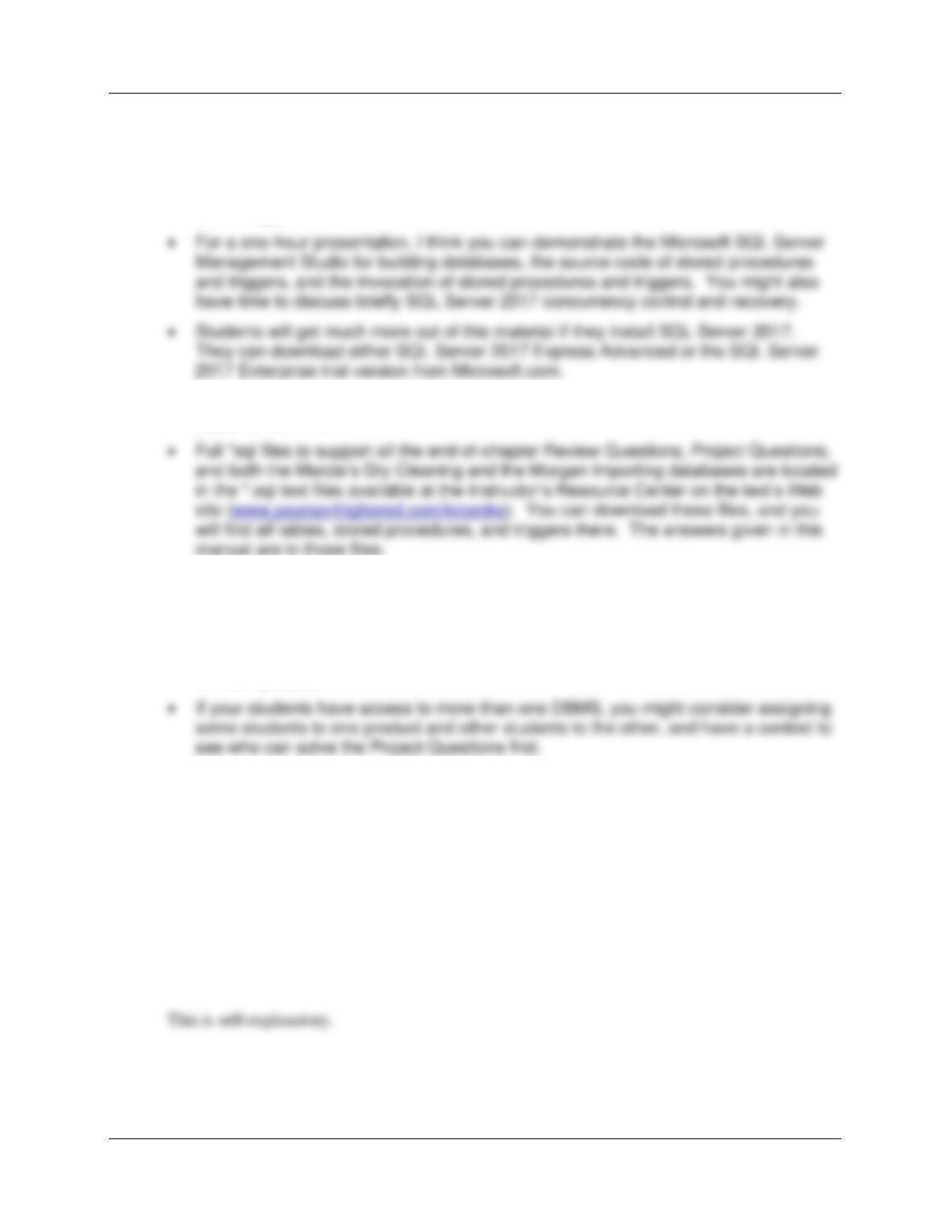
[02-MAY-2018 – Bob Yoder] — The DateIn data in Figure 10A-95 is incorrect. The dates
should all be for the year 2018 instead of 2015. A corrected version of Figure 10A-95
is shown here:
Chapter 10A – Managing Databases with SQL Server 2017
Page 10A-5
❖ TEACHING SUGGESTIONS
• You can spend anywhere from one to five or six class periods on this chapter. You
need to think first about how much time you can devote to it and shape your plans
accordingly.
• SQL Server is much easier to install than Oracle Database, and in many ways, it is
easier to work with.
• The Project Questions, Marcia’s Dry Cleaning exercises and Morgan Importing
exercises for SQL Server 2017 in this chapter, those for Oracle Database in Online
Chapter 10B, and those for MySQL 5.7 in Online Chapter 10C are the same. You
can demonstrate how the languages of these products are essentially the same by
showing the solution to the same questions (all are shown in this Instructor’s Manual)
for each product.
❖ ANSWERS TO REVIEW QUESTIONS
If you have not already installed SQL Server 2017 (or do not otherwise have it available to
you), you need to install a version of it at this point.
Review Questions 10A.1–10A.15 are based on a database named MEDIA that is used to
record data about photographs that are stored in the database.
10A.1 Create a database named MEDIA in SQL Server 2017. Use the default settings for file
sizes, names, and locations.
Chapter 10A – Managing Databases with SQL Server 2017
Page 10A-6
10A.2 In the SQL Server Management Studio folder structure in your My Documents folder,
create a folder named DBP-e15-Media-Database in the Projects folder. Use this folder
to save and store *.sql scripts containing the SQL statements that you are asked to
create in the remaining Review Questions in this section.
10A.3 Using the MEDIA database, open a new tabbed SQL Query window, and save it as
MEDIA-CH10A-RQ-Solutions.sql in the DBP-e15-Media-Database folder. Use this script
to record and save the SQL statements that you are asked to create in the remaining
Review Questions in this section.
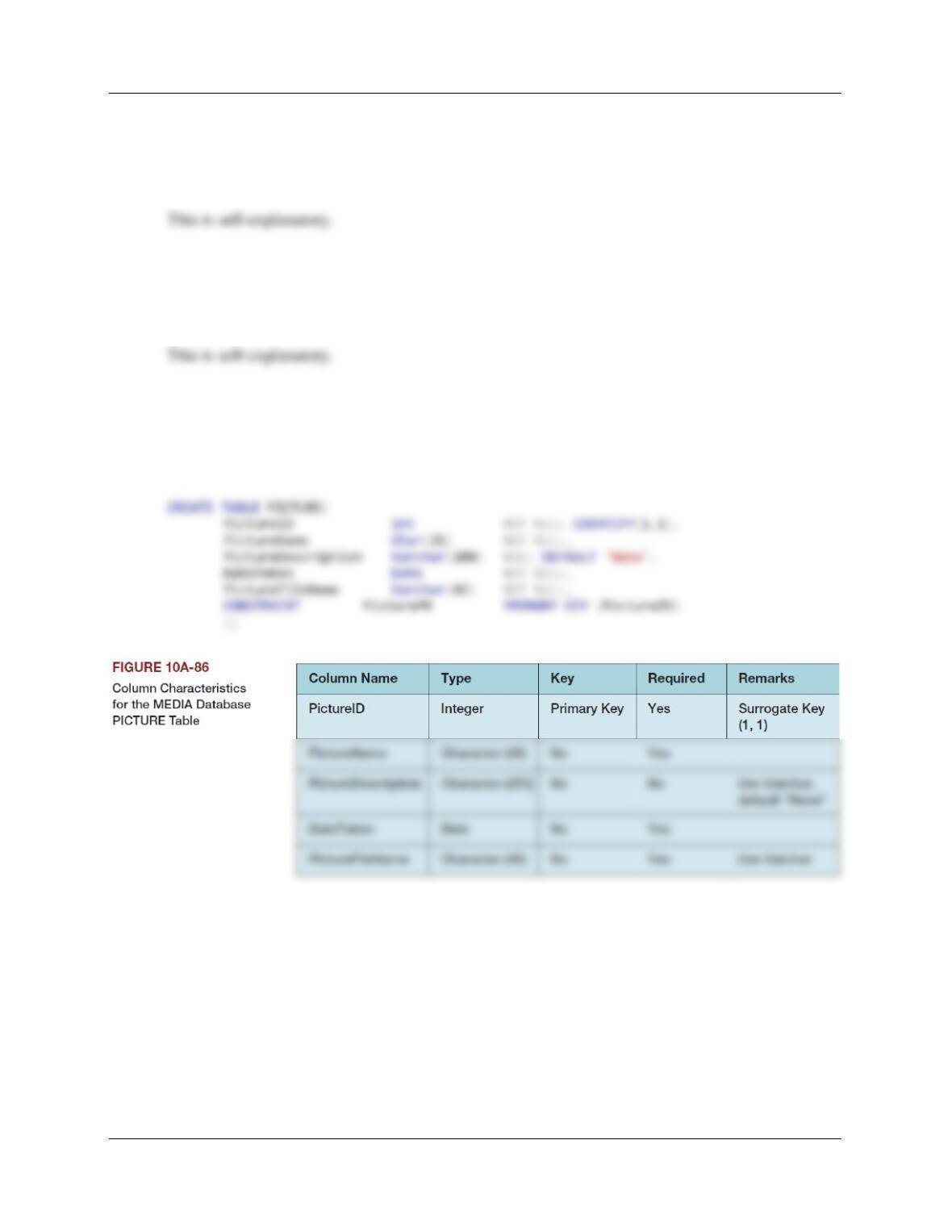
10A.4 Write an SQL statement to create a table named PICTURE using the column
characteristics as shown if Figure 10A-86. Run the SQL statement to create the
PICTURE table in the MEDIA database.
Name and Description are SQL Server keywords, so we have to put them in brackets.
Chapter 10A – Managing Databases with SQL Server 2017
Page 10A-7
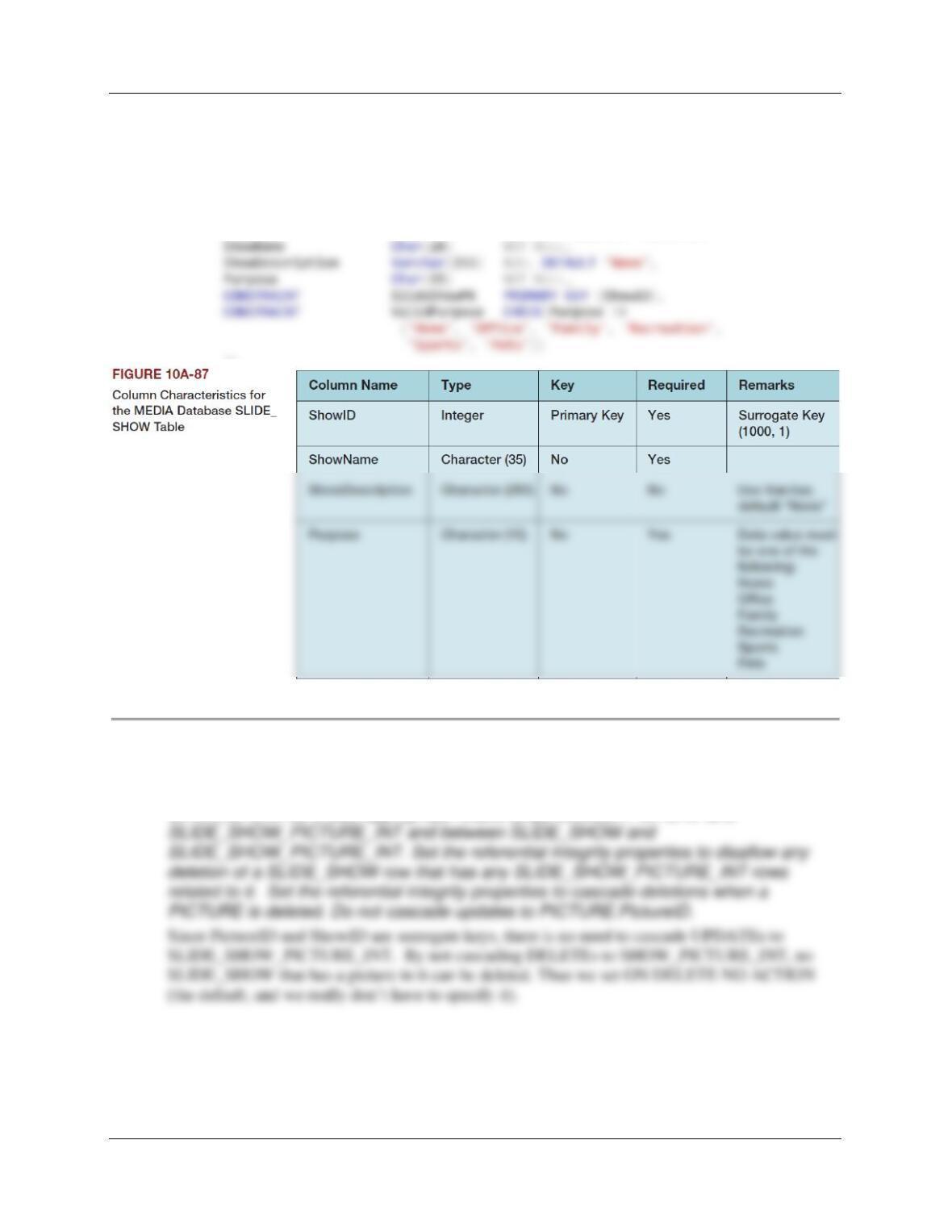
10A.5 Write an SQL statement to create a table named SLIDE_SHOW using the column
characteristics as shown if Figure 10A-87. Run the SQL statement to create the
SLIDE_SHOW table in the MEDIA database.
CREATE TABLE SLIDE_SHOW(
ShowID Int NOT NULL IDENTITY (1000,1),
);
10A.6 Use the Microsoft SQL Server Management Studio to create the table
SLIDE_SHOW_PICTURE_INT using the column characteristics shown in Figure 10A-
88.SLIDE_SHOW_PICTURE_INT is an intersection table between PICTURE and
SLIDE_SHOW, so create appropriate relationships between PICTURE and
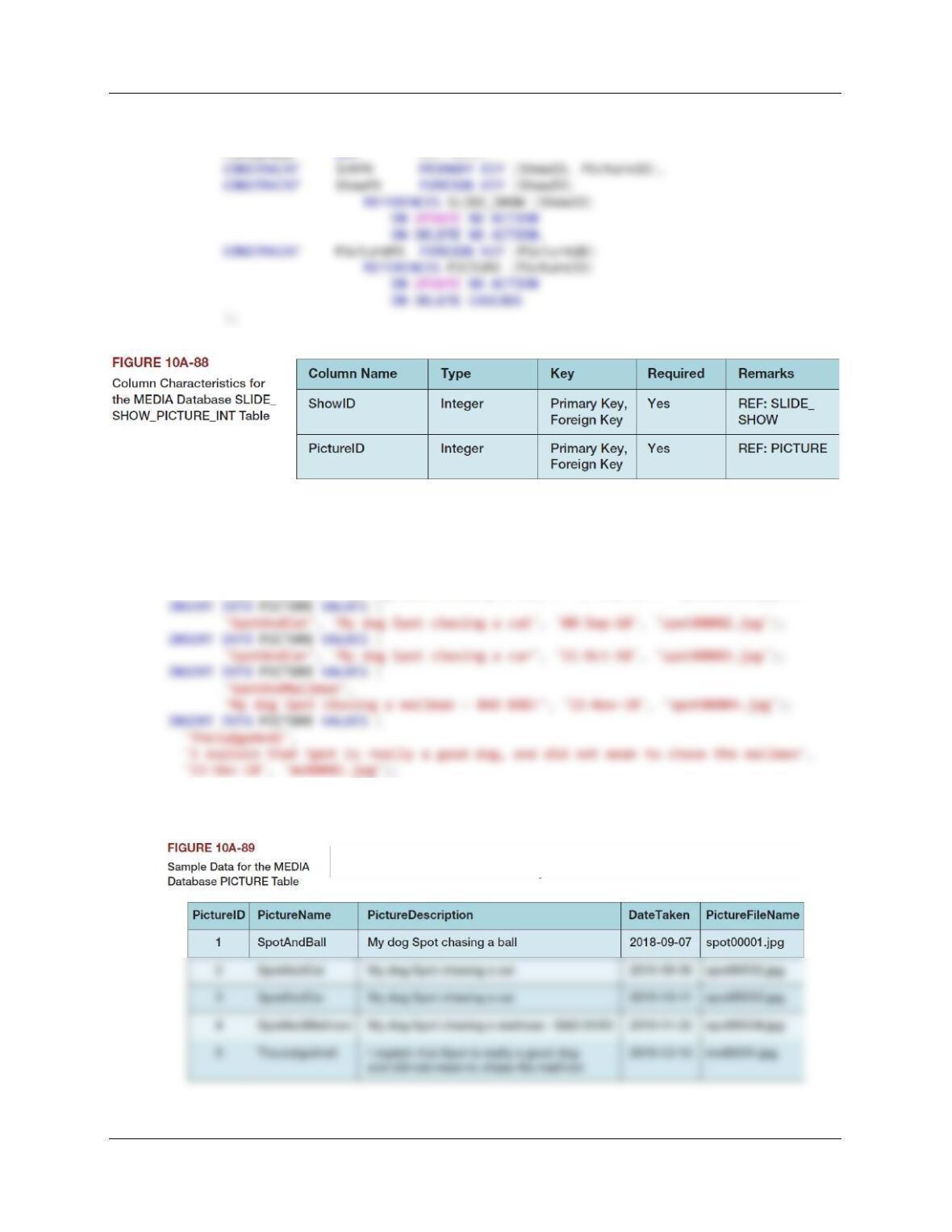
Chapter 10A – Managing Databases with SQL Server 2017
Page 10A-8
CREATE TABLE SLIDE_SHOW_PICTURE_INT(
ShowID Int NOT NULL,
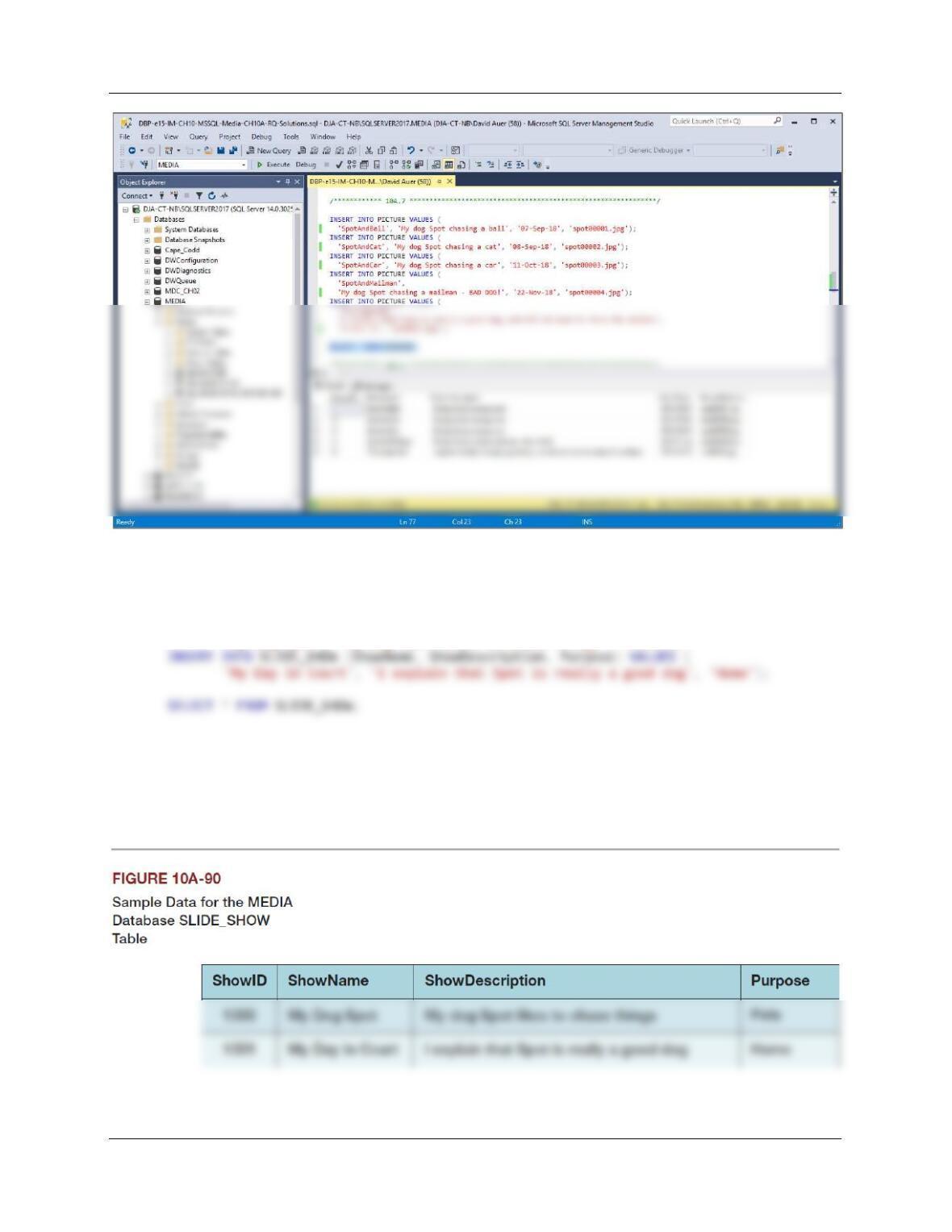
10A.7 Write SQL INSERT statements to populate the PICTURE table using the data shown in
Figure 10A-89. Run the SQL statements to populate the PICTURE table.
INSERT INTO PICTURE VALUES (
‘SpotAndBall’, ‘My dog Spot chasing a ball’, ’07-Sep-18′, ‘spot00001.jpg’);
SELECT * FROM PICTURE;
Chapter 10A – Managing Databases with SQL Server 2017
Page 10A-9
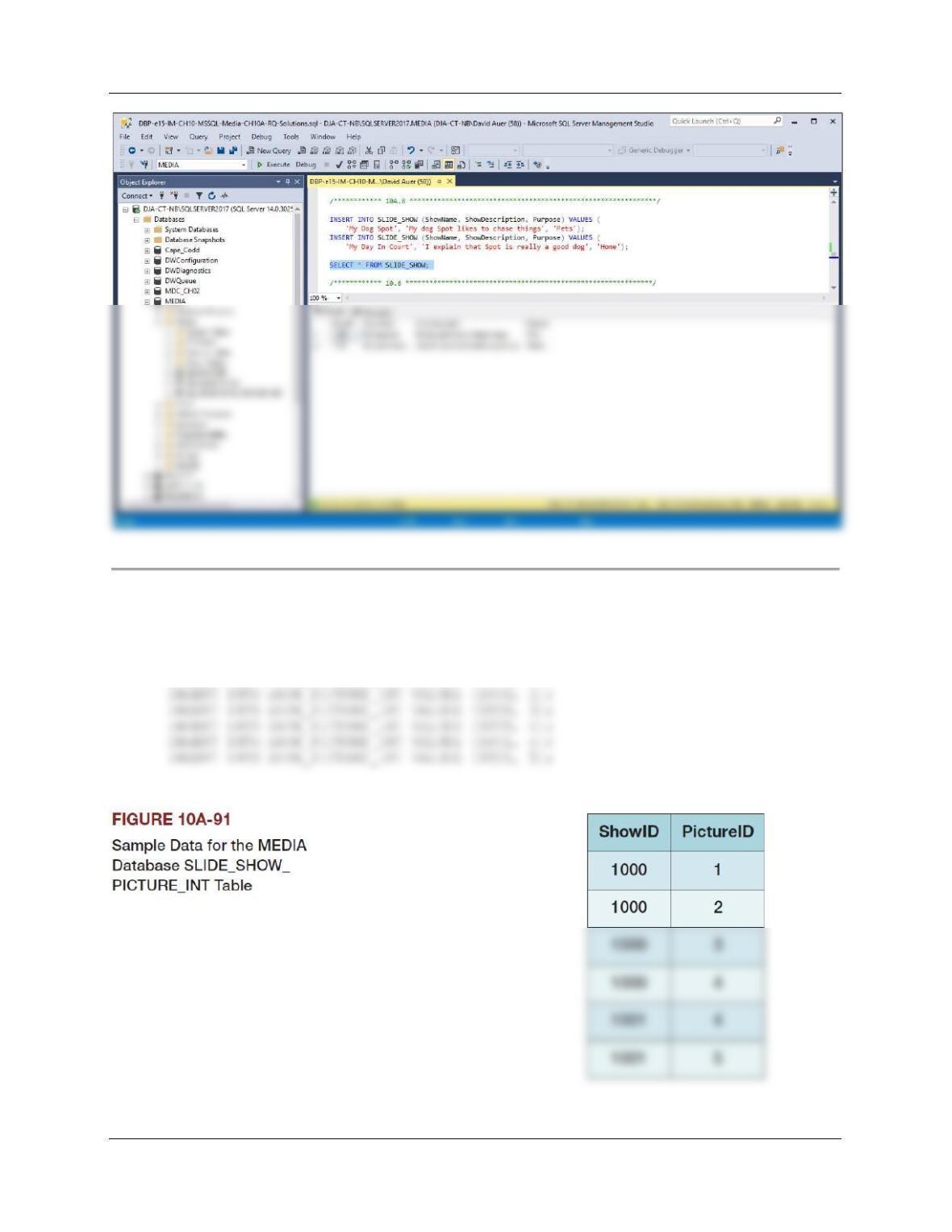
10A.8 Write SQL INSERT statements to populate the SLIDE_SHOW table using the data
shown in Figure 10A–90. Run the SQL statements to populate the SLIDE_SHOW table.
INSERT INTO SLIDE_SHOW (ShowName, ShowDescription, Purpose) VALUES (
‘My Dog Spot’, ‘My dog Spot likes to chase things’, ‘Pets’);
Chapter 10A – Managing Databases with SQL Server 2017
Page 10A-10
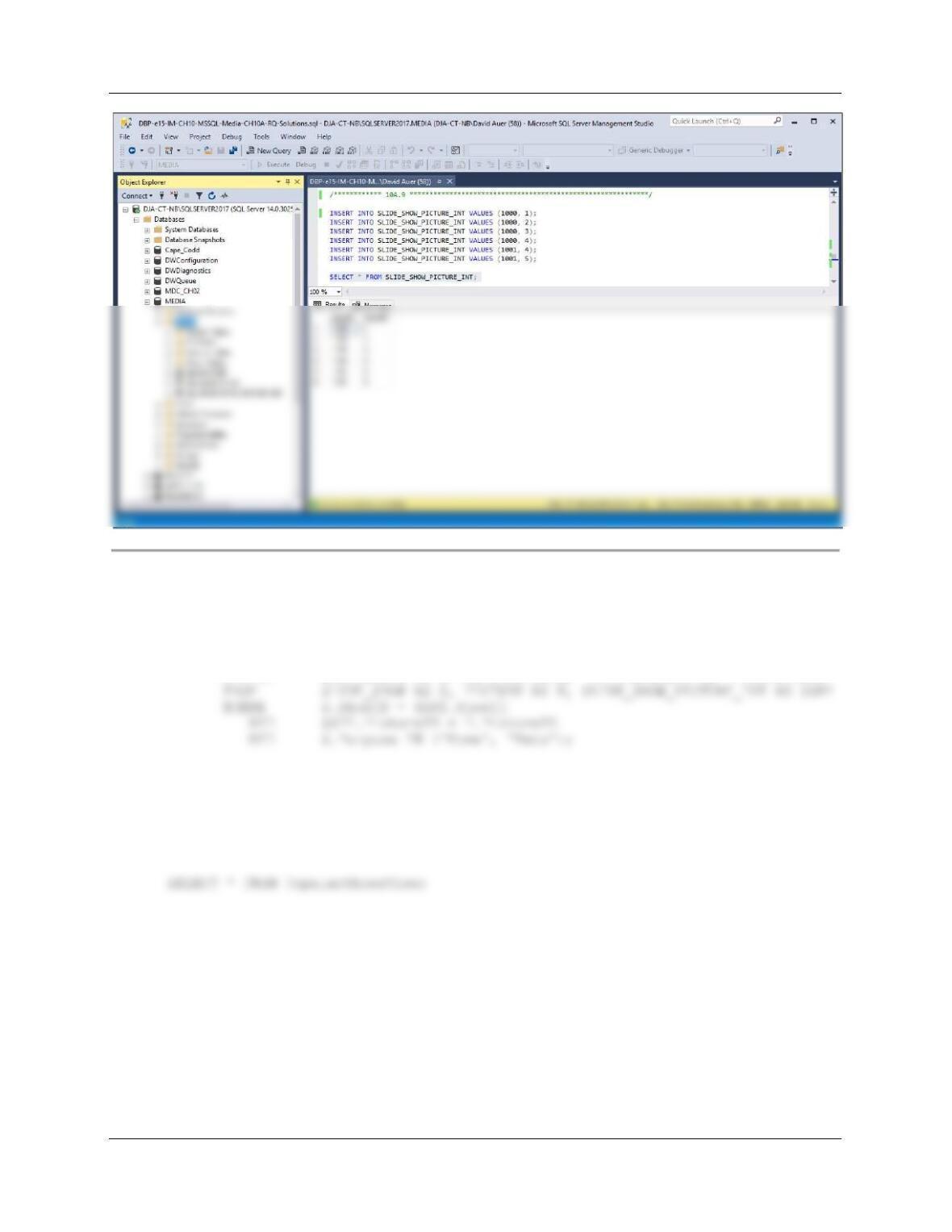
10A.9 Write SQL INSERT statements to populate the SLIDE_SHOW_PICTURE_INT table
using the data shown in Figure 10A-91. Run the SQL statements to populate the
SLIDE_SHOW_PICTURE_INT table.
INSERT INTO SHOW_PICTURE_INT VALUES (1000, 1);
Chapter 10A – Managing Databases with SQL Server 2017
Page 10A-11
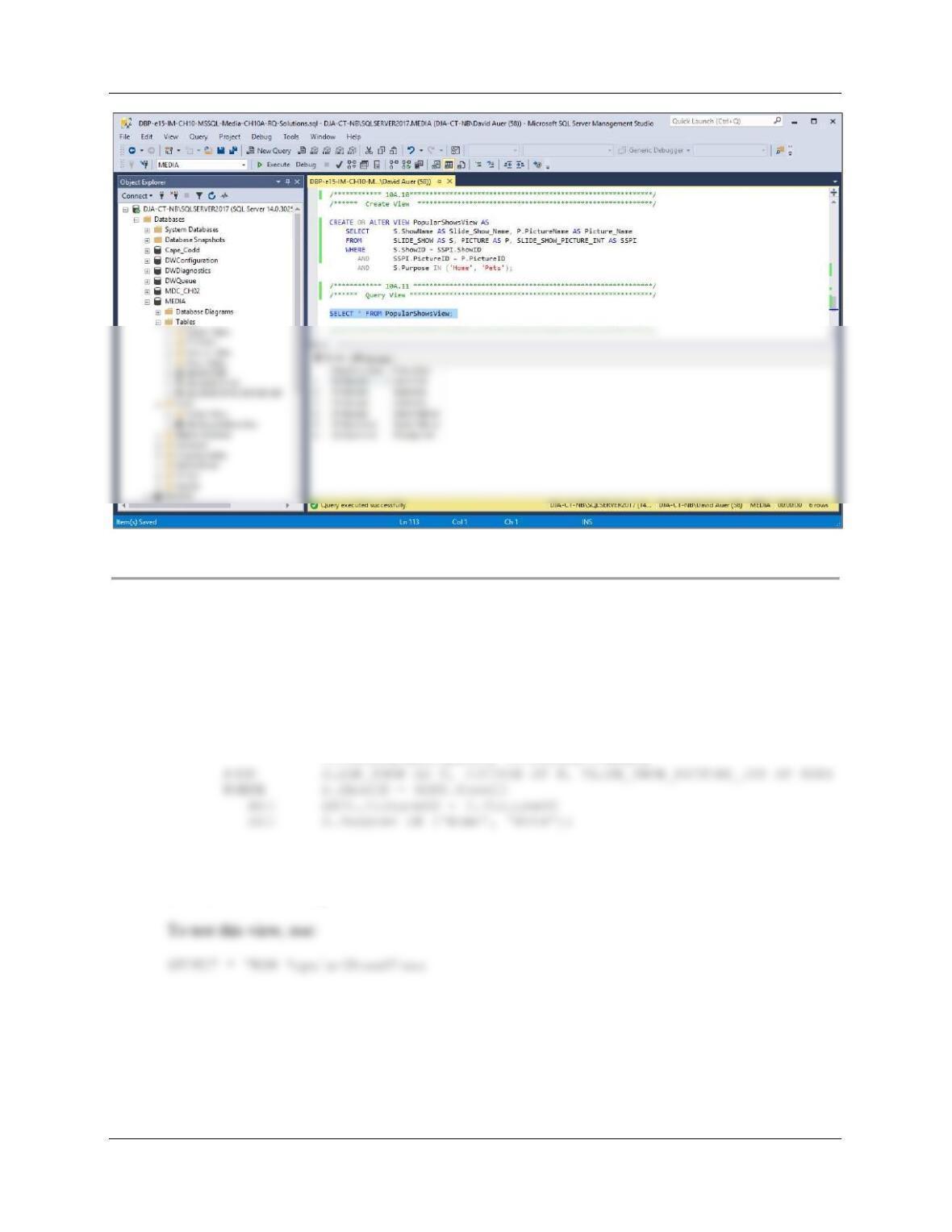
10A.10 Write an SQL statement to create a view named PopularShowsView that has
SLIDE_SHOW.ShowName and PICTURE.PictureName for all slide shows that have a
Purpose of either ‘Home’ or ‘Pets’. Execute this statement using the MEDIA database.
CREATE OR ALTER VIEW PopularShowsView AS
SELECT S.ShowName AS Slide_Show_Name, P.PictureName AS Picture_Name
10A.11 Run an SQL SELECT query to demonstrate that the view PopularShowsView was
constructued correcly
To test this view, use:
Chapter 10A – Managing Databases with SQL Server 2017
Page 10A-12
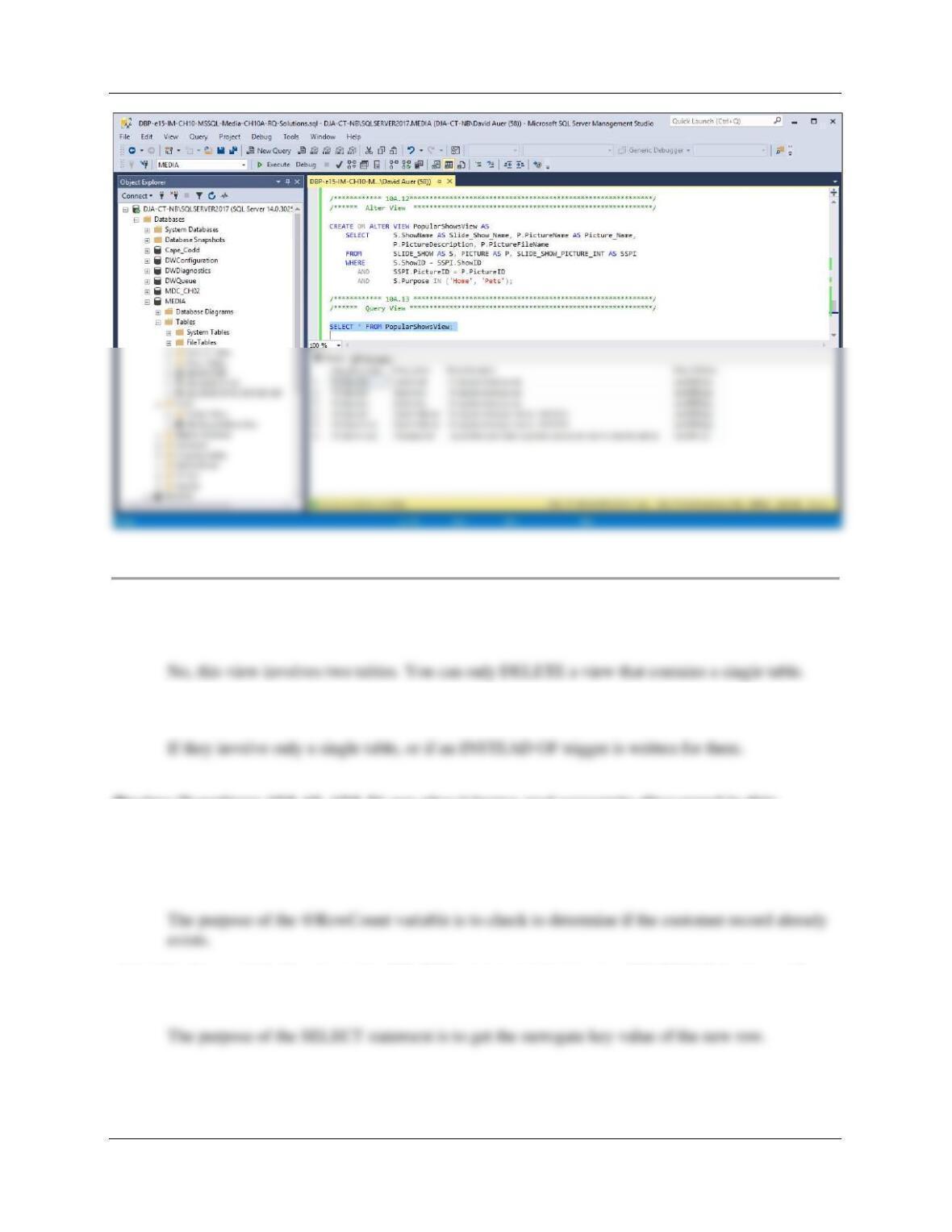
10A.12 Use an SQL ALTER VIEW statement to modify the PopularShowsView to include
PICTURE.PictureDescription and PICTURE.PictureFileName.
This can be done using the SQL ALTER VIEW statement or the newer SQL CREATE or
ALTER VIEW statement.
CREATE OR ALTER VIEW PopularShowsView AS
SELECT S.ShowName AS Slide_Show_Name, P.PictureName AS Picture_Name,
P.PictureDescription, P.PictureFileName
10A.13 Run an SQL SELECT query to demonstrate that the modified PopularShowsView was
constructued correcly
Chapter 10A – Managing Databases with SQL Server 2017
Page 10A-13
10A.14 Can the SQL DELETE statement be used with the PopularShows view? Why or why
not?
10A.15 Under what circumstances can PopularShows be used for inserts and modifications?
Review Questions 10A.16–10A.31 are about terms and concepts discussed in this
chapter.
10A.16 In Figure 10A-62, what is the purpose of the @RowCount variable?
10A.17 In Figure 10A-62, why is the SELECT statement that begins SELECT @CustomerID
necessary?
Chapter 10A – Managing Databases with SQL Server 2017
Page 10A-14
10A.18 Explain how you would change the stored procedure in Figure 10A-62 to connect the
customer to all artists who either (a) were born before 1900 or (b) had a null value for
Birthdate.
10A.19 Explain the purpose of the transaction shown in Figure 10A-64.
10A.20 What happens if an incorrect value of Copy is input to the stored procedure in Figure
10A-64?
The transaction is rolled back.
10A.21 In Figure 10A-64, what happens if the ROLLBACK statement is executed?
10A.22 In Figure 10A-64, why is SUM used instead of AVG?
10A.23 What are the three primary factors that influence SQL Server locking behavior?
10A.24 Explain why the strategy for storing CHECK constraint values in a separate table is
better than implementing them in a table-based constraint. How can this strategy be
used to implement the constraint on ARTIST.Nationality?
The strategy used in the Trigger in Figure 10A-68 is to put certain data values in a separate table
Chapter 10A – Managing Databases with SQL Server 2017
Page 10A-15
10A.25 Explain why the view CustomerInterestsView in Figure 10A-40 is not updateable.
Describe the logic of the INSTEAD OF UPDATE trigger in Figure 10A-70.
Views created by joins are not normally updateable, and the CustomerInterests view shown in
Figure 10-25 was created using a join on CUSTOMER, ARTIST and
CUSTOMER_ARTIST_INT.
10A.26 Explain what limitation must be enforced for the trigger in Figure 10A-70 to be effective.
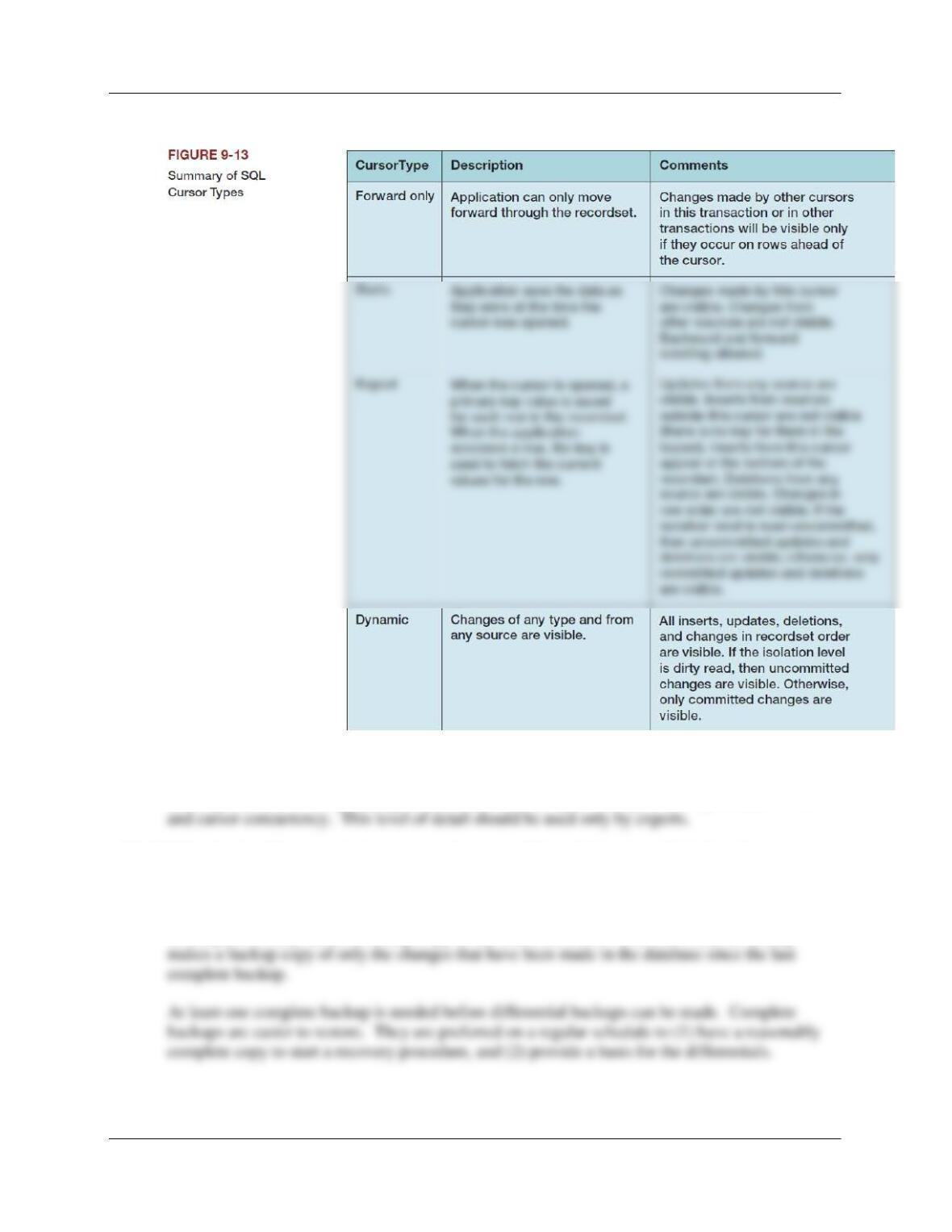
10A.27 Explain the meaning of each of the transaction isolation levels under Options shown in
Figure 10A-76.
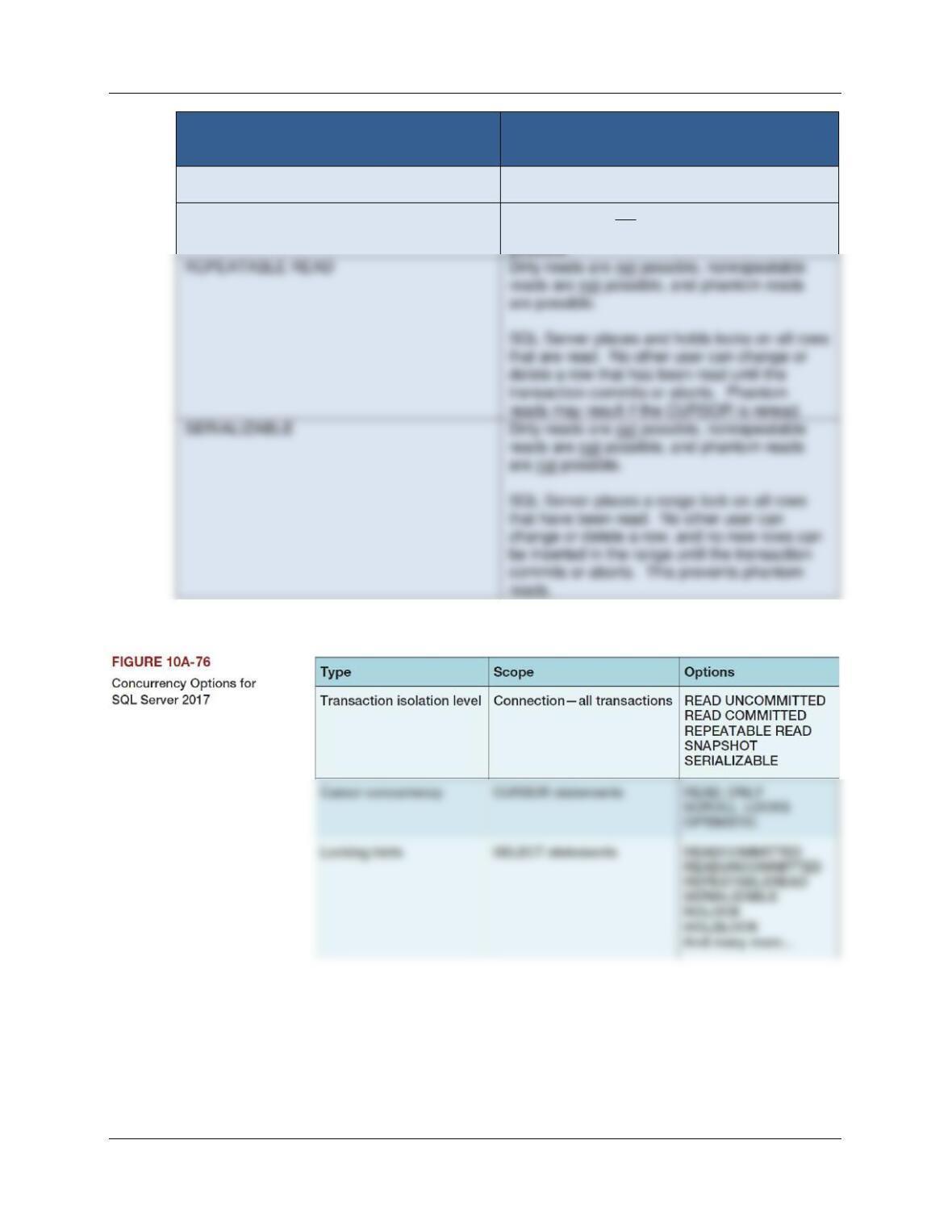
See Figure 9-12 on Page 468 and the definitions in Chapter 9.
A summary table is on the next page:
Chapter 10A – Managing Databases with SQL Server 2017
Page 10A-16
OPTION
MEANING
READ UNCOMMITTED
Dirty reads are possible, nonrepeatable reads
are possible, and phantom reads are possible.
READ COMMITTED
Dirty reads are not possible, nonrepeatable
reads are possible, and phantom reads are
10A.28 Explain the meaning of each of the cursor concurrency settings listed in Figure 10A-76.
possible.
transaction commits or aborts. Phantom
reads may result if the CURSOR is reread.
be inserted in the range until the transaction
commits or aborts. This prevents phantom
reads.
Chapter 10A – Managing Databases with SQL Server 2017
Page 10A-17
See Figure 9-13 on page 469 and the discussion in Chapter 9.
10A.29 What is the purpose of locking hints?
Locking hints can modify locking behavior beyond the capabilities provided by isolation level
10A.30 What is the difference between complete and differential backups? Under what
conditions are complete backups preferred? Under what conditions are differential
backups preferred?
A complete backup makes a backup copy of the entire database, while a differential backup
Chapter 10A – Managing Databases with SQL Server 2017
Page 10A-18
10A.31 Explain the differences between simple, full, and bulk-logged recovery models. Under
what conditions would you choose each one?
In the simple recovery model, no database changes are logged. Databases must be restored from
the last backup. Database changes that would have been logged since the last backup are lost.
❖ ANSWERS TO EXERCISES
Wedgewood Pacific Exercises
In the Chapter 7 Review Questions, we introduced the Wedgewood Pacific (WP) company
and developed the WP database. Two of the tables that are used in the WP database are:
Assume that the relationship between these tables is M-M, and use them as the basis for
your answers to Review Questions 10A.32 through 10A.39.
NOTE: To run these project questions in an actual database, create a copy of the WP database
named WP-CH10A–PQ with ONLY these two tables. This is necessary to simplify the foreign
key constraints that we’ll have to deal with—recall that EMPLOYEE and DEPARTMENT are
also linked to PROJECT and ASSIGNMENT.
Chapter 10A – Managing Databases with SQL Server 2017
Page 10A-19
10A.32 Create a database named WP-CH10A-PQ in SQL Server 2017. Use the default settings
for file sizes, names, and locations.
This is self-explanatory. Note that the database name WP_CH10A_PQ is actually used in these
10A.33 In the SQL Server Management Studio folder structure in your My Documents folder,
create a folder named DBP-e15–WP-CH10–PQ-Database in the Projects folder. Use
this folder to save and store *.sql scripts containing the SQL statements that you are
asked to create in the remaining Review Questions in this section.
10A.34 Code an SQL Script to create only the WP DEPARTMENT and EMPLOYEE tables in
the WP-CH10A-PQ database. Run your script to create the tables.
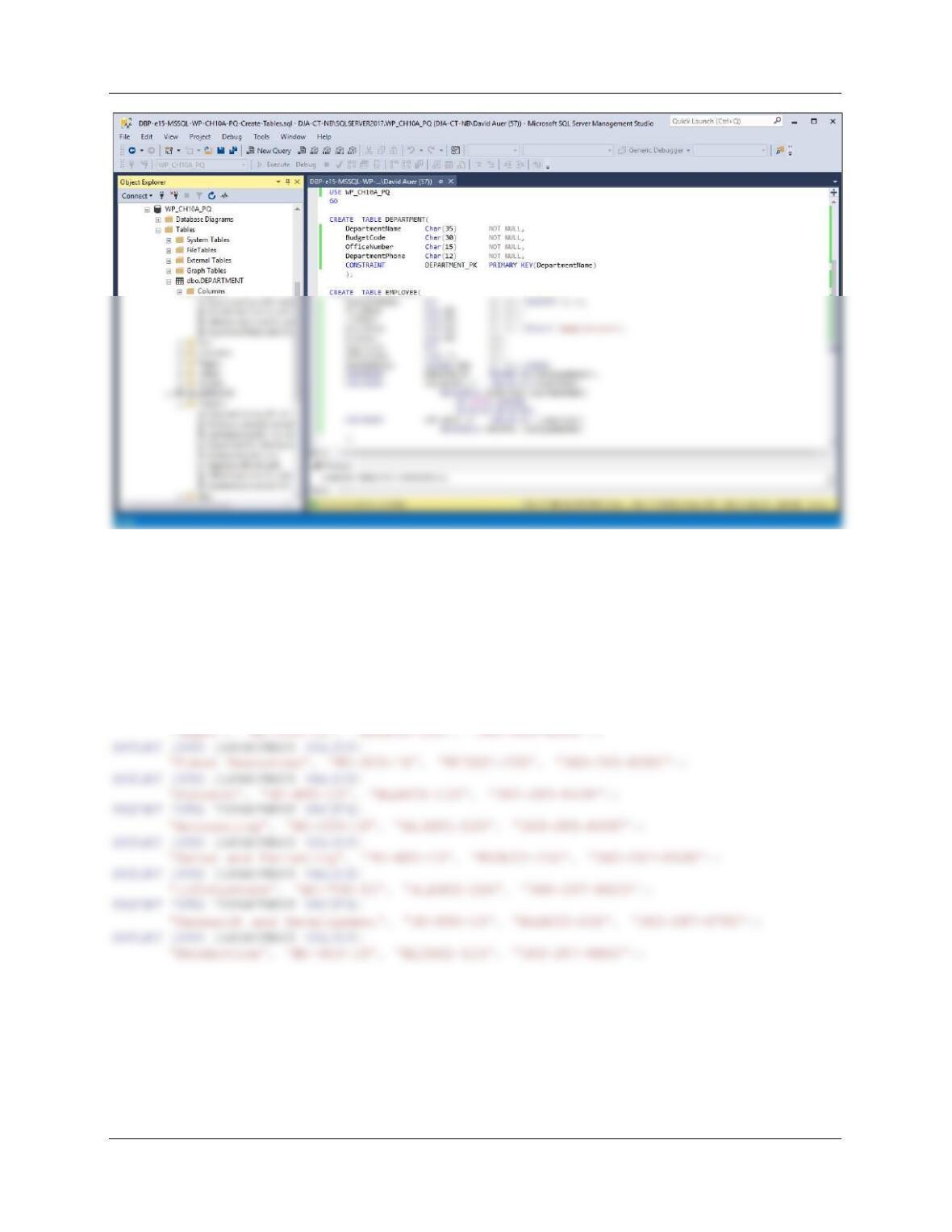
See the file DBP-e15-MSSQL–WP-CH10A-RQ-Create-Tables.sql.
USE WP_CH10A_PQ
GO
CREATE TABLE EMPLOYEE(
EmployeeNumber Int NOT NULL IDENTITY (1, 1),
FirstName Char(25) NOT NULL,
LastName Char(25) NOT NULL,
Department Char(35) NOT NULL DEFAULT ‘Human Resources’,
Position Char(35) NULL,
Supervisor Int NULL,
Chapter 10A – Managing Databases with SQL Server 2017
Page 10A-20
10A.35 Code an SQL Script to populate the WP DEPARTMENT and EMPLOYEE tables in the
WP-CH10A-PQ database. Run your script to populate the tables.
See the file DBP-e15-MSSQL-WP-CH10A-PQ-Insert-Data.sql.
/***** DEPARTMENT DATA ******************************************************/
INSERT INTO DEPARTMENT VALUES(
‘Administration’, ‘BC-100-10’, ‘BLDG01-210’, ‘360-285-8100’);
INSERT INTO DEPARTMENT VALUES(