INSTRUCTOR’S MANUAL
TO ACCOMPANY
40th Anniversary Edition
DATABASE PROCESSING
Fundamentals, Design, and Implementation
15th Edition
Appendix D
Getting Started with Microsoft Visio 2016
David M. Kroenke | David J. Auer | Scott L. Vandenberg | Robert C. Yoder
Appendix D – Getting Started with Microsoft Visio 2016
Page D-2
❖ CHAPTER OBJECTIVES
• To learn how to create E-R data models in Microsoft Visio 2016
❖ ERRATA
There are no known errors at this time. Any errors that are discovered in the future will
❖ TEACHING SUGGESTIONS
• Be sure your students understand the similarities and differences between a data
model (Chapter 4) and database design (Chapter 5). You may also find it useful to
❖ ANSWERS TO REVIEW QUESTIONS
D.1 What is Microsoft Visio 2016?
Microsoft Visio 2016 is an add-on component of Microsoft Office 2016, and is widely used to
D.2 What is the Backstage view?
The Backstage view is part of the Microsoft Office Fluent user interface found in most (but not
Appendix D – Getting Started with Microsoft Visio 2016
Page D-3
D.3 How do you create a new database model diagram drawing in Microsoft Visio
2016?
To open a new database model diagram drawing:
1. Click the Categories tab then ”Software and Databases” button to display the
D.4 Describe the Shapes window, and the objects in the Shapes window.
The Shapes window displays the appropriate Shapes stencils (a stencil is Microsoft Visio’s term
for a group of template objects) for a specific drawing template. The Shapes window for the
database model drawing template includes:
• The Minimize the Shapes window button “<” — As the name says, use this to
D.5 What shapes are included in the Crow’s Foot Database Notation stencil, and
what is the purpose of each shape?
The Entity Relationship (US units) stencil contains all the template objects we will use to build
our data models and database designs (See Figure D-7). It includes:
• The Entity object — Use this object to create data model entities in the Microsoft Visio
database model diagram.
Appendix D – Getting Started with Microsoft Visio 2016
Page D-4
D.6 How do you create entities in a database model diagram?
Creating an Entity in the Microsoft Visio E-R Diagram:
1. In the Shapes window, click-and-hold the Entity object.
D.7 When should you use the Relationship connector object?
The Relationship connector is used to connect entities in data models.
D.8 How do you format a Relationship connector object so that it displays IE Crow’s Foot E–
R notation?
Right-click the relationship line to display the shortcut menu. The Dynamic connector is
D.9 How do you connect a Relationship connector object to two tables? What significance is
there to which end of the Relationship connector is attached to which table?
The steps for connecting a Relationship connector object are below. The relationship connection
has Crow’s Foot E-R symbols on both ends, and these must be set to indicate the parent table—
the many side of a 1:N relationship—and the child table—the one side of a 1:N relationship.
Creating a 1:N Nonidentifying Relationship Between Two Tables:
1. Click-and-hold the Relationship connector object.
Appendix D – Getting Started with Microsoft Visio 2016
Page D-5
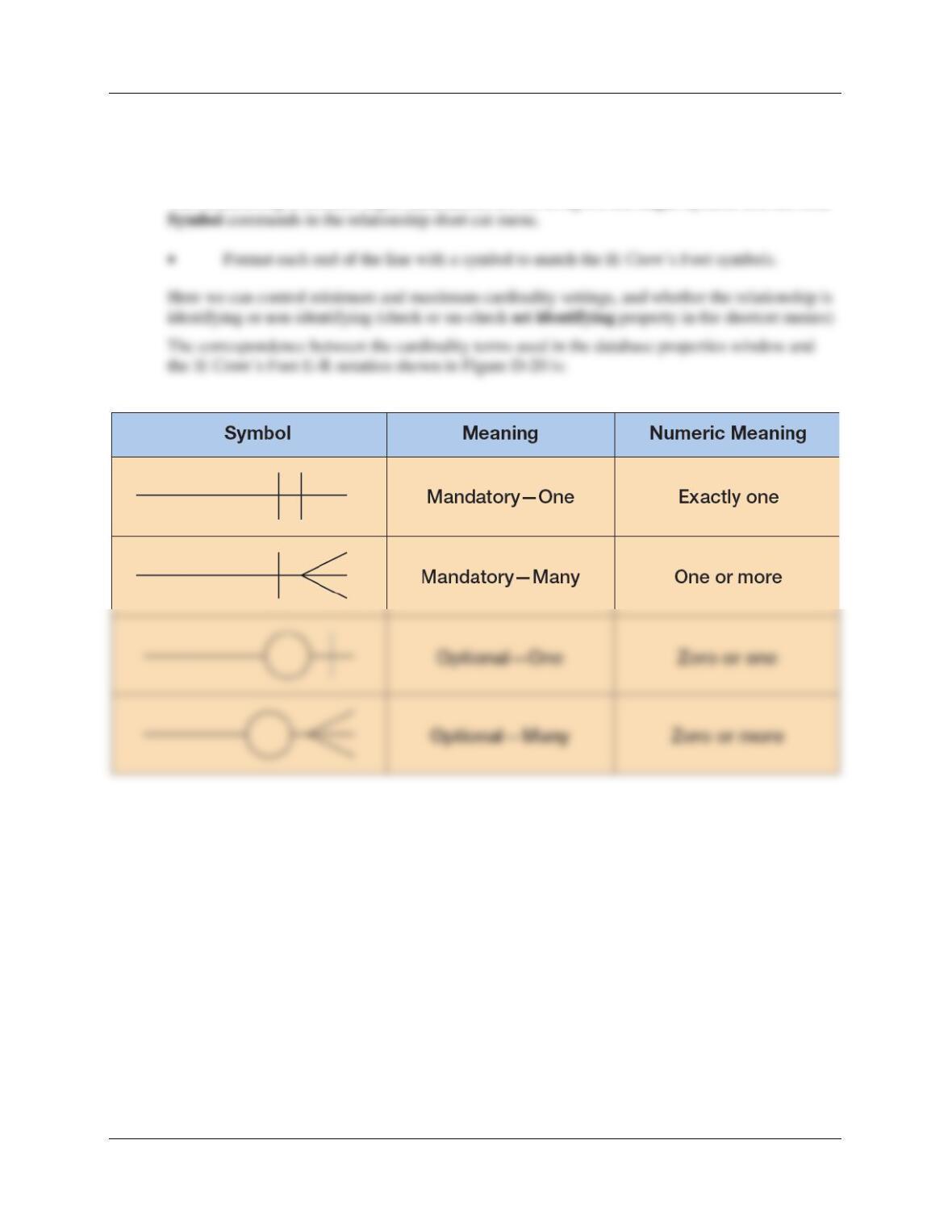
D.10 How are Relationship connector cardinalities set? What is the correspondence between
the cardinality terms used in the database properties window and the IE Crow’s Foot E–
R notation shown in Figure D-20?
The Relationship connector object cardinalities are set using the Set Begin Symbol and Set End
Appendix D – Getting Started with Microsoft Visio 2016
Page D-6
❖ ANSWERS TO EXERCISES
D.11 If you haven’t already done so, work through the steps described in this appendix to
create the data model and database design for the WP database.
This is self-explanatory.
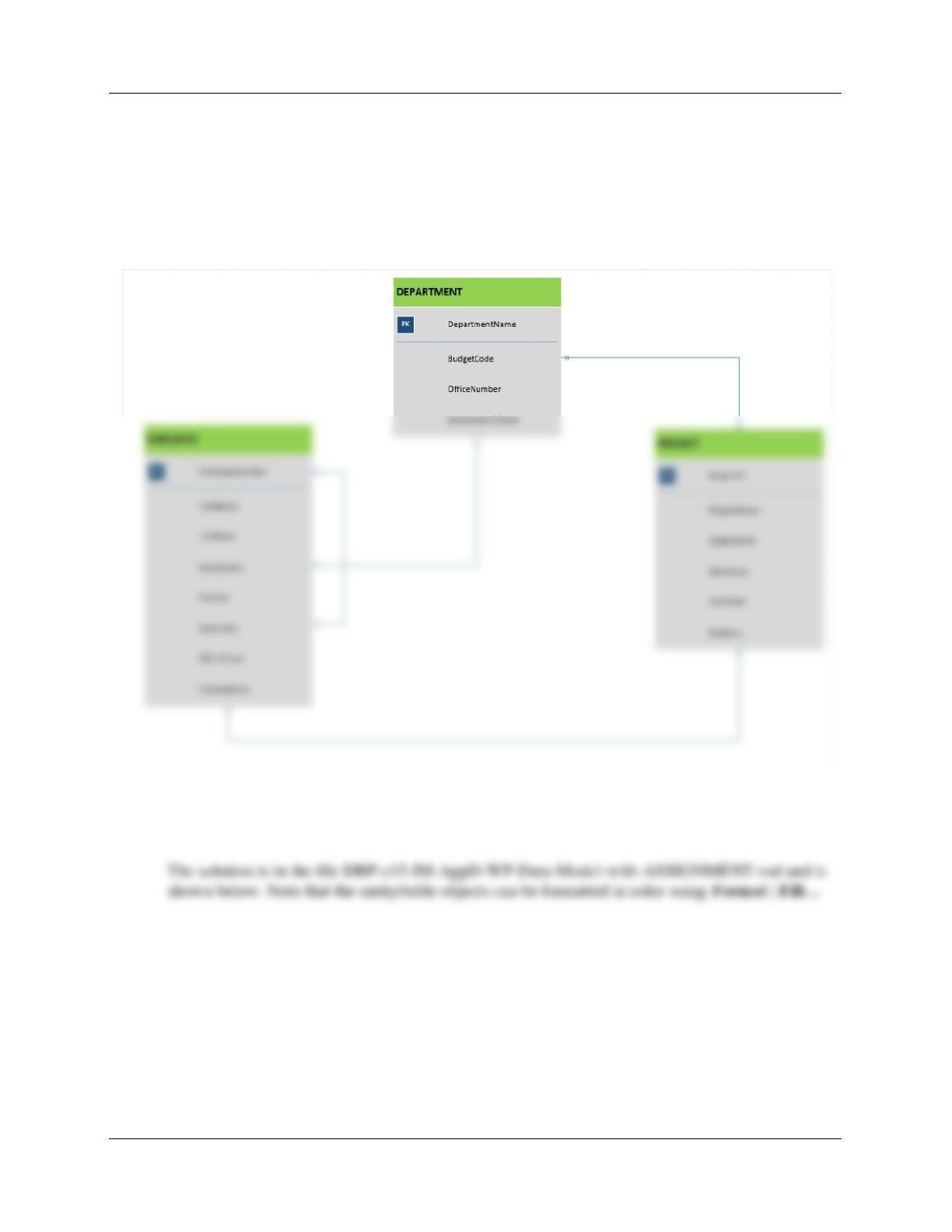
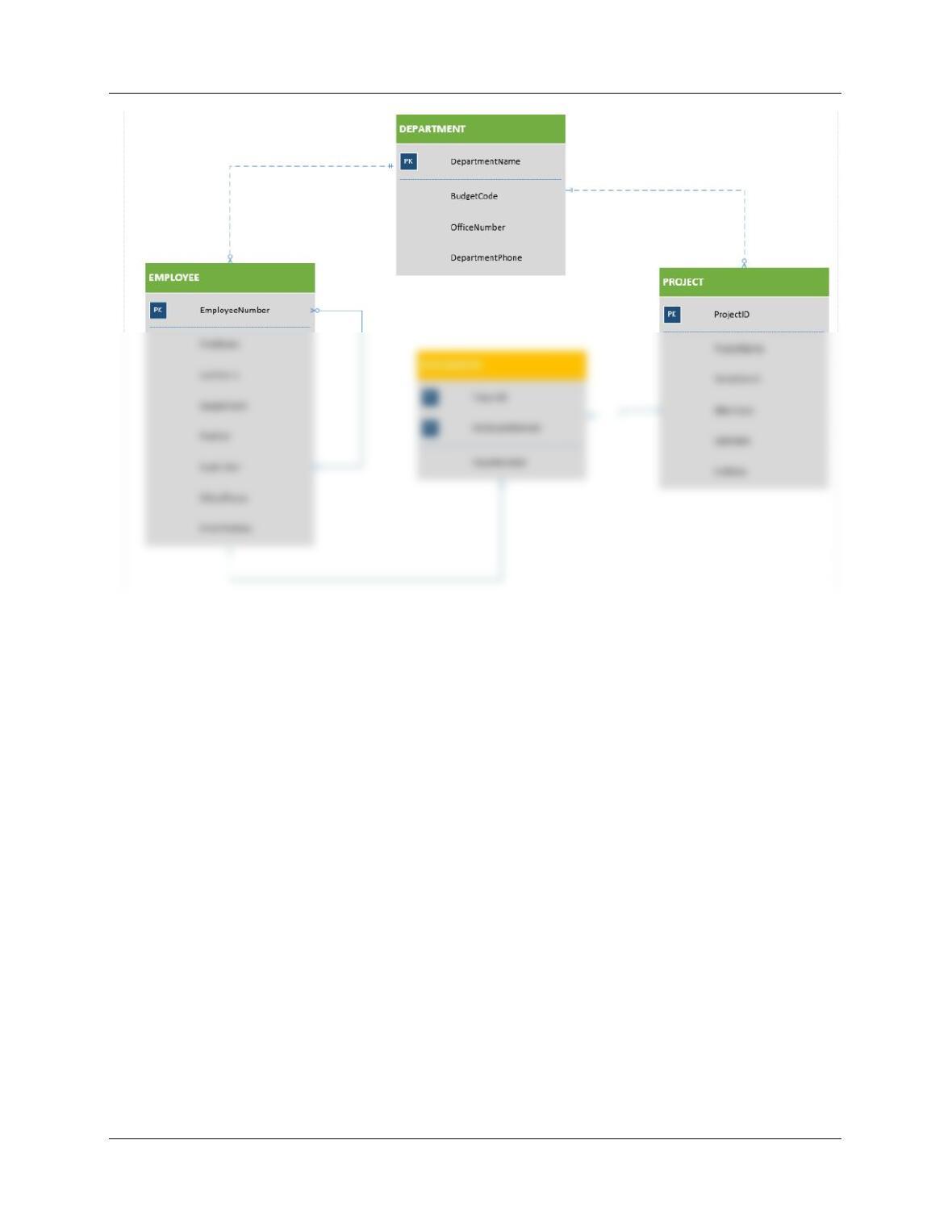
D.12 Create a copy of the WP-Data-Model.vsd file, and name it WP-Data-Model-with-
ASSIGNMENT.vsdx. Modify the data model to include the ASSIGNMENT as shown in
the SQL statements in Figure D-9.
Appendix D – Getting Started with Microsoft Visio 2016
Page D-7
Appendix D – Getting Started with Microsoft Visio 2016
Page D-8
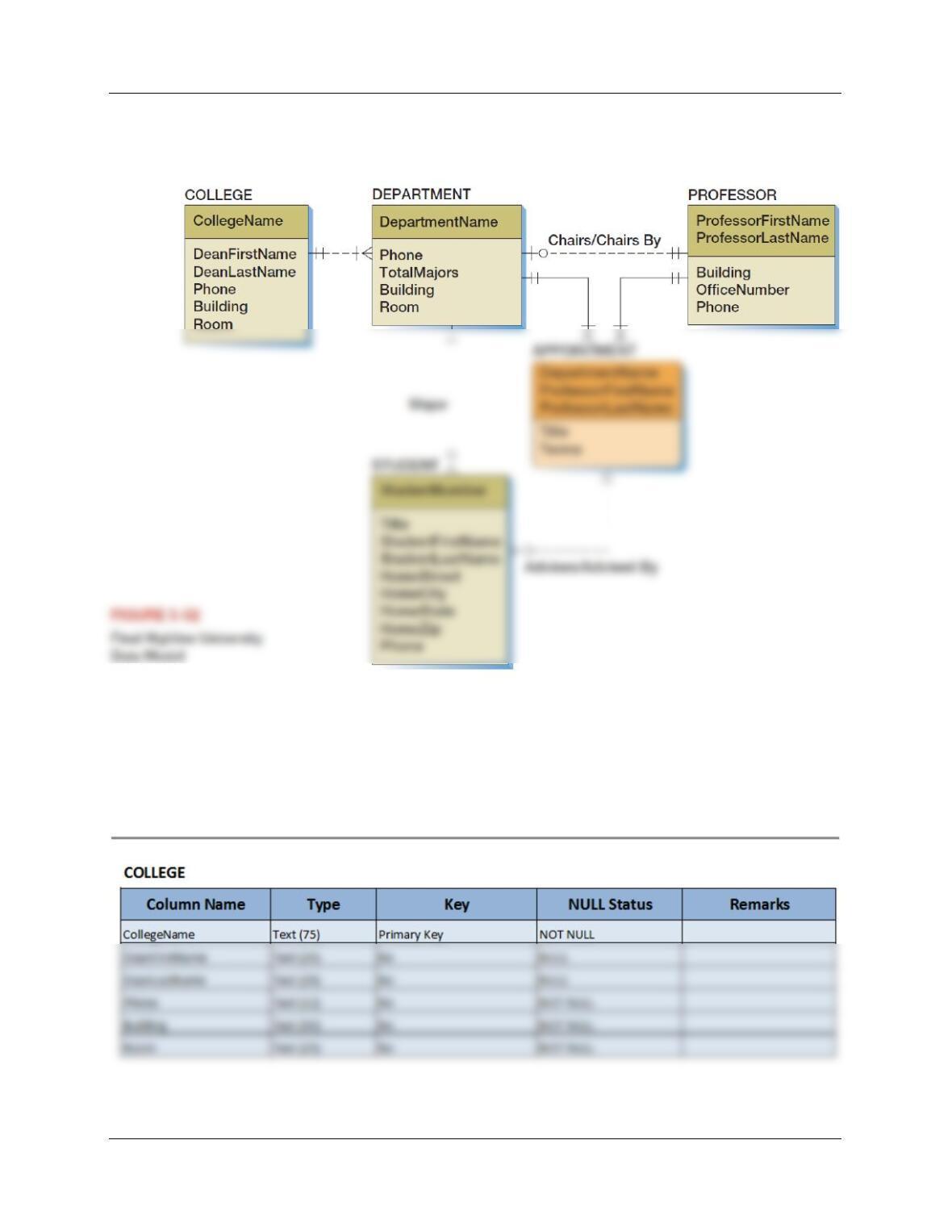
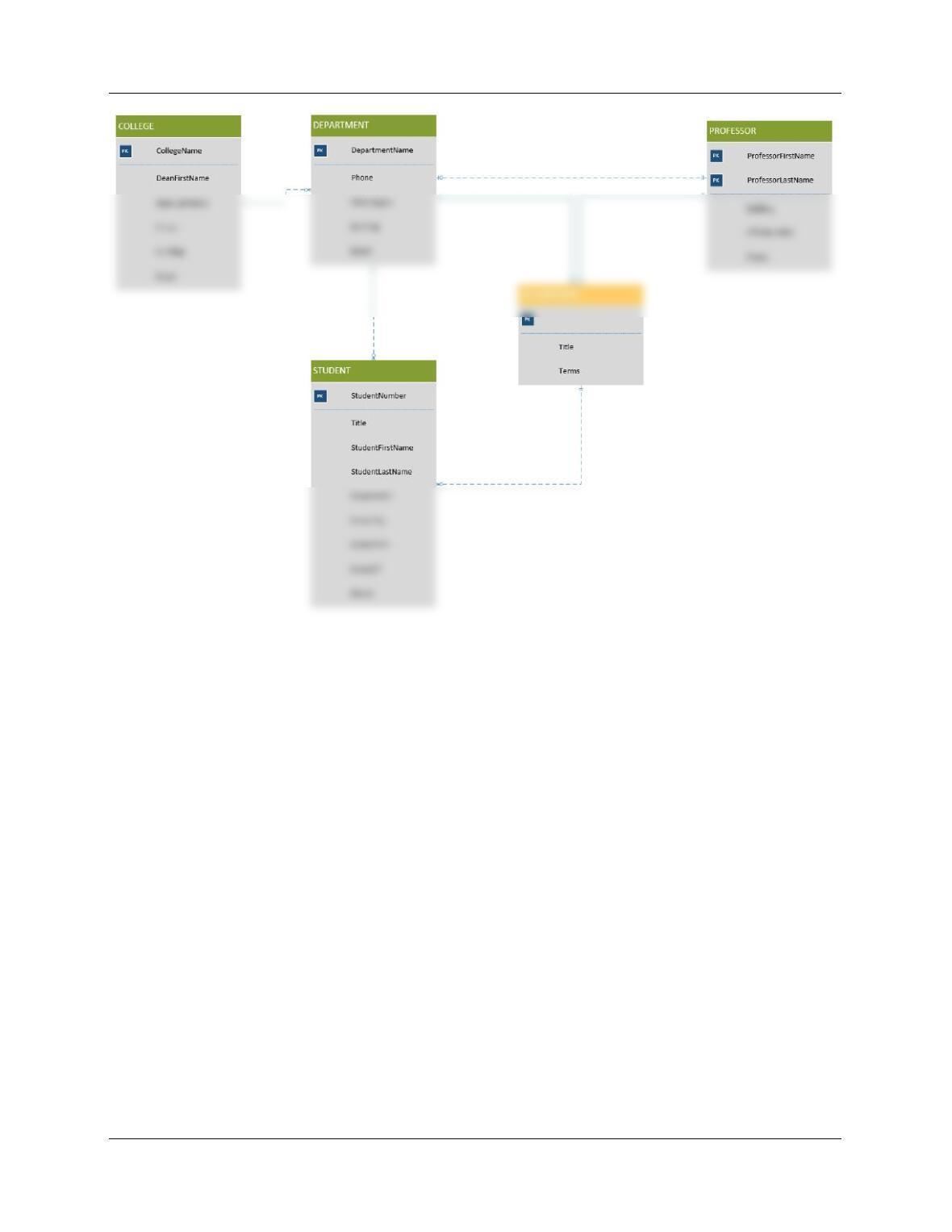
D.13 A data model for the Highline University database is shown in Figure 5-52. In Visio
2016, create a file named HU-Data-Model.vsdx, and use it to recreate the data model
shown in Figure 5-52.
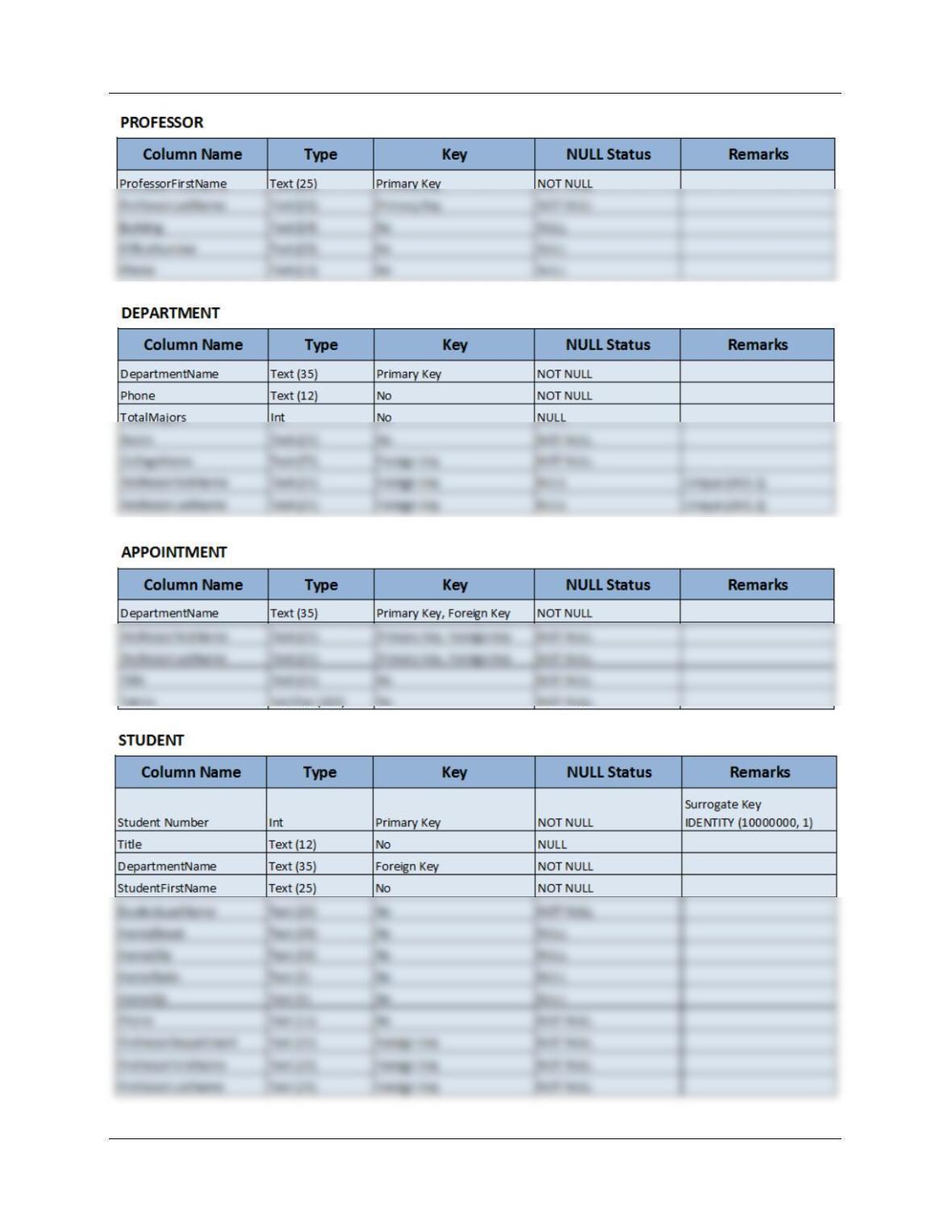
There are no table Column Characteristics shown in the text, so provided here are a set for the
HU database if you need them. The data types shown in this figure are Microsoft Access 2013
data types; they may need to be modified to the data types used in Microsoft Visio 2013.
The solution is in the file DBP-e15-IM-AppD-HU-Data-Model.vsdx, and is shown below. Note
that the entity/table objects can be formatted in color using Format | Fill…
Appendix D – Getting Started with Microsoft Visio 2016
Page D-9
Appendix D – Getting Started with Microsoft Visio 2016
Page D-10
Appendix D – Getting Started with Microsoft Visio 2016
Page D-11
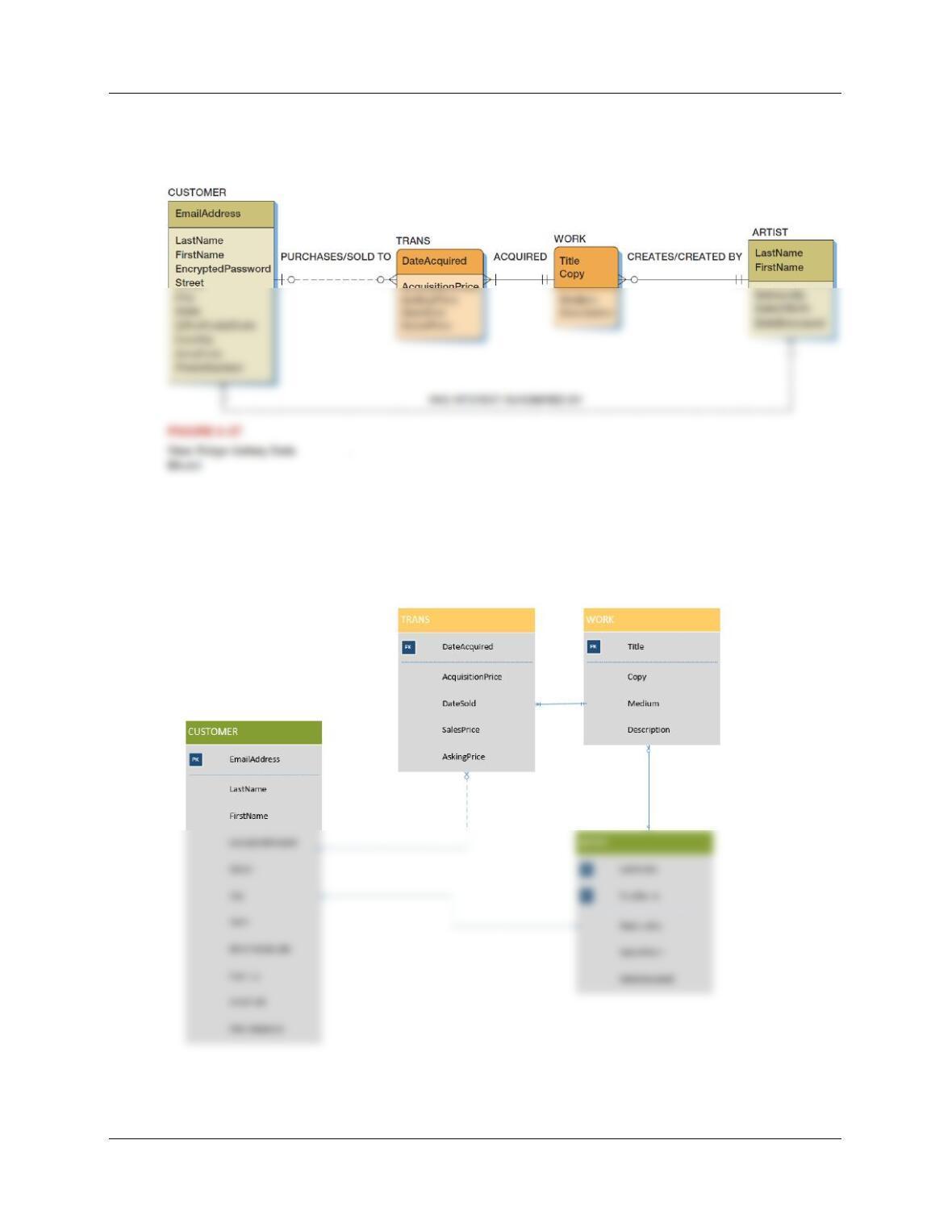
D.14 The data model for the View Ridge Gallery database is shown in Figure 6-37. In Visio
2016, create a file named VRG–Data-Model.vsdx, and use it to recreate the data model
shown in Figure 6-37.
For Table Column Characteristics, see Figure 6-43. The data types used in this figure are
Microsoft SQL Server 2017 data types, and may have to be modified to the data types used in
Microsoft Visio 2016. The solution is in the file DBP-e15-IM-AppD-VRG-Data-Model.vsx,
and is shown on the next page. Note that the entity/table objects can be formatted in color using
Format | Fill…