
INSTRUCTOR’S MANUAL
TO ACCOMPANY
40th Anniversary Edition
DATABASE PROCESSING
Fundamentals, Design, and Implementation
15th Edition
Appendix A
Getting Started with Microsoft Access 2016
David M. Kroenke | David J. Auer | Scott L. Vandenberg | Robert C. Yoder
Appendix A – Getting Started with Microsoft Access 2016
Page A-2
❖ CHAPTER OBJECTIVES
• To create databases in Microsoft Access 2016
• To create tables in Microsoft Access 2016
• To understand Microsoft Access 2016 data types
❖ ERRATA
There are no known errors at this time. Any errors that are discovered in the future will
❖ TEACHING SUGGESTIONS
• Microsoft Access 2016 provides a good starting point for student DBMS use.
Microsoft Access 2016 is commonly available in many computer labs, and many
students will already be familiar with the software.
• If your students are not familiar with Microsoft Access 2016, use this material at
the start of your class. It should be completed before, or soon after, you start
Chapter 1. Chapter 1 assumes student familiarity with Microsoft Access 2016,
and the chapter figures contain screenshots from a database in Microsoft
Access. In addition, the Chapter 1 Project Questions require student use of
Microsoft Access 2016.
Appendix A – Getting Started with Microsoft Access 2016
• Keep in mind that starting with Chapter 2, this text uses and illustrates features
❖ ANSWERS TO REVIEW QUESTIONS
A.1. Microsoft Access 2016 includes an application generator. What capabilities does this
feature add to Microsoft Access 2016 that are not usually found in enterprise-class DBMS
products such as SQL Server 2017, Oracle Database, and MySQL 5.7?
class DBMS products as programs have to be written to create applications.
A.2 What is a primary key? What is a foreign key? How are foreign keys used to create
relationships between tables?
A primary key is an attribute in a relation that makes each row unique. It also establishes the ordering
A.3. What file extension is used to identify Microsoft Access 2016 database files?
A.4. What is the Microsoft Office Fluent user interface? Describe the components of the
Fluent user interface as used in Microsoft Access 2016.
The Office Fluent user interface is shared among most of the Office applications, so that learning one
A.5. What is the Microsoft Access 2016 Quick Access Toolbar, and what is it used for?
A.6. What is the Microsoft Access 2016 Navigation Pane?
The Navigation Pane displays a list of the database objects, such as tables, queries, forms, and reports.
A.7. How does Microsoft Access 2016 create surrogate keys in tables?
Appendix A – Getting Started with Microsoft Access 2016
Page A-4
A.8. How do you create relationships in Microsoft Access 2016?
This is done graphically using the Relationship window. The participating tables are added to the
A.9. What is referential integrity, and why is it important?
Referential integrity is used to ensure that a foreign key field has a value in it that matches an existing
A.10. What is an SQL view, and how are views created in Microsoft Access 2016?
For Access, a view is simply a query that is saved along with other database objects. Other DBMSes
Appendix A – Getting Started with Microsoft Access 2016
Page A-5
❖ ANSWERS TO EXERCISES
A.11. Using the Student-Class-Grade database that you created in this Appendix:
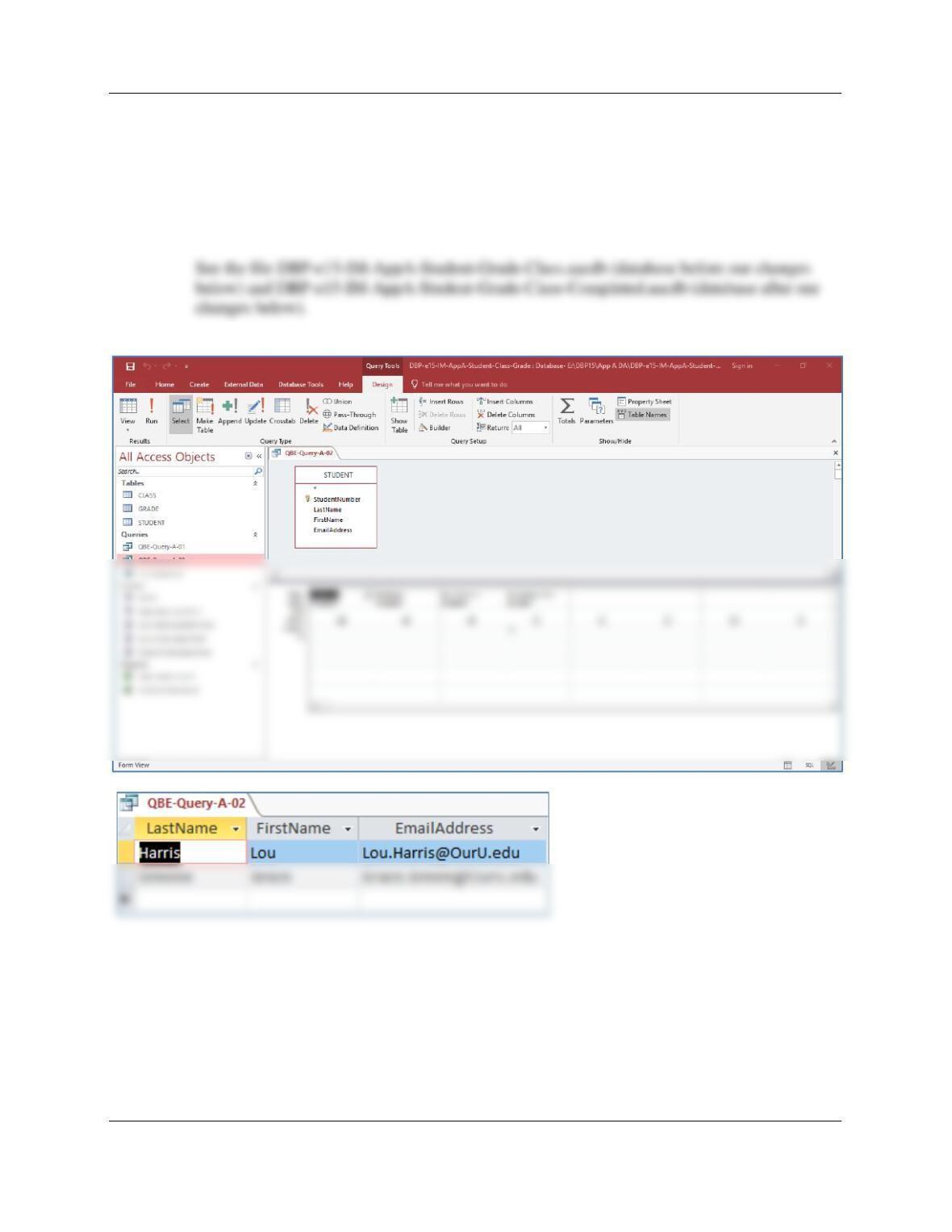
a. Create and run an Access QBE query to duplicate the results in Figure 1-12.
Save the query as QBE-Query-A-02.
Appendix A – Getting Started with Microsoft Access 2016
Page A-6
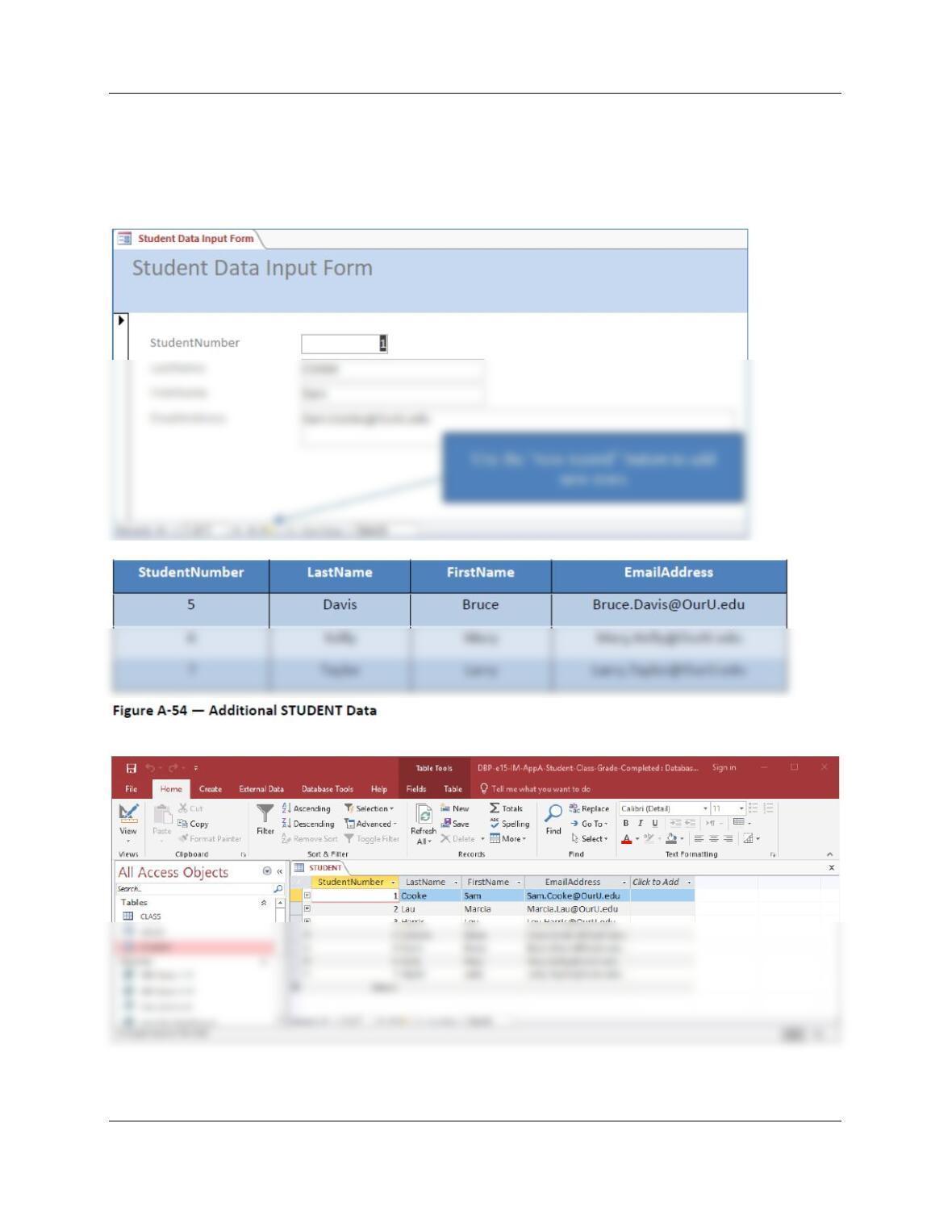
b. Use the Form Wizard to create a data input form for the STUDENT table. Name
the form Student Data Input Form. Using the student data shown in Figure A-
54, add the new students to the STUDENT table.
See the file DBP–e15-IM-AppA-Student-Grade-Class-Completed.aacdb.
Appendix A – Getting Started with Microsoft Access 2016
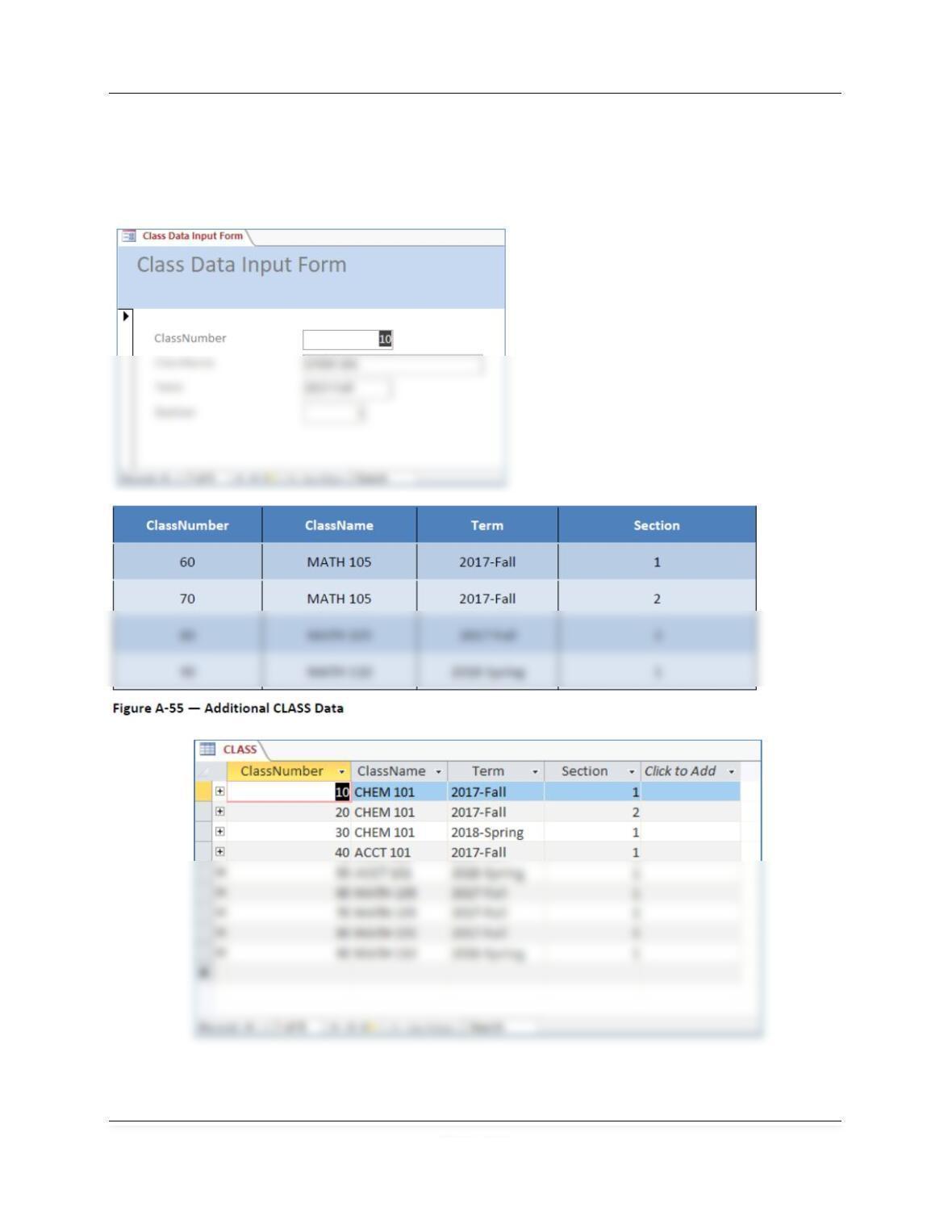
c. Use the Form Wizard to create a data input form for the CLASS table. Name the
form Class Data Input Form. Using the class data shown in Figure A-55, add
the new classes to the CLASS table.
See the file DBP–e15-IM-AppA-Student-Grade-Class-Completed.aacdb.
Appendix A – Getting Started with Microsoft Access 2016
Page A-8
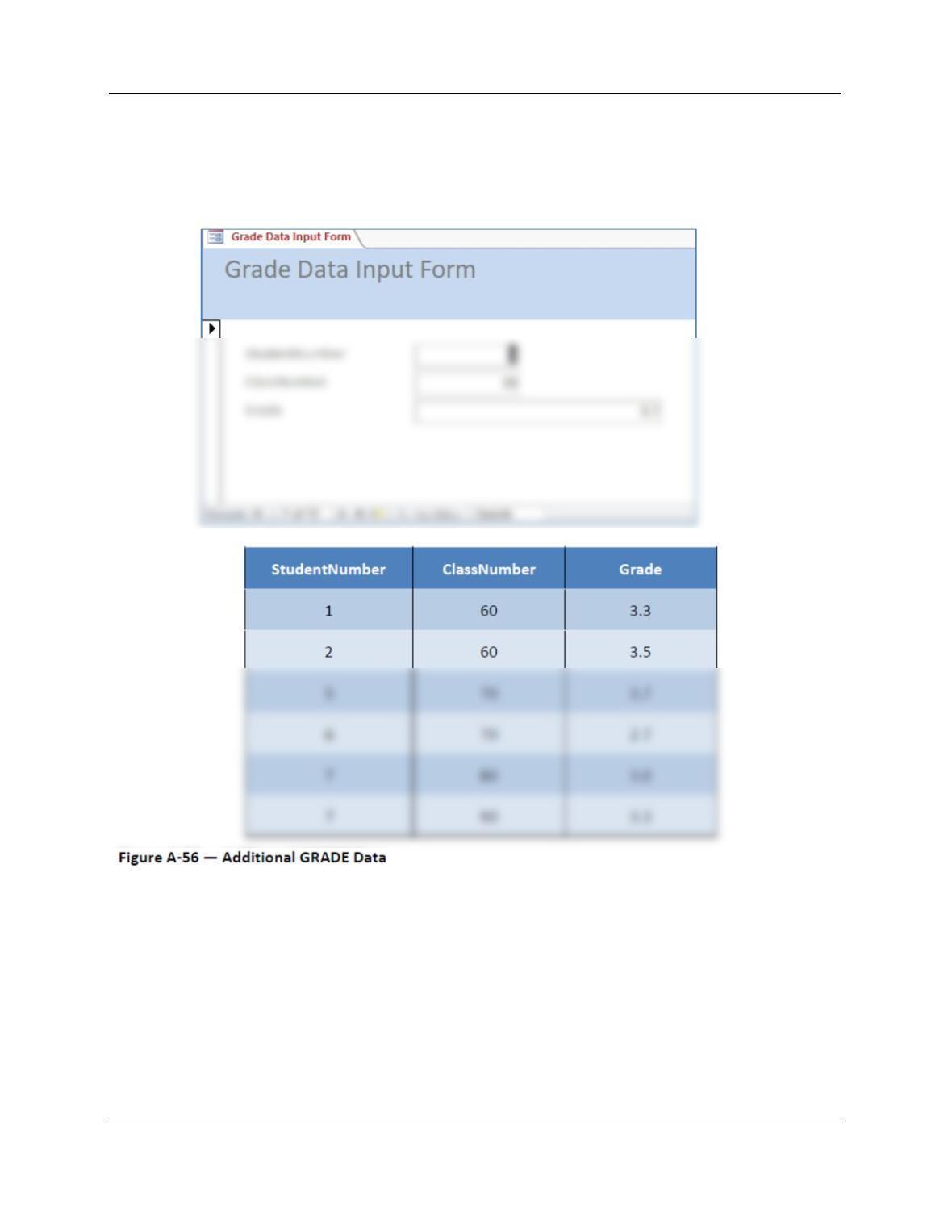
d. Use the Form Wizard to create a data input form for the GRADE table. Name the
form Grade Data Input Form. Using the grade data shown in Figure A-56, add
the new grades to the GRADE table.
See the file DBP–e15-IM-AppA-Student-Grade-Class-Completed.aacdb.
Appendix A – Getting Started with Microsoft Access 2016
Page A-9
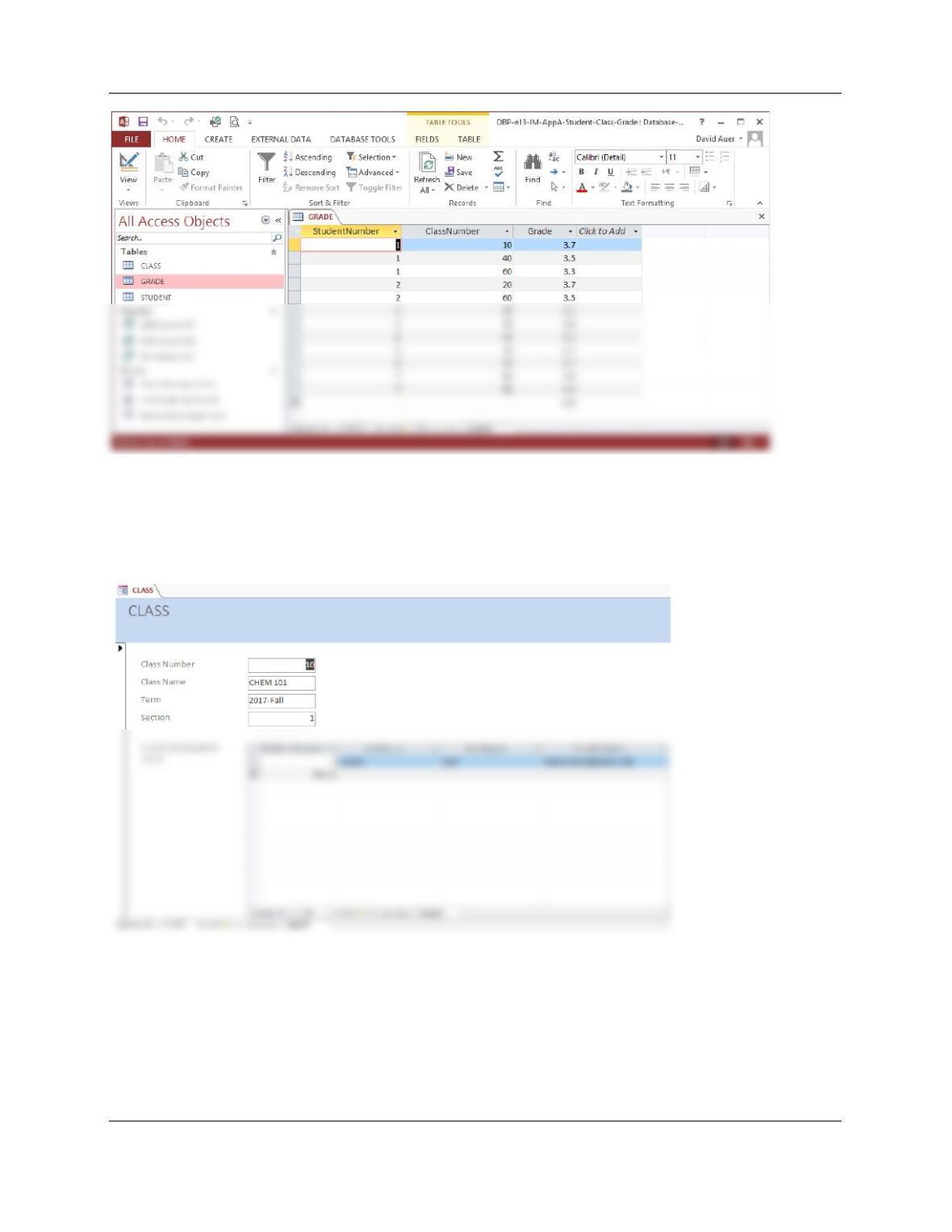
e. Use the Form Wizard to duplicate the CLASS form in Figure 1–11. Note that this
form uses more than one table.
See the file DBP–e15-IM-AppA-Student-Grade-Class-Completed.aacdb. Formatting this form
requires the use of Design View.
Appendix A – Getting Started with Microsoft Access 2016
Page A-10
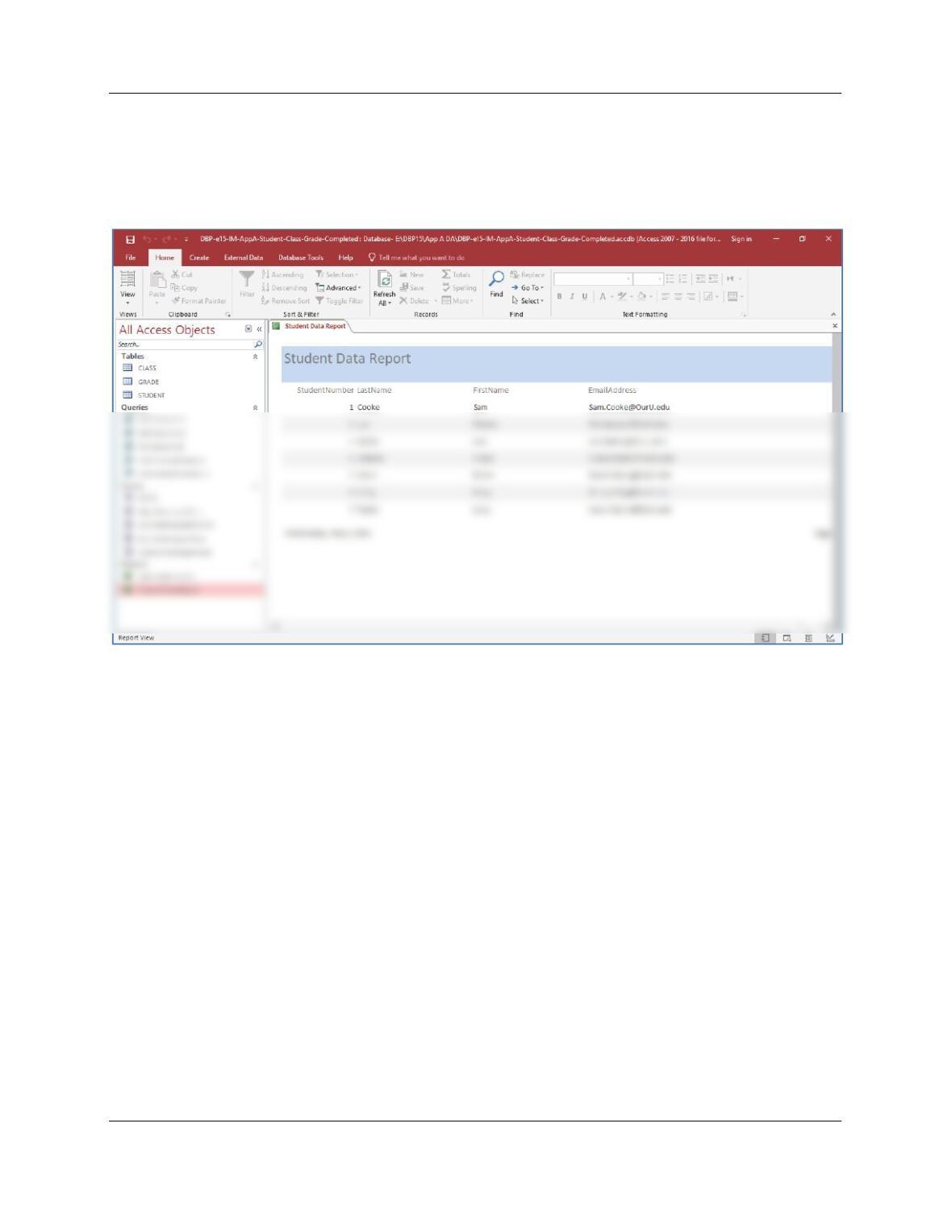
f. Use the Report Wizard to create a report of the data in the STUDENT table.
Name the report Student Data Report.
See the file DBP–e15-IM-AppA-Student-Grade-Class-Completed.aacdb.
Appendix A – Getting Started with Microsoft Access 2016
Page A-11
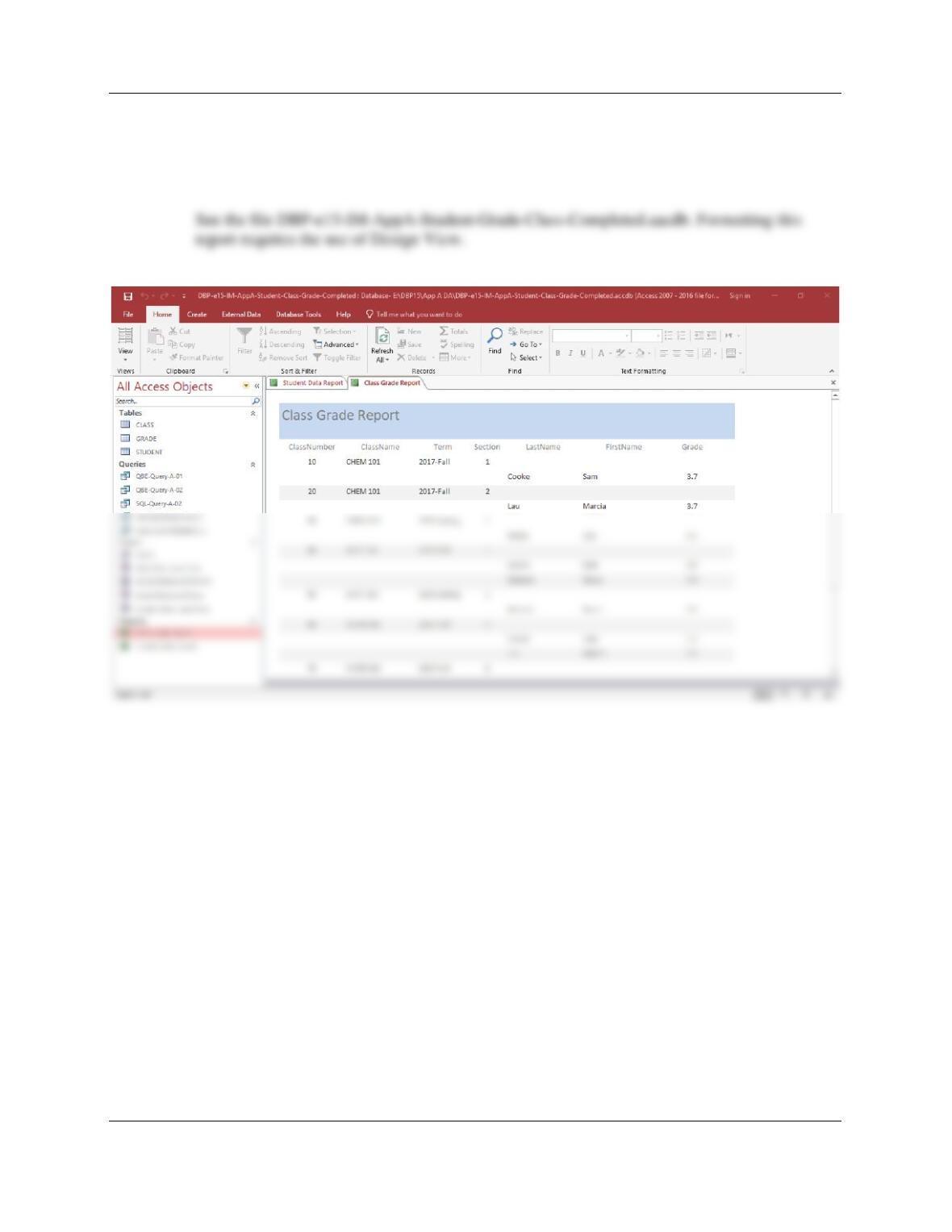
g. Use the Report Wizard and the CLASS, STUDENT and GRADE tables to
duplicate the Class Grade Report shown in Figure 1-13. Note that your version
of this report will display additional data because of the data you added to the
database in steps B, C and D above.
Appendix A – Getting Started with Microsoft Access 2016
A.12. In this exercise, you will build the Cape Codd database used for the SQL examples in
Chapter 2. The Access 2016 tables and relationships are shown in Figure 2-4.
a. Create a new Access 2016 database named Cape-Codd.accdb.
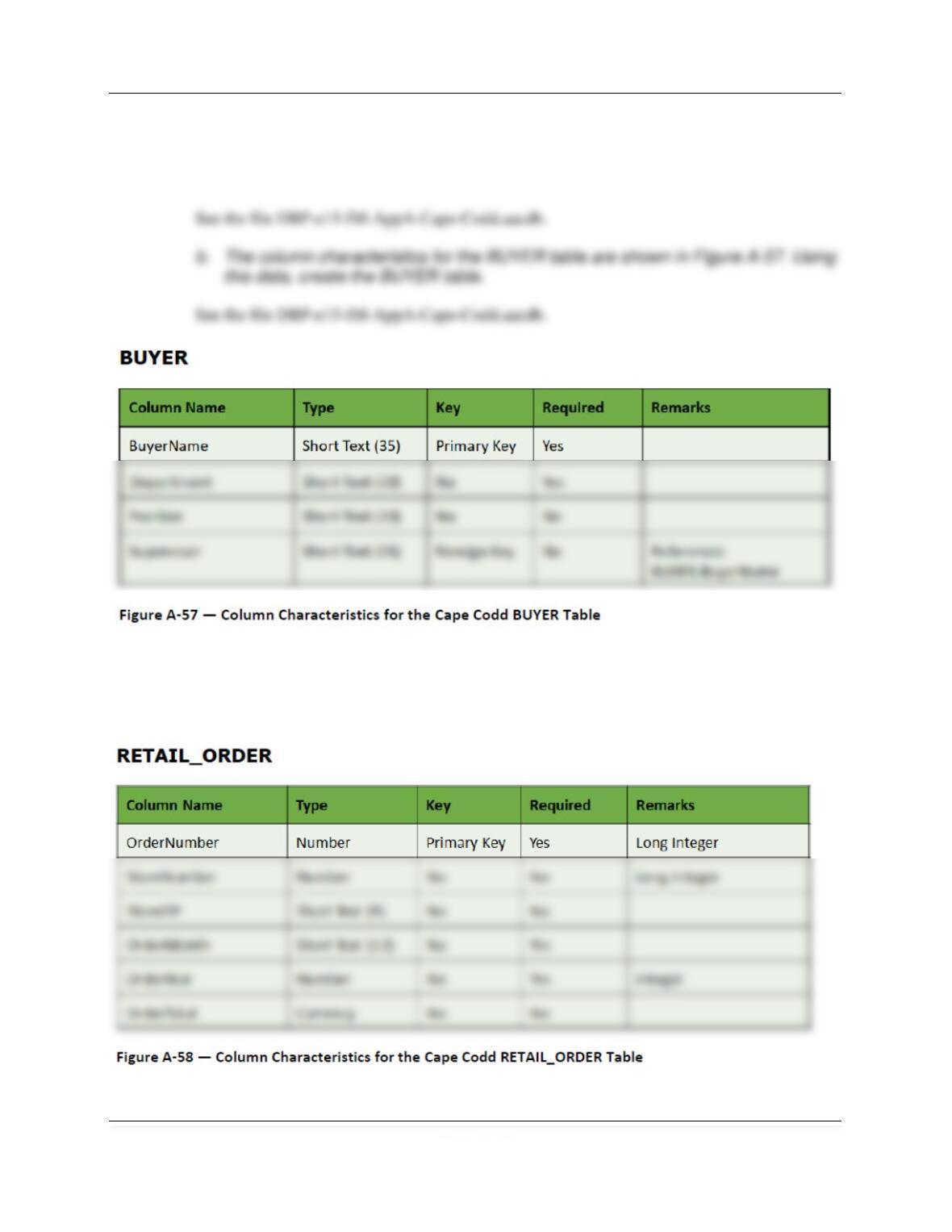
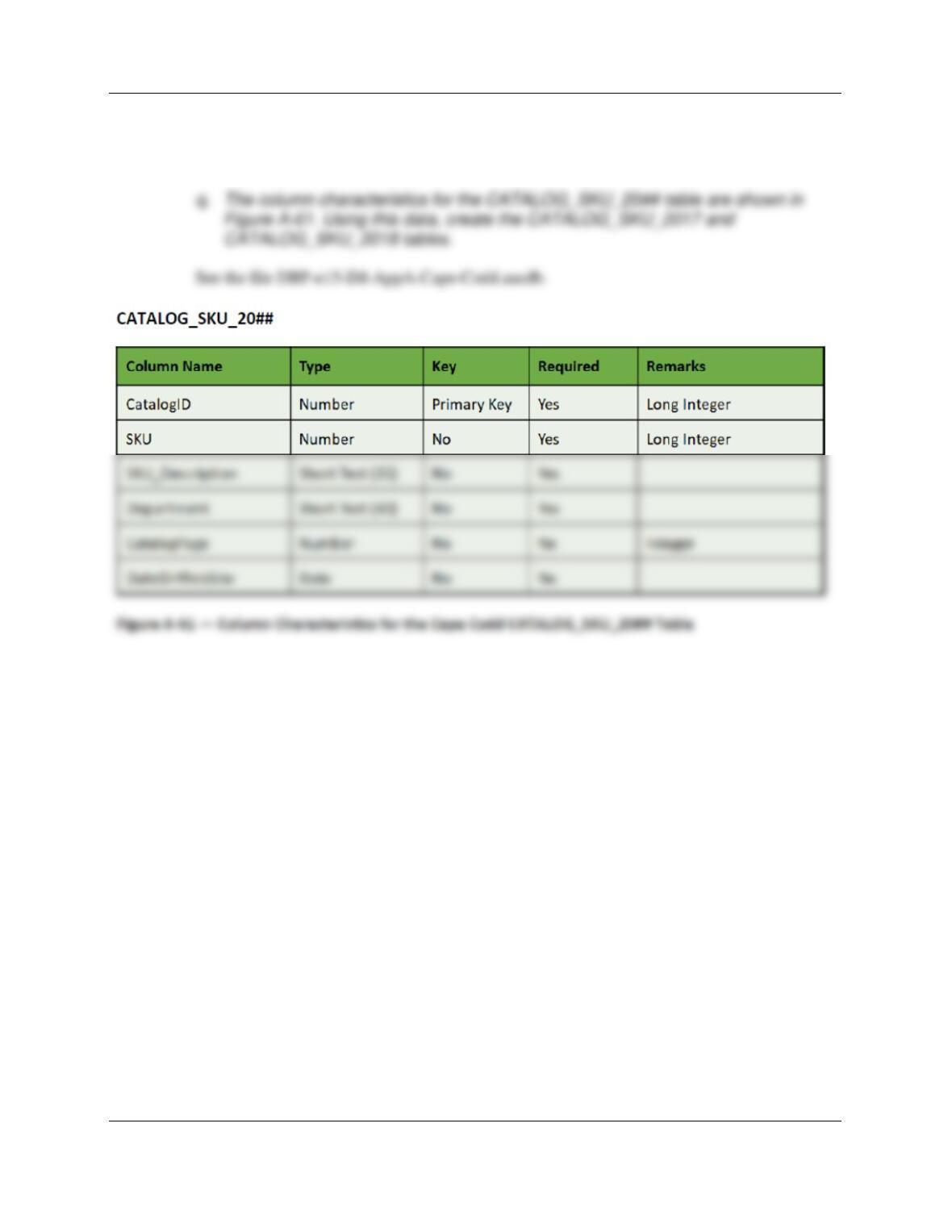
c. The column characteristics for the RETAIL_ORDER table are shown in Figure A-
58. Using this data, create the RETAIL_ORDER table.
See the file DBP–e15-IM-AppA-Cape-Codd.aacdb.
Appendix A – Getting Started with Microsoft Access 2016
Page A-13
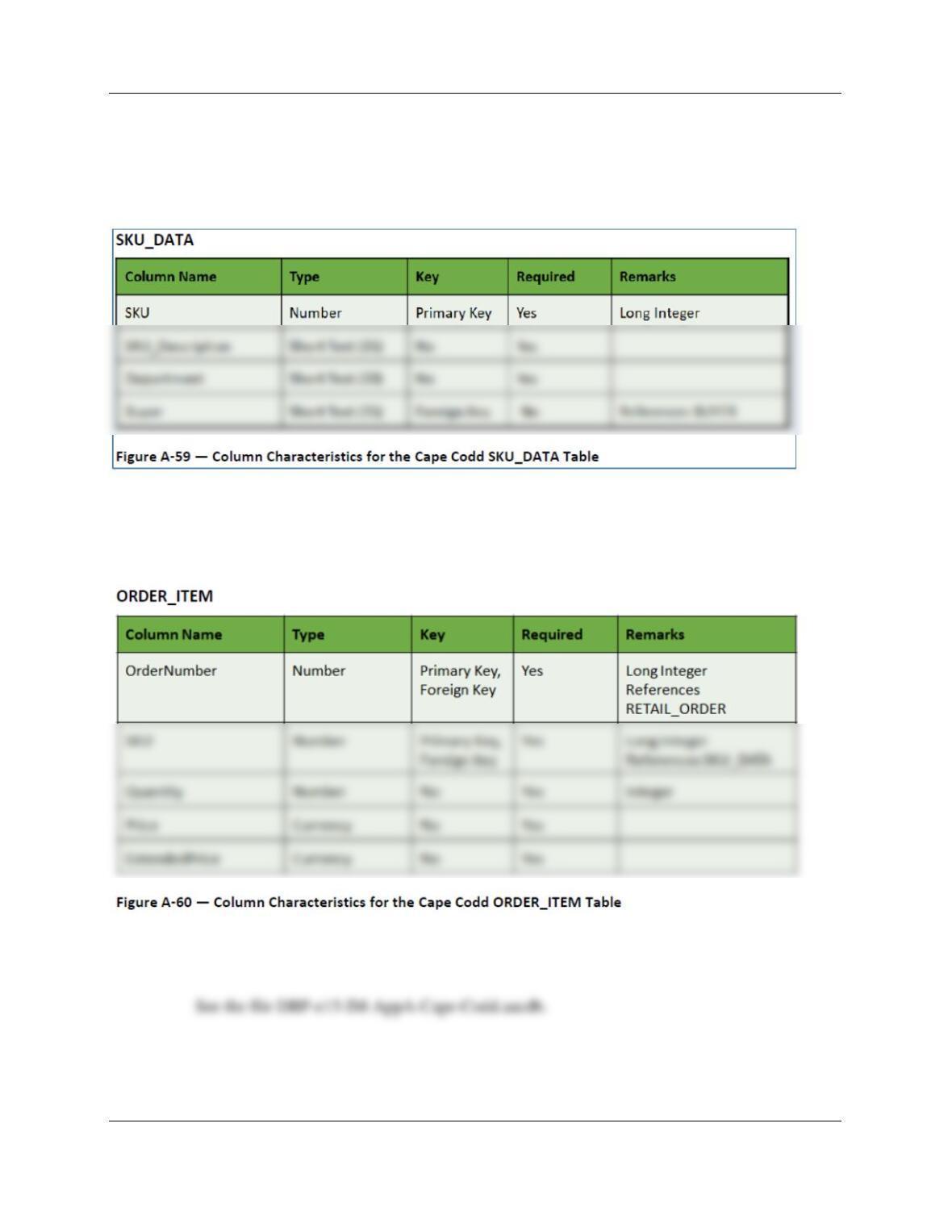
d. The column characteristics for the SKU_DATA table are shown in Figure A-59.
Using this data, create the SKU_DATA table.
See the file DBP–e15-IM–AppA-Cape-Codd.aacdb.
e. The column characteristics for the ORDER_ITEM table are shown in Figure A-
60. Using this data, create the ORDER_ITEM table.
See the file DBP–e15-IM-AppA-Cape-Codd.aacdb.
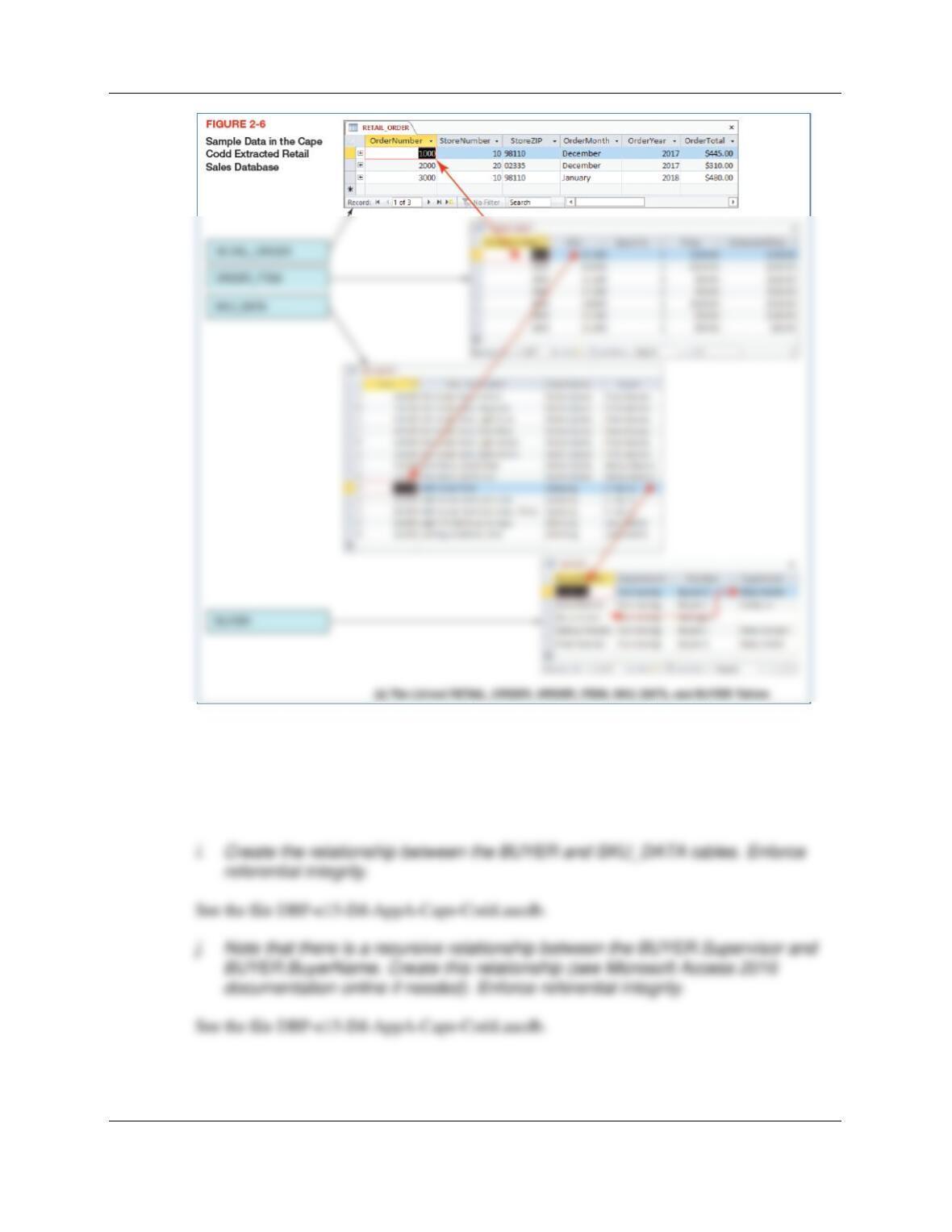
f. The data for the BUYER table are shown in Figure 2-6(a). Populate the BUYER
table.
Appendix A – Getting Started with Microsoft Access 2016
Page A-14
g. The data for the RETAIL_ORDER table are shown in Figure 2-6(a). Populate the
RETAIL_ORDER table.
h. The data for the SKU_DATA table are shown in Figure 2-6(a). Populate the
SKU_DATA table.
Appendix A – Getting Started with Microsoft Access 2016
Page A-15
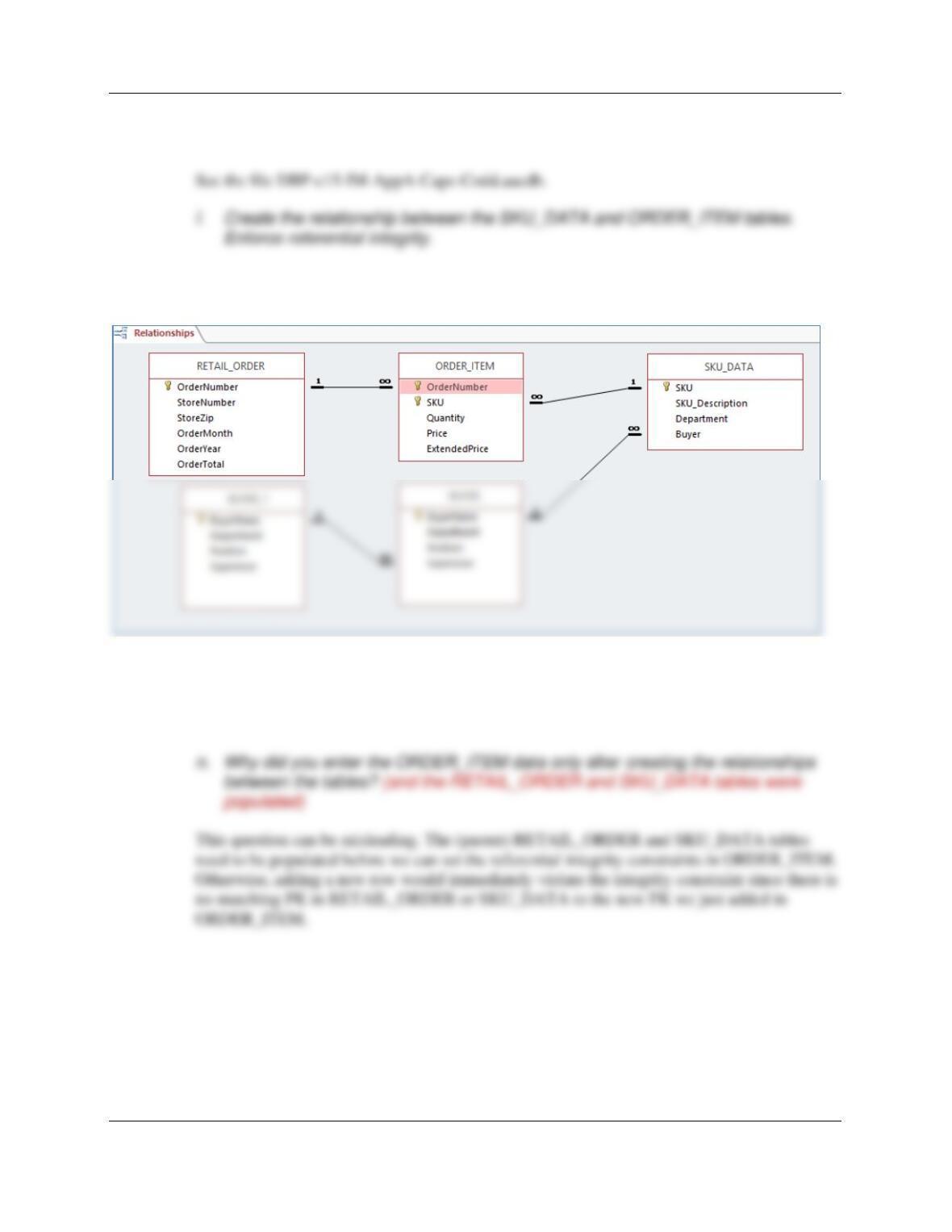
k. Create the relationship between the RETAIL_ORDER and ORDER_ITEM tables.
Enforce referential integrity.
See the file DBP-e15-IM-AppA-Cape-Codd.aacdb. The completed relationships are as
follows:
m. The data for the ORDER_ITEM table are shown in Figure 2-6(a). Populate the
ORDER_ITEM table.
See the file DBP–e15-IM-AppA-Cape-Codd.aacdb.
Further, by entering the ORDER_ITEM data after referential integrity constraints were
created, we made sure that no inappropriate values could be inserted into
ORDER_ITEM.OrderNumber and ORDER_ITEM.SKU.
Appendix A – Getting Started with Microsoft Access 2016
Page A-16
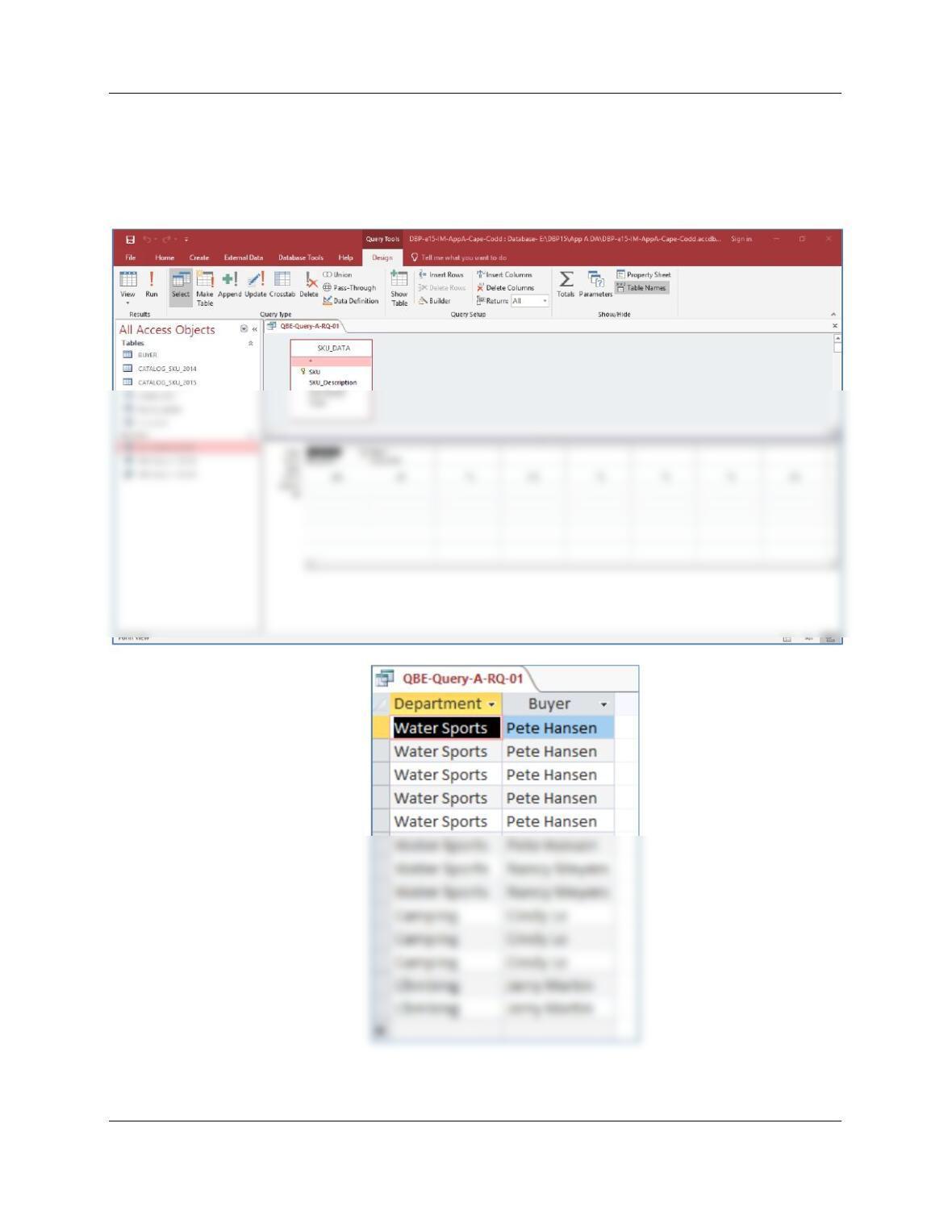
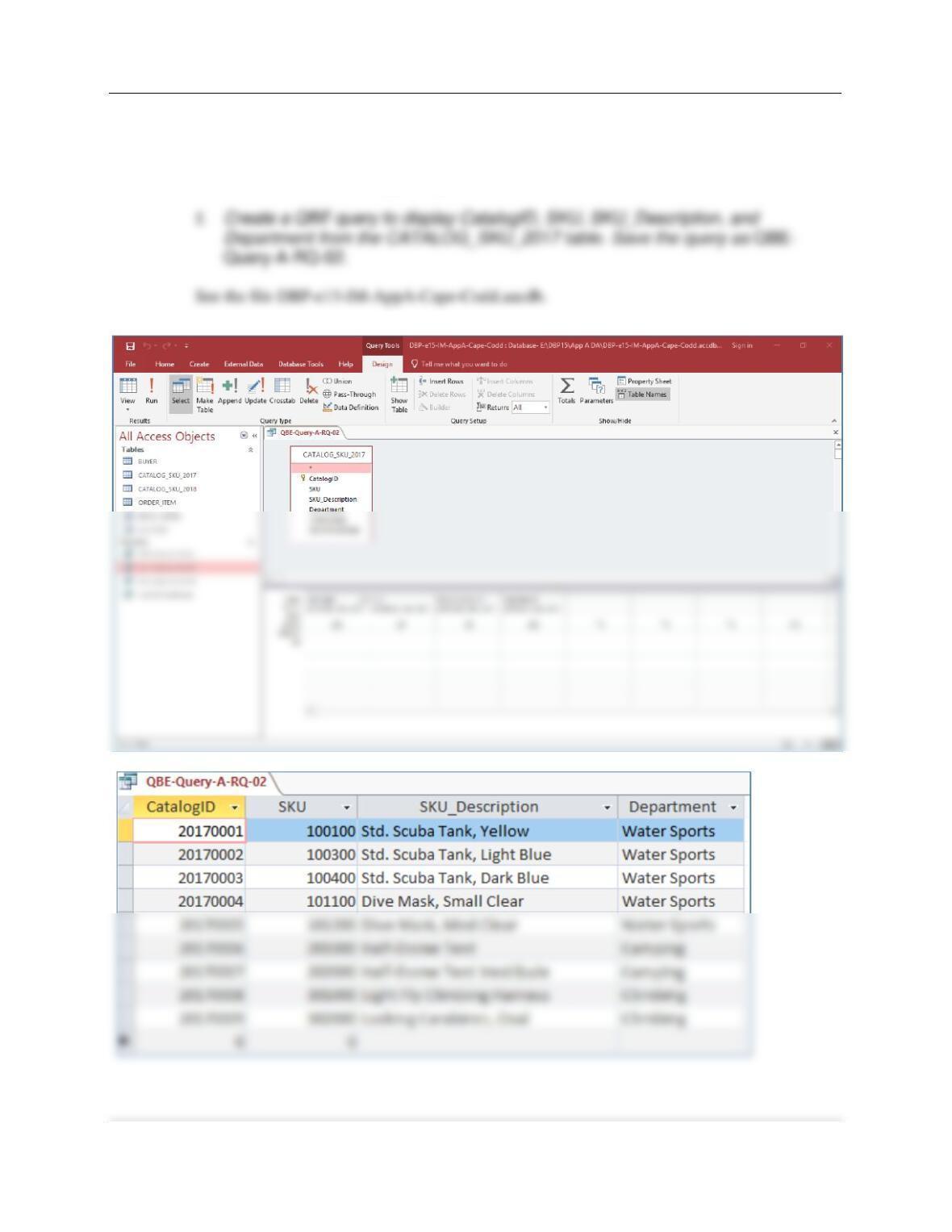
o. Create a QBE query to display Department and Buyer in the SKU_DATA table.
Save the query as QBE-Query-A-RQ-01.
See the file DBP-e15-IM-AppA-Cape-Codd.aacdb.
Appendix A – Getting Started with Microsoft Access 2016
Page A-17
p. Create an SQL View to display the same Department and Buyer data from the
SKU_DATA table as shown in QBE-Query-A–RQ–01. Save the SQL view as
viewSKUDeptBuyer.
Appendix A – Getting Started with Microsoft Access 2016
Page A-18
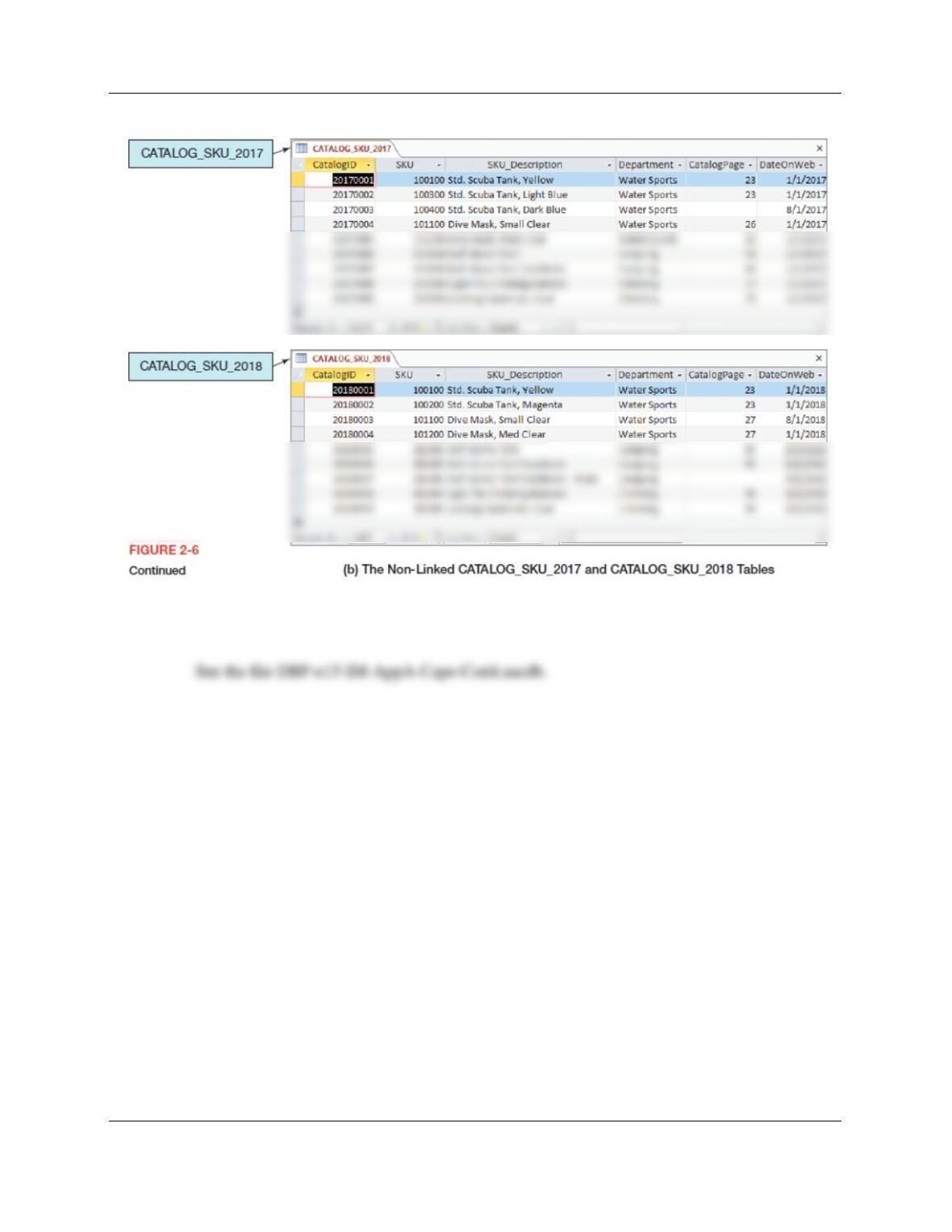
r. The data for the CATALOG_SKU_2017 table is shown in Figure 2-6(b). Populate
the CATALOG_SKU_2017 table.
Appendix A – Getting Started with Microsoft Access 2016
Page A-19
s. The data for the CATALOG_SKU_2018 table is shown in Figure 2-6(b). Populate
the CATALOG_SKU_2018 table.
See the file DBP-e15-IM-AppA-Cape-Codd.aacdb.
Appendix A – Getting Started with Microsoft Access 2016
Page A-20
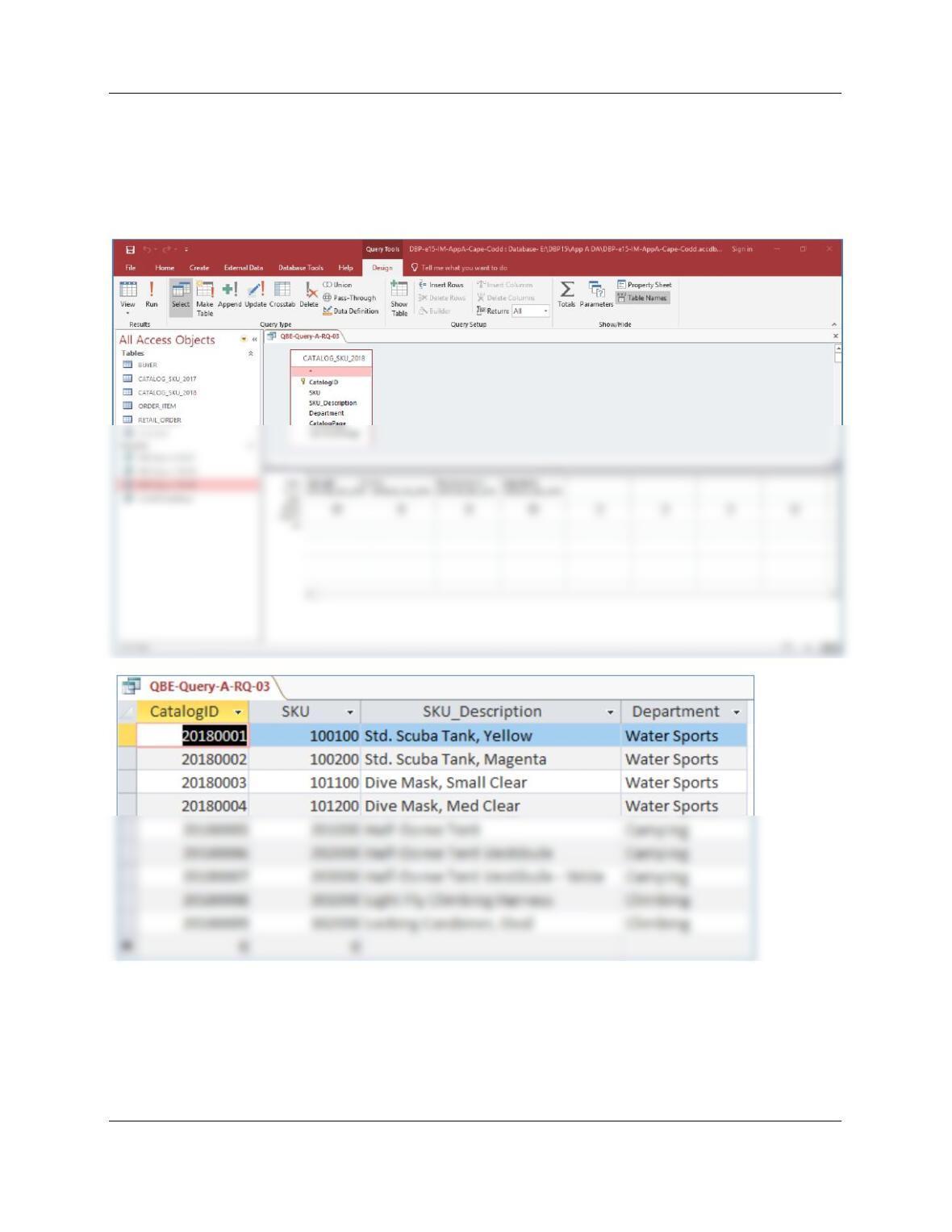
u. Create a QBE query to display CatalogID, SKU, SKU_Description, and
Department from the CATALOG_SKU_2018 table. Save the query as QBE-
Query-A-RQ–03.
See the file DBP-e15-IM-AppA-Cape-Codd.aacdb.