McGraw-Hill Education, Computer Accounting with Sage 50 2019, 21e
35 – IMK
CHAPTER 2
VENDORS
Chapter 2 introduces students to the basic way that Sage 50 works with
vendor transactions. The first thing the students do is select
from the Navigation Bar to go to the Vendors &
Purchases Navigation Center. After recording a purchase order, students
record a vendor invoice using the Purchases/Receive Inventory window.
The Purchases/Receive Inventory window is also the Purchase Journal.
The Apply to Purchases tab is the default. The lower half of the window
shows fields for Quantity, Item (inventory items), Description, GL Account,
Unit Price, Amount, and Job. The default for the A/P Account is 20000,
Accounts Payable. The Purchases/Receive Inventory window looks like a
purchase order. Similar to other Sage 50 windows, the icon bar appears at
the top of the window.
When Bellwether Garden Supply orders and receives inventory from
vendors, Account No. 12000, Inventory, is debited. Accounts Payable and
the vendor account are credited. Vendors offer Bellwether a purchase
discount for invoices paid within the discount period. The program defaults
to 2% 10, Net 30 Days for purchase discounts.
Sage 50 is a double-entry accounting system. There is a selection in
Options > Global that allows general ledger accounts to be hidden. This is
called Accounting Behind the Screens. The Sage 50 windows in the
textbook show the general ledger accounts. To check the Accounting
Behind the Screens settings, do the following:
1. From the menu bar, click Options, then Global. The Accounting tab
should be selected. If necessary, click on the radio button next to
Manual to select it. The Number of decimal places should be 2.
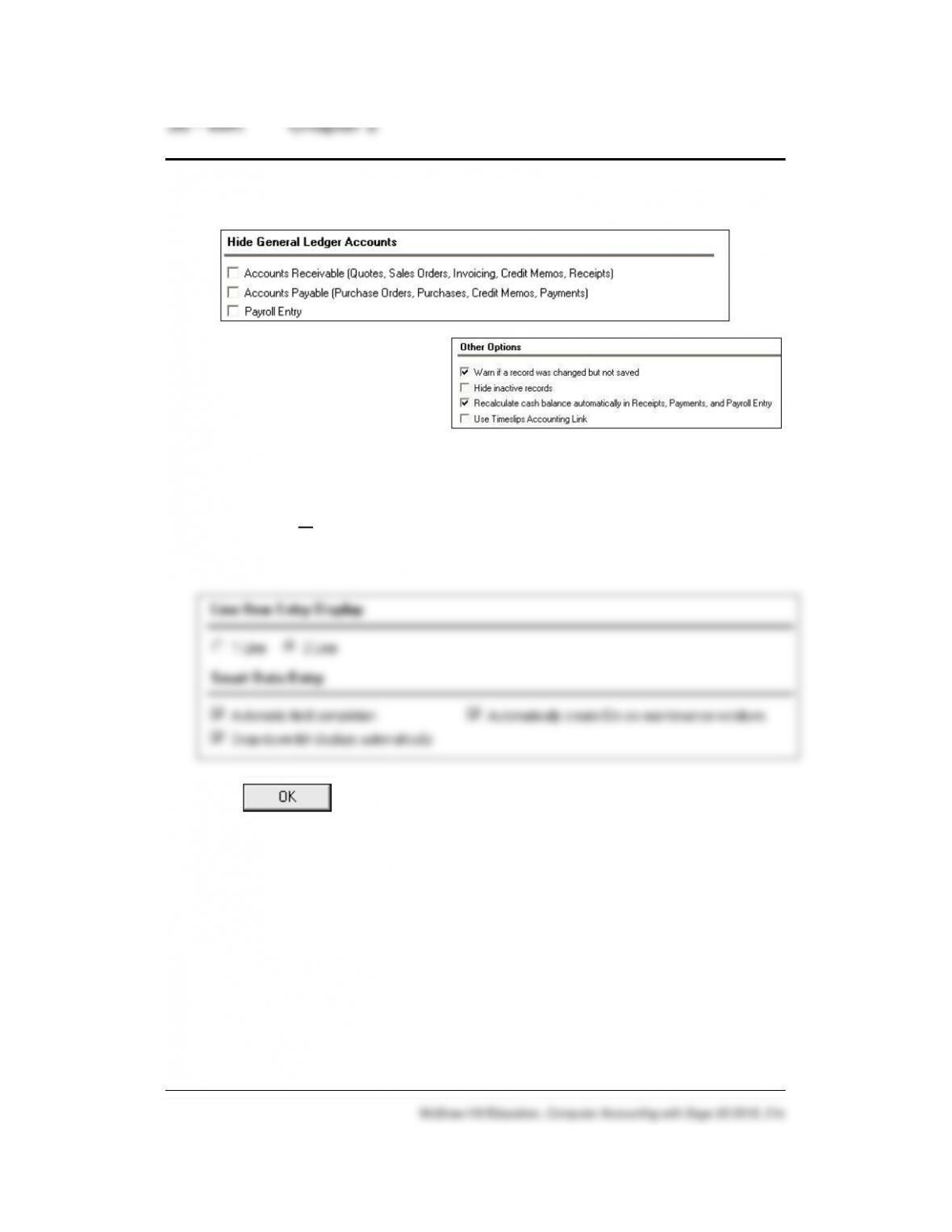
2. The boxes in the section Hide General Ledger Accounts must be
unchecked. (If necessary, click on the boxes to uncheck them.)
3. Observe that two boxes
need to be checked in the
Other Options section: Warn
if a record was changed but
not saved and Recalculate
cash balance automatically in Receipts, Payments, and Payroll Entry.
Make sure both of these Other Options boxes are checked.
4. Click on the General tab. Make sure the Line Item Entry Display has 2
Line selected, and that the Smart Data Entry area has three boxes
checked.
5. Click .
LEARNING OBJECTIVES
1. Restore data from Exercise 1-2. This backup was made on textbook
page 50. (Refer to the Read me box on page 37 – IMK.)
2. Enter a purchase order.
3. Apply receipt of inventory to existing purchase order.
4. Enter and post a vendor invoice in the Purchases\Receive Inventory
window.
5. Go to the Payments window to pay a vendor.
6. Print a check in payment of the vendor invoice.
Vendors 37 – IMK
7. Add a Terms column to the Vendor Ledgers report.
8. Analyze payments and vendor credit memos.
9. Make two backups, save two Excel files, and save five PDF files.
1
Read Me: Do your students need to restore?
If your students are completing their Sage 50 work in the computer lab or
classroom, they should restore backup files from their USB drive (or other location). In order for
the student to start where they left off the last time data was backed up, use the restore
feature.
If students are working on their own computer or laptop, they probably can skip restore.
For example, in Chapter 2 students added the vendors, Adler’s Landscaping and Office
Suppliers. The Vendor Ledgers report should show a zero balance for both Adler’s
Landscaping and Office Suppliers. Students should display the Vendor Ledgers to make sure
they are starting in the correct place in the data. If the two vendors were added, and their
balances are zero, students can continue work without restoring.
If students are taking this course online, they probably do not have to restore each time it is
shown in the textbook. Their PCs or laptops will accumulate Sage 50 data as they work
through the textbook. The author suggests that students restore periodically.
What should the instructor do? You may want to include in your syllabus whether or not you
want students to restore backup files each time it is shown in the textbook. It may depend on
whether students are working on-ground in the classroom or online on their own computers.
Backing up data is important. The author suggests students back up their data as shown in the
textbook. Having a backup file insures that students could start at an earlier point in the data, if
needed.
SAGE 50 TIPS, CHAPTER 2
➢ If the Purchase Orders, Purchases/Receive Inventory, Payments, or
Sales/Invoicing windows do not show the general ledger accounts for
the accounts payable, accounts receivable, and GL account fields,
your students need to check their global settings. To show general
ledger accounts on the Payments window and Purchases/Receive
Inventory window, see textbook pages 18–20 (Chapter 1, Setting
Global Options) and textbook pages 59–60 (Chapter 2). The Vendor
windows (Purchase Orders, Purchases/Receive Inventory, and
Payments) and Customer windows (Sales Orders, Sales/Invoicing and
Receive Money) in Computer Accounting with Sage 50 2019, 21st
1
Refer to the chart on page 2 – IMK (textbook page 3) for the size of backups and saved Excel
and PDF files.

38 – IMK Chapter 2
McGraw-Hill Education, Computer Accounting with Sage 50 2019, 21e
Edition, show the accounts payable, accounts receivable, and G/L
account fields.
➢ Sage 50 includes the special journals; for example, the Payments
window is the Cash Disbursements Journal; the Purchases/Receive
Inventory window is the Purchase Journal.
➢ Once global options are set for one company, they are in effect for all
Sage 50 companies. In Chapter 3, Customers, if the Receipts or
Sales/Invoicing window does not show a G/L account field, students
should check that the global options are set correctly.
➢ In Windows 7, 8, 10, and Vista, the computer owner is identified when
files are backed up or saved. To see which user saved the file, right-
click on the Start button, left-click Open Windows Explorer, or Explore
(Vista). Go to the location of the backup file; right-click on the filename,
left-click Properties. The Security tab shows the Group or user names;
the Details tab shows the Owner and Computer name. The time and
date is also shown. The same steps can be used to check .ptb files
(extension used for Sage 50 backups); Excel files (.xlsx and .xls
extensions); and Adobe files (.pdf extensions), and Word files (.docx
and .doc extensions). To verify student files, you may want to look at
the file properties.
LECTURE OUTLINE FOR CHAPTER 2: VENDOR TRANSACTIONS
A. Learning Objectives, page 53 (page numbers refer to the student
textbook).
B. Getting Started, page 54
C. Restoring Data from Exercise 1-2, pages 54-55
D. Accounts Payable System, pages 55–58
1. The Purchase Order Window, page 58
2. Changing Global Settings for Accounting Behind the Screens
(and recording a purchase order), pages 58–63
3. Printing Purchase Orders, pages 63–65
4. Receive Inventory from a Purchase Order, pages 65–66
5. Apply to Purchase Order, pages 67-68
6. The Purchases\Receive Inventory Window, pages 68–69
7. Adding a New Vendor, pages 70-72

8. Entering a Vendor Invoice, pages 72-73
10. Posting a Purchase Transaction, page 73-74
E. Vendor Payments, pages 74-76
F. Printing Checks, pages 76-79
G. Displaying the Vendor Ledgers, pages 80-81
H. Vendor Credit Memos, pages 81-83
I. Backing Up Chapter 2 Data, page 84
J. Export Two Sage 50 Reports to Excel, pages 84–86
K. Save Vendor List and Vendor Ledgers as PDF Files, page 86
L. Online Learning Center, page 87
Complete the following end–of-chapter activities online at
www.mhhe.com/yacht2019 > Student Edition > Chapter 2.
1. Interactive Multiple-Choice and True/False questions.
2. Going to the Net exercise: The changing nature of teams in the
workplace. An interview with Blake Oliver of FloQast.
3. QA Templates: 10 multiple-choice questions and one analysis
question.
4. Assessment Rubric: review journals, navigation centers, modules,
and task windows.
5. Listen to narrated PowerPoint slides.
➢ Information Center > Sage Advisor Videos.
The OLC includes links to the Appendixes:
• Appendix A: Troubleshooting (Information Center)
• Appendix C: Review of Accounting Principles (Student Edition)
40 – IMK Chapter 2
M. Exercise 2-1, page 87-88
N. Exercise 2-2, pages 88-89
O. Chapter 2 Index, page 90
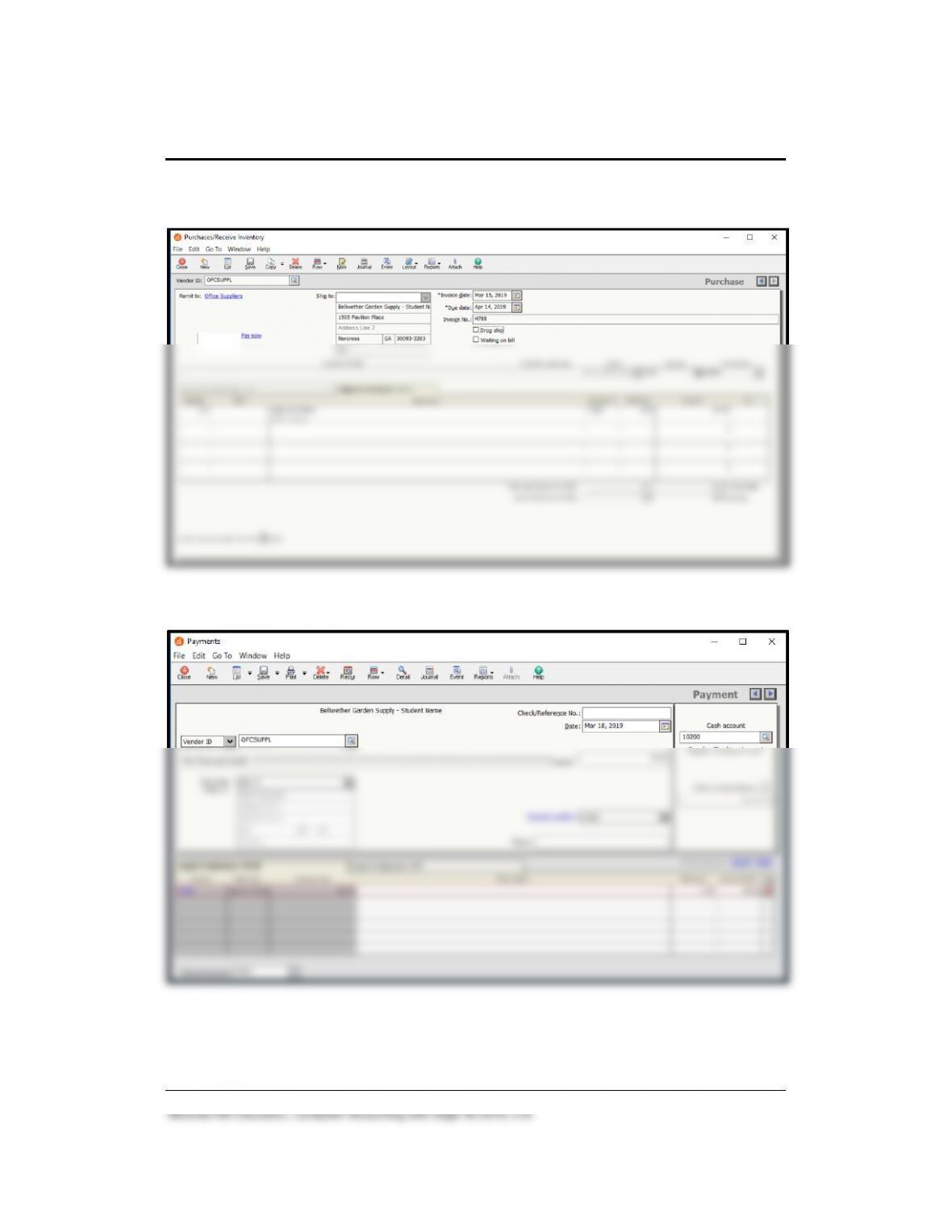
SOLUTION TO EXERCISE 2-1 (3)
2
2
The number in parentheses refers to the instruction number in the textbook.
Vendors 41 – IMK
SOLUTION TO EXERCISE 2-1 (4)
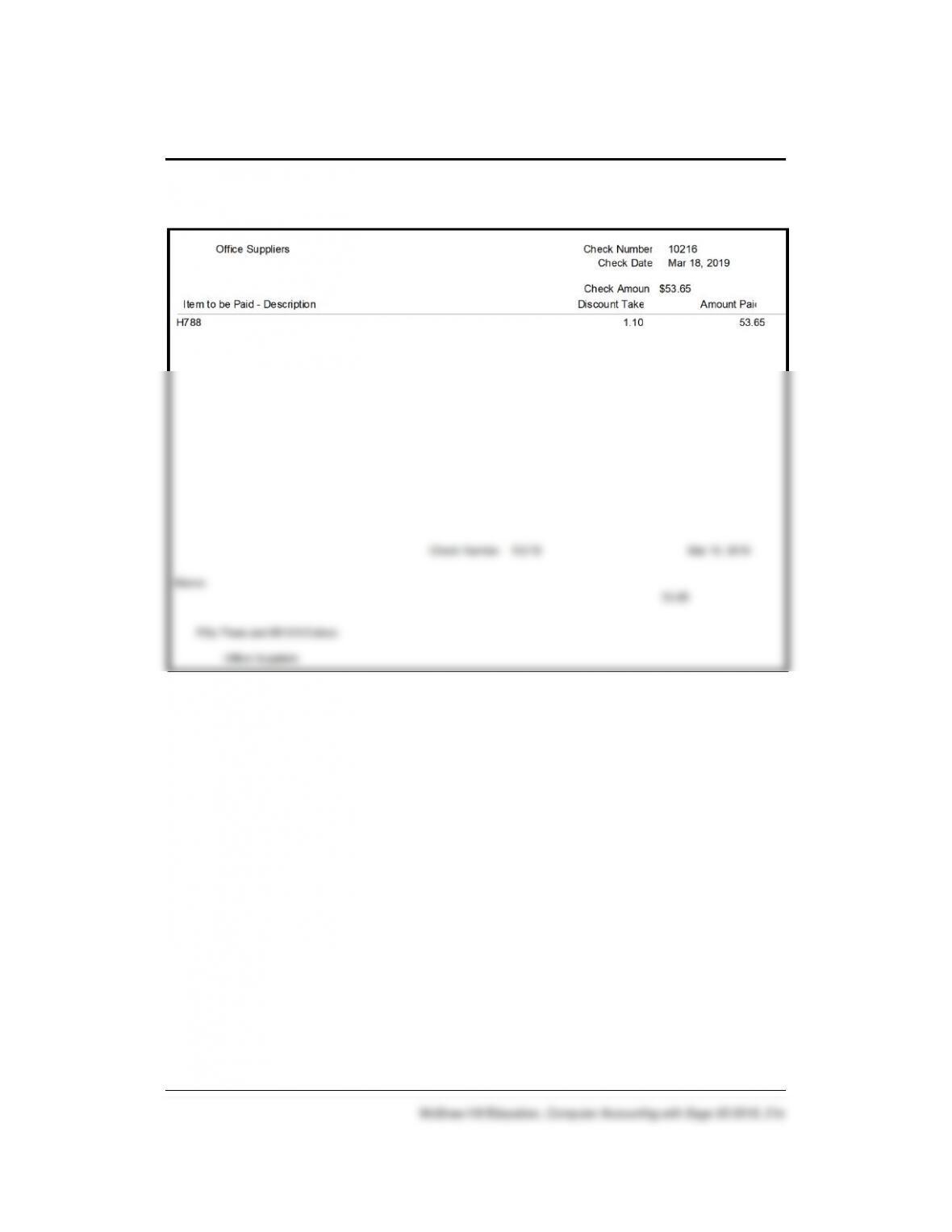
SOLUTION TO EXERCISE 2-2 (1)
42 – IMK Chapter 2
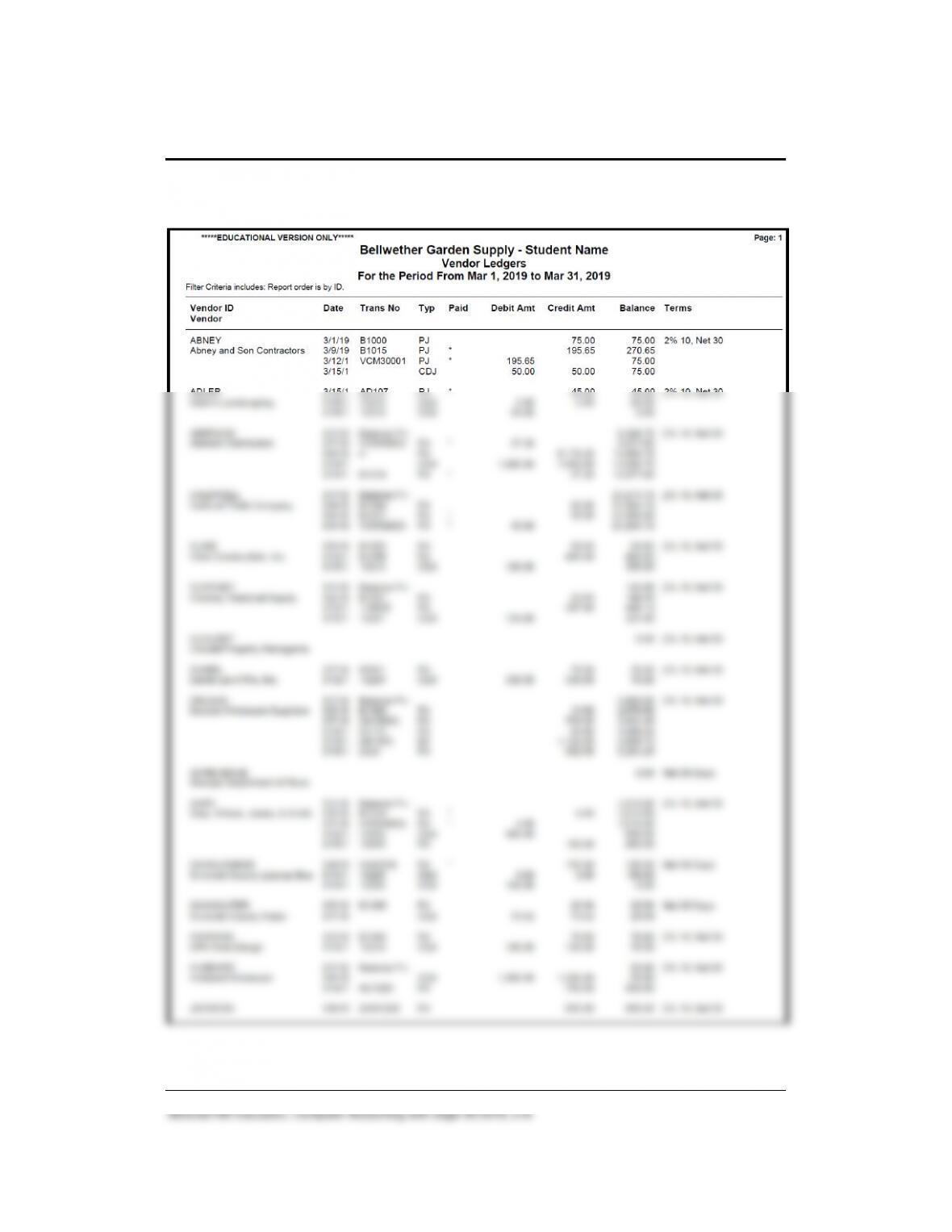
SOLUTION TO EXERCISE 2-2 (3)
Vendors 43 – IMK
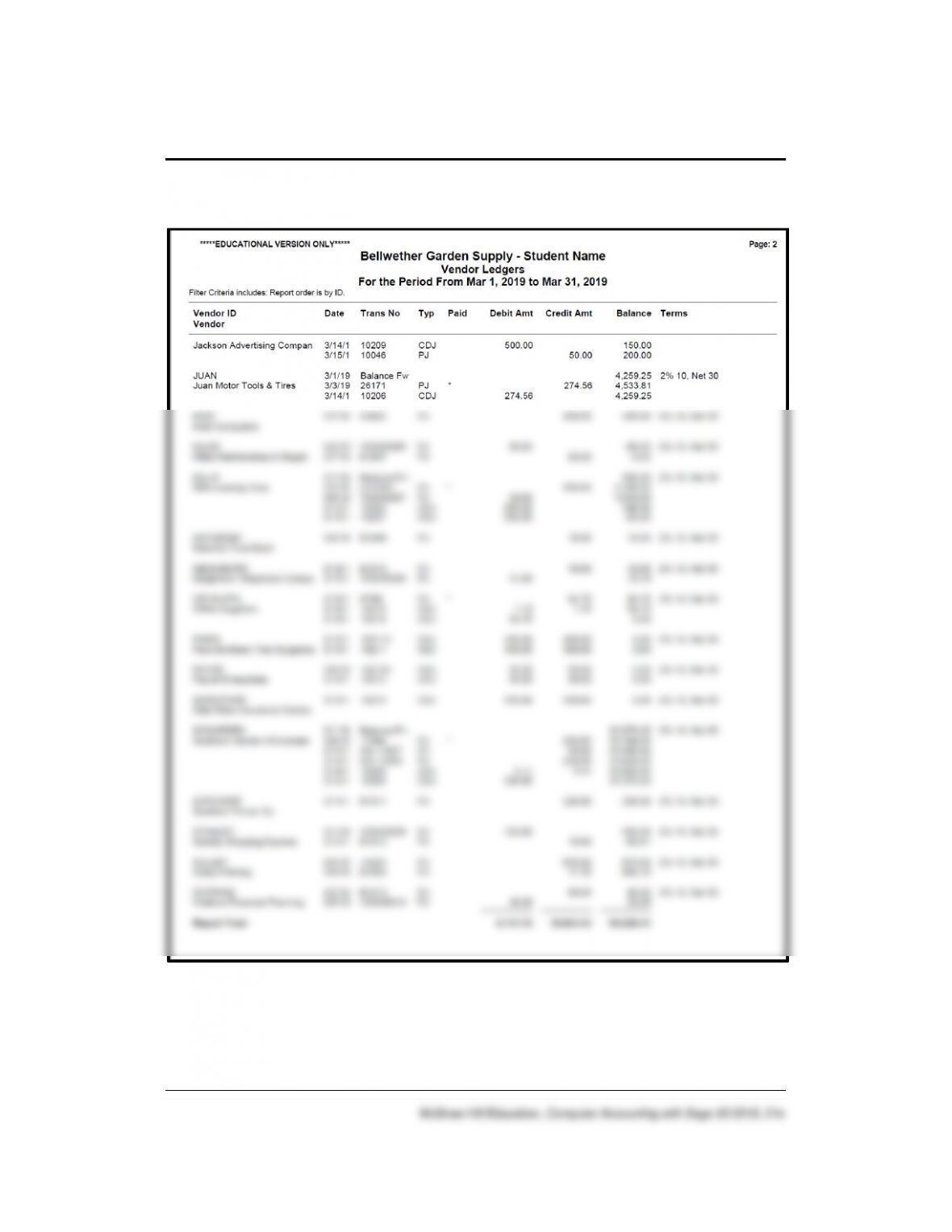
SOLUTION TO EXERCISE 2-2 (4)
44 – IMK Chapter 2
SOLUTION TO EXERCISE 2-2 (4) (Concluded)
Vendors 45 – IMK
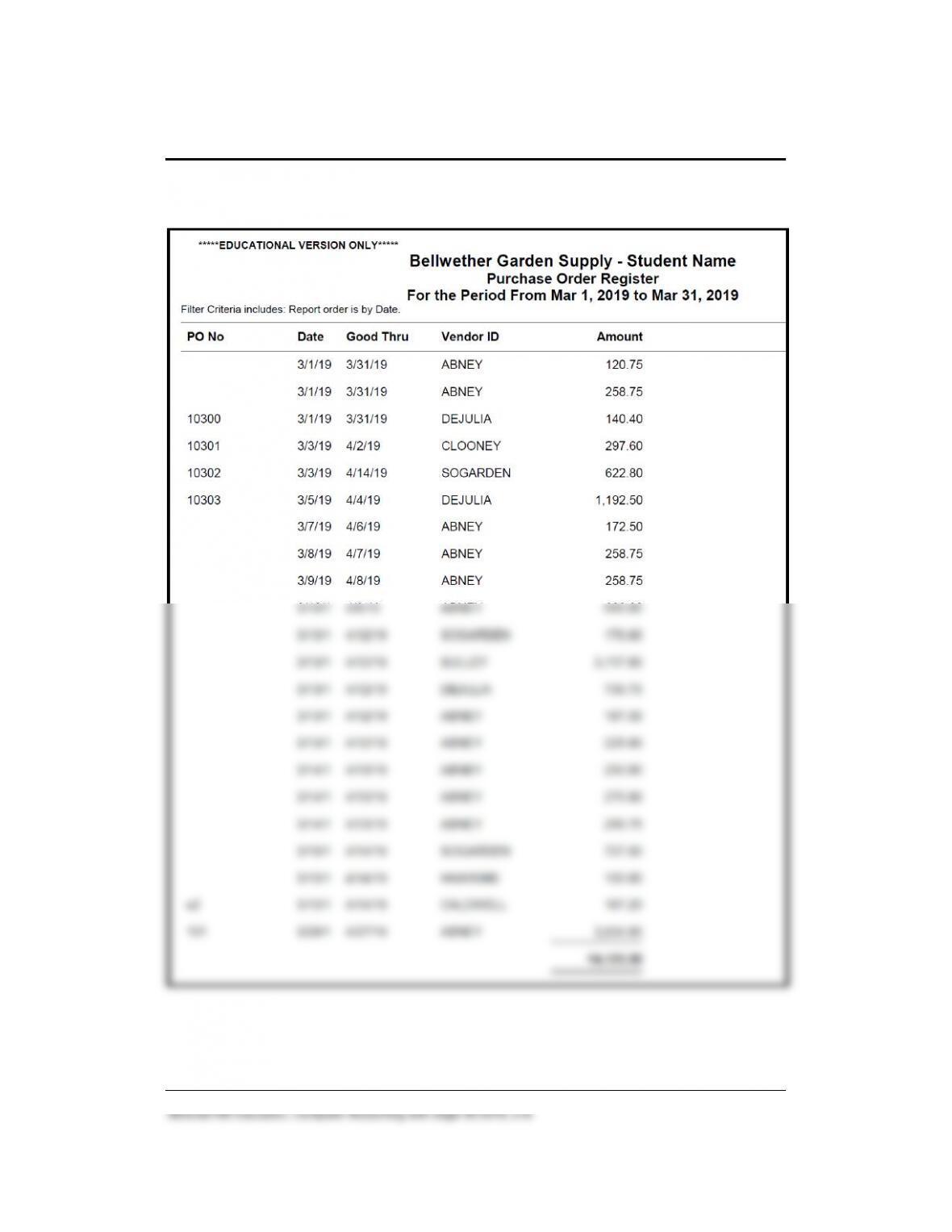
SOLUTION TO EXERCISE 2-2 (5)
NOTE: The Check Your Figures on textbook page 89 shows the amounts
for the two purchase orders shown in Chapter 2, page 64 (Purchase Order
No. 101) and page 66 (Purchase Orders window, PO No. 10300).
EXPORT TWO SAGE 50 REPORTS TO EXCEL
Textbook pages 84-86 shows detailed steps for exporting two Sage 50
reports to one Excel file. When exporting more than one report to Excel,
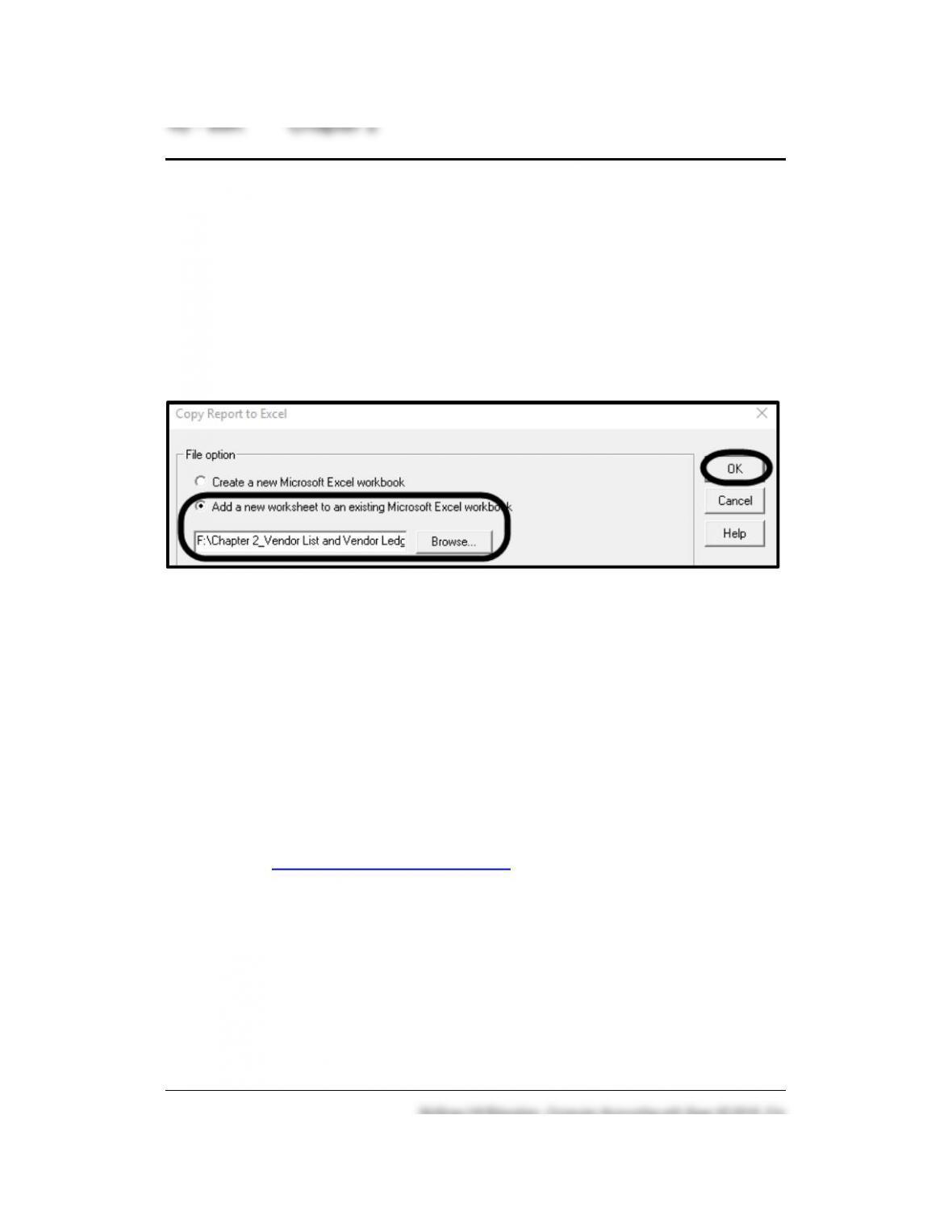
select Add a new worksheet to an existing Microsoft Excel workbook on
Sage 50’s Copy Report to Excel window. Then, browse to the location of
the appropriate file. The Copy Report to Excel window is shown on
textbook page 85 below step 8 (and on the next page).
In Chapter 2, the two Sage 50 reports, The Vendor List and Vendors
Ledgers, are exported to one Excel file. The file name is Exercise 2-
2_Vendor List and Vendors Ledgers PO Register.xlsx.
VENDOR LEDGERS AND PURCHASE ORDER REGISTER SAVED AS
PDF FILES
In Exercise 2-2, students save the Vendor List, Vendor Ledgers and
Purchase Order Register as PDF files. Text page 86 shows these
Troubleshooting tips about saving PDF files.
➢ Troubleshooting 1: If you are having difficulty saving a PDF file, go
online to https://get.adobe.com/reader. Update or download the Free
Adobe Reader.
➢ Troubleshooting 2: Open the Chapter 2_Vendor List and Vendor
Ledgers.xlsx file > select the appropriate sheet > select File > Save As
an Adobe PDF file.
➢ Troubleshooting 3: After printing PDF files, your printer preferences
may change. If necessary, select the appropriate printer. (More
information is in Appendix A, Troubleshooting, textbook page 711.)
Vendors 47 – IMK
ANSWERS TO GOING TO THE NET
1. What did Blake Oliver do before he became an accountant?
I am not a traditional accountant. I was initially a musician before I got
into accounting. I majored in cello performance in college. I happened
2. What drew Blake into accounting technology?
When I was grasping at straws and trying to figure out a new career, I
got into bookkeeping, because I was good with numbers and
computers. I found that it was a very flexible type of job. I could do it
ANSWERS MULTIPLE-CHOICE QUESTIONS, QA TEMPLATES
In the space provided type the letter that best answers each question.
_____1. In Chapter 2, backups are made to the following location:
48 – IMK Chapter 2
____2. Cash discounts from vendors in return for early payment of an
invoice are called:
____3. You can enter information within a lookup field by using one or
more of the following keys:
a. Type the <+> symbol.
_____4. Why is it important that your coding system for vendors be
consistent and logical?
_____5. Why are purchase orders used?
a. To post accounting information.
_____6. To be consistent with other Vendor IDs, use:
Vendors 49 – IMK
McGraw-Hill Education, Computer Accounting with Sage 50 2019, 21e
b. Use numbers.
c. Use symbols.
d. Uppercase letters.
e. None of the above.
_____7. Which window do you use to add a new vendor?
e. None of the above.
_____8. Going from the general ledger to the original entry window is
called:
_____9. When you make an entry in the Purchases/Receive Inventory
window for Adler’s Landscaping you are debiting and crediting
which accounts:
a. Dr. Accounts Payable/Adler’s Landscaping
____10. Which of the following Navigation Bar; Vendor & Purchases
selections do you use to issue a return of merchandise to a
vendor?
50 – IMK Chapter 2
McGraw-Hill Education, Computer Accounting with Sage 50 2019, 21e
a. Vendors & Purchases Tasks; Purchases/Receive Inventory.
b. Credits & Returns > New Vendor Credit Memo.
c. Sales/Invoicing.
d. Credit Memos.
e. None of the above.
ANSWER TO THE ANALYSIS QUESTION
With the Vendors & Payables Navigation Center serving as the starting
point to perform tasks related to Accounts Payable, list five Vendors &
Purchases Tasks.
Briefly describe the Vendor Management tab.
ANSWER:
The Vendors & Purchases Navigation Center displays information and
access points related to the company’s vendors and purchases.
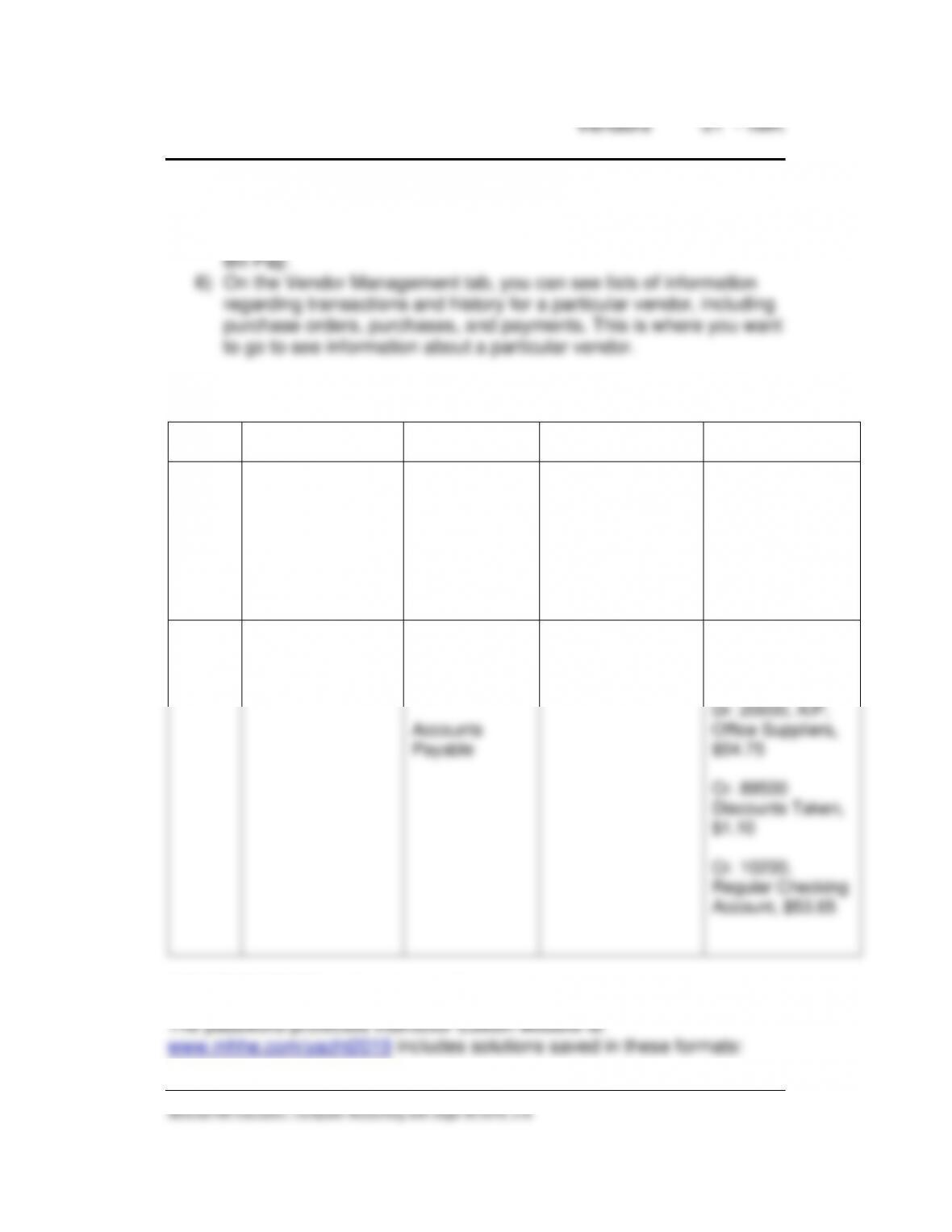
1) The Vendors & Purchases Tasks provides a graphic representation
of the flow of vendor-related tasks, as well as access to those
tasks. It also provides access to windows where you enter/maintain
vendor information. The Vendors & Purchases workflow diagram is
2) A summary of vendor information; for example, link to View
4) An overview of the company’s aged payables. You can also link or
drill down to various areas.
5) Sage 50 solutions include drill down to Checks & Forms and Online
ANSWER TO ASSESSMENT RUBRIC
Date
Transaction
Navigation
Center/Module
Task window
Journal
Dr./Cr.
3/15/19
Invoice No. H788
was received from
Office Supplier for
the purchase of
five boxes of letter-
size file folders,
$10.95 each.
Vendors &
Purchases >
Enter Bill >
New Bill
Accounts
Payable
Purchases/Receive
Inventory
Purchase Journal
Dr. 71000, Office
Expense, $54.75
Cr. 20000, A/P,
Office Suppliers,
$54.75
3/18/19
Pay Office
Suppliers for
Invoice H788,
$53.65
Vendors &
Purchases >
Pay Bills > Pay
Bill
Accounts
Payable
Payments
Cash
Disbursements
Journal
Dr. 20000, A/P,
Office Suppliers,
$54.75
Cr. 89500
Discounts Taken,
$1.10
Cr. 10200,
Regular Checking
Account, $53.65
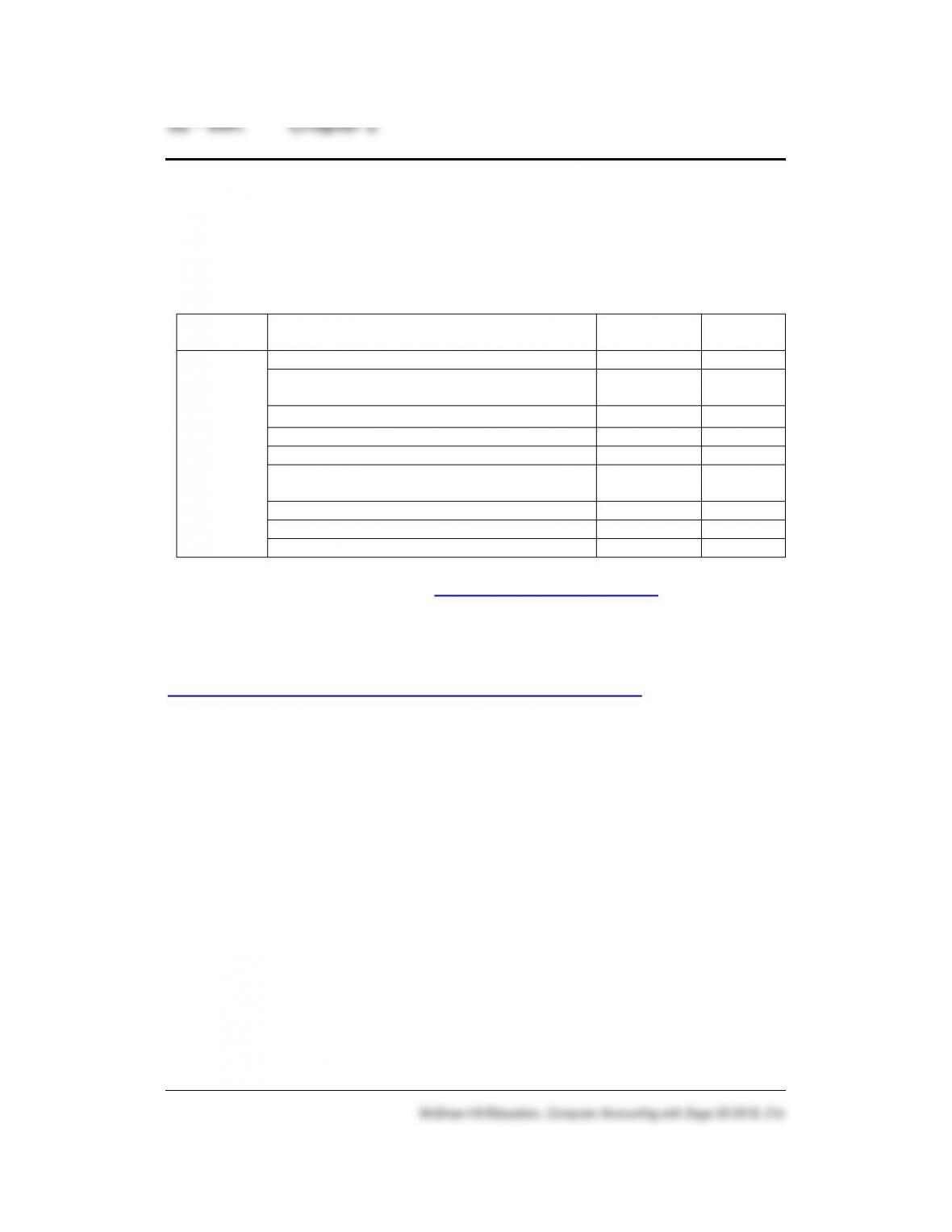
1. Solution Files and Sage 50 Backups: Chapter and exercise
backups end in the extension .ptb.
2. PDF Reports: Files saved as Adobe PDFs.
3. Excel Reports: Files saved as Excel, .xlsx extensions.
Chapter
Sage 50 Backup (.ptb)
Excel (.xlsx) and Adobe (.pdf)
Kilobytes
Page
Nos.
2
Chapter 2.ptb
3,412 KB
83–84
Chapter 2_Vendor List and Vendor
Ledgers.xlsx
21 KB
84–86
Chapter 2_Vendor List.pdf
15 KB
86
Chapter 2_Vendor Ledgers.pdf
27 KB
86
Exercise 2-2.ptb
3,420 KB
89
Exercise 2-2_Vendor List_Vendor
Ledgers_PO Register.xlsx
25KB
89
Exercise 2-2_Vendor List.pdf
16 KB
89
Exercise 2-2_Vendor Ledgers.pdf
27 KB
89
Exercise 2-2_Purchase Order Register.pdf
12 KB
89
ONLINE LEARNING CENTER: www.mhhe.com/yacht2019 > Instructor
Edition
To obtain a username and password for the Instructor Edition, contact
your McGraw-Hill sales representative at
https://shop.mheducation.com/store/paris/user/findltr.html. The Instructor
Edition link includes:
• QA Templates answers (includes answers to chapter questions and
analysis questions.)
• Assessment rubric answers.
• Suggested syllabi for online and on-ground classes.
• Test bank for each chapter.
• Instructor’s Manual.
• Bellwether Garden Supply Project (to be completed after Chapter
7).
• Practice Set (after Chapter 15; source documents, merchandising
business).
• Email author link.
• Links to email author and solution files (.ptb, .xlsx, and .pdf).