371 – IMK
Sage 50
Spreadsheet
Database file
Database
program
Spreadsheet
program
Word processing
program
Sage 50
Other accounting
program
CHAPTER 17
IMPORT/EXPORT
In this chapter your students learn about the import and export process.
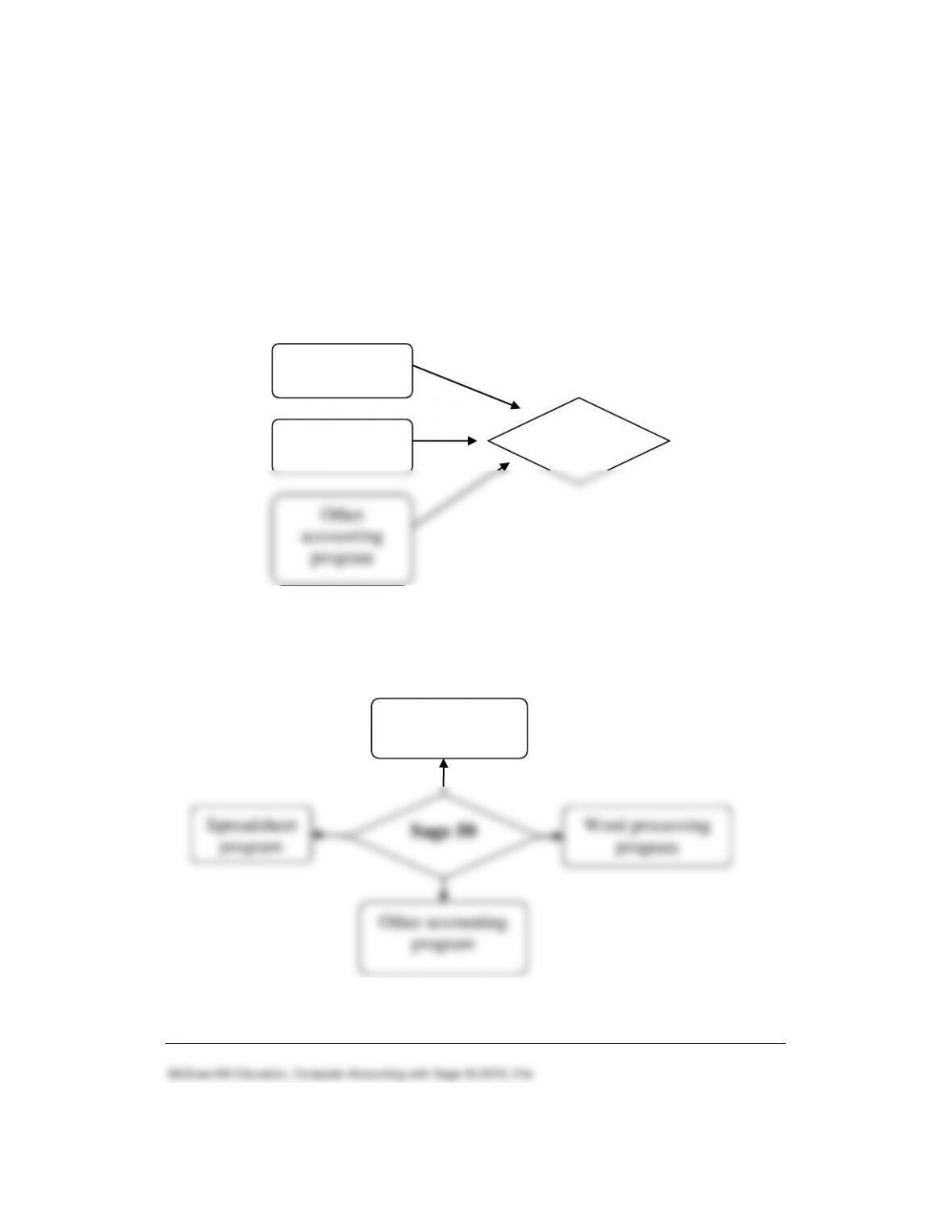
Importing translates data from other programs into a format that Sage 50
can use.
The diagram below shows how importing works.
Exporting copies Sage 50 data into a format that other programs can read
and use. The diagram below shows how exporting works.
372 – IMK Chapter 17
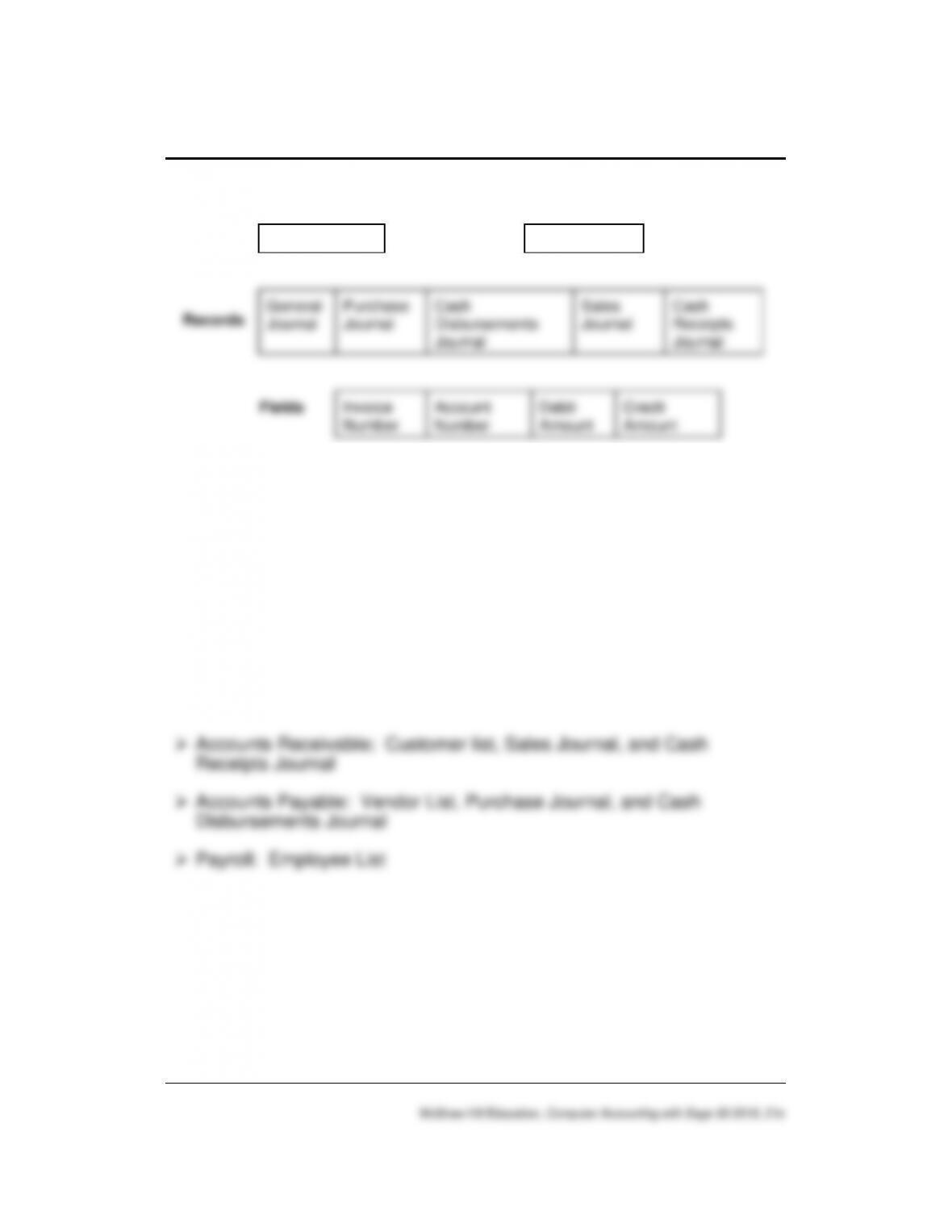
The chart below shows how Sage 50 organizes data.
Customer
Files
Journal

Import/Export 373 – IMK
When your students select a file to export, they can define which
information they want. For instance, in the Customer List, they can select
which customers they want to export.
When your students export in Sage 50, they export individual fields of
information. They can see which fields are exported by selecting the
“Format” folder tab. They can uncheck fields to exclude them from being
exported or move fields around to change their order.
When information is exported, the information is in a comma-separated
format. This means that the fields for each record are written in one line,
with commas between them. Your students will see how this works when
they export the customer list for Bellwether Garden Supply into Microsoft
Word. (Any word processing program that supports the ASCII format can
be used.)
The file that is created during the export process is an ASCII file, which
contains only text characters. Each record is on a separate line. ASCII is
an acronym for American Standard Code for Information Interchange. It is
one of the standard formats used for representing characters on a
computer. Most word processing, spreadsheet, and database programs
can read ASCII files.
LEARNING OBJECTIVES
1. Export information from Sage 50 to a word processing program.
3. Import Bellwether Garden Supply’s chart of accounts into a new
company.
5. Make one backup, save one Excel file, and save one PDF file.

374 – IMK Chapter 17
SAGE 50 TIPS, CHAPTER 17
➢ The word processing program used to illustrate Sage 50’s exporting
feature is Microsoft Word.
➢ Students may use any word processing program that supports ASCII
to complete Chapter 17.
➢ Students export data from Bellwether Garden Supply in Chapter 17.
➢ In Chapter 17 and Exercise 17-1, students import Bellwether Garden
Supply’s chart of accounts and vendor list into a newly set up
company.
➢ In Windows, the computer owner is identified when files are backed up
or saved. To see which user saved the file, right-click on the Start
button, left-click Explore. Go to the location of the backup file > right-
click on the filename > left-click Properties. The Security tab shows the
Group or user names; the Details tab shows the Owner and Computer
name. The time and date created and modified are also shown. The
same steps can be used to check .ptb files (extension used for Sage
50 backups); Excel files (.xlsx extensions); and Word files (.docx
extensions). To verify student files, you may want to look at the file
properties.
LECTURE OUTLINE FOR CHAPTER 17
A. Learning Objectives, page 643
1. Importing, page 643
3. Files, page 645
5. Fields, pages 645–646
B. Getting Started: Exporting, pages 646-651

1. Import a Chart of Accounts, pages 652-657
E. Online Learning Center, pages 657-658
Complete end-of-chapter activities at www.mhhe.com/yacht2019 >
Student Edition > Chapter 17.
1. Quizzes: Multiple Choice and True False questions. Interactive online
tests that are graded and can be emailed to your instructor.
2. More Resources:
a. QA Templates: Answer 10 multiple-choice questions and one
Analysis Question.
b. Narrated PowerPoints: Listen to the narrated PowerPoints.
c. Going to the Net Exercises: Access the Sage Knowledgebase.
d. Assessment Rubric: Complete the rubric to review Sage 50’s
journals, navigation centers, modules, task windows, and reports.
The OLC also includes links to the Appendixes:
• Information Center: Troubleshooting Tips is Appendix A in textbook.
• Student Edition: Appendix C, Review of Accounting Principles
• Student Edition: Appendix D, Glossary (words that are boldfaced
and italicized in chapter)
F. Exercise 17-1, page 659
G. Exercise 17-2, pages 659
H. Chapter 17 index, page 660
376 – IMK Chapter 17
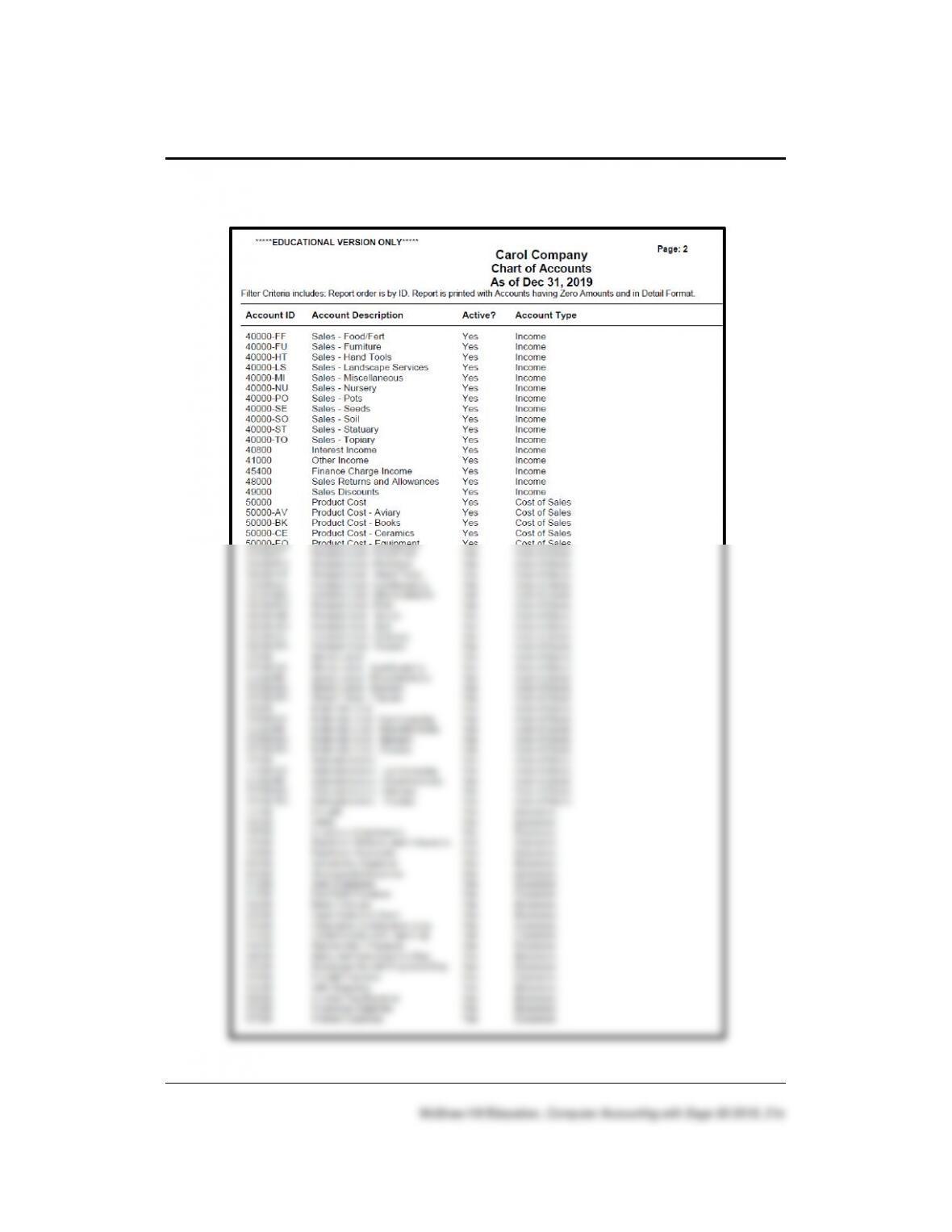
SOLUTION TO EXERCISE 17-1 (2): Chart of Accounts
The month on your student’s company may differ from the one shown. The
month defaults to the period when the company was set up. The chart of
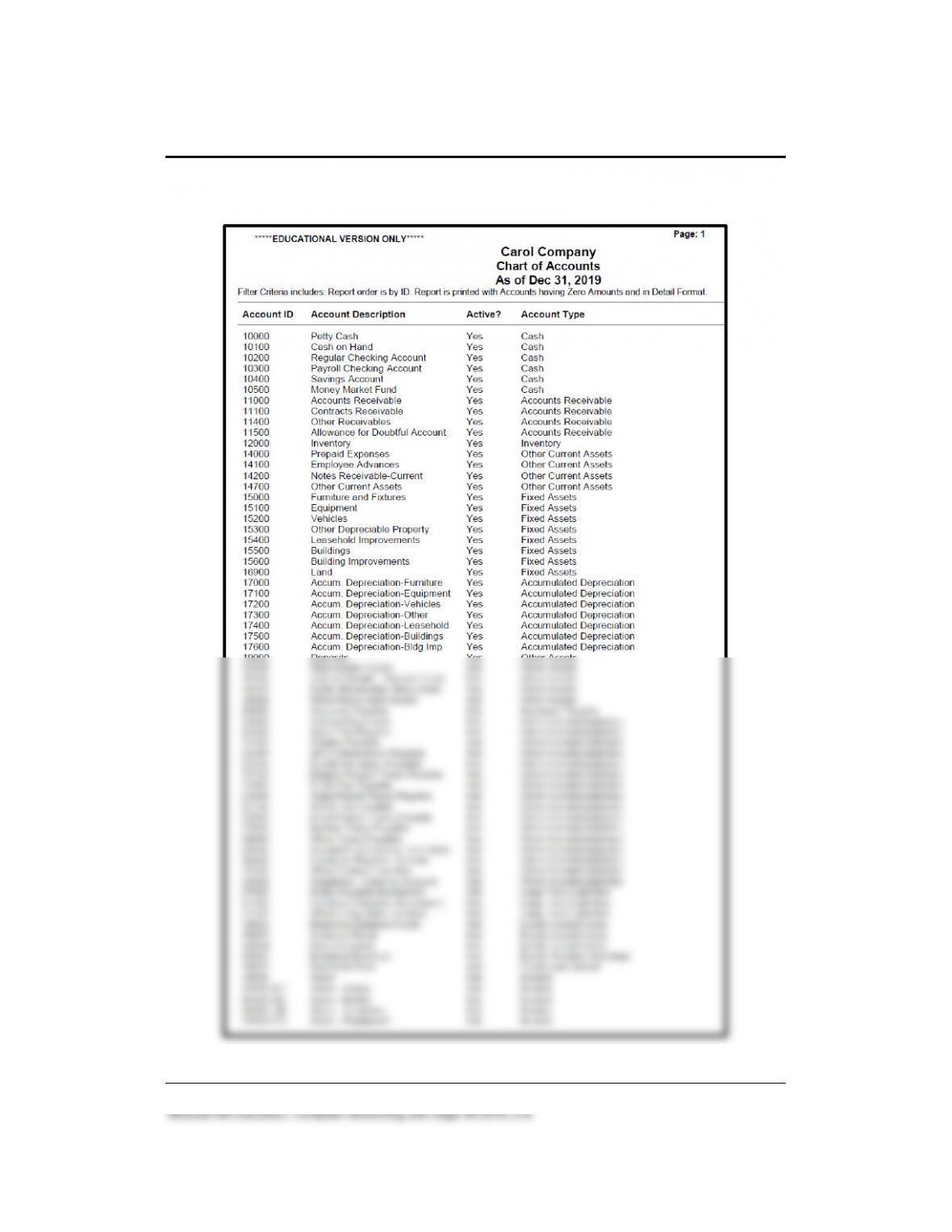
Import/Export 377 – IMK
Solution to Exercise 17-1 (2): Chart of Accounts
378 – IMK Chapter 17
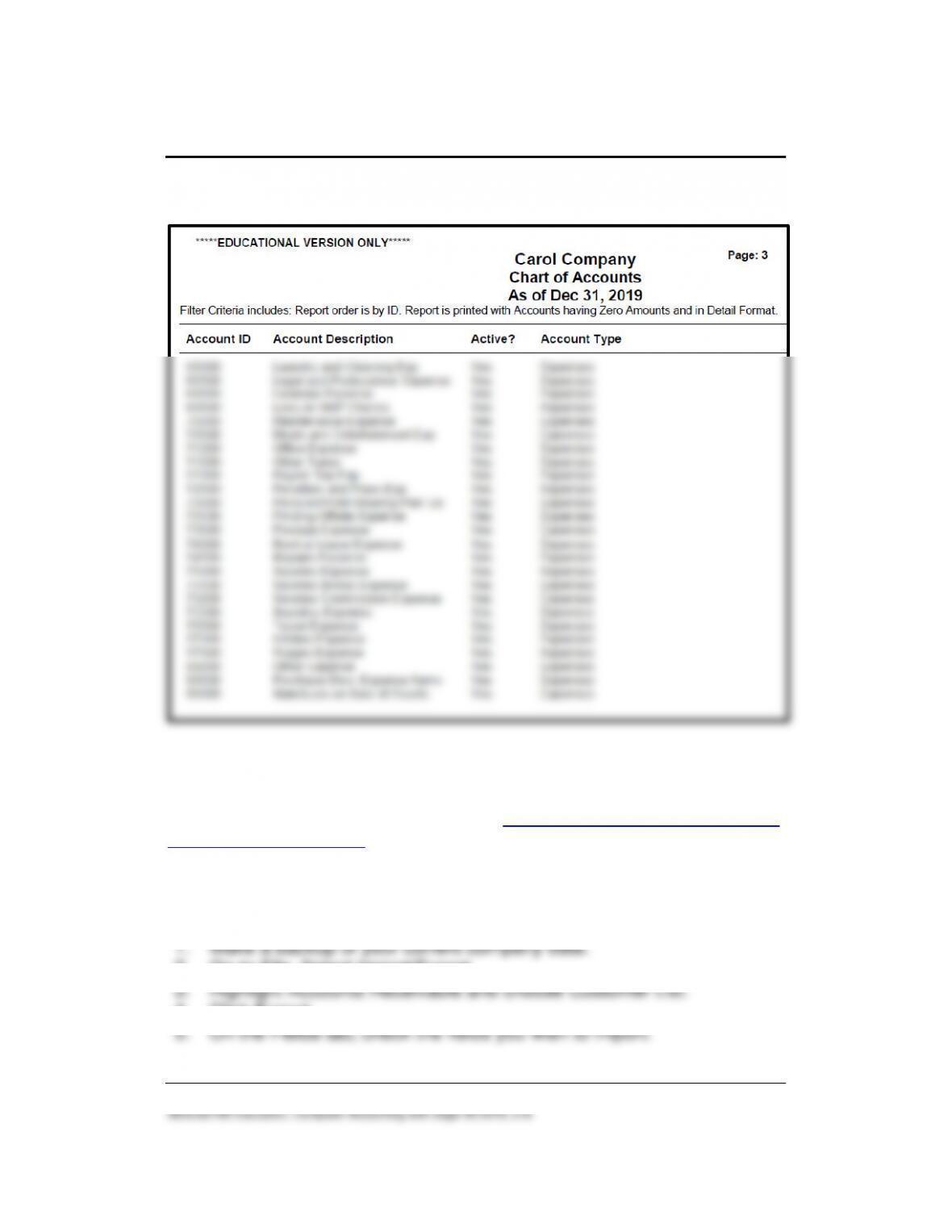
Solution to Exercise 17-2 (3): Chart of Accounts (Continued)
Import/Export 379 – IMK
Solution to Exercise 17-1 (2): Chart of Accounts (Concluded)
ANSWERS TO GOING TO THE NET
Access the Sage Knowledgebase about How to export a customer list and
import it as a vendor list.
List the steps for how to export a customer list and import it as a vendor
list:
2. Go to File, Select Import/Export.
4. Click Export.
6. On the Options tab, Save the file to the desired location.
8. Click OK.
10. Click Import.
12. Choose First Row Contains Headings.
14. Verify the Vendor List includes all exported Customers.
ANSWERS TO MULTIPLE-CHOICE QUESTIONS, QA TEMPLATES
In the space provided, type the letter that best answers each question.
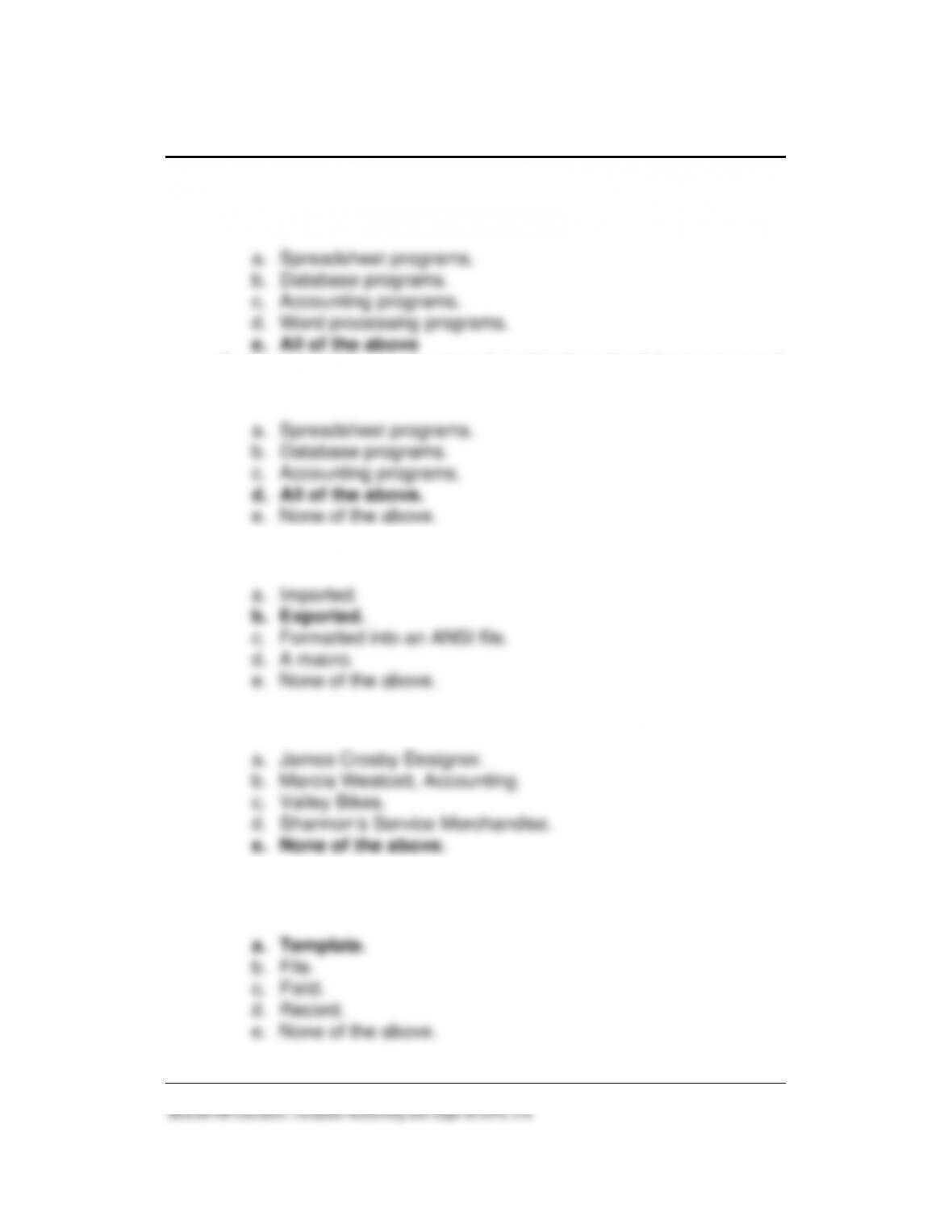
_____1. A group of related records is called a/an:
a. File.
_____2. A group of fields that contains information on one subject is
called a/an:
_____3. An individual piece of data such as an account number or
customer’s name is called a/an:
Import/Export 381 – IMK
_____4. Exporting copies Sage 50 data into a format that the following
programs can read and use:
_____5. Importing allows you to translate data from the following types of
programs:
a. Spreadsheet programs.
_____6. Information that appears on Sage 50’s reports can be:
a. Imported.
_____7. The name of the company from which you exported data is:
a. James Crosby Designer.
_____8. When you import or export files, you use one of the following to
format the data:
382 – IMK Chapter 17
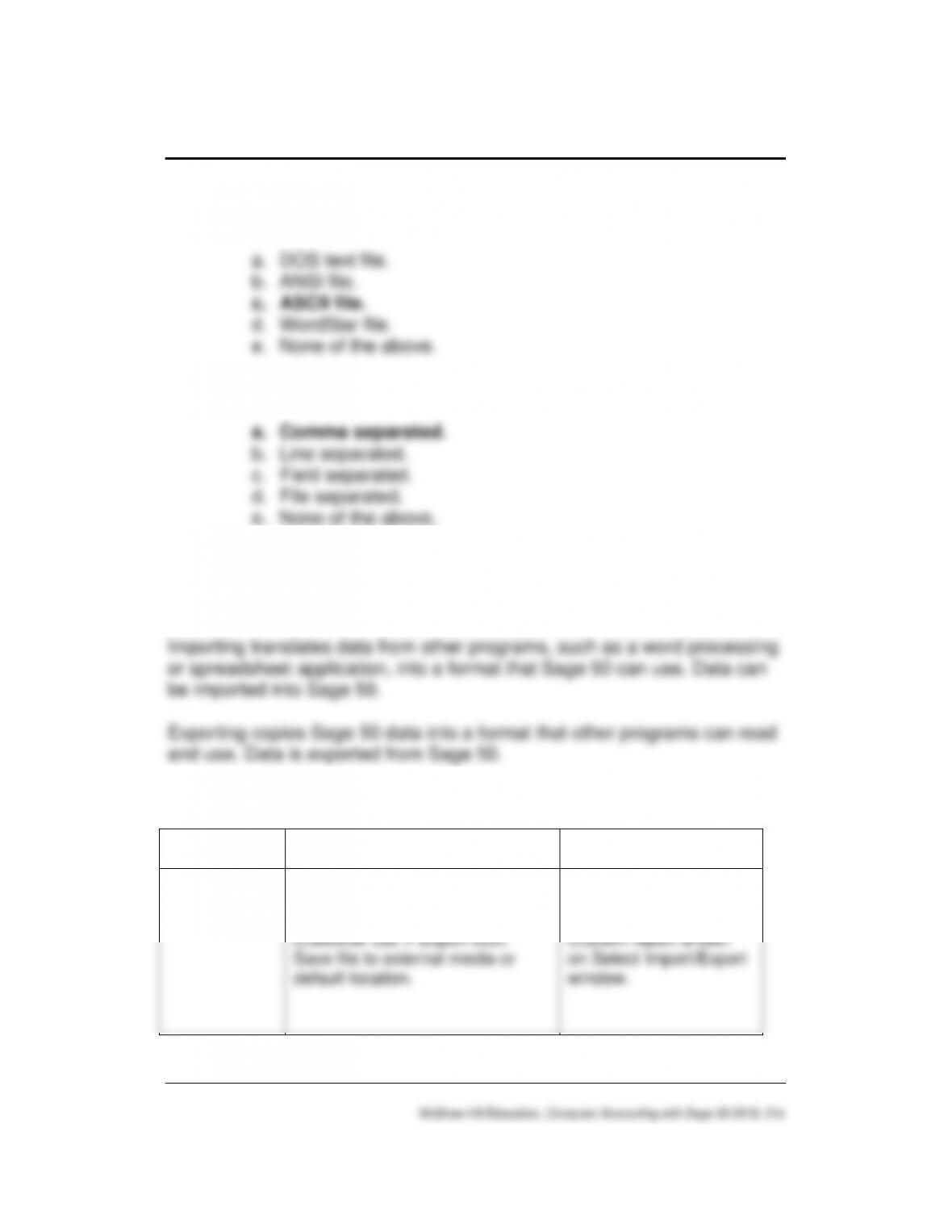
_____9. The type of file that is exported into a word processing program
is called a/an:
a. DOS text file.
____10. The data on your window was exported in the following format:
a. Comma separated.
ANALYSIS QUESTION
What is the purpose of importing and exporting?
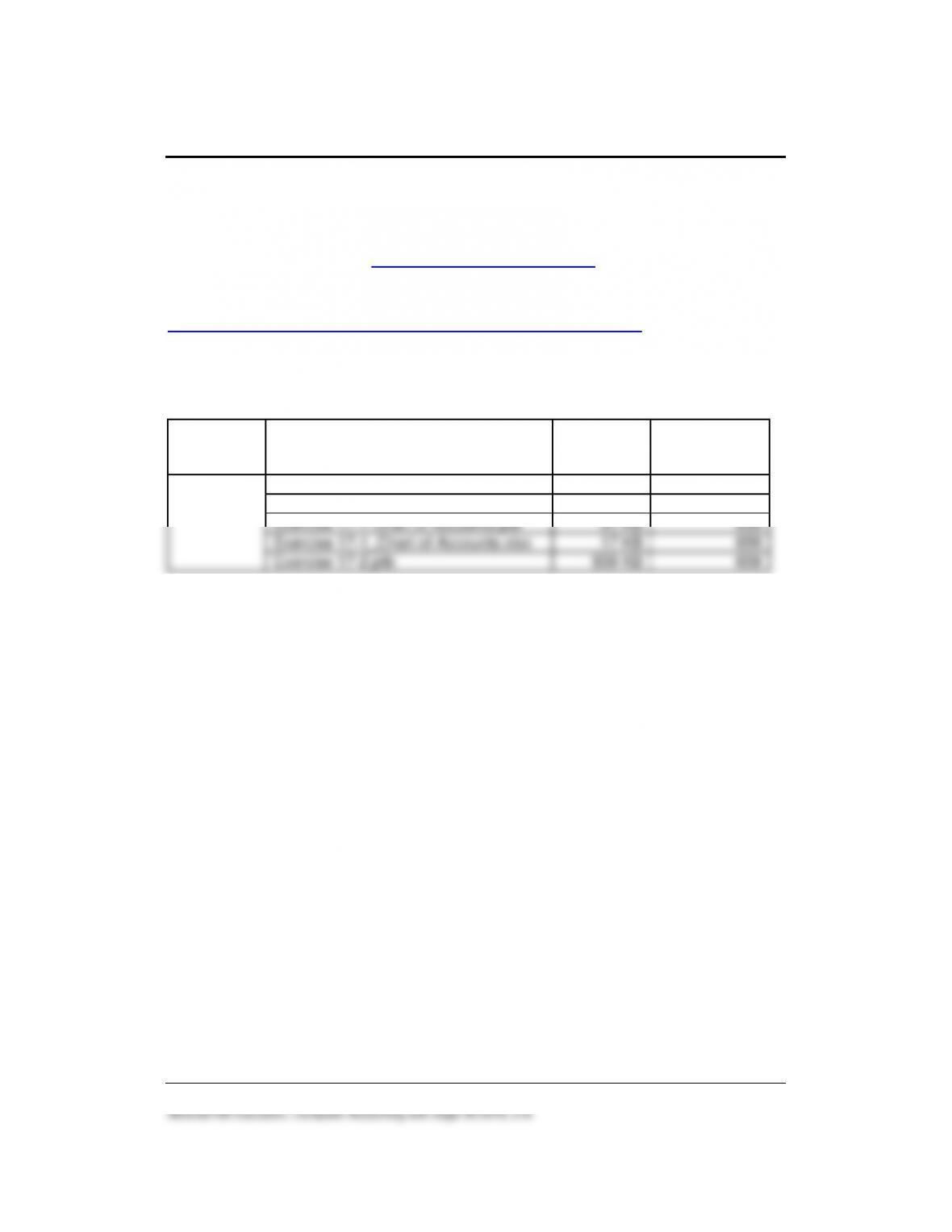
ASSESSMENT RUBRIC
Date
Menu Selections
and Links
File Name, Extension,
and Report ID
Customer List
File Menu > Select Import/Export
> Accounts Receivable list >
Customer List > Export icon.
Save file to external media or
default location.
Customers.CSV
Custom report shown
on Select Import/Export
window.
Import/Export 383 – IMK
SOLUTION FILES
The solution files, in .ptb, .pdf, and .xlsx formats, are included on the
Online Learning Center, www.mhhe.com/yacht2019 > Instructor Edition.
For access to the password-protected Instruction Edition website, contact
your McGraw-Hill sales representative at
https://shop.mheducation.com/store/paris/user/findltr.html.
The chart shows the size of the Chapter 17 solution files (Sage 50
backups, Excel reports and Adobe PDF exercise files).
Chapter
Sage 50 Backup (.ptb)
Excel (.xlsx) and Adobe (.pdf)
Kilobytes
Page No.
17
customer.csv
36 KB
648-649
customer.txt
36 KB
651
Exercise 17-1 Chart of Accounts.pdf
31 KB
659
Exercise 17-1_Chart of Accounts.xlsx
17 KB
659
Exercise 17-2.ptb
939 KB
659