whole or part.
For use with McGraw-Hill Education
Accounting for Governmental & Nonprofit Entities
17th Edition
By Jacqueline L. Reck and Suzanne L. Lowensohn
Instructions
City of Smithville
Full Version
Computerized Cumulative Problem

whole or part.
2
Table of Contents
Chapter 1
Introducing City of Smithville
Welcome……………………………………………………….4
System Requirements ………………………………………………………. 4
Licensing ……………………………………………………………………….. 4
Running or Removing Cities of Smithville and Bingham
Running the Cities of Smithville and Bingham ……………………. 5
Removing the Cities of Smithville and Bingham …………………. 5
General Operating Instructions
Opening the Cities of Smithville and Bingham ……………………. 5
Creating a new project ……………………………………………………… 6
Opening an existing project ………………………………………………. 6
Saving the current project …………………………………………………. 7
City of Smithville Main Window
Adding and posting journal entries ……………………………………. 8
Editing/deleting/unposting journal entries ………………………….. 8
Working with the ledgers screen ………………………………………..10
Working with the detail journal screen ……………………………….10
Printing Reports ……………………………………………………………………….11
Exporting Trial Balances ………………………………………………………..11
Completing Chapters 2 through 11 of the
City of Smithville Cumulative Problem ……………………………12
Chapter 2 Opening the Books ………………………………………………..13
Chapter 3 Recording the Annual Budget ……………………………..17
Chapter 4 Recording Operating Transactions Affecting
the General Fund and Governmental Activities at the
Government-wide Level ……………………………………………………….19
Chapter 5 Recording Capital Asset Transactions ……………….27

whole or part.
3
Chapter 6 Recording General Long-term Liabilities and
Debt Service Transactions ……………………………………………………31
Chapter 7 Recording Enterprise Fund and
Business-type Activities Transactions ………………………………..37
Chapter 8 Recording Fiduciary Fund Transactions —
Tax Agency Fund ………………………………………………………………….40
Chapter 9 Adjusting and Closing Entries for
Governmental Activities, Government-wide Level;
Preparation of Government-wide and Major Fund
Financial Statements ……………………………………………………………..44
Chapter 10 Analysis of Financial Condition ………………………..46
Chapter 11 Preparation of Audit Report ……………………………..46
whole or part.
CHAPTER 1
INTRODUCING THE CITY OF SMITHVILLE CUMULATIVE
PROBLEM
Welcome
Thank you for purchasing the Cities of Smithville and Bingham Governmental
Accounting Software. This software is designed to be used with the McGraw-Hill
Education textbook Accounting for Governmental & Nonprofit Entities, 17th
Edition.
System Requirements
To use the Cities of Smithville and Bingham accounting software application, you
must have the following:
Windows
• 2.33GHz or faster x86-compatible processor, or Intel Atom™ 1.6GHz or
faster processor for netbook class devices
• Microsoft® Windows Server 2008, Windows 7, or Windows 8 Classic
• 512MB of RAM (1GB recommended)
Mac OS
• Intel® Core™ Duo 1.83GHz or faster processor
• Mac OS X v10.7, and above
• 512MB of RAM (1GB recommended)
• Adobe AIR 15 or latest version
• Recommended screen resolution of 1024 x 768 minimum
• Spreadsheet program (in order to easily view the exported CSV files)
• Excel 2003 or later (in order to view the exported Excel files)
• Adobe Reader 9 or later to read saved report files
Licensing
Education, Inc.
whole or part.
5
[Note: Read the following instructions before beginning your first assignment in
Chapter 2. Refer back to this information as needed.]
RUNNING OR REMOVING THE CITIES OF SMITHVILLE AND
BINGHAM
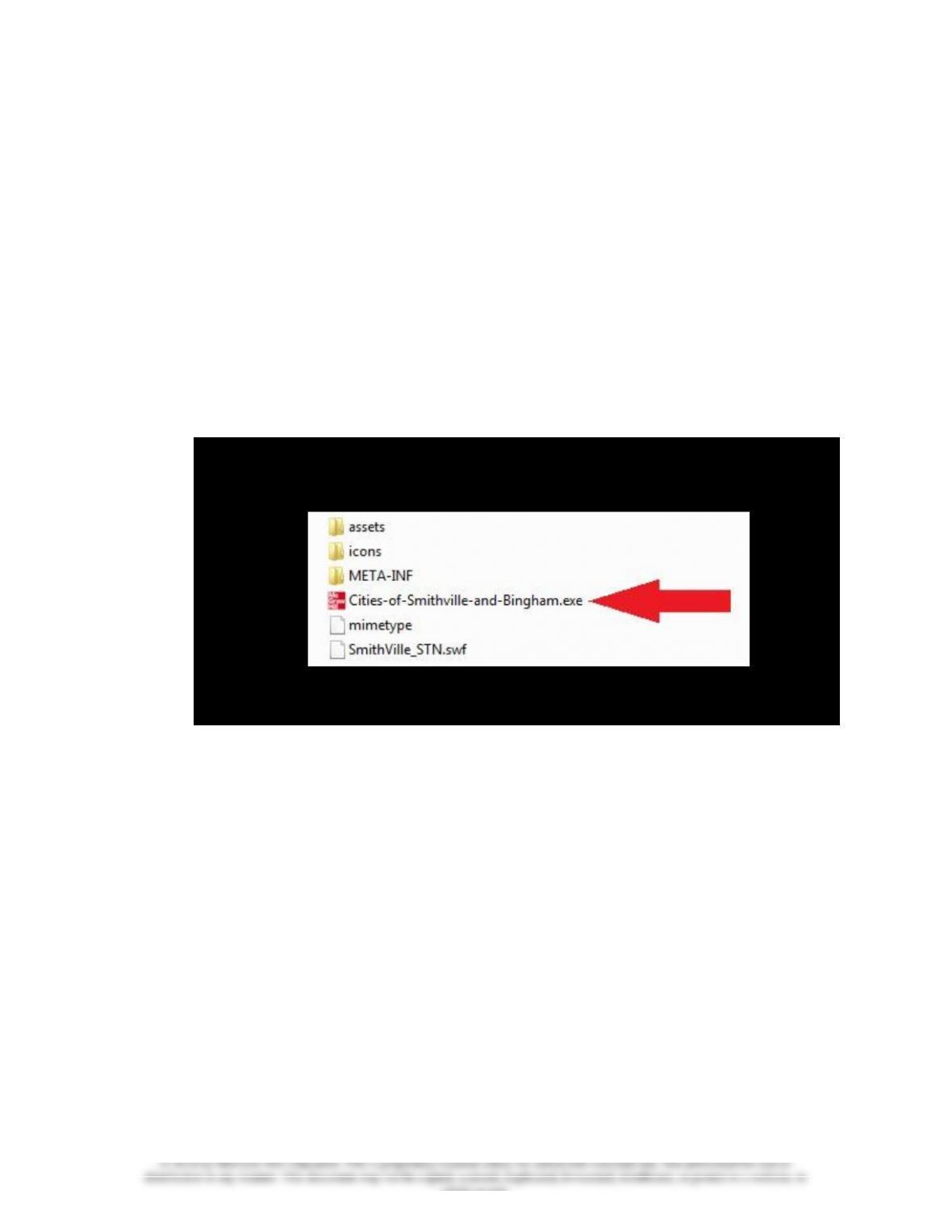
Running the Cities of Smithville and Bingham
The software application can be run by clicking on the “Cities of Smithville and
Bingham” icon/program as indicated in the “Opening the Cities of Smithville and
Bingham” instructions below. Click “Install” and follow the installation prompts.
It is recommended to save this file in your Programs/Applications or Desktop.
You may exit the program by clicking the “X” button at the top right corner on a
PC or top left corner on a MAC.
Removing the Cities of Smithville and Bingham
You can remove the software application by uninstalling the “Cities of
Smithville and Bingham” program.
GENERAL OPERATING INSTRUCTIONS
Opening the Cities of Smithville and Bingham
You can open the Cities of Smithville and Bingham at any time by clicking on the
“Cities of Smithville and Bingham” icon/program.
whole or part.
6
Creating a New Project
To access the instructions for the Smithville Full Version project click on Open
Instructions in the opening widow and select and print the full version project
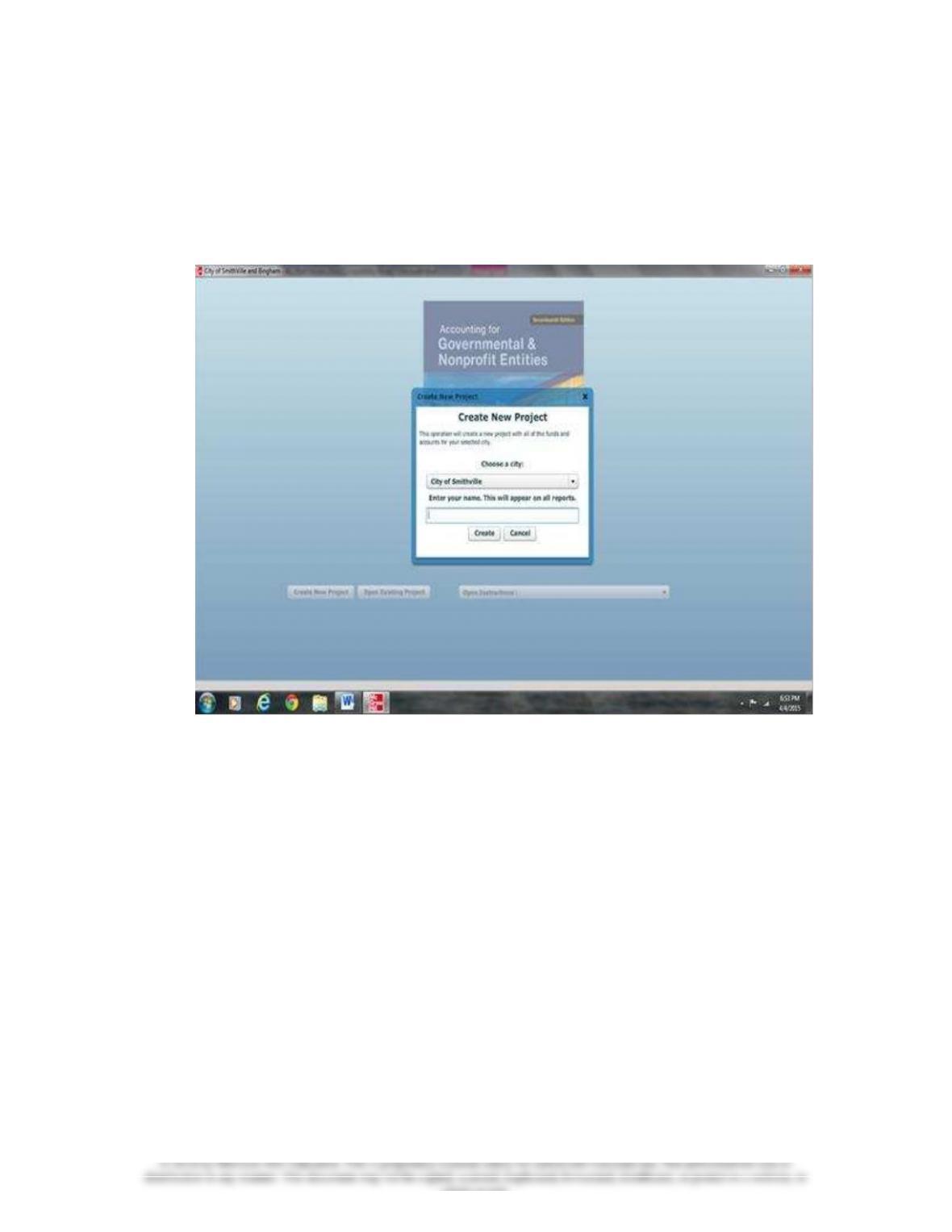
instructions. To create a new project, click on “Create New Project.” The Create
New Project window will appear, as shown below.
Enter your first and last name, then select City of Smithville as your project and
click [Create]. The main project window will pop-up once the project is created
and you will be ready to begin entering journal entry data for your first
assignment. This step creates the accounts and funds that you will need to
complete the full version “City of Smithville” project. After you have completed
the journal entries for each assignment, you should save your project data file in a
folder that you have created on your computer. For your own protection against
hard-drive failure or file corruption, we recommend that you create a dated
backup file on a removable device (e.g., flash drive) or cloud storage at the end of
each session. This will permit you to reopen your project to the previous stage of
completion should a computer problem occur during your current session.
Opening an Existing Project
After your initial data entry session, click on “Open Existing Project,” and then
select and open the data file you saved at the end of your previous session.
whole or part.
7
Saving the Current Project
During or at the end of each assignment, click on <File> and <Save/Save As>. If
a file name has already been specified, the current file name should be displayed
in the file name box but may be changed if desired.
City Of Smithville Main Window
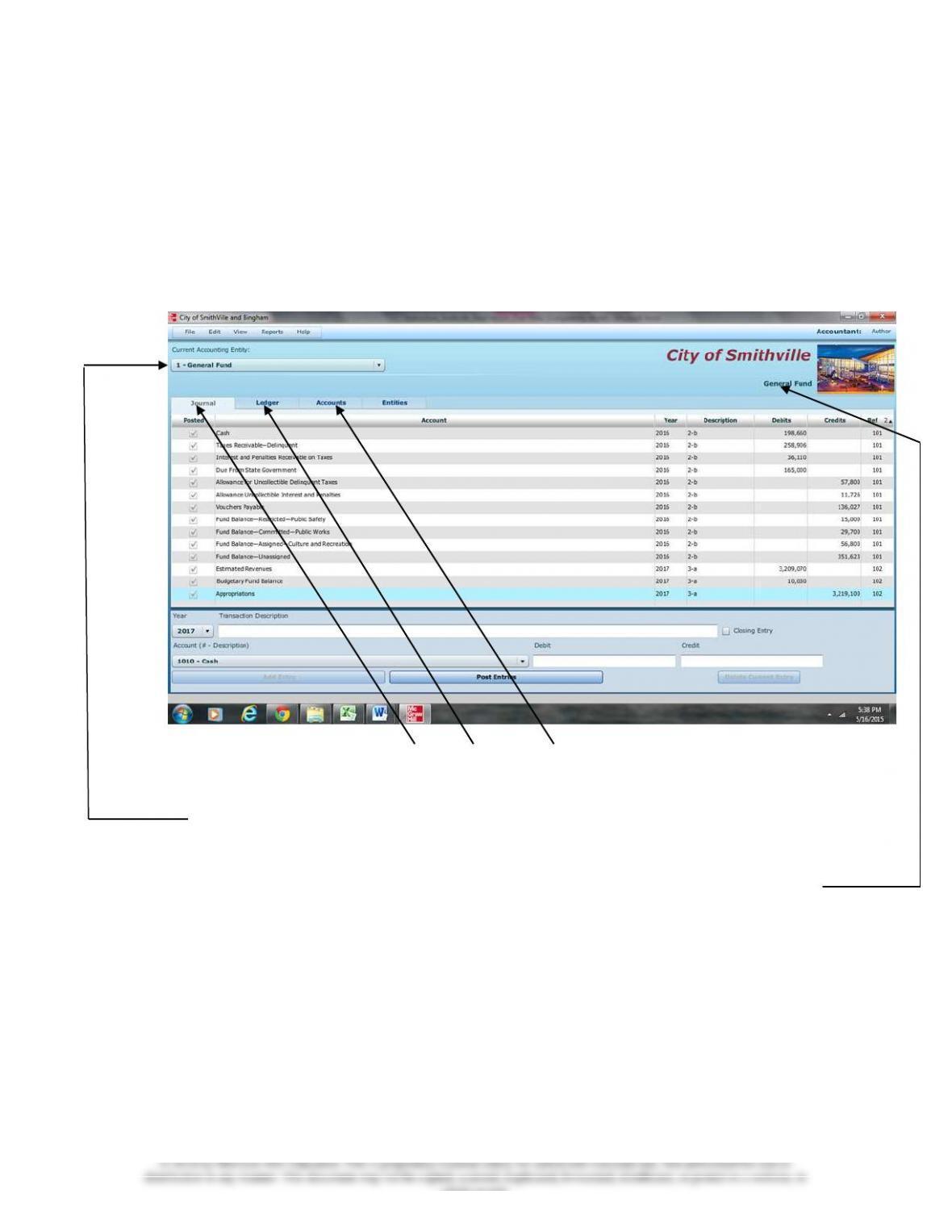
If you have opened a project file, the main project window should appear as follows:
To navigate between the Journal, Ledgers, and Account screens, simply click on
the [TAB] for that particular screen.
To switch between different funds and governmental activities, government-wide,
choose the desired entity from the drop-down menu.
You can verify which entity you are working on by the caption on the upper right
corner of the window. It will show the title of your project, and the current
fund/entity that is open.
The main window has the same standard window controls as most other
applications. To close down your project, simply click on the [X] box. If you
click on the [X] box you will be asked whether you want to close the program
without saving changes. Remember the folder location where you save your
file so it will be easier to retrieve it when you want to reopen the file.
whole or part.
8
Adding and Posting Journal Entries
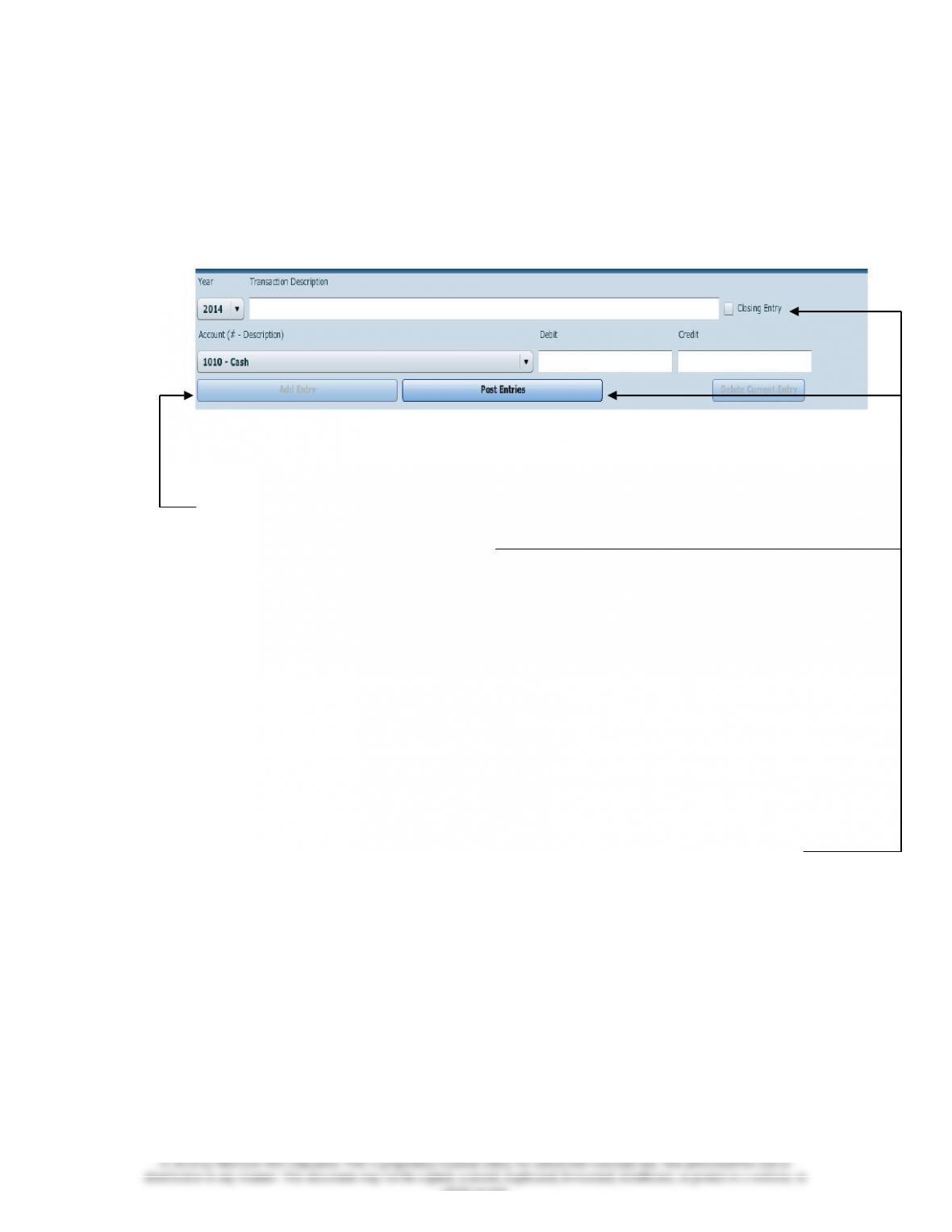
You need to be in the Journal view before you can add any journal entries. Once
you are in the Journal view, you will see the journal entry panel on the lower
portion of the window.
Before ANY entry can be added to the Journal, a transaction description, account
#-description, and debit or credit amount must be specified.
Once you have filled in the necessary fields, simply click on [Add Entry] to add
the entry to the journal. If the entry being made is a closing entry, you must click
on the check mark for [Closing Entry].
If one of the fields is missing a value or contains an illegal character, the [Add
Entry] button will remain disabled.
If the account selected from the drop-down [Account (# – Account Description)]
menu is a control account, the detail journal will automatically open for entering
the transaction detail. When entering data in the detail journal, you must first
select an item from the drop-down [Transaction Description] or type your own
description in the box before selecting the account. When you have completed
your entries the detail total for the transaction will be entered into the control
account.
Once you have entered a batch of entries into the system, you can post them to the
general ledger at any time by clicking the [Post Entries] button. In the case of
the General Fund, posting transactions also posts entries from the detail journal to
the Revenue ledger and Appropriations, Encumbrances, Expenditures ledgers.
The [Post Entries] button only posts entries for the fund/entity that is currently
open.
Editing/Deleting/Unposting Journal Entries
To edit entries that have already been entered, double click or right click on the
entry, and select edit. You will know you are in edit mode when the entry form
turns red and the blanks fill in with the data from the journal. If you wish to delete
an entry, right click on the item and select [Delete] or choose [Edit]–[Delete].
whole or part.
9
As in real-world systems, the software does not allow you to edit entries that have
already been posted. So, it is recommended that you verify the accuracy of entries
before clicking [Post Entries]. However, for your convenience we have added
the capability to “unpost” individual batches of posted transactions. Note that
prior to unposting a batch, all batches must be posted. To unpost simply highlight
any entry within the batch you want to unpost and either right click and select
[Unpost] or select [Unpost] from the Edit menu. Make all necessary editing
changes, and then click [Post Entries] and your corrections will be made to the
appropriate accounts. If you need to add a missing entry to a previously posted
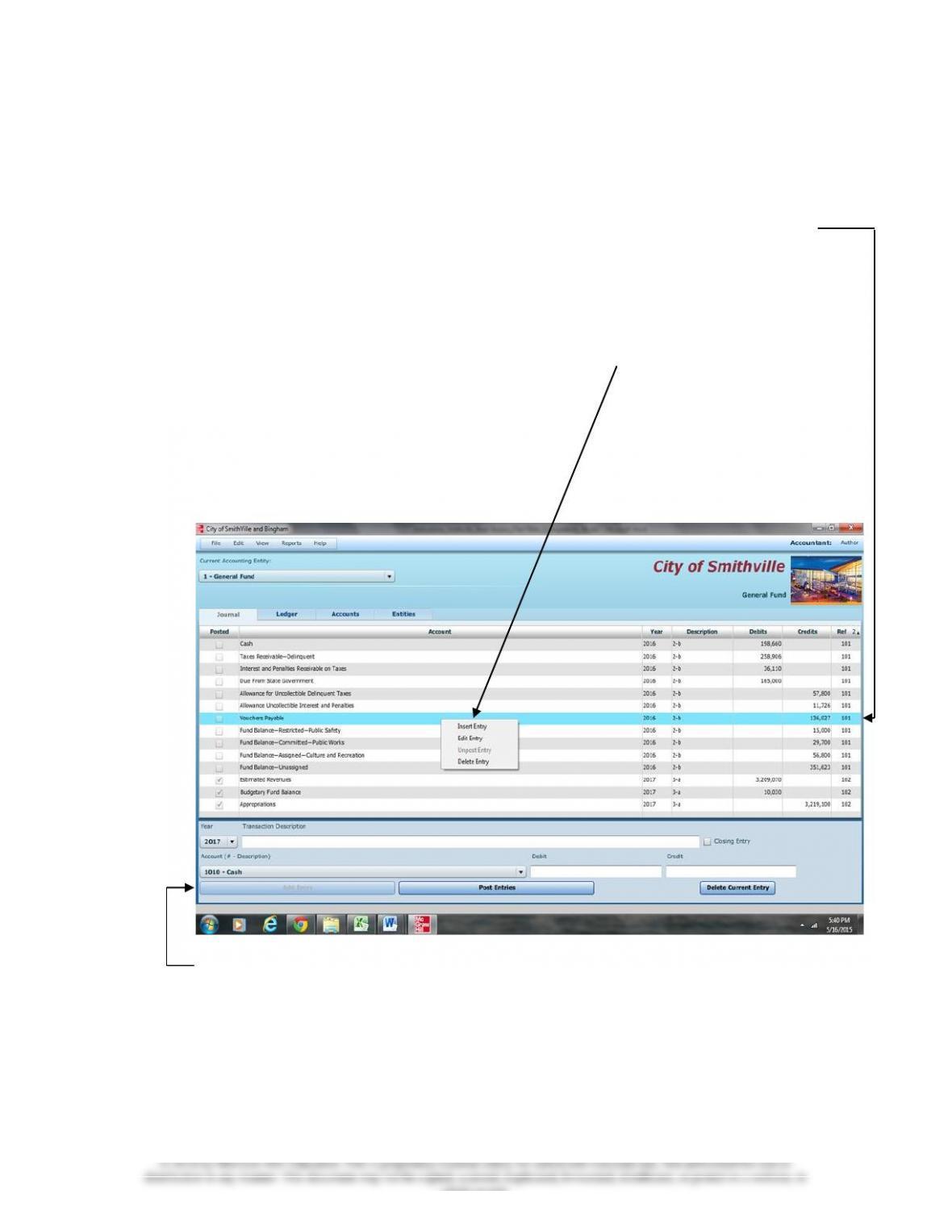
journal entry, then unpost as described above, highlight the line below which a
new entry is to be added, and right click and select “Insert Entry.” Note that the
“Insert Entry” function will work if you are inserting an entry prior to a balance
sheet account. However, it will not work when inserting an entry prior to any
account that has an associated subsidiary ledger (e.g., estimated revenues,
expenditures).
Screen shot of “right clicking” on a journal entry.
Enter the data for the new entry and click “Add Entry” to insert the new entry. A
provision also allows you to clear all of the transactions from the current fund or
entity. Under [File]-[Student Assistance] you will find the option [Wipe out
data for current fund or governmental activities]. The wipe out function
should be used as a last resort since making changes by editing is quite easy.
Once you select this option, there is no going back. It will remove ALL of the
transactions for the current fund or entity.
whole or part.
10
Working with the Ledgers Screen
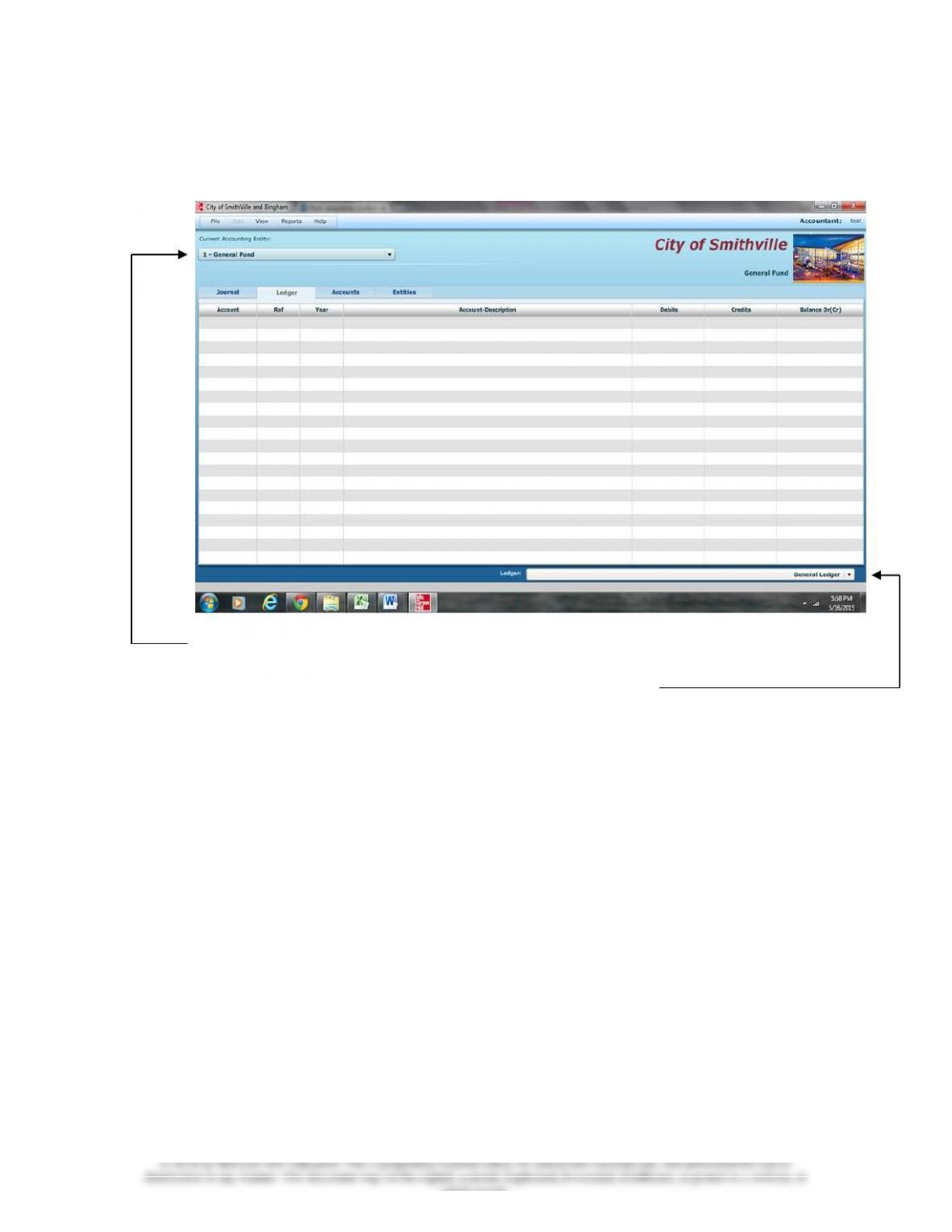
Switch to the Ledgers screen by clicking on the ledgers tab.
Switch entities at any time by changing the selection. Depending on the fund or
entity with which you are working, there may be different ledgers for you to view.
Choose the ledger you want to view from the drop-down list.
If you want to print a ledger, you should open the [Reports] menu, and select the
report to print.
Working with the Detail Journal Screen
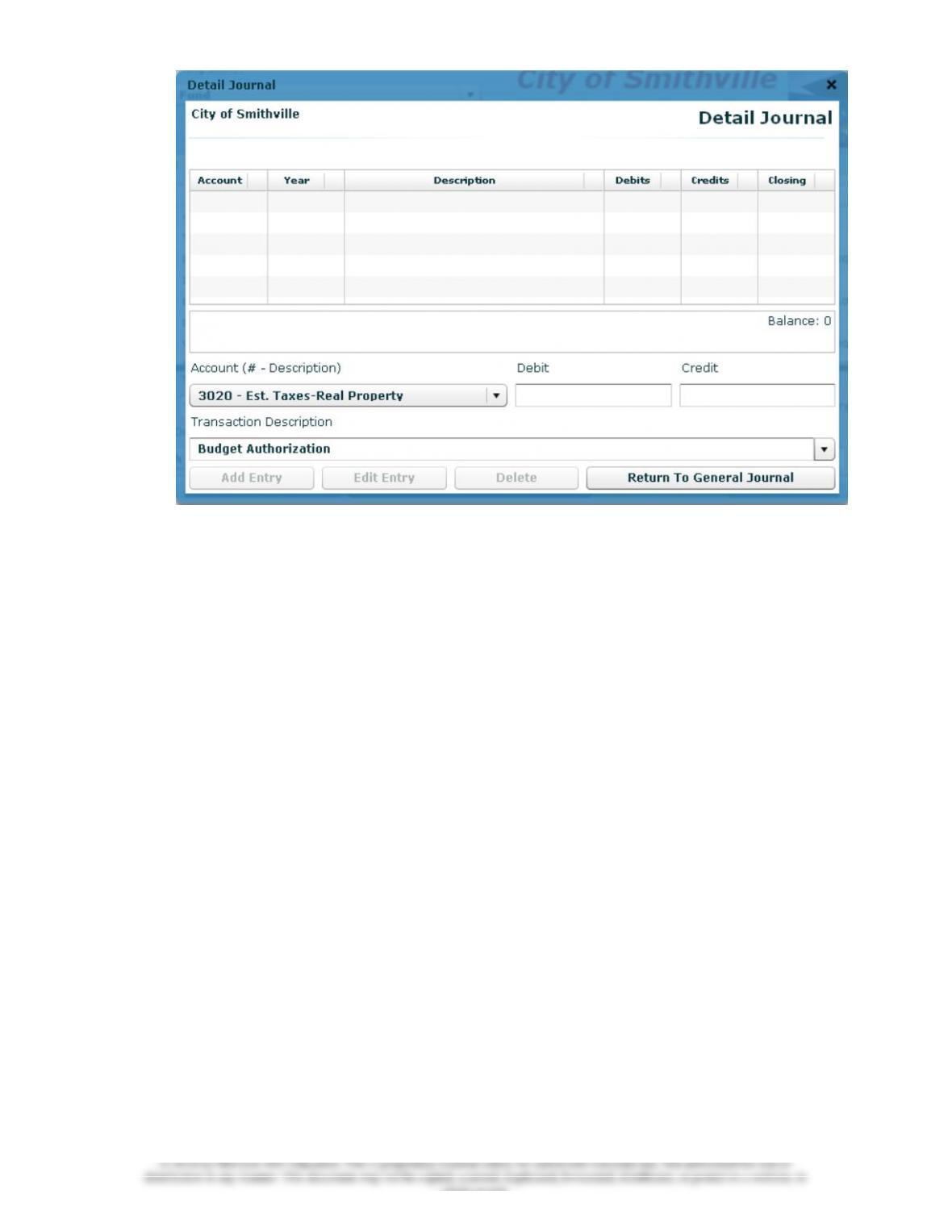
The General Fund of the City of Smithville uses a Detail Journal to avoid
recording operating or budget detail in the general journal/ledgers.
If you choose a control account that has subsidiary detail associated with it, you
will be taken directly to the Detail Journal. If you attempt to edit a journal entry
that has associated subsidiary detail, you will automatically be prompted to also
open the Detail Journal for editing, if desired.
The Detail Journal screen for the General Fund appears as shown on the following
page.
whole or part.
11
The Detail Journal operates very similar to the entry screen on the General
Journal. Fill in the boxes or, in the case of the [Transaction Description] box,
select a description from the drop-down menu, and click [Add Entry]. The
balance of the entries for this transaction is automatically updated. When you exit
the Detail Journal the balance will be entered into the control account amount in
the General Journal. Please note that the year and reference numbers of these
transactions are based on the originating entry (the line in the General Journal).
Printing Reports
All of the reports for the City of Smithville are available through the Reports
menu. Simply go to the menu and click on the report you want. To print, click on
the “Print” icon and print in the normal manner. If you need to create a “Save as
Printable .pdf File,” accept the default file name and save location, or change the
name and/or location if you prefer.
Exporting Trial Balances
To make it easier to prepare financial statements/schedules, spreadsheet files for
all trial balances for each entity and each year of transactions, as well as detail
subsidiary account balances (General Fund only), can be exported to either Excel
or CVS for non-Microsoft applications. To export an item, select it from the
[File], [Export] menu, accept the default file name and folder location, and save
it. You can change the file name and/or location if you prefer.

whole or part.
12
Completing Chapters 2 through 11 of the City of Smithville Full
Version
Foreword
This full version of a cumulative problem written for the computer presents a series of
transactions covering activities for the City of Smithville, assuming the city utilizes the
dual-track accounting approach to the GASB reporting model described in Reck and
Lowensohn, Accounting for Governmental & Nonprofit Entities, 17th edition. The
transactions presented relate to the city’s General Fund, capital projects, debt service,
enterprise, and fiduciary funds, as well as to an additional accounting entity,
governmental activities at the government-wide level. The transactions and instructions
in this series are designated Chapter 2, Chapter 3, etc., corresponding to the chapters of
Reck and Lowensohn, Accounting for Governmental & Nonprofit Entities, 17th edition.
You should begin the project with Chapter 2 of the instructions as you complete Chapter
2 of the textbook. Some problems require you to print trial balances or other documents.
Other problems require the preparation of financial statements or other documents. The
specified documents can either be turned in chapter by chapter or retained in a cumulative
folder until the end of the project, depending on your instructor’s preference and
instructions. Some instructors may prefer that you electronically submit your project data
file and either Excel or .pdf files containing your trial balances, financial statements, and
other documents, rather than submitting printed copies.
To minimize errors, you should read and follow all instructions carefully. Students find
that this computerized cumulative problem significantly enhances their learning if they
complete each City of Smithville chapter as the corresponding chapter of the textbook is
covered. Conversely, students who procrastinate often find that the project takes more
time than they expected and that it is harder to recall how to make the journal entries
covered in the earlier chapters. Thus, delaying until your project is nearly due may
increase the total time it takes you to do the project and leave you little time for anything
else that week. So, our advice is to stay current with the project.

whole or part.
13
Chapter 2 Opening the Books
The City of Smithville just implemented a dual-track computerized accounting system,
which provides files for general journal entries and posting to appropriate general
ledger/subsidiary ledger accounts. Budgetary, operating statement, and balance sheet
accounts are provided for the General Fund and the other governmental fund types.
Operating statement accounts and balance sheet accounts are also provided for
governmental activities at the government-wide level and the proprietary and fiduciary
funds of the City of Smithville that you will use in Chapters 5-9 of the problem. As the
city’s new accountant (lucky you!), it is your job to enter the city’s initial accounting
information as of December 31, 2016, in preparation for placing the new accounting
system in full operation effective January 1, 2017.
Required
Open the City of Smithville software by clicking on the Cities of Smithville and
Bingham program. If creating a new project, click [Create New Project], when the
[Create New Project] window appears choose City of Smithville from the [Choose a
City] drop down menu. In addition, in the [Enter your name] box type your name so
that it will appear on all printable reports, and click [Create]. This will create the project
and provide access to all of the funds and accounts that you will need to complete the
Full Version City of Smithville cumulative problem.
To protect yourself from possible hard drive failure or corruption of your project data
file, we recommended that you save your file to not only your hard drive but also another
location (e.g., flash drive or the cloud), creating a backup file for your project at the end
of each session.
To open an existing project, click on [Open Existing Project] in the opening window.
a. If it is not already displayed, select [General Fund] in the [Current Accounting
Entity] window and the [Accounts] tab. Clicking on the [Accounts] tab allows you
to see the chart of accounts that will be used for the [General Fund]. A different
chart of accounts is provided for each of the accounting entities. Next, select the
[Journal] tab and click the drop down menu for [Account (# – Description)]. You
will see the same general ledger accounts that were listed when you clicked on the
[Accounts] tab. (Note: For purposes of this exercise, date suffixes are omitted from
the Expenditures and Encumbrances accounts as expenditures occur only from a
single year’s appropriations.) You will not use all of the accounts listed for this
project.
b. The trial balance for the General Fund of the City of Smithville as of December 31,
2016, follows. Select the [Journal] tab and create a journal entry to enter the
balance sheet accounts and amounts shown in the trial balance (review software
operating procedures in Chapter 1 of these instructions if necessary). Be sure to
enter 2016 from the drop-down [Year] menu and enter the paragraph number from

whole or part.
14
these instructions in the [Transaction Description] box of the [Journal]. For this
entry you should enter 2-b. Select the appropriate accounts individually and insert
the appropriate amounts. (Note: Enter all dollar amounts without dollar signs,
without commas, and without decimal points. All amounts in this project should
be rounded to the nearest whole dollar unless instructed otherwise. For all
entries, it is vitally important that the correct year be selected.)
You must enter each account and amount one line at a time by clicking [Add Entry].
The year and transaction description need only be entered for the first line of the
journal entry; it will remain selected for the rest of the accounts. When you have
completed entering all account data and amounts, verify your entries, including date
and paragraph numbers. When you are sure that your entries are correct, click [Post
Entries] to post the items to the general ledger of the General Fund.
CITY OF SMITHVILLE
General Fund Post-Closing Trial Balance
As of December 31, 2016
General Ledger
Account Title Debits Credits
Cash $ 376,290
Taxes Receivable—Delinquent 391,756
Allowance for Uncollectible Delinquent Taxes $ 70,650
Interest and Penalties Receivable on Taxes 40,126
Allowance for Uncollectible Interest and Penalties 13,190
Due from Other Funds 12,000
Due from State Government 165,000
Inventory of Supplies 66,000
Vouchers Payable 272,187
Due to Other Funds 6,400
Due to Federal Government 135,720
Due to State Government 32,600
Fund Balance—Nonspendable—Inventory 66,000
of Supplies
Fund Balance—Restricted—Public Safety 15,000
Fund Balance—Committed—Public Works 29,700
Fund Balance—Assigned—Culture and Recreation 56,800
Fund Balance—Unassigned 352,925
Totals $1,051,172 $1,051,172
Unpost capability. As discussed in Chapter 1 of these instructions, the City of
Smithville software program permits students to “unpost” a particular batch of posted
transactions. Unposted entries then can be edited and re-posted. In addition, any
omitted entries can be inserted above a selected journal line in any unposted batch of
entries. Recall from Chapter 1 that the insert function will not work when you try to

15
insert above an account that has a related subsidiary ledger. Prior to unposting a
batch, all batches must be posted.
Select [Reports, Trial Balances, Post-Closing Trial Balance] and print or save as a
.pdf file the post-closing trial balance for year 2016. Retain the printed trial balance
in your personal cumulative folder until the due date assigned by your instructor for
the project, or submit a saved version of the trial balance electronically if directed to
do so by your instructor.
c. Select [Governmental Activities, Government-wide Level] in the [Current
Accounting Entity] drop-down box and the [Accounts] tab. You will see most of
the accounts included in the preceding trial balance, plus many other accounts that
will be used in the various chapters of the City of Smithville project.
d. Select the [Journal] tab and create a journal entry to enter the statement of net
position (i.e., balance sheet) accounts and amounts shown in the following trial
balance. It is necessary to enter these items in the accounts of the governmental
activities category at the government-wide level as the general journal and general
ledger for governmental activities comprise a separate “set of books” from those for
the General Fund. Be sure to enter 2016 from the drop-down date menu and enter 2-
d in the [Transaction Description] box. Select each account individually and insert
the appropriate debit or credit amount for each account. When you have completed
entering the initial data, verify the accuracy and click [Post Entries] to post the
entry to the governmental activities, government-wide general ledger.
CITY OF SMITHVILLE
Governmental Activities Government-wide Level
Post-Closing Trial Balance
As of December 31, 2016
General Ledger
Account Title Debits Credits
Cash $ 376,290
Taxes Receivable—Delinquent 391,756
Allowance for Uncollectible Delinquent Taxes $ 70,650
Interest and Penalties Receivable on Taxes 40,126
Allowance for Uncollectible Interest and Penalties 13,190
Due from State Government 165,000
Internal Receivables from Business-type Activities 12,000
Inventory of Supplies 66,000
Land 4,180,000
Infrastructure 9,862,000
Accumulated Depreciation—Infrastructure 2,713,944
Buildings 6,296,000
Accumulated Depreciation—Buildings 1,731,000
Equipment 3,556,800
Accumulated Depreciation—Equipment 1,765,480