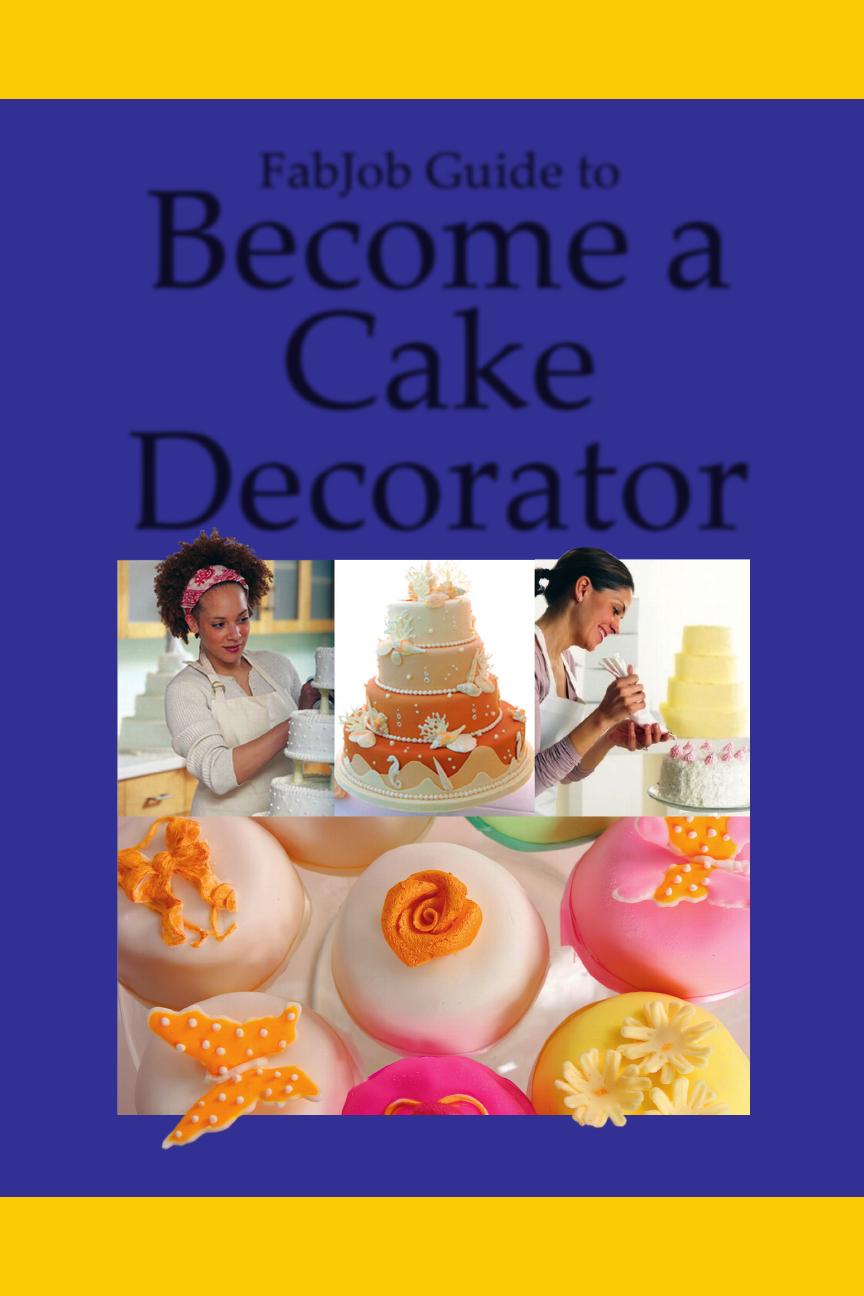
Start your own cake or cupcake business!
Jennifer James
FabJob Guide to
Become a
Cake
Decorator
Visit www.FabJob.com

FABJOB® GUIDE TO BECOME A CAKE DECORATOR
by Jennifer James
ISBN: 978-1-897286-23-4
Copyright Notice: This FabJob® guide is copyright © 2015 (first edition copyright
© 2009) by FabJob Inc. All rights reserved. FabJob has the exclusive right under the
U.S. Copyright Act (Title17, U.S.C. §106) to make and distribute copies of FabJob
guides and to make derivative works based on these guides. No part of any FabJob
guide may be reproduced, revised, or distributed in any form or by any means
(including photocopying, recording, or online) without our prior written permission.
Unauthorized copying of all or part of a FabJob guide constitutes copyright
infringement and may result in legal remedies including an injunction, statutory
damages of up to $150,000 per infringement, and possible criminal prosecution. FabJob
is represented in copyright matters by Christensen O’Connor Johnson Kindness PLLC.
Important Disclaimer: Although every effort has been made to ensure this guide is
free from errors, this publication is sold with the understanding that the authors, edi–
tors, and publisher are not responsible for the results of any action taken on the basis
of information in this work, nor for any errors or omissions. The publishers, and the
authors and editors, expressly disclaim all and any liability to any person, whether a
purchaser of this publication or not, in respect of anything and of the consequences of
anything done or omitted to be done by any such person in reliance, whether whole or
partial, upon the whole or any part of the contents of this publication. If expert advice
is required, services of a competent professional person should be sought.
About the Bonus Links in the Guide: Although we aim to provide the information
you need within the guide itself, we have also included a number of website links
because readers have told us they appreciate having convenient access to additional
information. We are not responsible for the content of any websites. Due to the constant
development of the Internet, links can change when people update or change their
websites.
To update links and any other information that has changed, we publish updates to our
guides when needed. Please email fabcare@fabjob.com to notify us of links that don’t
work, and we will reward you with a gift certificate for a 33% discount on any new
purchase of a FabJob guide.
www.FabJob.com

How to Use This Guide
To connect to Internet links
NOTE: The following instructions apply when reading this guide on a
desktop or laptop computer. They do not apply when reading
this guide on a handheld device.
When you see blue underlined type it is a link you can click to go directly to a
website, as long as the link has not changed since publication. If you find a dead
link you still may be able to find the web page using the “Wayback Machine”
at www.archive.org. You will need to be connected to the Internet to go to the
website. When you click on the link it will either open your Internet browser
software or, if it is already open, it will open the page within the browser. If
you have your browser open and minimized at the bottom of your screen, click
on it to view the webpage.
To move around
You can move through the guide in any of the following ways:
• You can simply start reading, and move around by using the scroll
bar on the right side of your screen. As you drag the scroll button, you
can see the page number indicated. (By the way, the Table of Contents
starts on page 4.)
• Another option is to use the arrow buttons. You can find the arrows
beside the white box indicating the page number (either at the top or
bottom of your screen, depending on which version of Adobe Reader
you are using). To go to a specific page, type it into the white box and
press enter.
• If you want to start with a particular topic, you can click on the topic that
interests you in the Table of Contents which begins on the next page.
You will then be taken to that topic. (The screen may be small when
you get there, so adjust the size using the instructions given below.)
• If you want to find a particular word or phrase, go to the Edit menu at
the top of your screen. From the drop-down menu choose “Find” or
“Search”, then type in the word or phrase you want to search for.
To read with ease and comfort
To read this guide most easily and comfortably, we recommend you adjust the
viewing size. You can easily change the viewing size to the one that’s best for
you by changing the percentage size. Click on the arrow to the right or left of
the percentage and you can adjust the size. A size of 100% will be comfortable
for many readers. If that looks too big or small on your screen, adjust the size
up or down to find the best size for you.

Contents
About the Author …………………………………………………………………10
About the Experts ………………………………………………………………..10
1. Introduction ……………………………………………………………………………… 11
1.1 Welcome to Cake Decorating ………………………………………………11
1.1.1 A Typical Day …………………………………………………………….12
1.1.2 The Market for Custom Cakes and Cupcakes …………….13
1.1.3 Benefits of this Career ………………………………………………..14
FabJob Guide to Become a Cake Decorator
Copyright © 2015 FabJob Inc. • www.fabjob.com • 4

1.2 Inside This Guide ……………………………………………………………….15
2. Designing and Decorating Cakes ……………………………………………..17
2.1 Cake Styles and Occasions ………………………………………………….17
2.1.1 Creative Cake Styles …………………………………………………..18
2.1.2 Wedding Cakes ………………………………………………………….19
2.1.3 Cakes for All Occasions ……………………………………………..20
2.2 Baking Your Foundation …………………………………………………….21
2.2.1 Baking Equipment and Tools ……………………………………..21
2.2.2 Pantry Supplies ………………………………………………………….24
2.2.3 Baking Up Success ……………………………………………………..25
2.3 Cake Design and Decorating ………………………………………………27
2.3.1 Design and Assembly ………………………………………………..27
2.3.2 Piping Tips and Techniques ……………………………………….30
2.3.3 Fondant and Gumpaste ……………………………………………..32
2.3.4 Sample Cake Decorating Projects ……………………………….36
3. Designing and Decorating Cupcakes ……………………………………….41
3.1 Why Cupcakes? ………………………………………………………………….41
3.1.1 The Trendy Cupcake ………………………………………………….41
3.1.2 The Appeal ………………………………………………………………..42
3.2 Cupcake Tools and Supplies ………………………………………………43
3.2.1 Baking ………………………………………………………………………..43
3.2.2 Decoration and Storage ……………………………………………..44
3.2.3 Transportation and Display ……………………………………….45
3.3 Baking and Decorating Cupcakes ……………………………………….46
3.3.1 Baking Cupcakes ……………………………………………………….46
3.3.2 Decorating Styles and Techniques ……………………………..48
3.4 Cupcake Decorating Ideas ………………………………………………….49
3.4.1 Hi-Hat Cupcakes ……………………………………………………….50
FabJob Guide to Become a Cake Decorator
Copyright © 2015 FabJob Inc. • www.fabjob.com • 5

3.4.2 Cupcake Bouquets ……………………………………………………..50
3.4.3 Ice Cream Cone Cupcakes ………………………………………….51
3.4.4 Cupcake Cakes …………………………………………………………..52
4. Developing Your Skills …………………………………………………………….53
4.1 Skills You Will Need …………………………………………………………..53
4.1.1 Interpersonal Skills …………………………………………………….54
4.1.2 Business Skills ……………………………………………………………55
4.1.3 Other Skills ……………………………………………………………….58
4.2 Learning on Your Own ……………………………………………………….60
4.2.1 Work for a Cake Decorator or Bakery …………………………60
4.2.2 Get Volunteer Experience …………………………………………..61
4.3 Learn From Other Business Owners……………………………………62
4.3.1 Talk to Cake Decorators ……………………………………………..62
4.3.2 Join an Association …………………………………………………….64
4.3.3 Go Ahead and Practice ………………………………………………66
4.4 Educational Programs ………………………………………………………..66
4.4.1 Certificate Programs …………………………………………………..67
4.4.2 Workshops and Seminars …………………………………………..68
4.5 Resources for Self-Study ……………………………………………………..69
4.5.1 Books and Magazines ………………………………………………..69
4.5.2 Online Baking and Cake Resources ……………………………70
5. Starting Your Cake or Cupcake Business …………………………………72
5.1 Defining Your Niche …………………………………………………………..74
5.2 Options for Starting a Cake Decorating Business ………………..76
5.2.1 Working from Home ………………………………………………….76
5.2.2 Buy an Existing Business ……………………………………………79
5.2.3 Franchises ………………………………………………………………….86
5.2.4 Open a New Business ………………………………………………..90
FabJob Guide to Become a Cake Decorator
Copyright © 2015 FabJob Inc. • www.fabjob.com • 6

5.3 Choosing a Name for Your Business …………………………………..90
5.4 Writing a Business Plan ………………………………………………………92
5.4.1 What To Include In a Business Plan ……………………………93
5.4.2 Start-Up Financial Planning for a Home Business………99
5.4.3 Start-Up Financial Planning for a Retail Shop …………..103
5.4.4 Sample Business Plan for a Retail Cake Shop……………112
5.5 Start-Up Financing ……………………………………………………………127
5.5.1 Getting Prepared ………………………………………………………128
5.5.2 Equity vs. Debt Financing ………………………………………..130
5.5.3 Borrowing Money …………………………………………………….131
5.5.4 Finding Investors ……………………………………………………..133
5.5.5 Government Programs …………………………………………….136
5.6 Legal Matters …………………………………………………………………..137
5.6.1 Your Business Legal Structure ………………………………….137
5.6.2 Business Licenses ……………………………………………………..144
5.6.3 Taxes ………………………………………………………………………..145
5.6.4 Insurance ………………………………………………………………….147
5.6.5 Food Service Regulations …………………………………………151
6. Setting up a Retail Shop …………………………………………………………. 154
6.1 Finding a Location …………………………………………………………….154
6.1.1 Possible Locations …………………………………………………….155
6.1.2 Points to Consider ……………………………………………………157
6.1.3 Signing Your Lease …………………………………………………..160
6.2 Store Design ……………………………………………………………………..172
6.2.1 Outside the Shop ……………………………………………………..173
6.2.2 Inside the Shop …………………………………………………………175
6.2.3 Shop Security……………………………………………………………179
FabJob Guide to Become a Cake Decorator
Copyright © 2015 FabJob Inc. • www.fabjob.com • 7


6.3 Displaying Merchandise ………………………………………………….180
6.3.1 Maximizing Sales ……………………………………………………..181
6.3.2 Creating Window Displays ………………………………………181
6.4 Retail Equipment and Supplies …………………………………………184
6.4.1 Items You’ll Need …………………………………………………….184
6.4.2 Cake Shop Suppliers ………………………………………………..187
6.4.3 Other Suppliers ……………………………………………………….190
7. Running Your Business …………………………………………………………..193
7.1 Shop Operations ……………………………………………………………….193
7.1.1 Developing a Procedures Manual …………………………….193
7.1.2 Areas of Operations Checklists ………………………………..195
7.2 Inventory Software ……………………………………………………………197
7.3 Pricing Your Products ……………………………………………………….199
7.3.1 Guidelines ………………………………………………………………..199
7.3.2 Retail Pricing Formulas ……………………………………………199
7.3.3 Profit Margin vs. Percentage Markup……………………….200
7.3.4 Factors that Affect Pricing ………………………………………..202
7.3.5 Ways to Charge ………………………………………………………..205
7.4 Getting Paid ………………………………………………………………………206
7.4.1 Accepting Debit Cards ……………………………………………..207
7.4.2 Accepting Credit Cards ……………………………………………207
7.4.3 Accepting Payment Online ………………………………………209
7.4.4 Accepting Checks …………………………………………………….209
7. 5 Taking Orders …………………………………………………………………..209
7.5.1 Meeting with Clients ………………………………………………..210
7.5.2 Getting it in Writing …………………………………………………212
7.6 Financial Management ……………………………………………………..216
7.6.1 Bookkeeping …………………………………………………………….216
FabJob Guide to Become a Cake Decorator