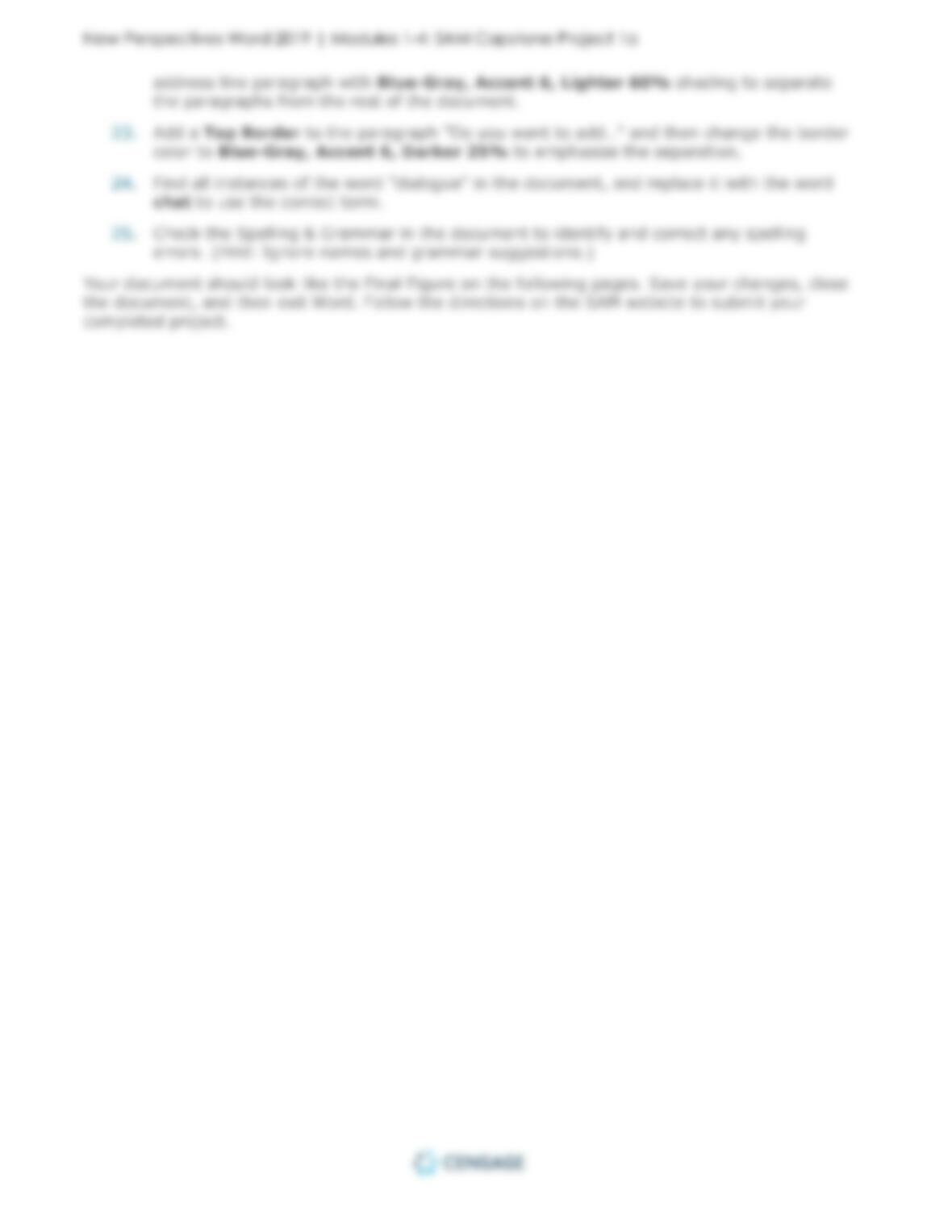
Wellhaven Insurance Group
COMPLETING A CUSTOMER SERVICE HANDBOOK
GETTING STARTED
• Open the file NP_WD19_CS1-4a_FirstLastName_1.docx, available for download
from the SAM website.
• Save the file as NP_WD19_CS1-4a_FirstLastName_2.docx by changing the “1” to a
“2”.
o If you do not see the .docx file extension in the Save As dialog box, do not type it.
The program will add the file extension for you automatically.
• To complete this SAM Project, you will also need to download and save the following
data files from the SAM website onto your computer:
o Support_WD19_CS1-4_Customers.docx
o Support_WD19_CS1-4_Icons.png
• With the file NP_WD19_CS1-4a_FirstLastName_2.docx still open, ensure that your
first and last name is displayed in the footer.
o If the footer does not display your name, delete the file and download a new copy
from the SAM website.
PROJECT STEPS
1. As the assistant director of training in the Customer Service Department at Wellhaven
Insurance Group, you are completing a handbook for customer service agents. On page
1, rotate the picture to the right by 90° so that it has the correct orientation.
2. Change the theme colors of the document to Paper to coordinate with the company
colors.
3. On page 2, insert a Dropped Drop Cap at the beginning of the first body paragraph (“At
Your Service is a digital tool…”) to mark the beginning of the body text.
4. Provide more detailed information as follows:
a. Find the sentence “Customers prefer using…exchanging email messages.”
b. After the period at the end of the sentence, insert a footnote with the following
text:
About 55 percent of our customers prefer live chat.
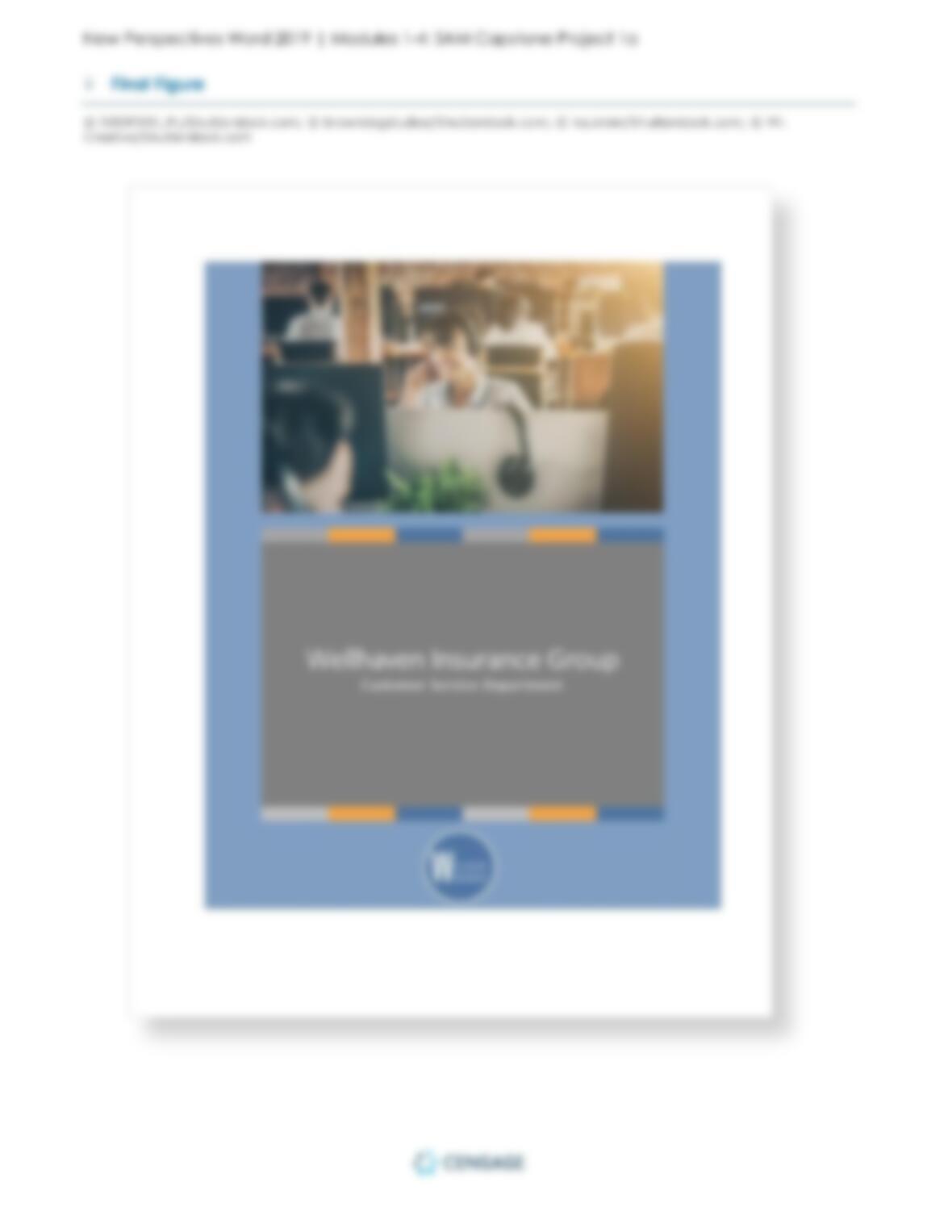
5. Insert a picture as follows to illustrate the options in the At Your Service app:
a. Insert the picture Support_WD19_CS1-4_Icons.png in the blank paragraph
after step 2 in the “Getting Started with At Your Service” section.
b. Resize the picture to a width of 2″.
New Perspectives Word 2019 | Modules 1-4: SAM Capstone Project 1a

New Perspectives Word 2019 | Modules 1-4: SAM Capstone Project 1a
6. Add visual interest to the “Chatting with Customers” section as follows:
a. To the left of the “Customers can use…conduct the dialogue.” paragraph, insert a
Speech Bubble: Rectangle with Corners Rounded shape from the Callouts
section of the Shapes gallery. [Mac Hint: Rounded Rectangular Callout]
b. Resize the shape to a height of 0.5″ and a width of 0.5″.
c. Apply the Colored Fill – Orange, Accent 2 shape style.
d. Type three periods (an ellipses) into the shape.
e. Change the font size of the shape text to 18 point.
f. Apply Square text wrapping to the shape.
g. Move the anchor point of the shape to the beginning of the paragraph “Customers
can use At Your Service….”
7. Format the paragraphs in the “Chatting with Customers” section as follows:
a. Create a bulleted list beginning with the paragraph “At Your Service…Can I help
you?” and ending with the paragraph “Click the More button…and previous visits.”
b. Increase the indent of the paragraph “When you receive…the conversation.” and
the paragraph “As you type…you are responding.” by one level.
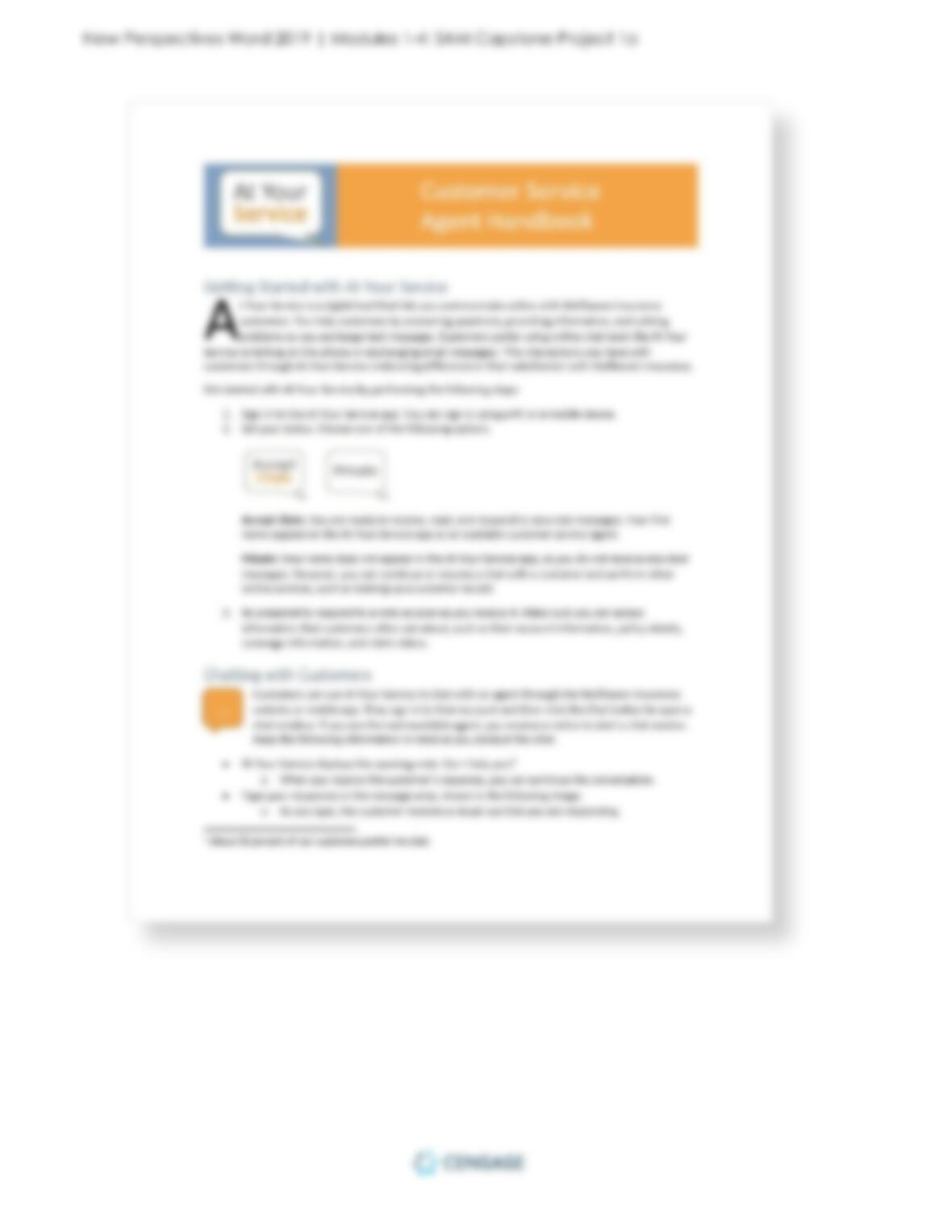
8. On page 3, add a border to the picture of the app using the Blue-Gray, Accent 6
border color.
9. Illustrate ways to increase customer satisfaction as follows:
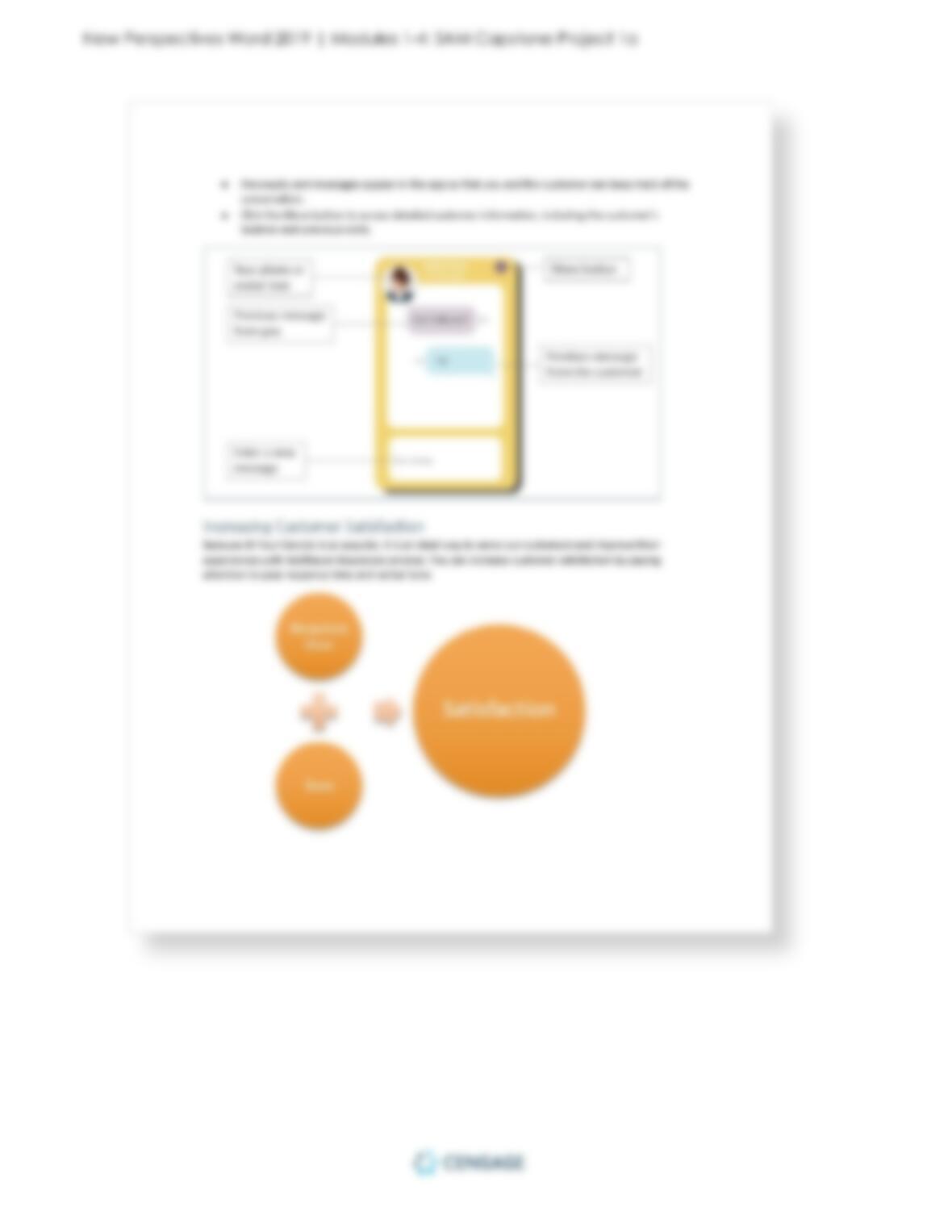
a. In the blank paragraph in the “Increasing Customer Satisfaction” section, insert a
Vertical Equation SmartArt from the Relationship section of the SmartArt gallery.
b. Enter the following text in the shapes:
Upper-left shape: Response time
Lower-left shape: Tone
Right shape: Satisfaction
10. Format the SmartArt as follows to suit the appearance and layout of the document:
a. Change the SmartArt colors to Colored Fill – Accent 2.
b. Change the SmartArt style to Moderate Effect.
c. Resize the SmartArt to a height of 3.1″.
11. On page 4, use the Format Painter to copy the formatting from the text “Response time”
to the text “Customer information” to use consistent font formats in the “Interacting
with Customers” section.
12. Insert a Continuous section break in each of the following locations on page 4 to
prepare for inserting columns and balancing them:
a. At the beginning of the paragraph “Response time…long it will take.”
b. In the blank paragraph above the “Creating Cases” heading
13. Format the section you created (beginning “Response time…” and ending “…the key to a
solution.”) into two columns.
New Perspectives Word 2019 | Modules 1-4: SAM Capstone Project 1a
14. Insert and format a text box as follows to provide additional information about customer
cases:
a. Draw a text box to the right of the paragraph “When a customer has…handling
each day.” in the “Creating Cases” section.
b. Resize the text box to a height of 1.29″ and a width of 3″.
c. Position the text box using the Middle Right with Square Text Wrapping
option.
d. Copy and paste the paragraph in the document Support_WD19_CS1-
4_Customers.docx, available for download from the SAM website, into the new
text box.
e. Apply the Subtle Effect, Orange, Accent 2 shape style to the text box.
15. Format the table in the “Creating Cases” section as follows to improve its appearance:
a. Apply the Grid Table 4—Accent 6 table style.
b. Merge the first two cells in the last row (cells A5 and B5).
c. Apply the Align Top Right alignment to the merged cell.
d. AutoFit the table to its contents.
16. In the blank cell of the table (cell C5), insert a formula that sums the values above the
cell.
17. Modify the table in the “Background Information” section as follows to add new