Data Modeler Tutorial: Modeling for a Small Library Database
In this tutorial, you will use Data Modeler to create models for a simplified library
database, which will include entities for books, customers (people who have library cards), and
transactions (checking a book out, returning a book, and so on).
You will perform the following major steps:
• Develop the Logical Model.
• Create Relationships between Entities.
• Save the Design.
• Export diagram
Develop the Logical Model
1. Run the datamodeler.exe
The Data Modeler window appears.
2. Save the Design.
Save the design of your new model by
clicking File, then Save. Specify the
location and name for the XML (or
.dmd) file to contain the basic
structural information (for example,
library_design1.xml).
3. Set Preferred data types
You can set commonly used Logical
data types as preferred by performing
the following steps:
• Select Tools > Preferences >
Data Modeler, and select the
Model node
• Select the types from the All
Logical Types section and move
them to the preferred area by
clicking the arrow
• Click OK
4. Adding Domains
In planning for your data needs, you have determined that several kinds of fields will occur
in multiple kinds of records, and many fields can share a definition. For example, you have
decided that:
• The first and last names of persons can be up to 25 characters each.
• Street address lines can be up to 40 characters.
• City names can be up to 25 characters.
• State codes (United States) are 2-character standard abbreviations.
• Zip codes (United States postal codes) can be up to 10 characters (nnnnn-nnnn).
• Book identifiers can be up to 20 characters.
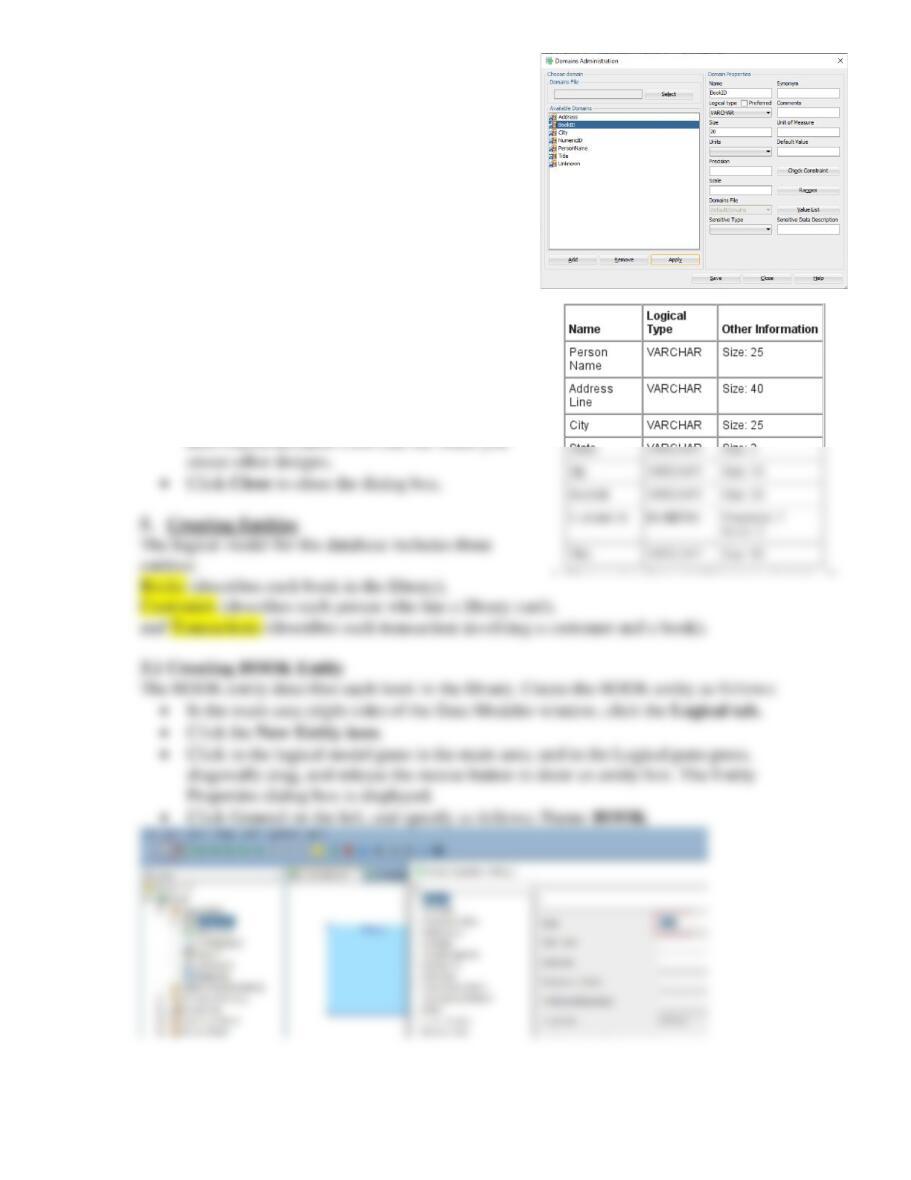
• Other identifiers are numeric, with up to 7
digits (no decimal places).
• Titles (books, articles, and so on) can be up
to 50 characters.
In the Tools/ Domains Administration dialog box,
add domains with the following definitions.
• Click Add to start each definition and click
Apply after each definition.
• When you have finished defining these
domains, click Save. This creates a file named
defaultdomains.xml in the
datamodeler\types directory under the location
where you installed Data Modeler.
• Optionally, copy the defaultdomains.xml file to
a new location (not under the Data Modeler
installation directory), and give it an appropriate
name, such as library_domains.xml. You can