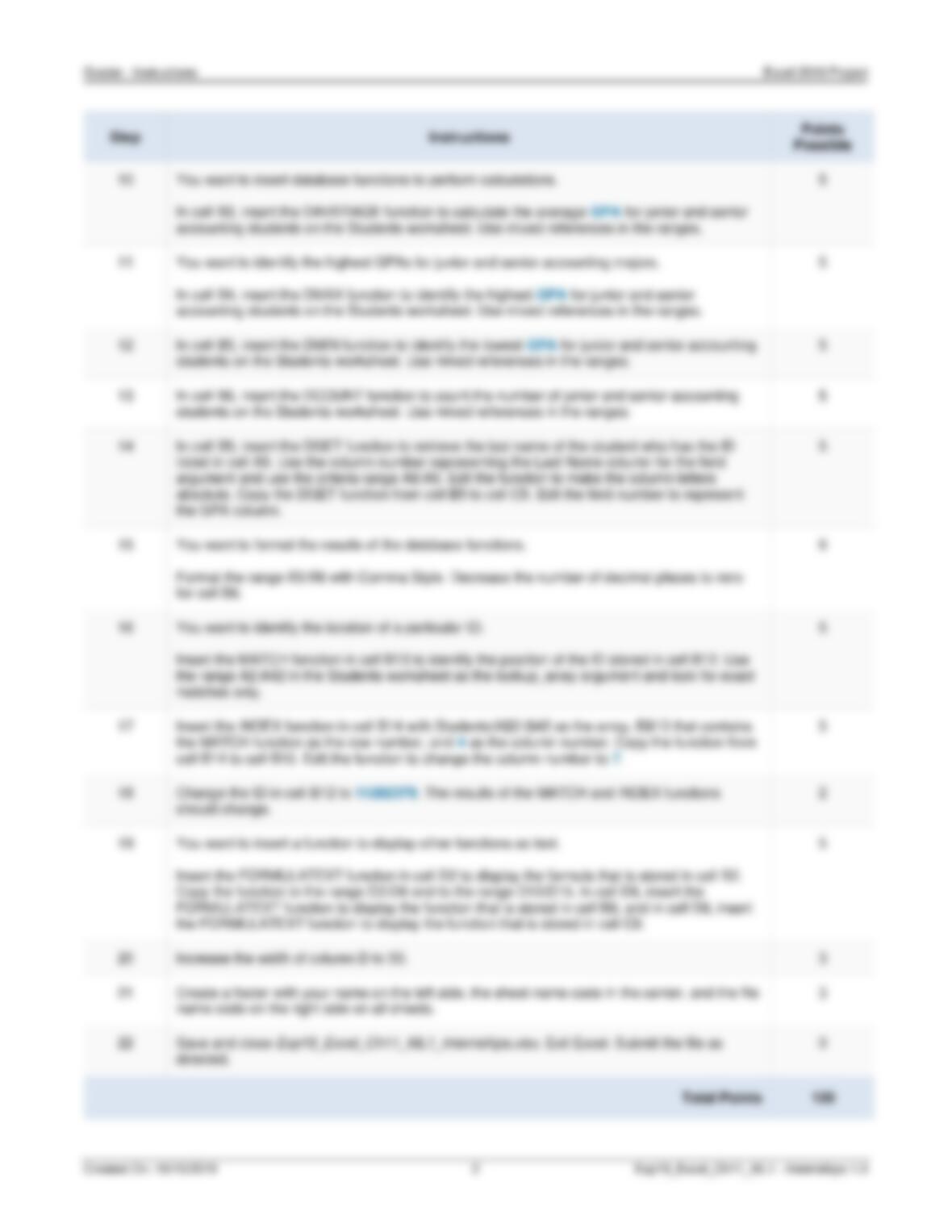
Grader – Instructions Excel 2019 Project
Exp19_Excel_Ch11_ML1_Internships
Project Description:
As the Internship Director for a regional university, you created a list of students who are currently in this semester’s internship
program. You have some final touches to complete the worksheet, particularly in formatting text. In addition, you want to
create an advanced filter to copy a list of senior accounting students. Finally, you want to insert summary statistics and create
an input area to look up a student by ID to display his or her name and major.
Steps to Perform:
Step
Instructions
Points
Possible
1
Start Excel. Download and open the file named Exp19_Excel_Ch11_ML1_Internships.xlsx.
Grader has automatically added your last name to the beginning of the filename.
0
2
You want to extract the last four digits of the student’s ID.
In cell B2 on the Students sheet, extract the last four digits of the first student’s ID using the
RIGHT function. Copy the function from cell B2 to the range B3:B42.
5
3
After extracting the last four digits of the ID, you want to align the data.
Apply center horizontal alignment to the range B2:B42.
2
4
The first and last names are combined in column C. You want to separate the names into two
columns.
6
Convert the text in the range C2:C42 into two columns using a space as the delimiter.
5
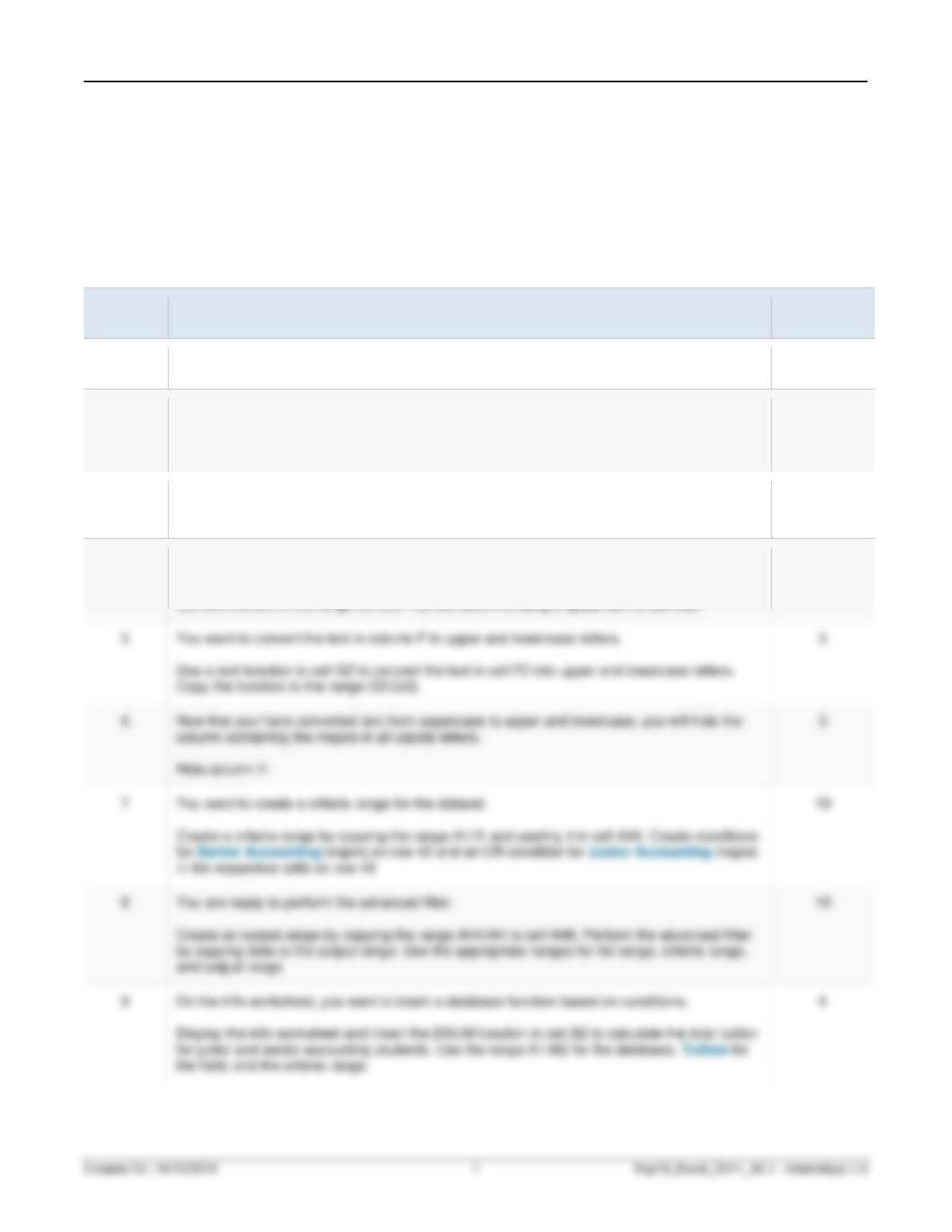
You want to convert the text in column F to upper and lowercase letters.
Copy the function to the range G3:G42.
5
6
Now that you have converted text from uppercase to upper and lowercase, you will hide the
Hide column F.
3
in the respective cells on row 46
Create an output range by copying the range A44:I44 to cell A48. Perform the advanced filter
by copying data to the output range. Use the appropriate ranges for list range, criteria range,
and output range
Display the Info worksheet and insert the DSUM function in cell B2 to calculate the total tuition
the field, and the criteria range.