Detailed walk through for Case Study A
Section 1: Set–up engagement and data import
Section 1 will describe the steps from creating an organization to adjusting the control point settings.
1.
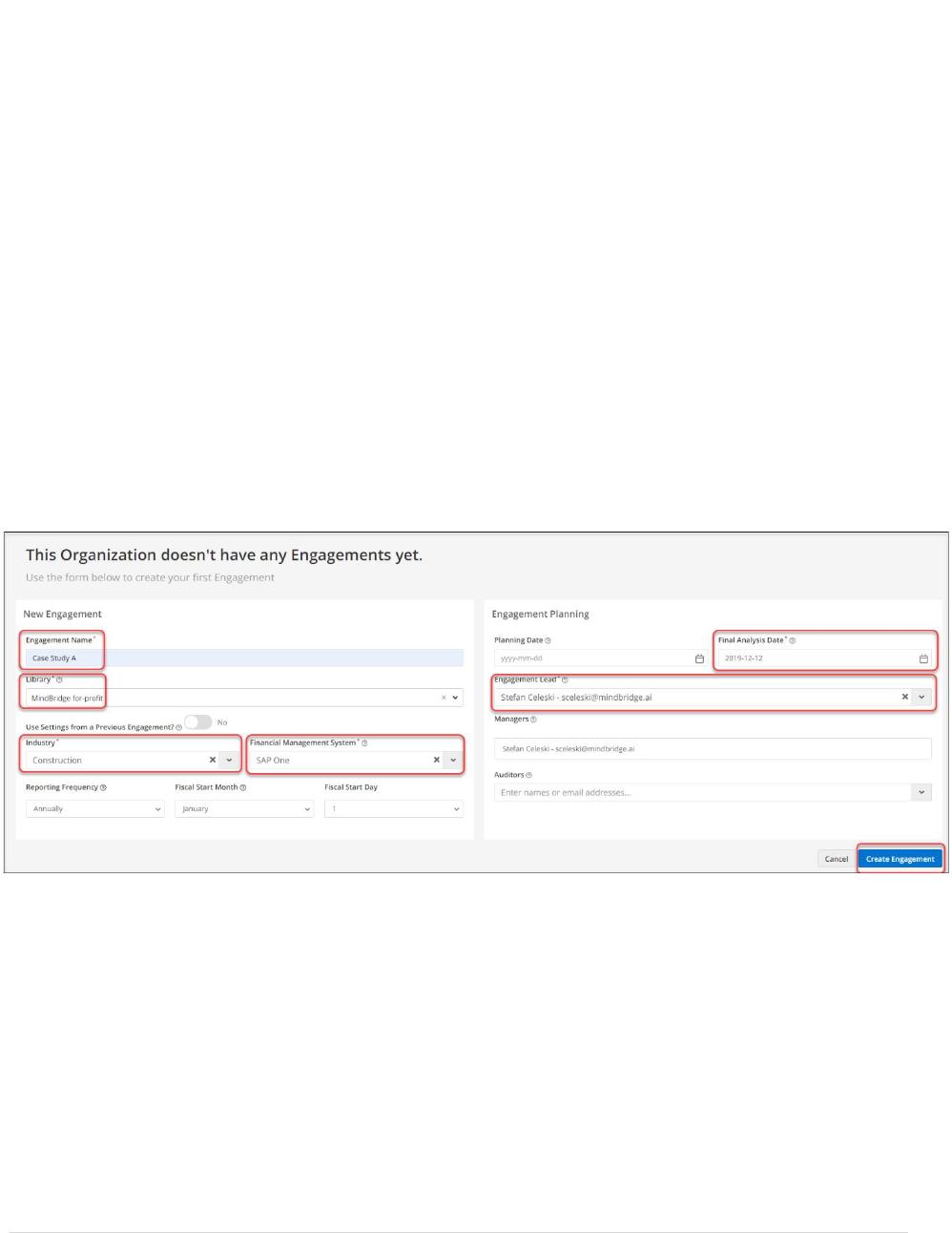
Create your organization
Action
• Click on the ‘create organization’ button on the organization page
• Type your name in the pop–up (if applicable add additional managers) and click ‘save’
2 | P a g e
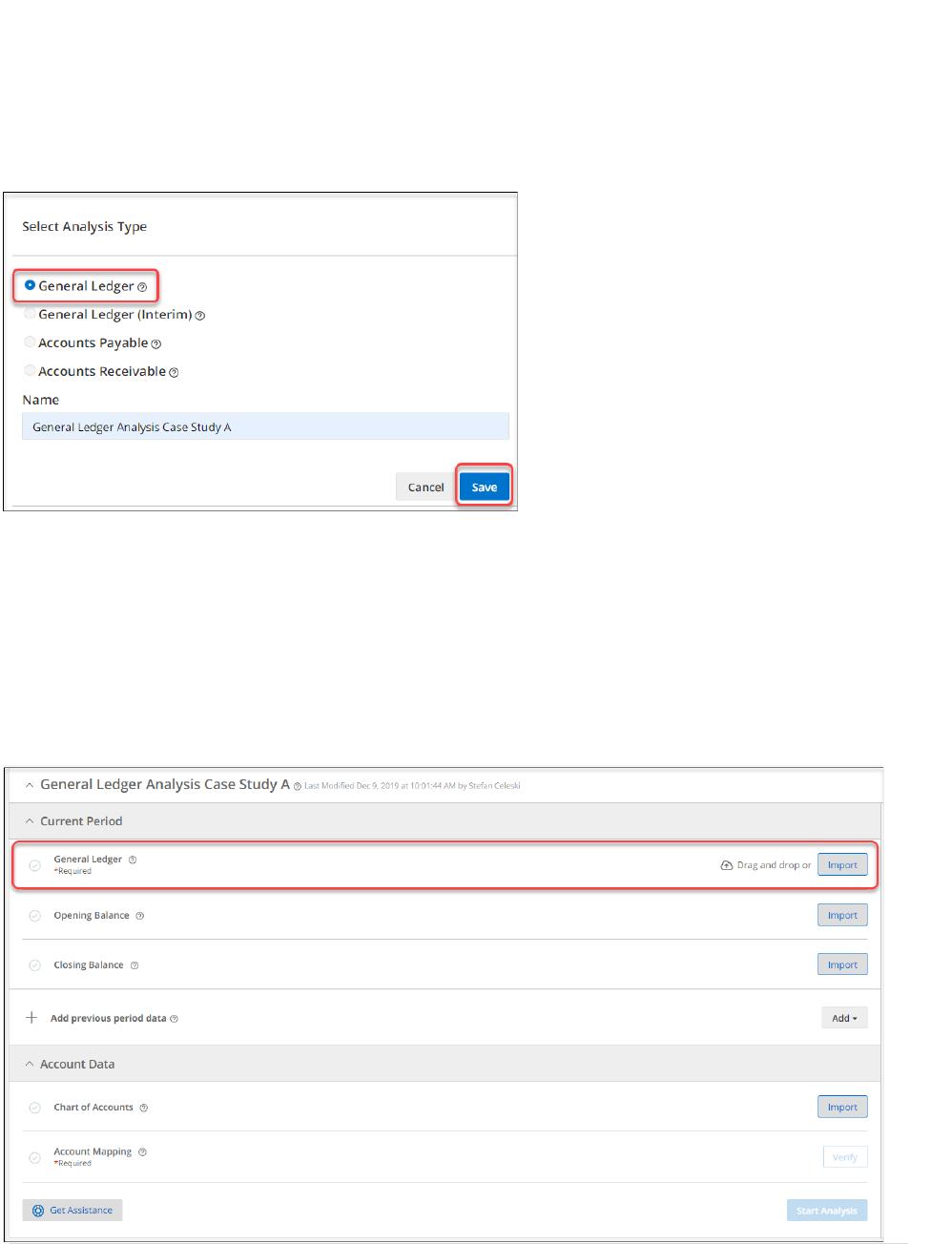
2. Create your engagement using the following settings
Action:
• Fill-in the required information in the engagement form and click ‘create’
New Engagement
• Engagement name: Case Study A
• Library: MindBridge for profit
• Industry: Construction
• Financial Management System: SAP One
Engagement Planning
• Final Analysis Date: ‘today’s date’
• Engagement Lead: Select yourself from the drop down
• Click ‘create engagement’
3 | P a g e
3. Select Analytics type
Action:
• Select the type ‘General ledger’, provide a name and click ‘save
4. Importing the General Journal
Action:
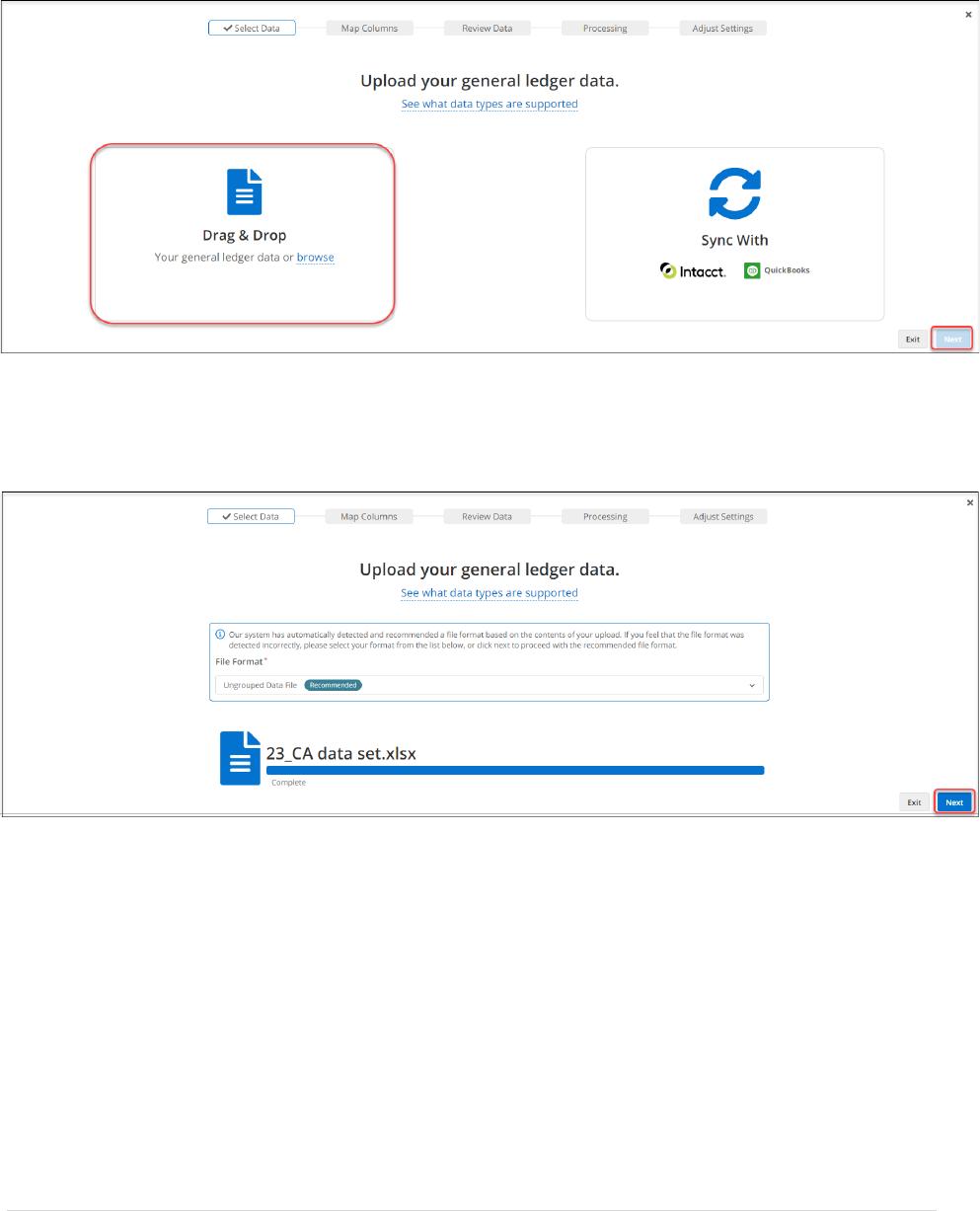
• Click on the data upload icon for the General ledger
4 | P a g e
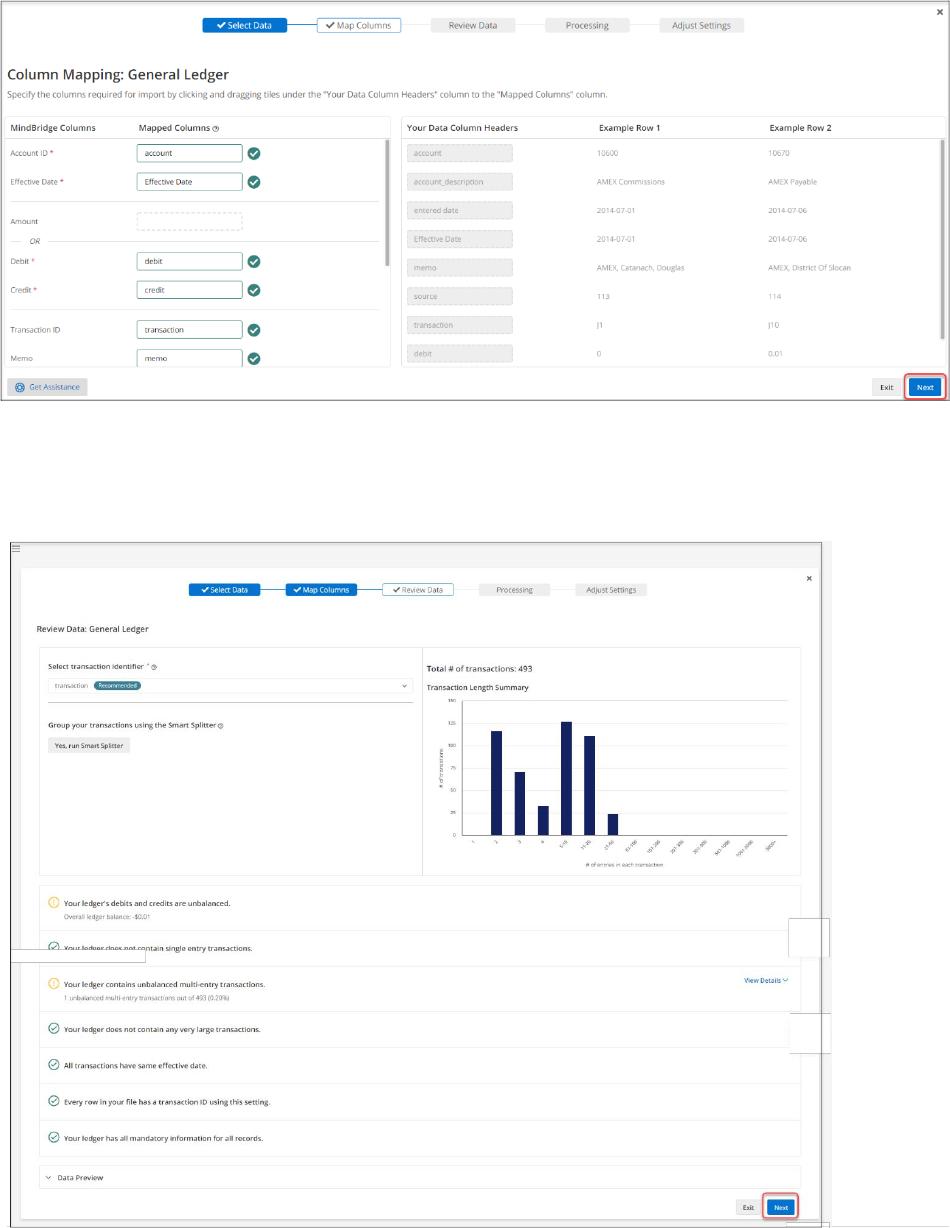
• Click ‘browse’ and upload the provided file
• Confirm ‘data selection’ by clicking ‘next’
5 | P a g e
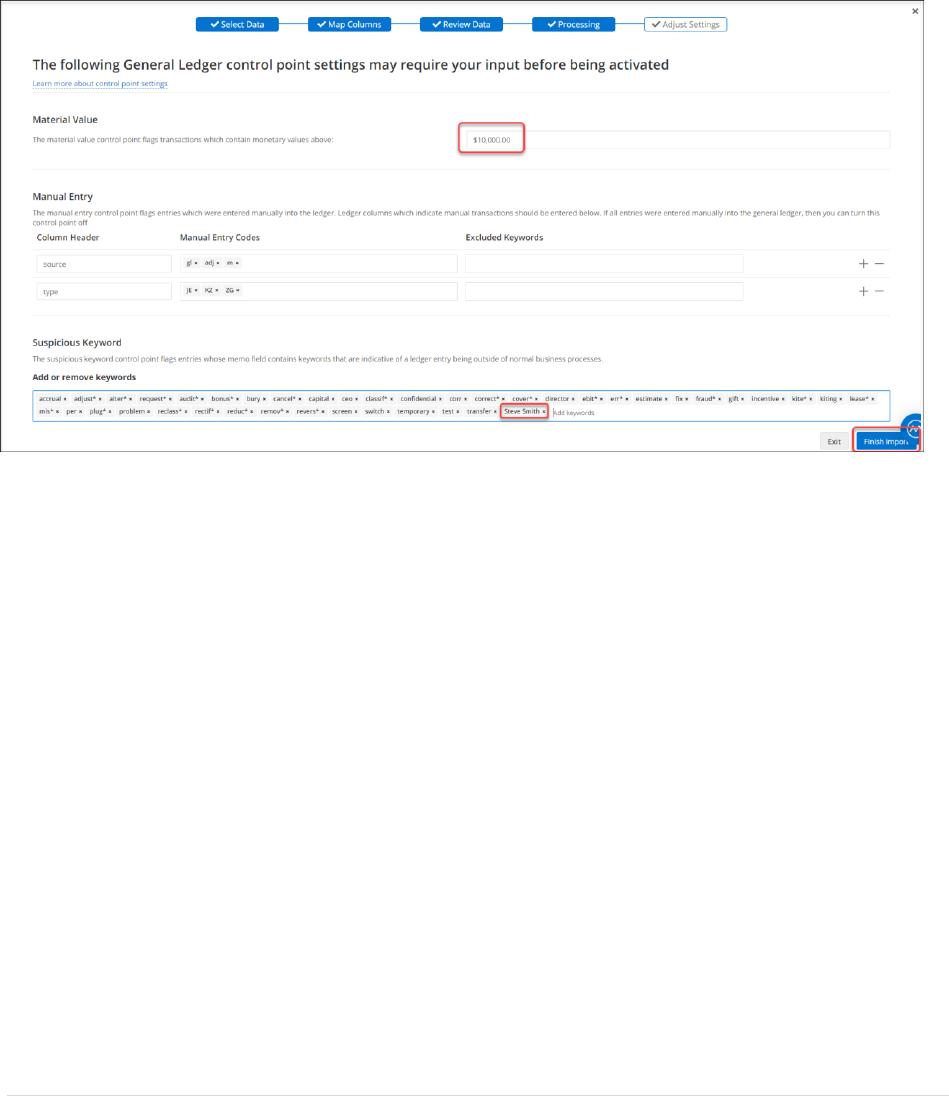
• Confirm ‘column mapping’ by clicking ‘next’
• Confirm ‘data review’ by clicking ‘next’
6 | P a g e
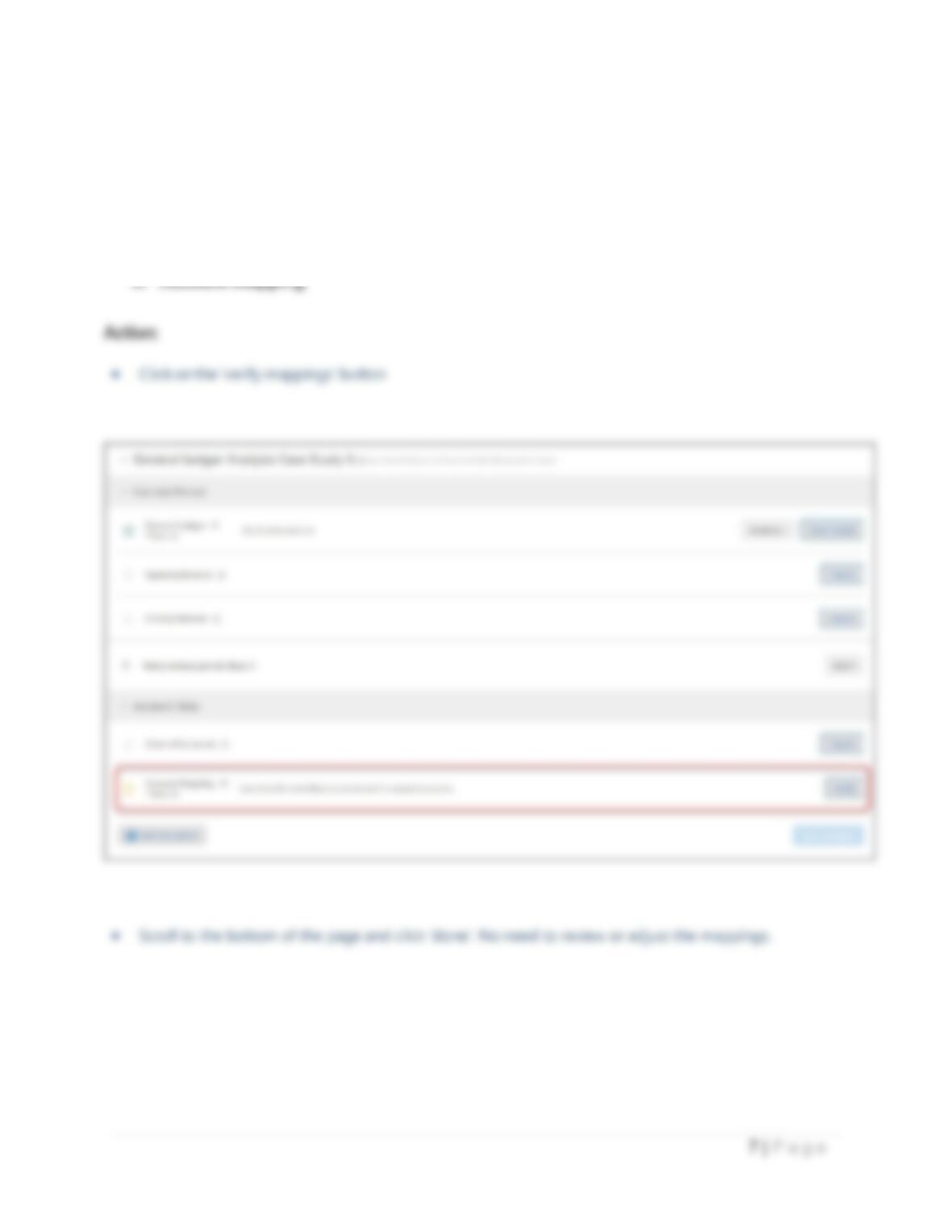
• Adjust the settings and click ‘finish import’
• Material Value: $10,000 (as per case study)
• Manual Entry: no adjustment required
• Suspicious keywords: Add Steve Smith (as per case study – CEO of the company)
• Click ‘finish import’
Section 2: Verify account mappings, adjust the risk scoring engine and start
the analysis
Section 2 will describe the steps for verifying the account mappings, adjustment the control point weightings
and starting the analysis.